Views browser and display modes
The Topology Studio landing page is the views browser: it lists every topology view your roles are allowed to read, and it is where you open, create, duplicate, export, import and delete views. Starting with TrackMe 2.4.15, the browser offers three display modes — Cards, Compact cards and List — a category filter next to the text search, and a deployment-wide default display mode that administrators choose in the System settings.
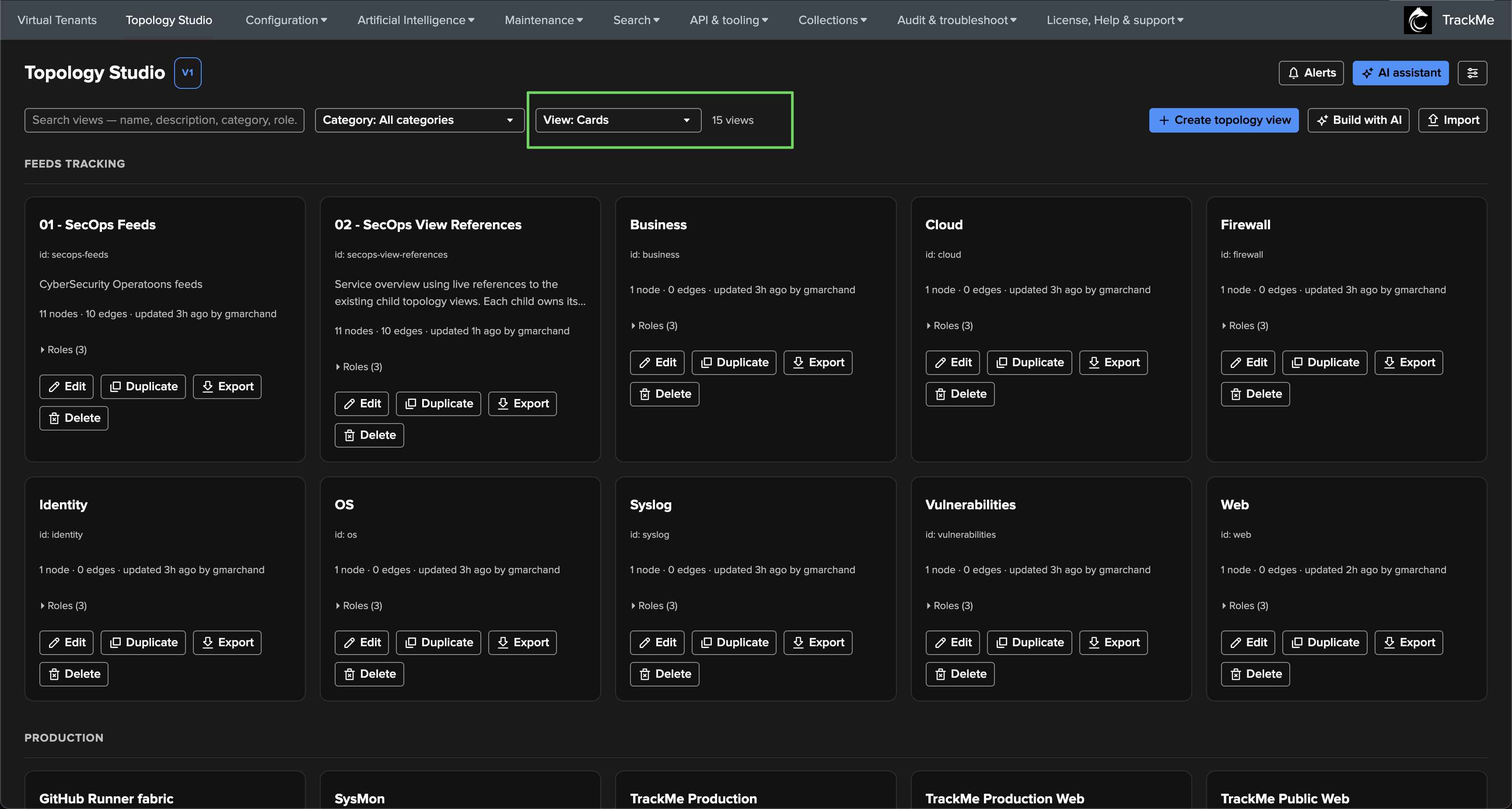
The three display modes
The View selector, next to the Category filter, switches between the three layouts. All three show the same views — the server filters the list against your roles before it reaches the browser — and all three honour the same permissions for every action; they differ in density and in how you scan the list.
Mode |
What each view shows |
Best for |
|---|---|---|
Cards (shipped default) |
Rich tiles grouped under category headings: display name and |
A handful of views per team, where the description and the last-update attribution matter at a glance. |
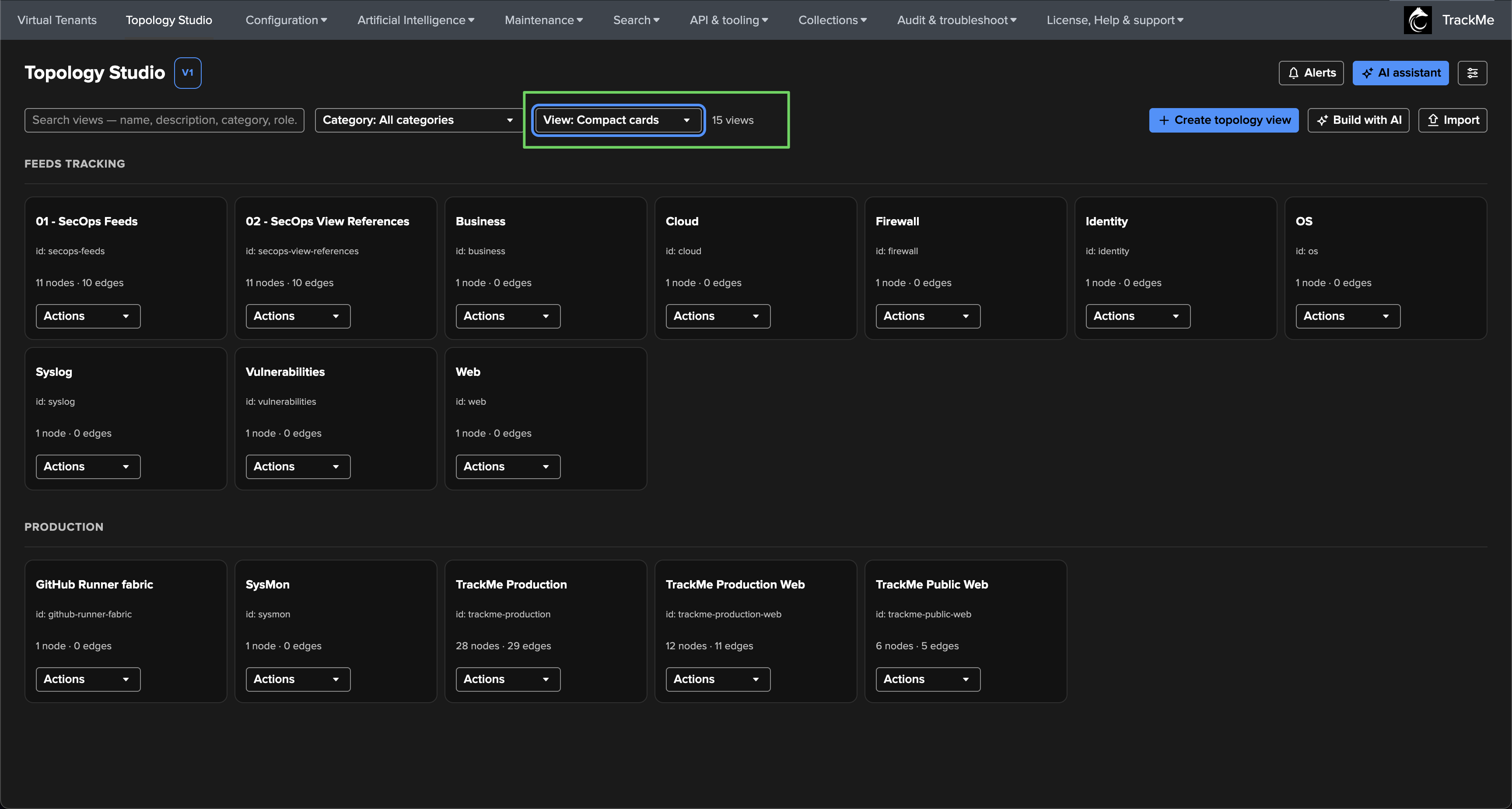
Compact cards |
Narrower tiles, still grouped by category: name, |
Many views on one screen while keeping the visual, category-grouped layout — a wall of small tiles you recognise by name. |
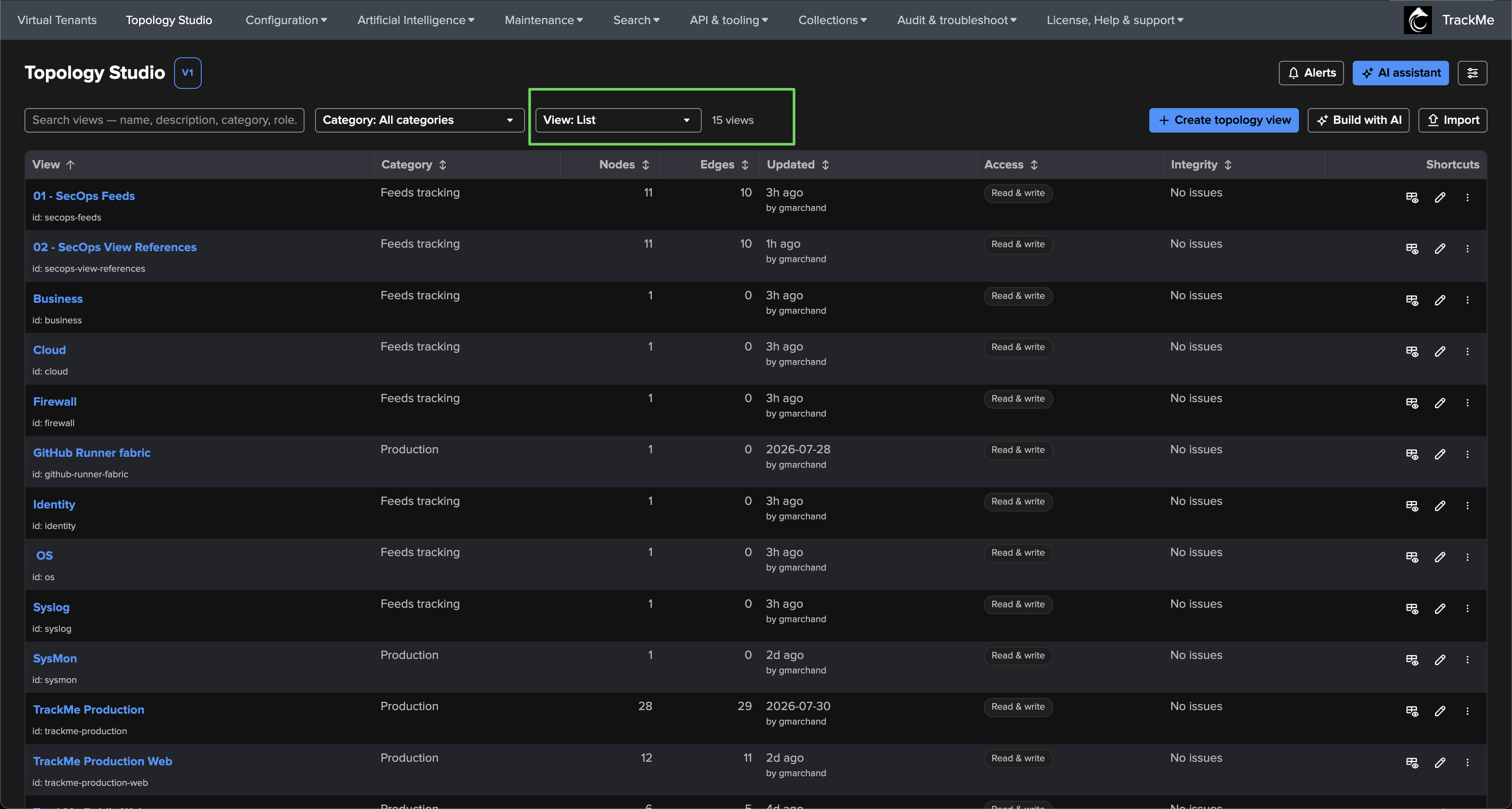
List |
One flat, striped table — no category grouping — ordered by view name by default, with sortable View, Category, Nodes, Edges, Updated, Access and Integrity columns and a Shortcuts column with direct Open / Edit buttons plus an overflow menu for Duplicate, Export and Delete. |
Large estates: scan dozens of views, sort by what was updated last, by integrity status or by access level, and open the right one in one click. |
Cards
Cards is the layout Topology Studio has always used, refined in 2.4.15. Views are
grouped under their category heading (the uncategorised bucket first, then
categories alphabetically — the grouping is case-insensitive, so Demo and
demo share one heading). Click anywhere on the card body to open the view; click
Roles to expand the two role lists (View and Edit); the read-only
badge tells you that you can consume the view but not modify it.
Compact cards
Compact cards keep the category grouping and shrink each tile to what identifies the view: its name, identifier, node and edge counts, and its integrity and read-only state. Everything you could do from a full card is still available from the Actions menu on the tile, filtered by your permissions on that view.
List
List renders the views as a single table you can sort by any column — click a column header to sort ascending, click again to reverse; ties are broken by view name. Category grouping is intentionally dropped in this mode: the Category column is sortable instead, and the Category filter above the table narrows the rows.
Column |
Content |
|---|---|
View |
The display name (click it to open the view) with the |
Category |
The view’s category, or Uncategorised. |
Nodes / Edges |
The saved graph’s node and edge counts. |
Updated |
How long ago the view was last saved, and by whom. |
Access |
Read & write or Read only — your effective access to that view. Hover the badge to see the view roles and, when you can write, the edit roles. |
Integrity |
The persisted integrity verdict: a badge with the number of critical or warning findings (click it to open the integrity panel), No issues, or Not reported when the view has not been checked yet. |
Shortcuts |
Open (the eye icon), Edit (the pencil — only when you can author and have write access to the view) and an overflow menu with Duplicate, Export and Delete, each shown only when permitted. |
Hint
The List table has a minimum width and scrolls horizontally on narrow screens rather than collapsing its columns — the View column stays readable first.
Searching and filtering
Two filters sit above the views in every mode, and combine:
Search — a free-text match against every human-meaningful field of the view metadata: display name, identifier, description, category, and the view/edit role lists. Typing
prodfinds the views categorised Production as well as the ones whose name or description mentions it.Category — a dropdown listing All categories, then Uncategorised and every category present in the views you can see, alphabetically. The choices come from the full list you have access to, so an active search never hides the other categories from the dropdown.
The counter next to the filters reports N of M views whenever a filter is active. When nothing matches, the browser says so and offers Clear filters to reset both the search and the category in one click. If a refresh or a deletion removes the category you had selected, the selection is kept — visibly — until you clear it, rather than silently showing unrelated views.
Note
Search and category selection are session-local: they reset when you leave the page. The display mode, on the other hand, is remembered — see below.
What is remembered, and where
Your display mode choice is a personal preference: the selector writes it into
TrackMe’s shared browser preferences cookie (trackme_user_preferences, the same
cookie that carries your other UI preferences). It therefore:
survives page reloads and reopening Topology Studio;
is per browser — a different browser or workstation starts from the deployment default until you pick a layout there too;
wins over the deployment default once set, even if an administrator changes the default later.
A missing, corrupt or unsupported cookie value is ignored and the browser falls back to the deployment default, then to Cards. Browsers that block cookies can still switch layout for the current visit — the choice simply is not persisted.
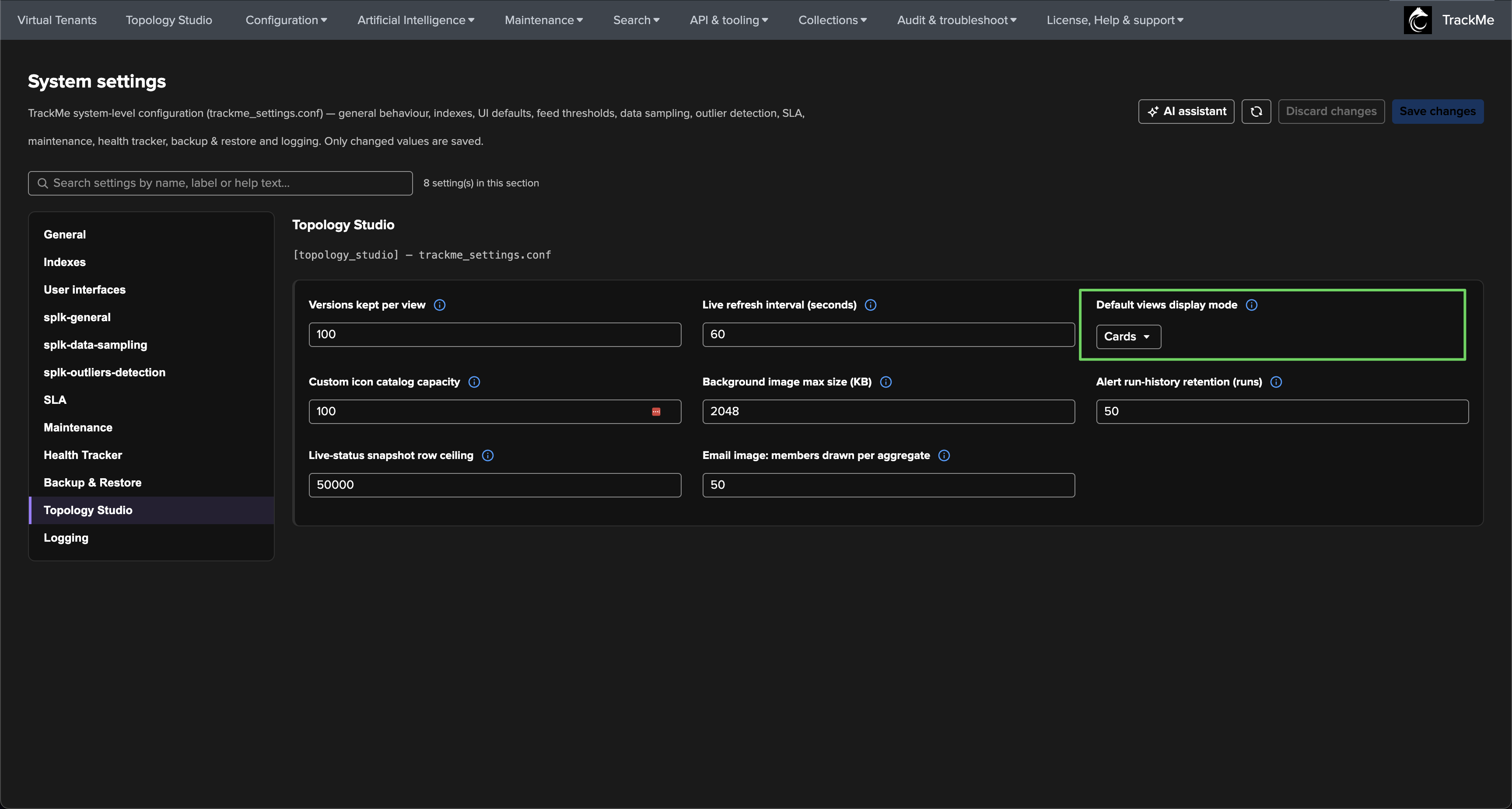
Deployment default — the administrator’s choice
From TrackMe 2.4.15, administrators choose the initial layout for the whole
deployment under Configuration → System settings → Topology Studio → Default views
display mode (topology_views_default_display_mode in the [topology_studio]
stanza of trackme_settings.conf): Cards, Compact cards or List.
The resolution order is simple:
the user’s own saved choice, when the preferences cookie holds a valid one;
otherwise the deployment default from the System settings;
otherwise Cards (when the setting is unavailable or invalid).
Changing the deployment default affects new users and users who never picked a layout; it does not reset the personal choices already stored in other users’ browsers. Pick Compact cards for deployments that expose many views but still benefit from a visual, category-grouped layout, and List when operators mostly scan, sort and open views from a dense table. See System-wide settings for the complete list of deployment-wide Topology Studio controls.
Permissions, in every mode
The display mode never changes what you can do — only how the controls are presented (buttons on a card, an Actions menu on a compact card, the Shortcuts column in the list). Every action is gated the same way in the three layouts, and re-enforced server-side:
Action |
Requires |
|---|---|
Open |
Read access to the view — every view listed qualifies. |
Export |
Read access to the view — every view listed qualifies. |
Duplicate |
TrackMe power permissions (the copy belongs to you); read access to the source is enough. |
Edit |
Power permissions and write access to that view. |
Delete |
Power permissions and write access to that view. |
Create, Build with AI, Import |
Power permissions; the buttons are hidden from user-tier roles. |
When the deployment is in license read-only mode, the authoring actions disappear in every layout while opening, exporting and reading stay available — see Licensing.
See also
Authoring topologies — creating a view, choosing its category and its view/edit roles.
View integrity and consistency checks — what the integrity badge and column report, and how to repair a view.
Administration — the role model behind the Access column and the deployment-wide settings.