Findings, Finding groups and findings actions
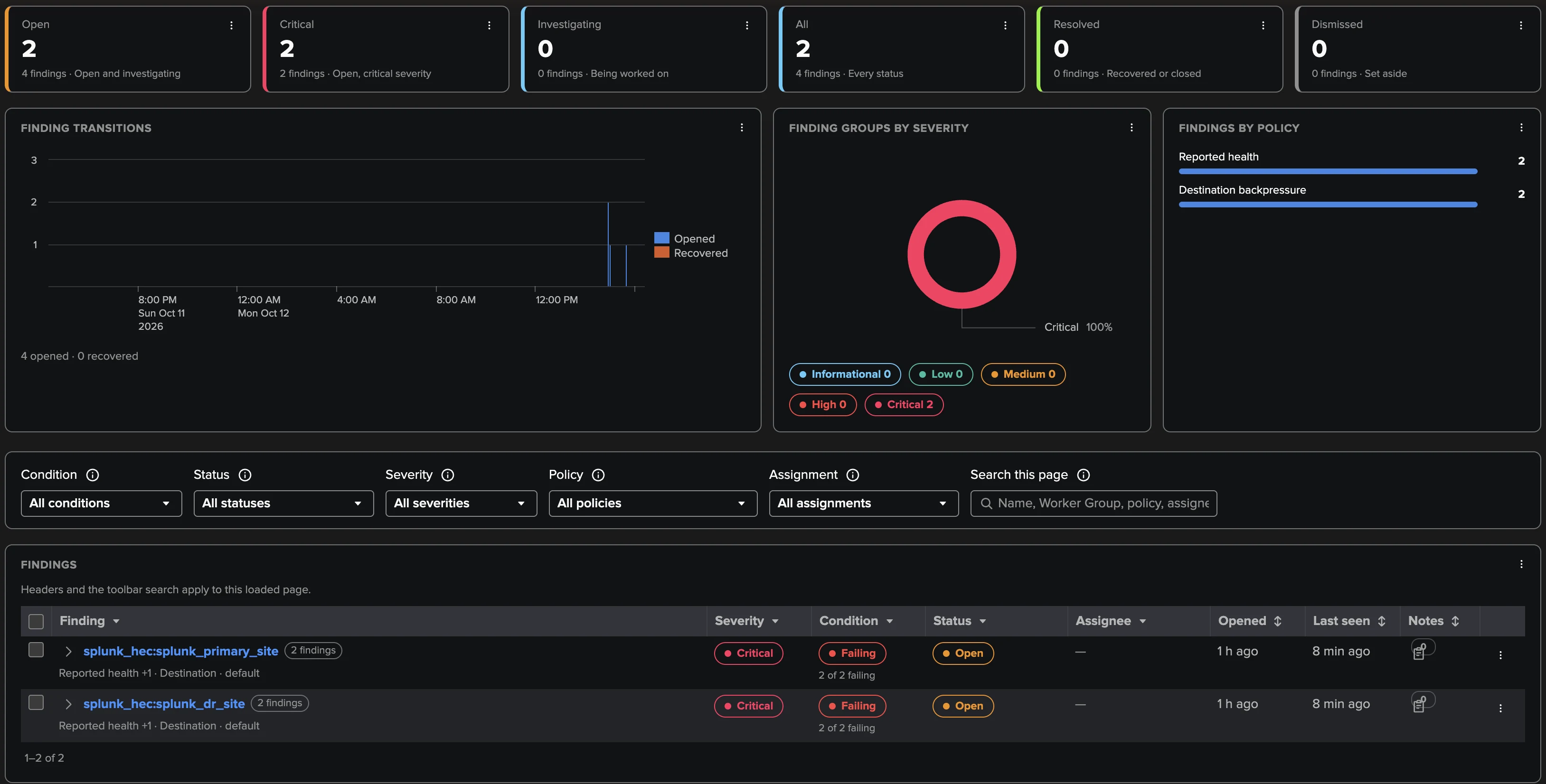
Four tenant types in TrackMe do not track entities with a state colour: User Activity Monitoring (UAM), Cribl Stream, Cribl Edge and Splunk HEC. They are dedicated findings tenants. Each one collects what it monitors on a schedule, evaluates a catalogue of policies against it, and raises a finding whenever a policy detects a condition on one subject: an account running all-time searches, a Worker Group under backpressure, an Edge Node that stopped reporting. A healthy object has no finding at all; the work queue only ever contains what needs a look.
This page explains the concepts the four tenant types share: what a finding is and how it lives, how findings are triaged together as Finding groups, how they are assigned and routed to teams, notified, acted upon with findings actions and Webhook accounts, and reviewed by the AI Agents. The pages of each tenant type document what they monitor, their policies and their own differences:
User Activity Monitoring — User Activity Monitoring
Cribl Stream and Policy catalogue — Cribl Stream
Cribl Edge and Built-in policies — Cribl Edge
Splunk HEC and Built-in policies — Splunk HEC
From policies to findings
The flow is the same in the three tenant types:
Collection jobs (scheduled reports run by TrackMe search jobs) build the inventory of the monitored objects and read their activity or their measurements.
Policies — built in, each one enabled or not, with a default severity, a scope and its own settings — are evaluated against what was collected. UAM also lets you write your own custom policies in SPL.
Every condition a policy detects on one subject is a finding. The same condition on the same subject is always the same finding: it keeps its identity, its evidence, its notes and its history across the collection runs.
Findings about the same object are triaged together as one Finding group.
Around that core: email notifications, assignment to users or teams, findings actions (drilldown searches, links, webhooks), the AI Agent, indexed finding events for your own Splunk alerts, Enterprise Security or SOAR, and a Collection health tab that tells you whether collection runs as configured.
Bank holidays. A findings tenant uses the bank holiday calendars like every tenant. While a holiday of its calendars is active, the policies set to hold open no new finding; each policy chooses it in its editor (During bank holidays: Hold new findings or Keep opening findings), with a default that suits it: the configuration reviews of UAM, Traffic outliers on Cribl Stream, Fleet connectivity and Fleet coverage on Cribl Edge, the traffic policies and Token silence on Splunk HEC hold; every other policy keeps opening findings, so a real failure on a holiday still opens its finding. A finding already open keeps being evaluated and can recover and close, a resolved or dismissed finding is not reopened by a held condition, and a calendar that cannot be read holds nothing. After the holiday, a condition that is still there opens its finding as on any other day.
How a findings tenant differs from an entity tenant
Entity tenants (DSM, DHM, MHM, FLX, FQM, WLK, VOL) |
Findings tenants (UAM, Cribl Stream, Cribl Edge, Splunk HEC) |
|
|---|---|---|
What you look at |
Entities that always exist and always have a state |
Findings: they exist because a policy detected something |
Health |
A state colour (green, orange, red, blue) driven by thresholds, outliers and an impact score |
A finding has a severity and an investigation status; there is no score and no state colour |
Alerting |
Stateful alerts (opened / updated / closed emails), notable events, acknowledgements |
Email notifications from the finding transitions, finding events, webhook automation rules |
Configuration |
Thresholds per tenant and per entity, priority / tag / SLA policies |
A policy catalogue with severities, scopes and settings |
Good at |
The continuous health of many similar things, at a glance, with SLA and KPI history |
Sparse, varied conditions that need an investigation, evidence, an owner and a recorded decision |
A tenant is either an entity tenant or one of the four findings tenant types, never a mix: each findings tenant type is created from its own card in the tenant creation wizard.
Which tenant types
User Activity Monitoring |
Cribl Stream |
Cribl Edge |
|
|---|---|---|---|
Findings are about |
Accounts and the saved searches they own (and other knowledge objects) |
The Leader, Worker Groups, Workers and Worker processes, Sources, Destinations, Pipelines, Routes |
The Leader, Fleets, Sources and Destinations, Edge Nodes |
A finding is |
One policy on one subject (an account or a saved search) |
One policy and one measurement on one object |
One policy and one measurement on one object |
When the condition goes away |
The finding reads not observed; it is never resolved for you |
A measured recovery resolves the finding automatically |
Same as Cribl Stream |
Automatic Finding group |
One per account: its findings plus those of the saved searches it owns |
One per object (a Worker machine with its processes) |
One per object (a Fleet, a node, a Source or Destination) |
Severities shown |
Low, Medium, High, Critical |
Informational, Low, Medium, High, Critical |
Informational, Low, Medium, High, Critical |
Dismiss until it recovers |
— |
Yes (the default) |
Yes (the default) |
Email action, direct user notifications |
Yes |
— |
— |
AI Agent |
UAM AI Agent |
Cribl Stream AI Agent |
Cribl Edge AI Agent |
Bank holidays (effects that apply) |
Suppress new alerts |
Suppress new alerts, Exclude from ML training |
Suppress new alerts |
Licence |
Any edition except Foundation |
Enterprise, Unlimited, trial and Developer licences |
Same as Cribl Stream |
A Splunk HEC tenant (Splunk HEC) reads like the Cribl Edge column: its findings are about HEC endpoints, pools and tokens, one policy and one measurement on one object; a measured recovery resolves the finding; each object has one automatic Finding group; it has its own AI Agent, the Splunk HEC AI Agent; and it needs the same licences as Cribl Stream.
Note
Every finding transition is also written as an indexed finding event in the
tenant’s notable index — sourcetype=trackme:uam:finding for UAM,
sourcetype=trackme:cribl:finding (and trackme:cribl:finding_group for the Finding
group transitions) for Cribl Stream, Cribl Edge and Splunk HEC, with
object_category=cribl_edge on Edge and object_category=splunk_hec on Splunk HEC.
Build your own Splunk alerts, Enterprise Security correlations or SOAR playbooks
on them.
A finding and its lifecycle
Identity
A finding is identified by its policy and its subject. On UAM the subject is an account or a saved search of the monitored environment; on Cribl Stream and Cribl Edge it is an object and the measurement the policy watches (a Worker process and its CPU, a Destination and its backpressure, an Edge Node and its connectivity). The identity is stable: when the same condition comes back on the same subject, it is the same finding again, with its earlier notes and history.
Each finding carries:
its evidence: what the policy measured or saw, and when (first seen, last seen);
a severity and an investigation status;
an optional assignee, notes (Markdown) and a full history of what changed, who changed it and why — an operator, the policy itself, TrackMe or the AI Agent.
Episodes: opens, recovers, reopens
A finding has two independent axes: whether the policy still sees the condition, and the status an operator gave it. How the first axis behaves follows the nature of the data, and that is the main difference between the tenant types.
Tenant type |
What happens when the condition goes away and comes back |
|---|---|
User Activity Monitoring |
A finding is observed while the policy sees the condition. After a complete policy evaluation that no longer sees it, the finding reads not observed — it is never resolved for you, because a configuration or a behaviour that disappears from one evaluation deserves a human decision. A resolved finding that is observed again is reopened. An evaluation that could not cover everything may add findings, never clear them. |
Cribl Stream and Cribl Edge |
The condition of a finding is failing, recovered, unknown or ended, and each failure is a numbered episode. A measured recovery resolves an open or investigating finding; a new failure reopens it as a new episode. An unknown measurement never counts as a recovery. TrackMe also closes findings automatically, always with a reason: the object was not evaluated for 24 hours, was removed from Cribl or is no longer listed, monitoring was turned off, the source of the tenant changed. |
Severity
The three tenant types use one severity scale. Every policy has a default severity, which you can change in the policy settings, and an operator can override the severity of a finding or a Finding group by hand (Set severity). Use policy severity (on a Finding group: Use member severity) removes the override.
Severity |
Meaning and use |
|---|---|
Critical |
Act now: an outage, a component that stopped, a change with an immediate impact. |
High |
Act soon: a degradation or a risk that is likely to become an outage. |
Medium |
Investigate: a deviation or a misconfiguration. The default severity of most policies and the default minimum severity of notifications. |
Low |
Worth knowing: a small drift, a hygiene topic. |
Informational |
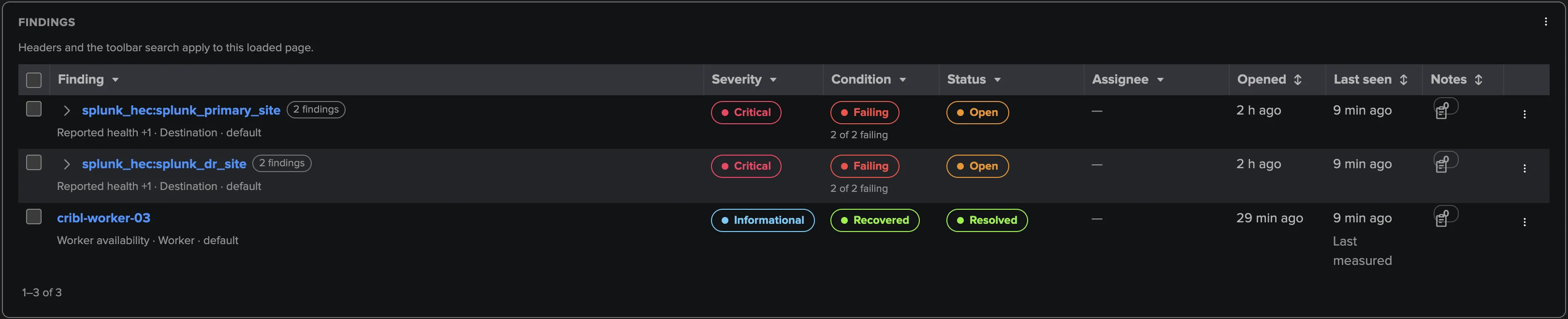
Cribl Stream and Cribl Edge only: how a finding (or a Finding group) is shown once it recovered, its episode ended or it was resolved. The finding keeps the severity it reached, which the tooltip of the Informational pill names, so you can still sort and filter on the real level. |
How each tenant type uses the scale:
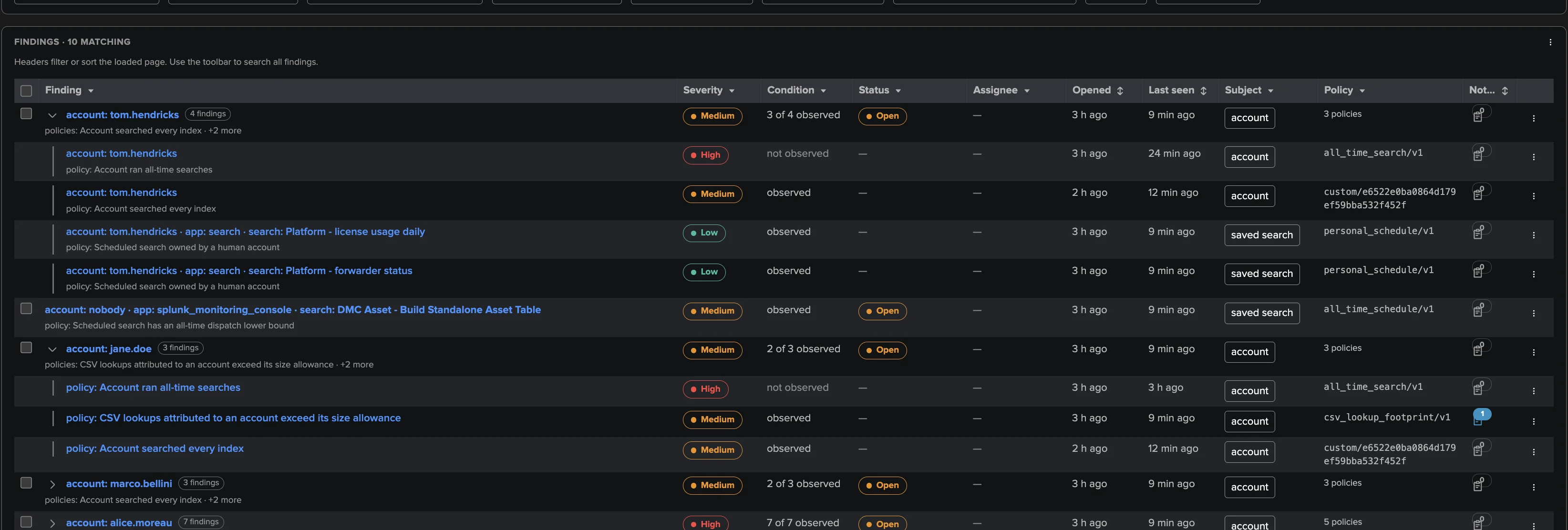
UAM shows Low, Medium, High and Critical. Most built-in policies default to Medium; a personal schedule defaults to Low, an all-time search to High, and the resource consumption policies raise the severity with the share of the environment an account consumes. A Finding group carries the highest severity of its observed findings.
Cribl Stream and Cribl Edge add the Informational display for settled findings. Leader availability defaults to Critical; the other availability and connectivity policies mostly default to High, most others to Medium (each policy page lists its default, and some policies raise a finding to Critical while the condition is severe). A Finding group carries the highest severity of its failing findings.
In the example below, a Worker that went down and came back is shown Informational, Recovered and Resolved; hovering the severity names the severity it reached while it failed (Recovered or resolved; it reached High).
Statuses and triage
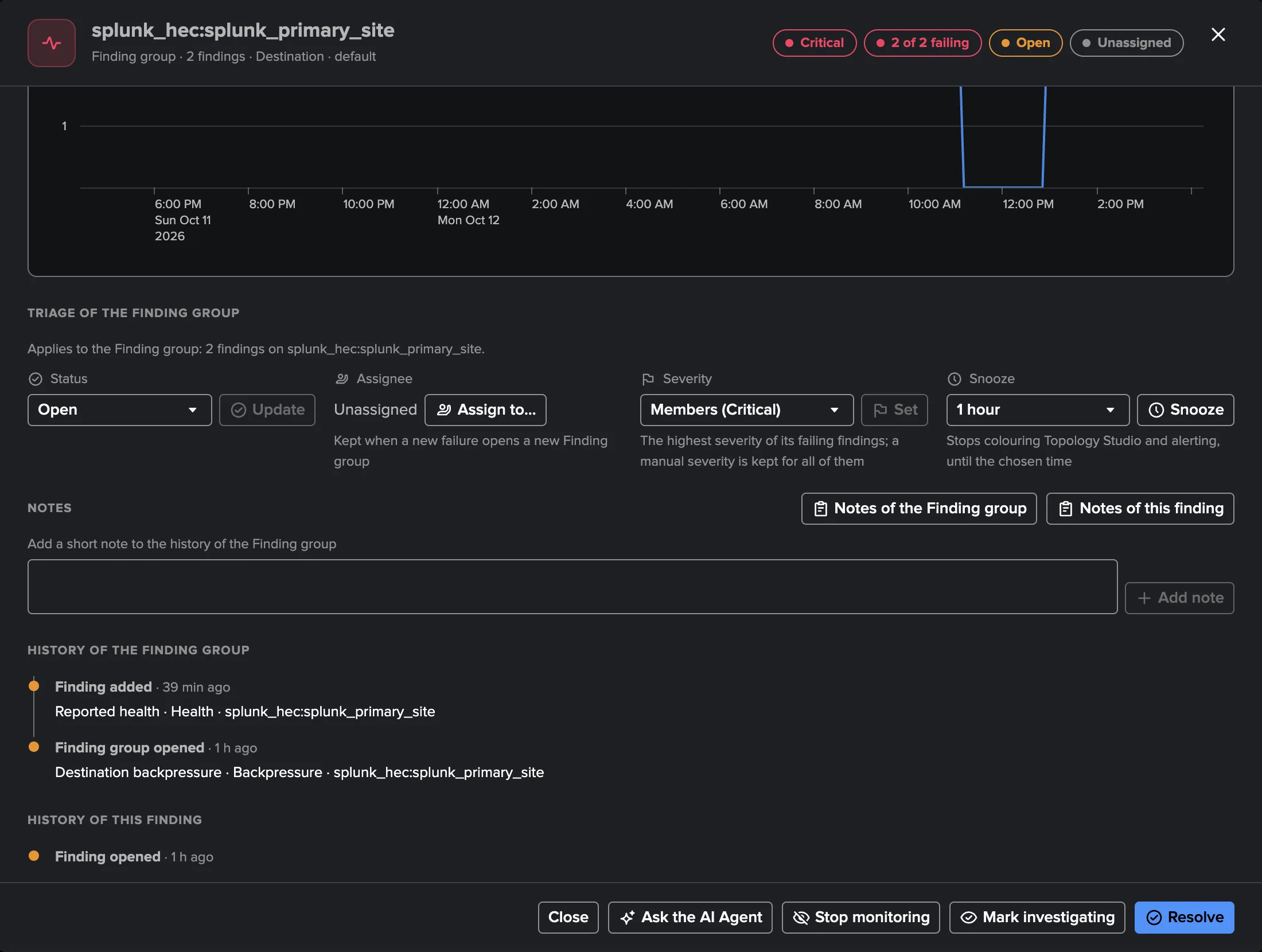
The status is the operator axis: what a person (or the AI Agent) decided. The same four statuses exist in the three tenant types.
Status |
Meaning |
|---|---|
Open |
New, or back for another look. Every finding starts open. |
Investigating |
Someone is on it. |
Resolved |
The problem is fixed. On Cribl Stream and Cribl Edge, a measured recovery resolves the finding automatically. |
Dismissed |
No action is needed, even while the condition holds — for a time, until it recovers, or permanently (see below). |
Triage decisions, available from the finding menu, the Finding group menu, a selection of rows and the investigation view:
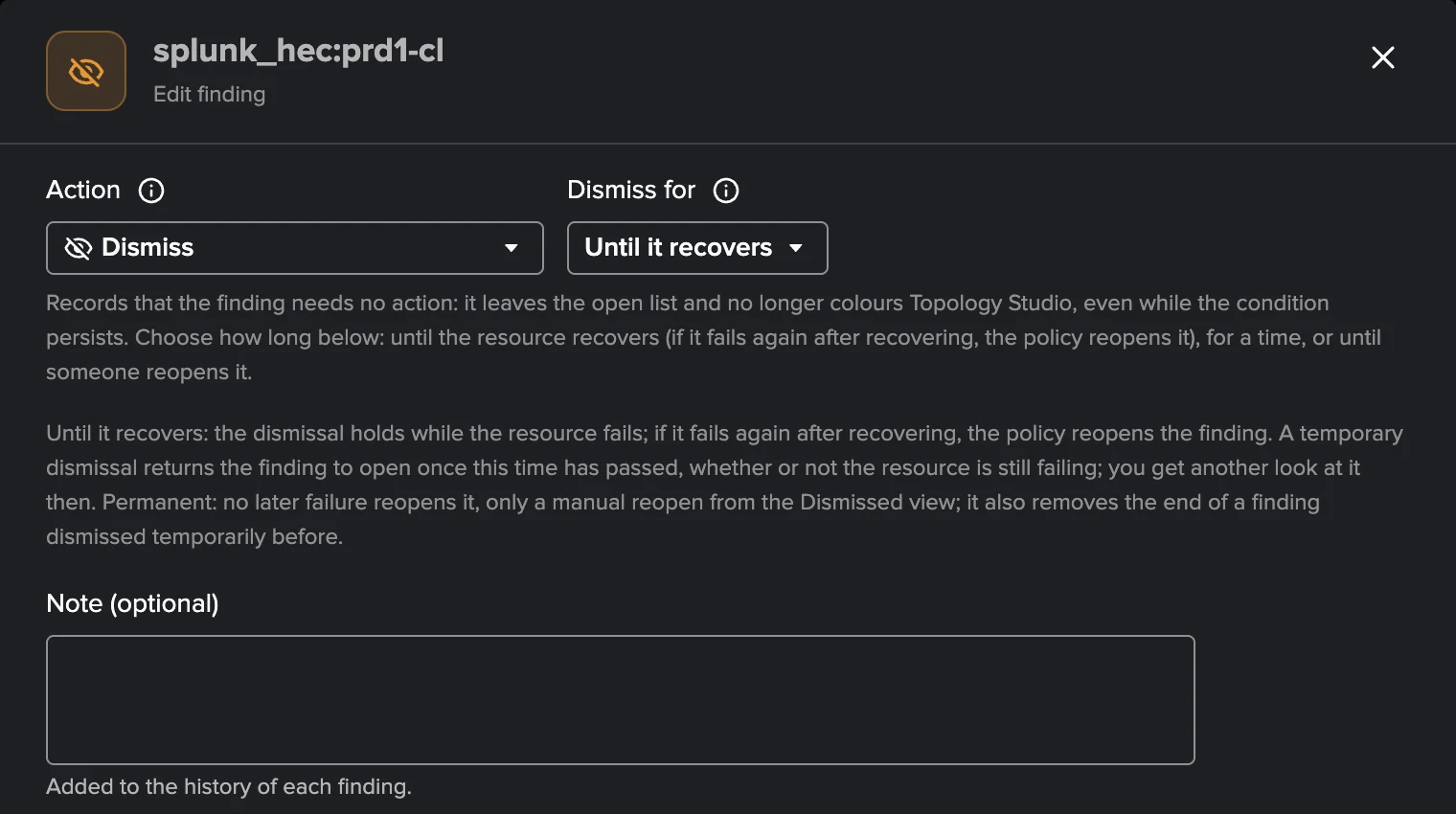
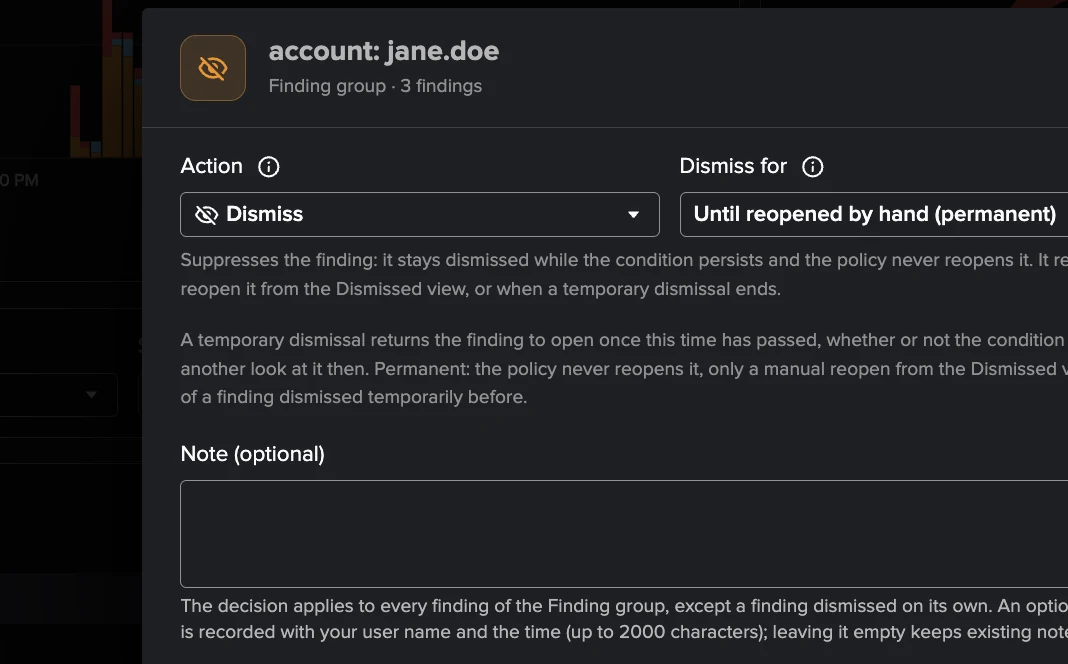
- Dismiss
Choose how long the dismissal holds:
Until it recovers (Cribl Stream and Cribl Edge, the default): the dismissal holds while the object keeps failing; if it fails again after recovering, the policy reopens the finding.
For a time: 1, 7, 30 or 90 days. When the time is up the finding returns to open, whether or not the condition still holds, so you get another look at it.
Until reopened by hand (permanent): no later detection reopens it.
- Snooze
Holds the emails without changing the status. On UAM, Snooze notifications pauses the email notifications for 1 hour, 6 hours, 1 day, 7 days or 30 days. On Cribl Stream and Cribl Edge, Snooze (1 hour to 30 days) also holds the automation rules, and a snoozed finding no longer colours its object in Topology Studio: the object reads blue when nothing else is wrong.
- Resolve, Mark investigating, Reopen
The status decisions above, with an optional note recorded in the history.
- Assign
To a Splunk user or an assignment group — see Assignment and automatic routing.
- Set severity
A manual override that survives the policy runs.
- Notes
Markdown notes on the finding or the Finding group, visible to everyone who can read the tenant. The AI Agent keeps one current note of its own per finding, signed
[AI Agent].
Some decisions belong to one tenant type:
Tenant type |
Its own decisions |
|---|---|
User Activity Monitoring |
Set class of an account (human, service, system) and Exclude owner from this policy; Dismiss only this finding inside a Finding group (see Finding groups). |
Cribl Stream |
Not an anomaly (a traffic outlier finding: its model relearns without that period), Stop monitoring this object, Forget this object (an object removed from Cribl). |
Cribl Edge |
None beyond the shared decisions. |
Every decision is recorded in the history of the finding (and of its Finding group) with the actor, the time and the note. Decisions are protected against concurrent changes: if someone changed the Finding group after you opened it, your decision is refused and you are asked to reload rather than overwriting their work.
Finding groups
One problem, one decision
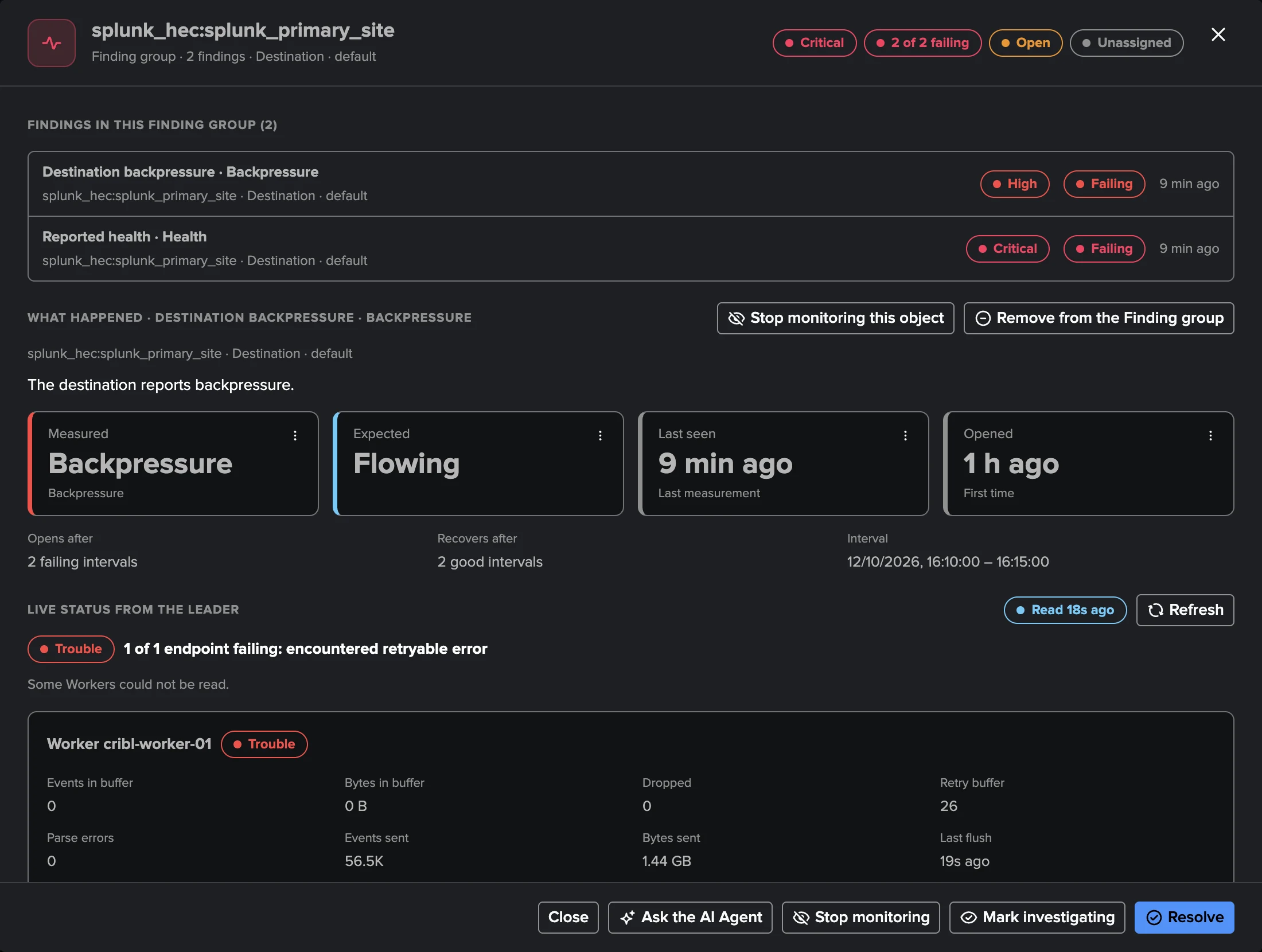
A single problem rarely raises a single finding. A Worker that runs out of memory may raise CPU, memory and availability findings on the machine and on each of its Worker processes; an employee who leaves may own a dozen saved searches, each raising a personal-schedule finding. Deciding on each finding separately is slow and error-prone. A Finding group gathers the findings of one object so that you investigate it once, decide once and assign it once.
The Finding group carries the triage decision: its status, dismissal, assignee, snooze and severity override apply to every finding in it, and a finding that joins the group later takes the group’s state.
Automatic grouping
Finding groups form automatically; you do not need to do anything.
Tenant type |
What one automatic Finding group holds |
|---|---|
User Activity Monitoring |
An account and the saved searches it owns: every finding about the account (all-time searches, resource consumption) together with the findings about its saved searches (personal schedules, real-time schedules). A saved search without an owner keeps its own group. An automatic group can hold up to 5,000 findings. |
Cribl Stream |
One object: a Source, a Destination, a Worker Group, the Leader — and a Worker machine together with its Worker processes. Up to 50 findings. |
Cribl Edge |
One object: a Fleet, an Edge Node, a Source or Destination of a Fleet, the Leader. Up to 50 findings. |
On Cribl Stream and Cribl Edge, a new failure on a resolved Finding group reopens the group. On UAM, a new kind of finding on a dismissed group returns the group to open with the new finding, while the findings the dismissal covered stay dismissed: a dismissal never silences a new kind of problem.
A finding keeping its own decision (UAM)
On UAM, an account group may mix an accepted situation and a real problem — for example a personal schedule you approve and a real-time schedule that must be fixed. Dismiss only this finding on a member sets that one finding aside, dismissed on its own (for a time or permanently), while the rest of the group stays open. The expanded row says so (“Dismissed on its own until …”); later decisions on the group leave it untouched. Reopen this finding brings it back into the group’s state. On Cribl Stream and Cribl Edge, remove the finding from the Finding group instead.
Manual grouping
Sometimes you know better than the automatic grouping: two Destinations failing because of the same upstream outage, or several accounts belonging to one project. The Finding group menus and the selection toolbar offer:
Action |
What it does |
|---|---|
Merge into one Finding group |
Merges 2 to 25 Finding groups into one manual group (up to 50 findings). |
Add to the Finding group |
Adds findings or groups to an existing manual group. |
Remove from the Finding group |
Takes up to 25 findings out of a group; they keep the decisions of the group. On Cribl Stream and Cribl Edge each removed finding gets a group of its own; on UAM the findings return to their account’s automatic group, and the findings of one account always move together. |
Ungroup |
Dissolves a manual group; every finding returns to its automatic group. |
Manual groups stay as you made them: automatic grouping never undoes a deliberate merge. On UAM, manual grouping is reserved to the tenant administrators; on Cribl Stream and Cribl Edge, to the roles that can triage (the tenant’s power and admin roles).
How the Findings tab lists Finding groups
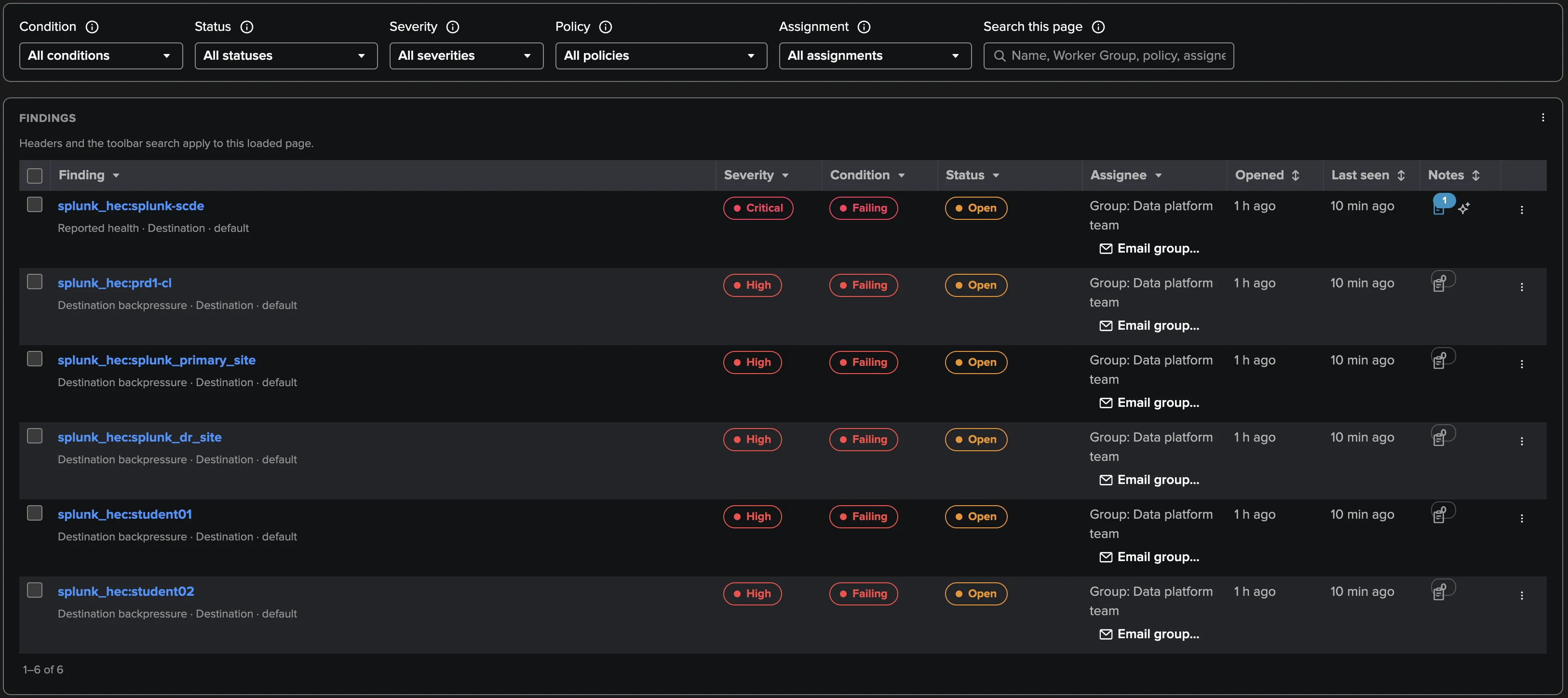
The Findings tab lists one row per Finding group, with the finding, its severity, its condition or observation, its status, its assignee and when it was opened and last seen. A group of more than one finding has an expander that shows its members, each with its own policy, severity and condition. The tiles above the table count Finding groups and drive the filters. Filters, sorting and selections act on whole Finding groups: a filter that matches one member returns its group, and a member hidden by a filter can never become the target of a bulk decision.
Assignment and automatic routing
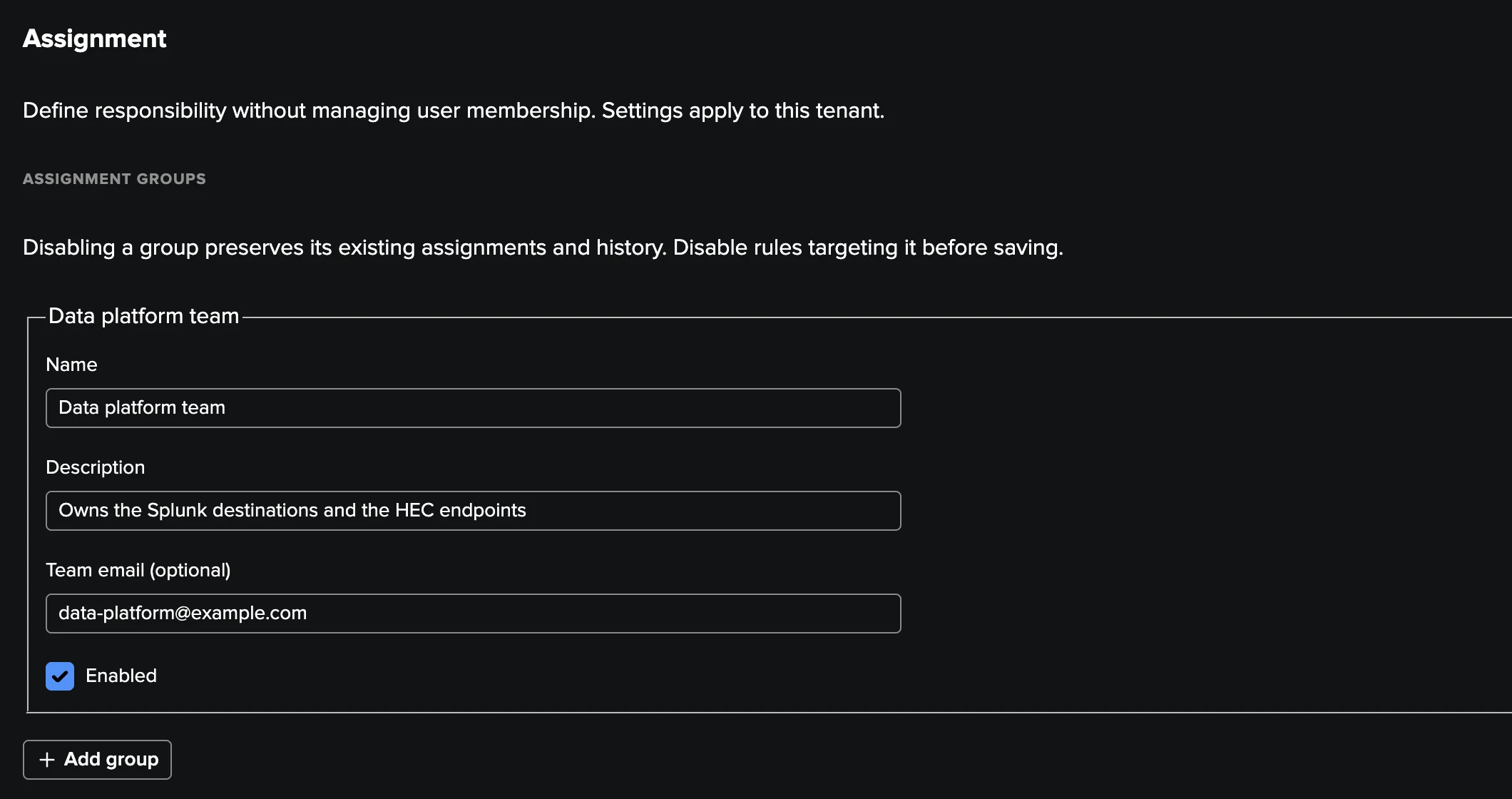
A Finding group is assigned to one destination: a Splunk user, or an assignment group. Assignment lives in the workspace Settings → Assignment.
Important
An assignment group is a team destination — “Platform team”, “Security operations” — not to be confused with a Finding group, which gathers related findings. An assignment group has a name, an optional description and an optional team email address. It has no members and grants no access: being “in” a team is not a TrackMe concept, and an assignment never changes who can read the tenant.
Assignment groups
Create up to 100 assignment groups per tenant. A group can be disabled (it then receives no new assignment and no email) but never deleted, so the history of past assignments stays readable.
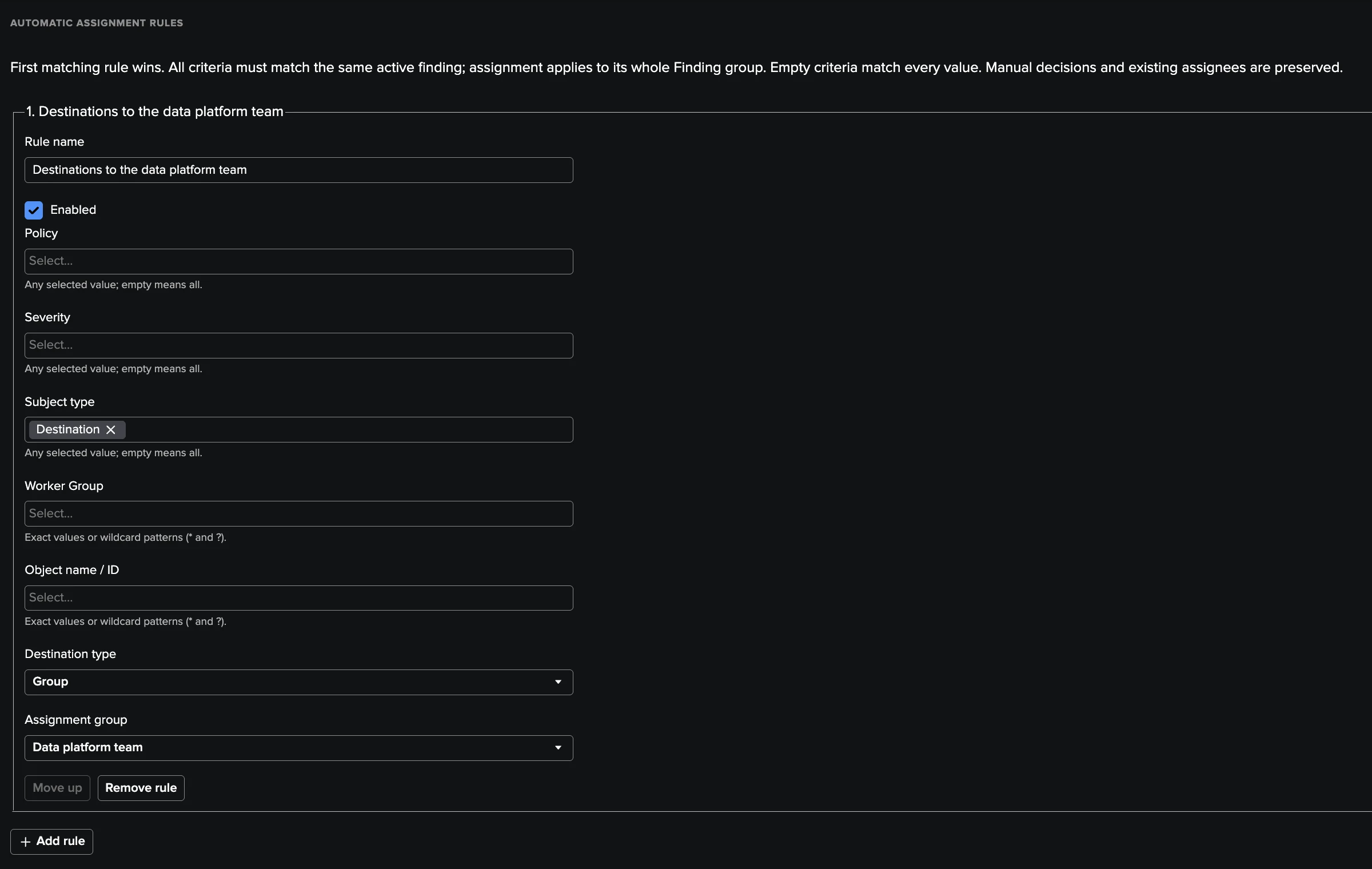
Routing rules
Routing rules assign new Finding groups automatically. They are ordered: TrackMe
evaluates them from the top and the first enabled rule that matches wins. Within a
criterion, the values are alternatives (OR); the criteria of a rule must all match (AND),
on the same finding of the group. An empty criterion matches everything; text criteria
accept case-sensitive * and ? patterns.
Tenant type |
Routing criteria |
|---|---|
Every tenant type |
Policy, severity, subject type |
User Activity Monitoring |
Owner or account, app, environment |
Cribl Stream |
Worker Group, object name |
Cribl Edge |
Fleet, object name (a Leader finding has no Fleet; its name is Cribl Leader) |
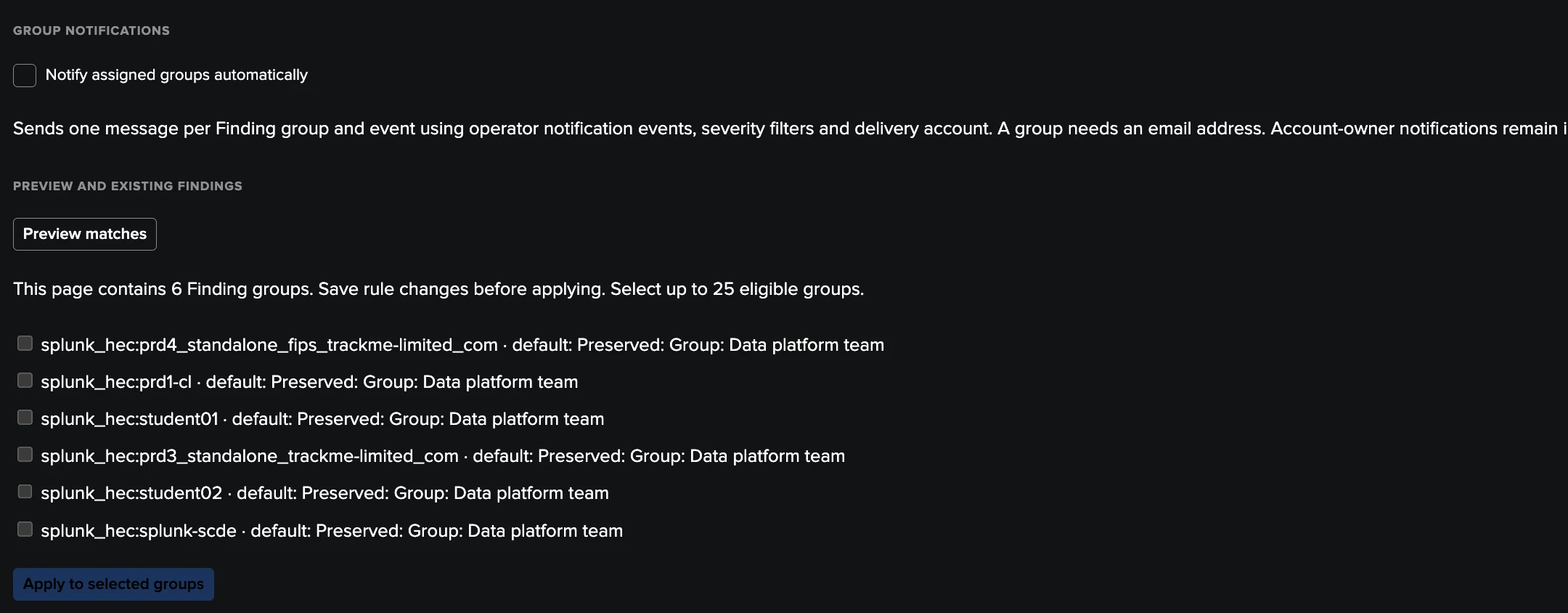
Automatic routing runs in the tenant’s own collection job, a few Finding groups at a time (25 per run, in rotation). It only assigns Finding groups that are unassigned and under automatic assignment; it never changes an existing owner. Two buttons help you tune the rules before relying on them:
Preview matches shows which open Finding groups the draft rules would assign, without saving anything;
Apply to selected groups applies the saved rules to up to 25 Finding groups now.
Assigning by hand
Assign to me, Assign to… and Unassign are in the finding and Finding group menus, the selection toolbar and the investigation. A manual assignment always wins over the rules; an explicit unassignment also holds until you choose Use automatic assignment. On UAM the user picker searches the accounts of the monitored environment; on Cribl Stream and Cribl Edge you type the Splunk username. A group assignment shows the group name; an automatic one names its rule in a tooltip; the AI Agent keeps its purple AI Agent pill. The findings filters tell user and group assignments apart, including Assigned to me.
Team email
When team email is turned on, each Finding group event (with the event, severity and policy filters of the tenant’s notifications) is mailed to the address of the assignment group it is assigned to — one message per Finding group and event, through the tenant’s email delivery account. Snoozed Finding groups receive no automatic mail. You can also send a team email by hand: Email group… opens an HTML preview of the message and the findings it includes; Confirm and send email sends it. An email whose delivery could not be confirmed is reported as such and never resent automatically.
Who may do what: the assignment settings, the rule preview, Apply to selected groups and team email are for the TrackMe administrators of the tenant. Assigning a Finding group needs the triage permission on Cribl Stream and Cribl Edge (the tenant’s power and admin roles) and the administrator permission on UAM. Users who can only read the tenant see the group names, never their email addresses or the rules.
Notifications
Email notifications to operators
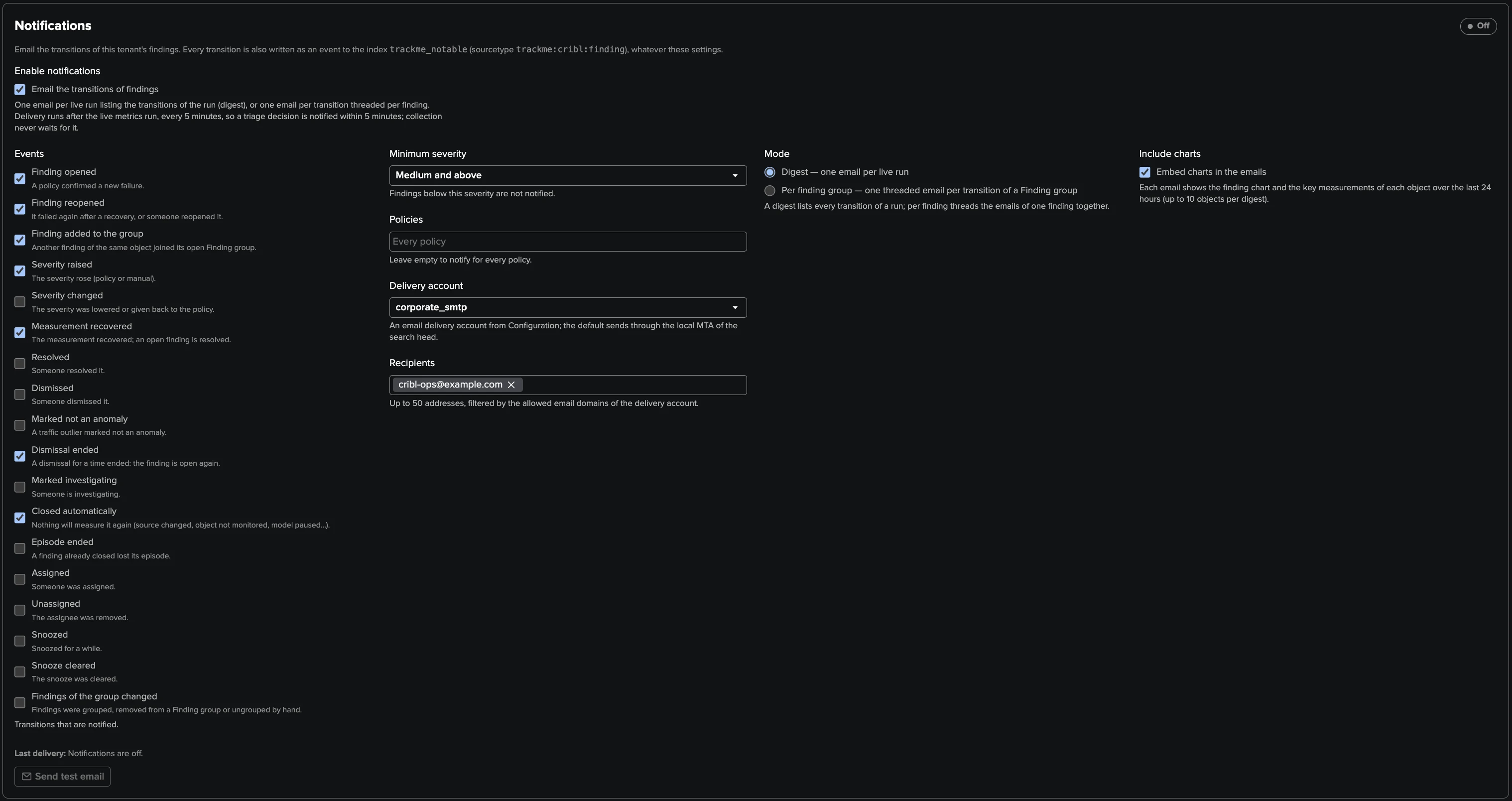
Each findings tenant can email its operators when findings change. Configure it in the workspace Settings → Notifications (UAM: Notifications to operators); it is off by default.
Events: choose the transitions that send an email.
UAM: New finding, Finding reopened, Severity raised, Finding resolved, Finding dismissed, Finding assigned.
Cribl Stream and Cribl Edge: Finding opened, Finding reopened, Finding added to the group, Severity raised, Measurement recovered, Dismissal ended, Closed automatically, and the operator decisions.
Minimum severity (Medium by default) and policies (all by default).
Delivery account: one of the TrackMe email delivery accounts (Configuration → Manage Email delivery accounts), and up to 50 recipients.
Mode: a digest (one email per run) or one threaded email per finding (UAM) or per Finding group (Cribl Stream and Cribl Edge, with the finding chart and the key measurements of the last 24 hours as inline images).
Send test email sends a test message with the saved settings, even while notifications are off.
Emails are sent by the tenant’s collection job, never by the browser: within about 15 minutes on UAM (the policies run), after each live run on Cribl Stream and Cribl Edge. They link straight to the finding in the workspace. A delivery that keeps failing shows up in the Collection health tab.
Direct notifications to users (UAM)
UAM can also email the account a finding is about: on a new detection and when the condition cleared, with per-policy subjects and bodies (Policies → Edit → Email template), reply-to and support details, and rate limits. Human accounts are notified by default, service accounts on opt-in, system accounts never. Send email communication sends a reviewed, one-off message about a finding or a Finding group, with a preview and an explicit confirmation. See User Activity Monitoring for the details.
Cribl Stream and Cribl Edge have no direct user notifications: see Cribl Stream and Cribl Edge for their notification settings.
Findings actions
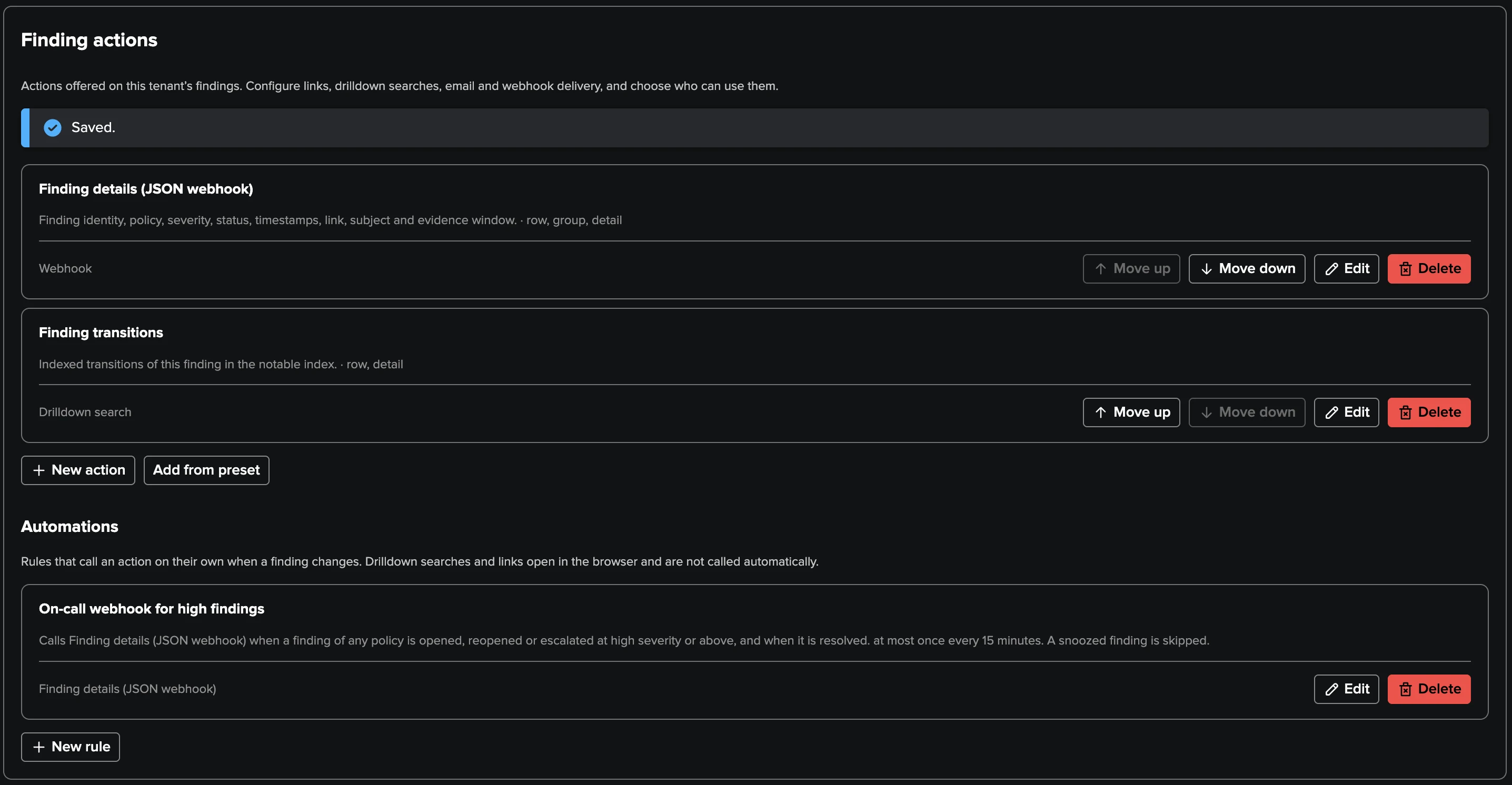
Findings actions turn a finding into the next step of your workflow: open the right search, jump to your runbook or CMDB, or call an external system. A TrackMe administrator of the tenant defines them once; everyone who works the findings then finds them in the menus, already filled in with the finding’s values.
Type |
What it does |
Available on |
|---|---|---|
Drilldown search |
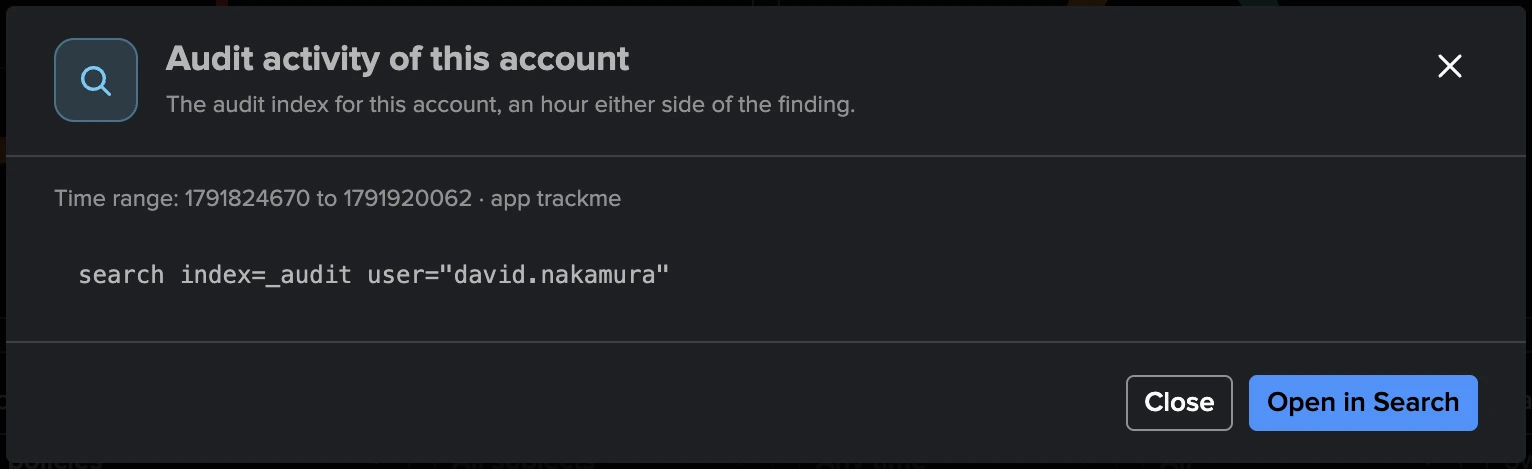
Opens Splunk Search with a search built from the finding (as the clicking user), with a time range around the finding, a fixed relative range, the workspace range or all time. Optional preview of the rendered search. |
UAM, Cribl Stream, Cribl Edge |
Link |
Opens an external page ( |
UAM, Cribl Stream, Cribl Edge |
Webhook |
Sends an HTTPS request through a Webhook account: to a ticketing system, a chat channel, an on-call service, a SOAR or another Splunk. Sent by hand, or automatically by automation rules. |
UAM, Cribl Stream, Cribl Edge |
Sends the policy’s Email template to the account a finding is about, after a preview and confirmation (by hand only). |
UAM |
Defining actions
Where the editors live
Tenant type |
Settings → Finding actions |
Policy editor tabs Actions and Automations |
|---|---|---|
User Activity Monitoring |
Every definition and every automation rule |
Yes, for that policy |
Cribl Stream |
Every definition and every automation rule |
Yes, for that policy |
Cribl Edge |
Every definition and every automation rule |
— (use Settings → Finding actions; a rule still names its policies) |
Add from preset inserts a ready-made definition, disabled until you review and enable it:
UAM: Audit activity of this account, Scheduler runs of this saved search, Finding transitions;
Cribl Stream: Metrics of this object (set your Cribl metrics index first), Finding transitions;
Cribl Edge: Finding transitions, Findings of this Fleet;
every tenant type: Finding details (JSON webhook) and Finding summary (text webhook).
Every definition has a label, an optional description, and:
a scope — the policies, subject types, severities and statuses it applies to (empty = all), so a “Open the Cribl Destination page” link is only offered on Destination findings;
where it appears — the finding menu, the Finding group menu, the selection toolbar, and up to three buttons on the investigation;
a minimum role — drilldowns and links are offered to everyone who can read the tenant, webhooks and emails to the roles that can triage; a definition can raise its minimum role, never lower it.
Up to 50 definitions and 100 automation rules per tenant. Drilldown searches refuse
commands that write or send data (delete, outputlookup, collect, sendemail,
map and similar) unless the definition explicitly allows them.
Tokens
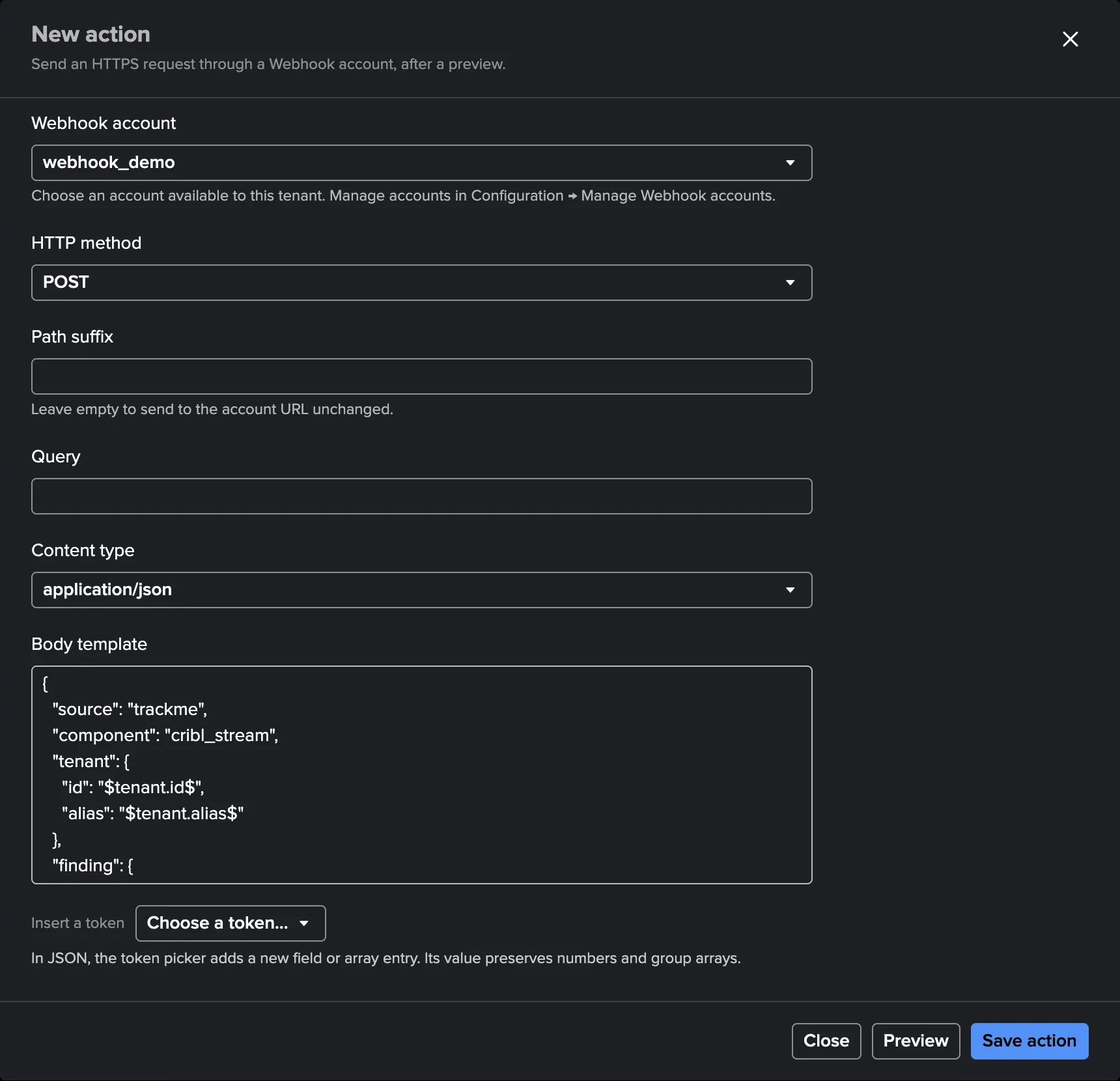
A template refers to the finding with tokens written $namespace.field$ —
$finding.title$, $subject.account$, $tenant.id$. Write $$ for a literal
dollar sign. The editor’s Choose a token… picker lists the tokens of the tenant type,
and an unknown token is refused when you save.
Tokens |
Available on |
|---|---|
|
Every tenant type |
|
User Activity Monitoring |
|
Cribl Stream |
|
Cribl Edge |
Search text and secrets are never tokens.
Encoding is automatic. A finding’s values come from names you do not control — a saved search title, a Cribl object name — so inserting them raw would let a crafted name inject SPL, break a URL or a JSON document. TrackMe encodes every token for the place it sits in: SPL string, URL path or query, HTTP header, JSON, plain text or form. You cannot turn this off. A few filters tell TrackMe how you want the value:
Filter |
Meaning |
|---|---|
|
In SPL: the value as a quoted string, quotes included. |
|
In SPL: a list of values in parentheses, for |
|
In SPL: the raw value, accepted only for numbers, times, identifiers and fixed lists of values. |
|
In a JSON body: the whole JSON value (a number stays a number, several values become an array). |
|
A fallback when the value is empty. |
In SPL a string token must sit inside double quotes, or use |s. On a Finding group or
a selection, a value the findings share stays one value; a value that differs becomes the
list of the distinct values — use |in in SPL, an array in JSON; URLs and headers refuse
it.
Example 1 — a drilldown search on a UAM account (the token inside quotes):
index=_audit action=search user="$subject.account$"
Example 2 — a drilldown on a whole Finding group, every finding of the group at once:
sourcetype="trackme:cribl:finding" tenant_id=$tenant.id|s$ finding_id IN $finding.id|in$
Example 3 — a JSON webhook body with typed values and a fallback (the "$…|json$"
string is replaced by the JSON value itself):
{
  "summary": "[TrackMe] $finding.title$",
  "severity": "$finding.severity|json$",
  "first_seen": "$finding.first_seen|json$",
  "owner": "$finding.assignee|default:unassigned$",
  "link": "$finding.link|json$"
}
Running actions by hand
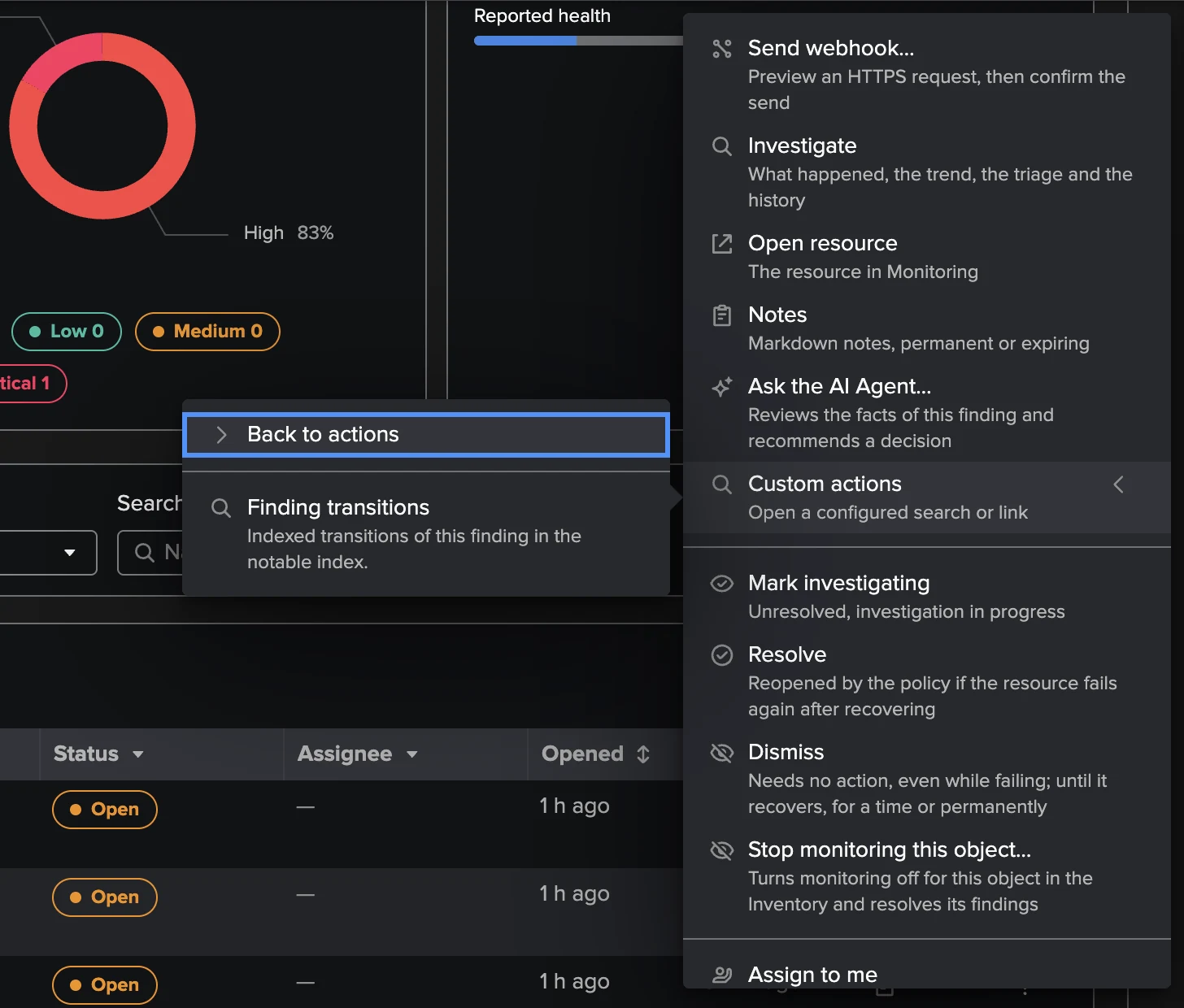
The finding menu and the Finding group menu carry a Custom actions submenu listing the actions whose scope matches and whose minimum role you hold. The investigation shows up to three drilldown and link buttons. A selection of rows offers Run action for drilldowns (up to 200 findings).
Drilldown search: with preview on, the rendered search and its time range are shown, then Open in Search.
Link: opens in a new tab.
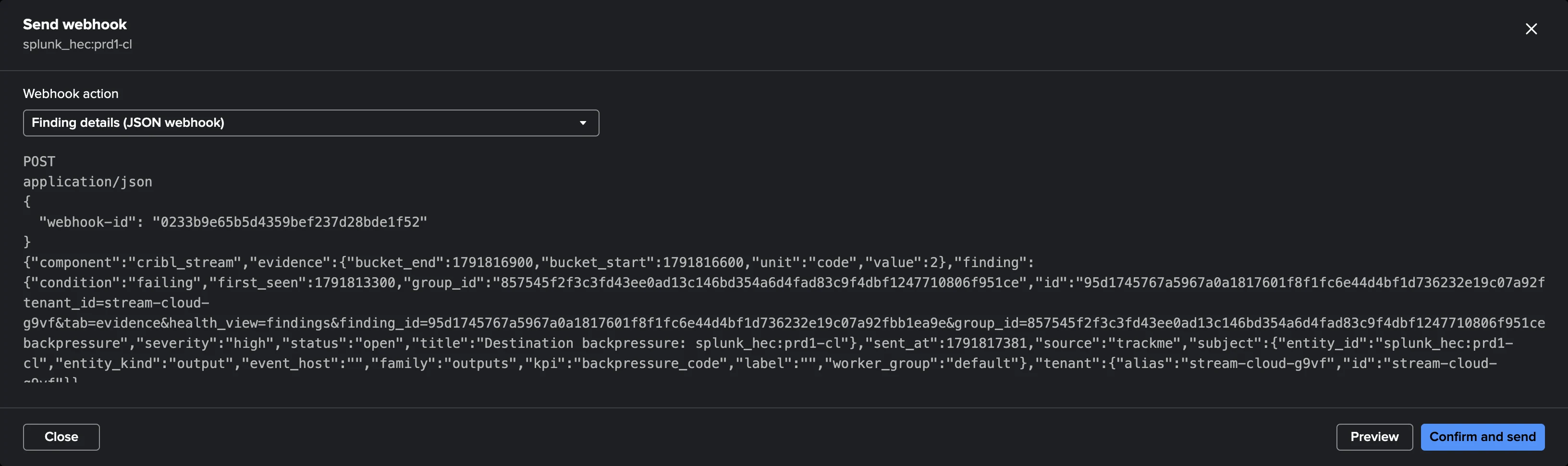
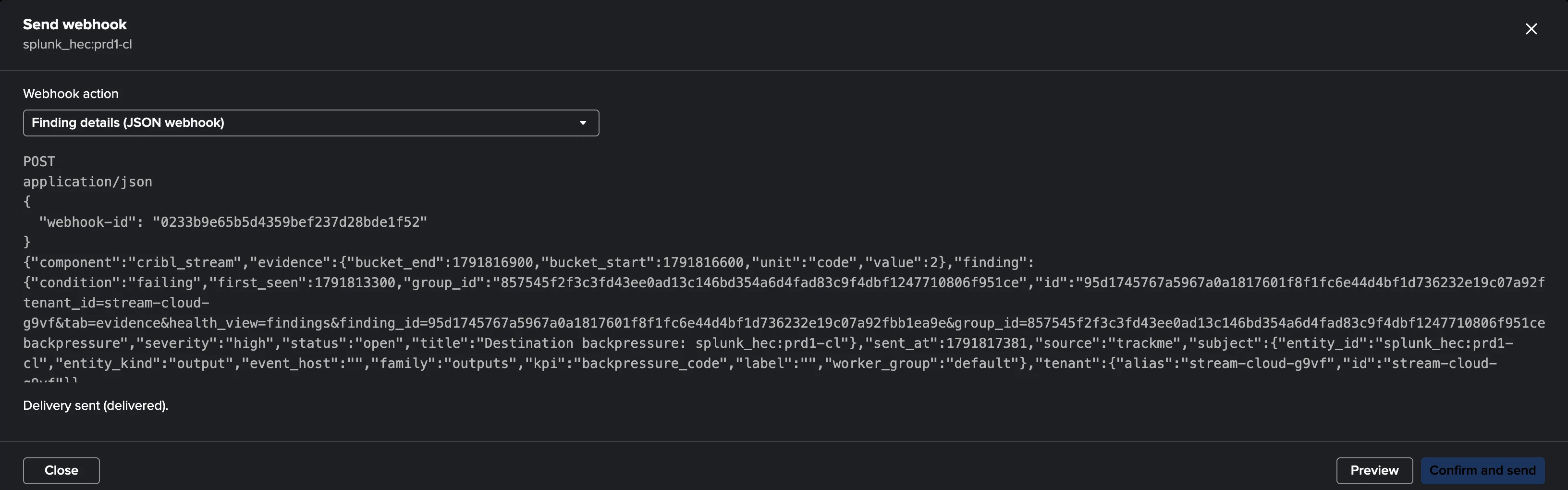
Send webhook…: shows the request as it will be sent (secrets masked), then sends it after you confirm, and follows its status: sent, failed or unconfirmed (the receiver may have received it; a manual send is never repeated automatically). On a Finding group, one request carries the group’s values.
Email (UAM): a preview of the message, an optional one-time recipient change, then confirmation.
Sending is done by a TrackMe search job, never by the browser or a REST request.
Automation rules
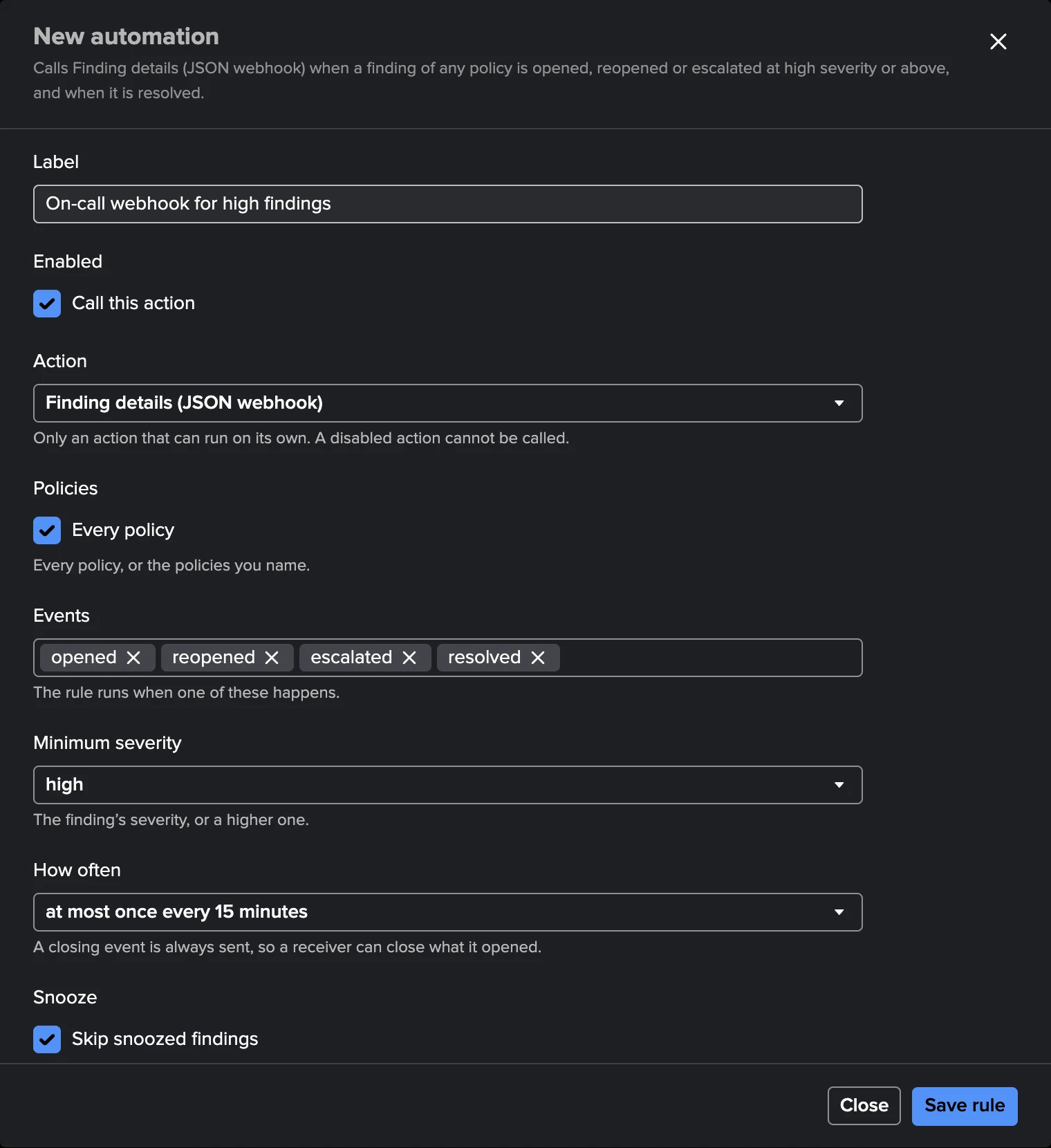
An automation rule sends a webhook definition automatically when a finding changes.
Field |
Meaning |
|---|---|
Which policies |
The policies the rule applies to, or every policy. |
Events |
The transitions that trigger it (see below). |
Minimum severity |
Low (default) to Critical. |
Action |
The webhook definition it sends (only webhooks can be automated). |
How often |
The throttle per finding: from 0 to 86,400 seconds, 900 by default. |
Snooze |
Respect snooze (default): a snoozed finding sends nothing. |
Tenant type |
Events |
|---|---|
User Activity Monitoring |
new, reopened, escalated, resolved, dismissed, assigned |
Cribl Stream, Cribl Edge |
opened, reopened, member added, escalated, recovered, resolved, dismissed, dismissal expired, closed |
Throttling. A rule sends at most once per finding per throttle period. Closing events (resolved, dismissed — and on Cribl recovered and closed) are never throttled, so the receiver can always close what it opened.
The queue. Matching transitions are queued in the tenant (at most 5,000 deliveries) and
sent by the tenant’s own collection job: the policies run on UAM (about every 15 minutes),
the live run on Cribl Stream and Cribl Edge (every 5 minutes). Each run sends at most 200
deliveries; a failed delivery is retried up to 6 times with an increasing delay (30 seconds
to 20 minutes) and dropped after 24 hours. Every automatic send carries a stable
webhook-id header, so the receiver can recognise a retried request it already
processed. Disabling or deleting a definition disables the rules that use it.
Checking deliveries
The Configuration Guardian check findings_action_delivery_failing warns when a queued delivery of a tenant was attempted three times or waited more than 30 minutes — see Configuration Guardian.
Manual sends are logged in
index=_internal sourcetype=trackme:custom_commands:trackmefindingsaction.On UAM, the receipt of each policies run (
sourcetype=trackme:uam:receipt) carries the counts of the automatic sends.Changes to definitions, rules and assignment settings are audited in the TrackMe audit index.
Webhook accounts
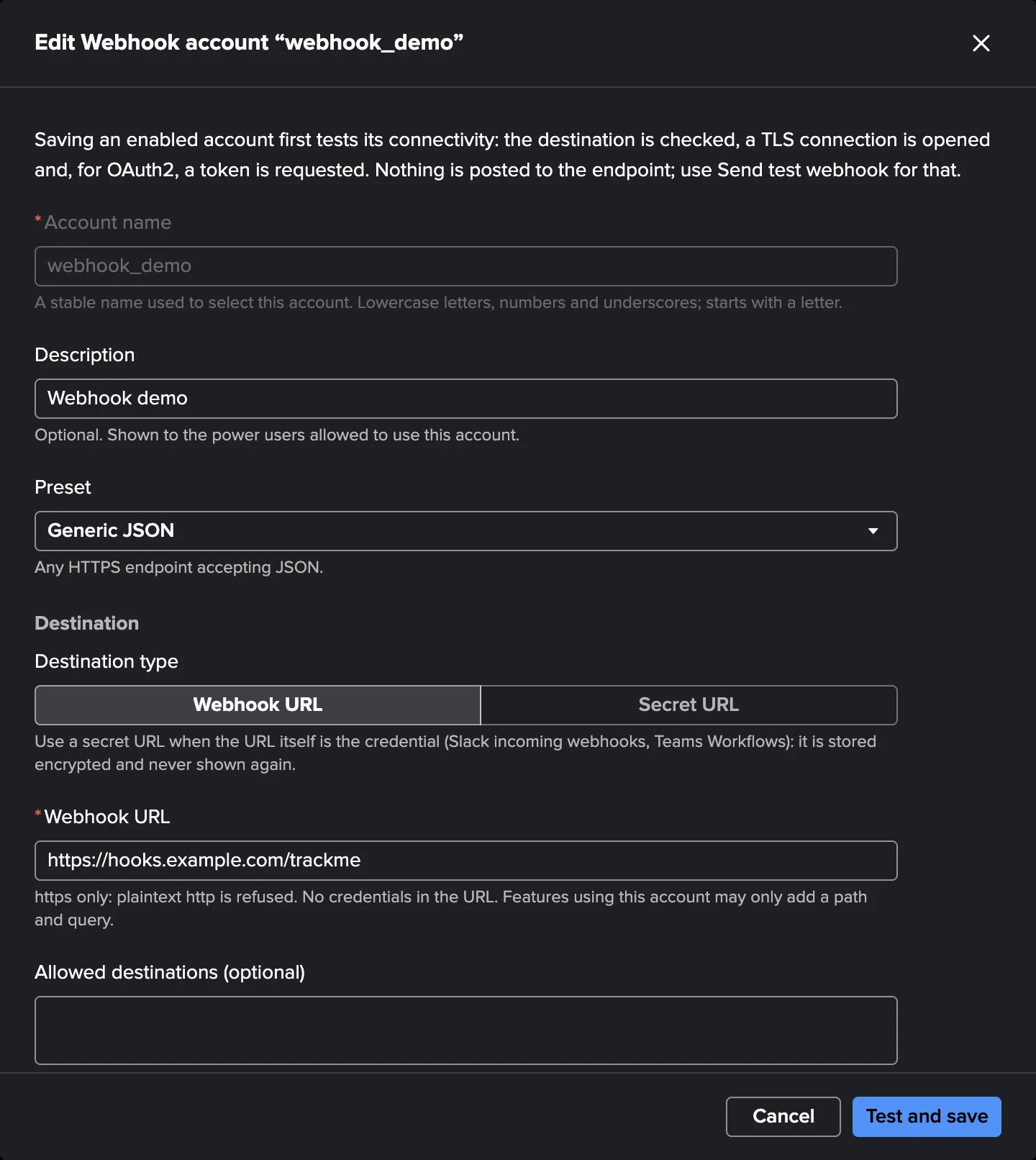
A Webhook account is a reusable, system-wide outbound HTTPS connection: where to send, how to authenticate, which certificates to trust, through which proxy. Webhook definitions only name the account and add a path, a query, headers and a body — so the destination and its credentials are managed once, by an administrator, and never copied into each tenant.
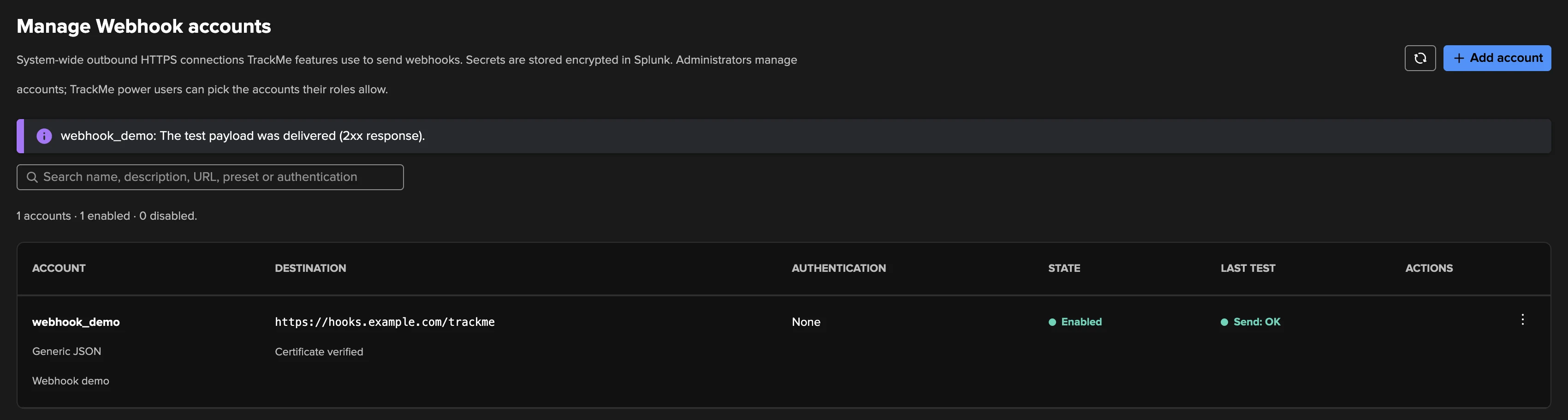
Manage them in Configuration → Manage Webhook accounts.
Fields
Field |
Notes |
|---|---|
Account name, Description, Account state |
The name is how definitions select the account (lowercase letters, digits and underscores). A disabled account is never used and saves without a connectivity test. |
Preset |
Generic JSON, Slack, Microsoft Teams Workflows, PagerDuty Events v2, ServiceNow, Splunk HEC, Splunk SOAR, Cribl HTTP source. A preset pre-fills the empty fields with the receiver’s usual settings; it is informational afterwards. The message itself (a Slack text, a Teams card, a PagerDuty event) is written in the webhook definition, starting from the JSON preset. |
Webhook URL or Secret URL |
HTTPS only: |
Allowed destinations |
Optional: host names, |
Authentication type |
None, Basic, Bearer token, API key header (header name and an optional one-word
prefix such as |
Verify SSL certificate, CA certificate chain |
On by default. For a private CA or a self-signed certificate, keep verification on and add the CA chain (paste it or Upload PEM file). Turning verification off keeps the traffic encrypted but stops checking the destination’s identity. |
Proxy URL, user name, password |
Optional, |
Default headers |
A JSON object of non-secret headers sent with every request; reserved and credential headers are refused. |
Timeouts, Maximum retries, Retried HTTP statuses, Maximum body size |
Connect 5 s (up to 30), read 15 s (up to 60), 2 retries (up to 5) on 429, 502, 503 and 504 by default, bodies up to 256 KiB (up to 1 MiB). Redirects are never followed. |
Allowed roles, Allowed tenants |
Who may use the account: comma-separated roles whose TrackMe power users may select it (empty: every TrackMe power user; TrackMe administrators always may), and the tenants allowed to use it (empty: every tenant). Checked when a definition is saved and again before every send. |
Every address a destination resolves to is checked before every attempt, and the connection is pinned to the address that was checked. Through a proxy the proxy resolves the name, so the name is checked but the address cannot be pinned.
Testing an account
Saving an enabled account runs a connectivity test — destination checks, the TLS handshake and, for OAuth2, the token request — and sends nothing to the receiver (a test message in a Slack channel or a PagerDuty incident would be noise). A failure rejects the save with its reason; save the account disabled to keep it while you fix the destination.
Test connectivity in the row menu runs the same test again.
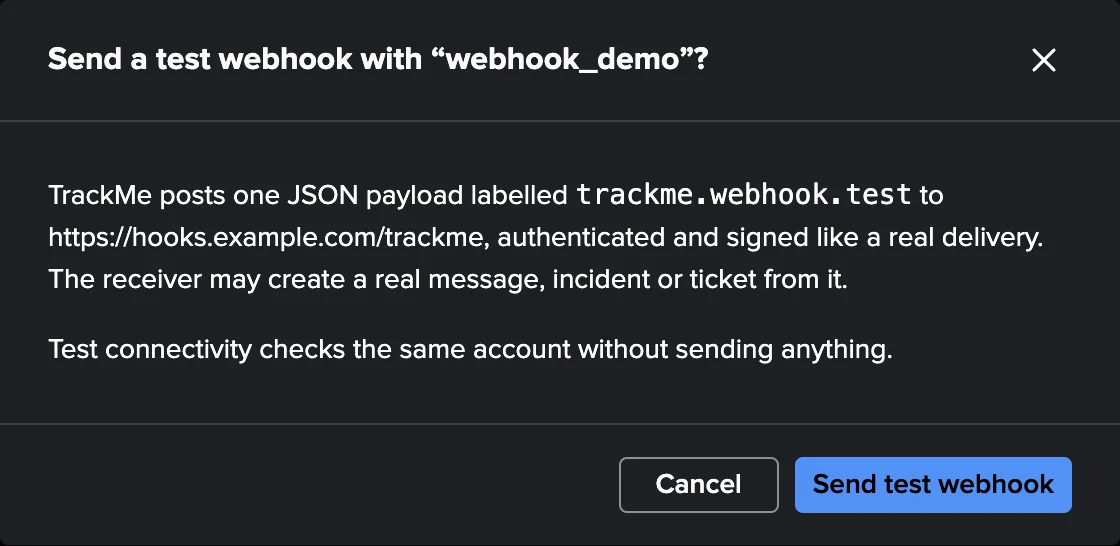
Send test webhook (with a confirmation) posts one
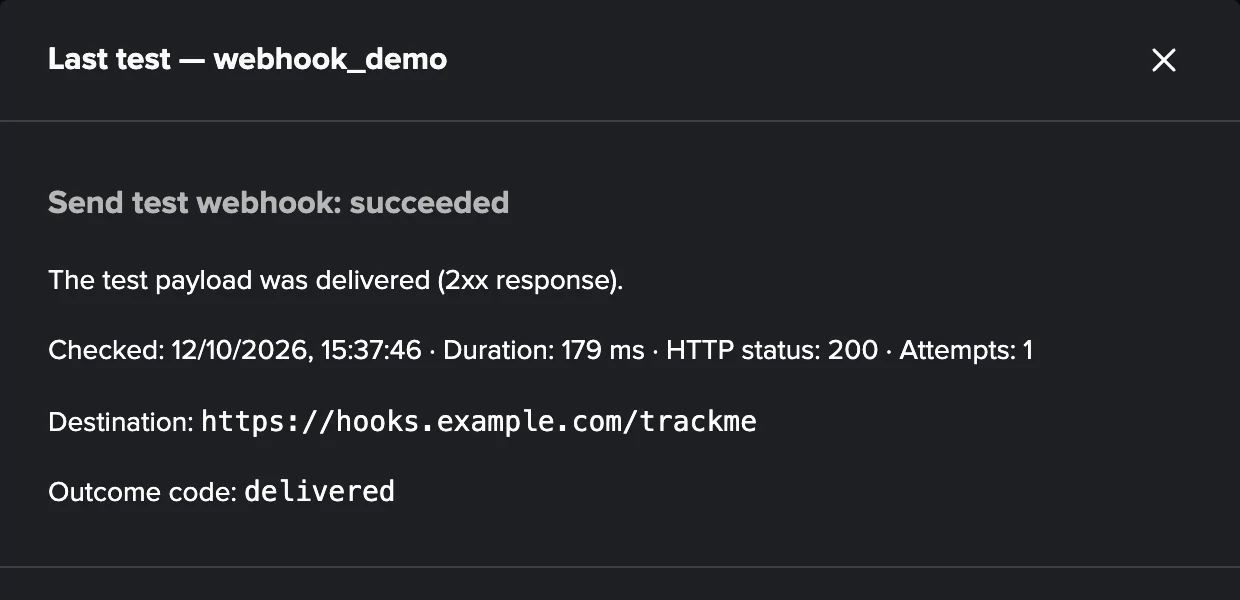
trackme.webhook.testmessage, so you can see what the receiver gets. View last result shows the outcome.
Who manages and who uses them
TrackMe administrators (
trackmeadminoperations, Splunkadminorsc_admin) create, edit, test and delete Webhook accounts.TrackMe power users only see the list of accounts their roles and tenant may use, without any secret, when they edit or send a webhook definition.
Other users see nothing.
Warning
While an enabled account has Verify SSL certificate turned off, the Configuration Guardian raises the warning webhook_account_tls_unverified. Turning verification off is allowed on every platform, Splunk Cloud included, but prefer adding the CA chain of the destination.
Worked example: from an account to an automatic webhook
This example uses a test endpoint such as a request-inspection service, which shows every request it receives — the quickest way to see exactly what TrackMe sends before you point it at a real receiver.
Create the account. In Configuration → Manage Webhook accounts, Add account: name
webhook_demo, preset Generic JSON, the HTTPS address of your test endpoint as Webhook URL, authentication None, Verify SSL certificate on. Save: the connectivity test runs, and the row reads Connectivity: OK.Check what the receiver gets. Row menu → Send test webhook → confirm. The test endpoint shows a
trackme.webhook.testJSON message.Define the action. In a Cribl Stream workspace, Settings → Finding actions → Add from preset → Finding details (JSON webhook). Select the Webhook account
webhook_demo, review the body template, enable the definition and save.Send by hand. On a finding, open Custom actions → Send webhook…, review the request preview and confirm. The test endpoint shows the finding as JSON: its id, title, policy, severity, status, subject, condition and the link back to the workspace.
Automate. Open a policy → Automations → New rule: events opened and recovered, minimum severity Medium, the action you just created, the default throttle. The next time the policy opens or recovers a finding, the live collection run sends it.
Watch the deliveries. If the endpoint stops answering, the deliveries are retried and the Guardian check findings_action_delivery_failing warns after three attempts or 30 minutes.
Findings AI Agents
An AI Agent reviews findings the way an operator would: it reads the evidence TrackMe collected, writes an assessment as a note, and — when you allow it — applies the decisions the tenant permits. Three agents share one framework:
Tenant type |
AI Agent |
|---|---|
User Activity Monitoring |
UAM AI Agent — it replaces the UAM Findings Advisor of TrackMe 2.4.18; on upgrade, an enabled advisor’s settings are carried over to the agent. |
Cribl Stream |
Cribl Stream AI Agent |
Cribl Edge |
Cribl Edge AI Agent |
Inspect and act
Mode |
What it does |
|---|---|
Inspect |
Reads the evidence and writes one current note per finding, signed
|
Act |
Inspects, then applies the decisions the evidence supports and the tenant settings allow. Act must be chosen explicitly. |
What act may do, depending on the settings:
Decision |
Default |
UAM |
Cribl Stream |
Cribl Edge |
|---|---|---|---|---|
Mark investigating |
On |
Yes |
Yes |
Yes |
Dismiss for a time (up to 7 days by default, at most 90) |
On |
Yes, never a critical or high finding still observed |
Yes, a critical failing finding only with proof that the object is disabled, missing or inactive |
Yes, a critical or high finding still failing only when its node or Fleet is gone from the node directory |
Not an anomaly (a traffic outlier) |
On |
— |
Yes |
— |
Resolve |
Off |
Only a finding its policy no longer observes |
Only after a measured recovery |
Only after a measured recovery |
Classify an account |
Off |
Only an account without an operator class |
— |
— |
Stop monitoring an object |
Off |
— |
Only with proof of inactivity (7 days by default) |
— |
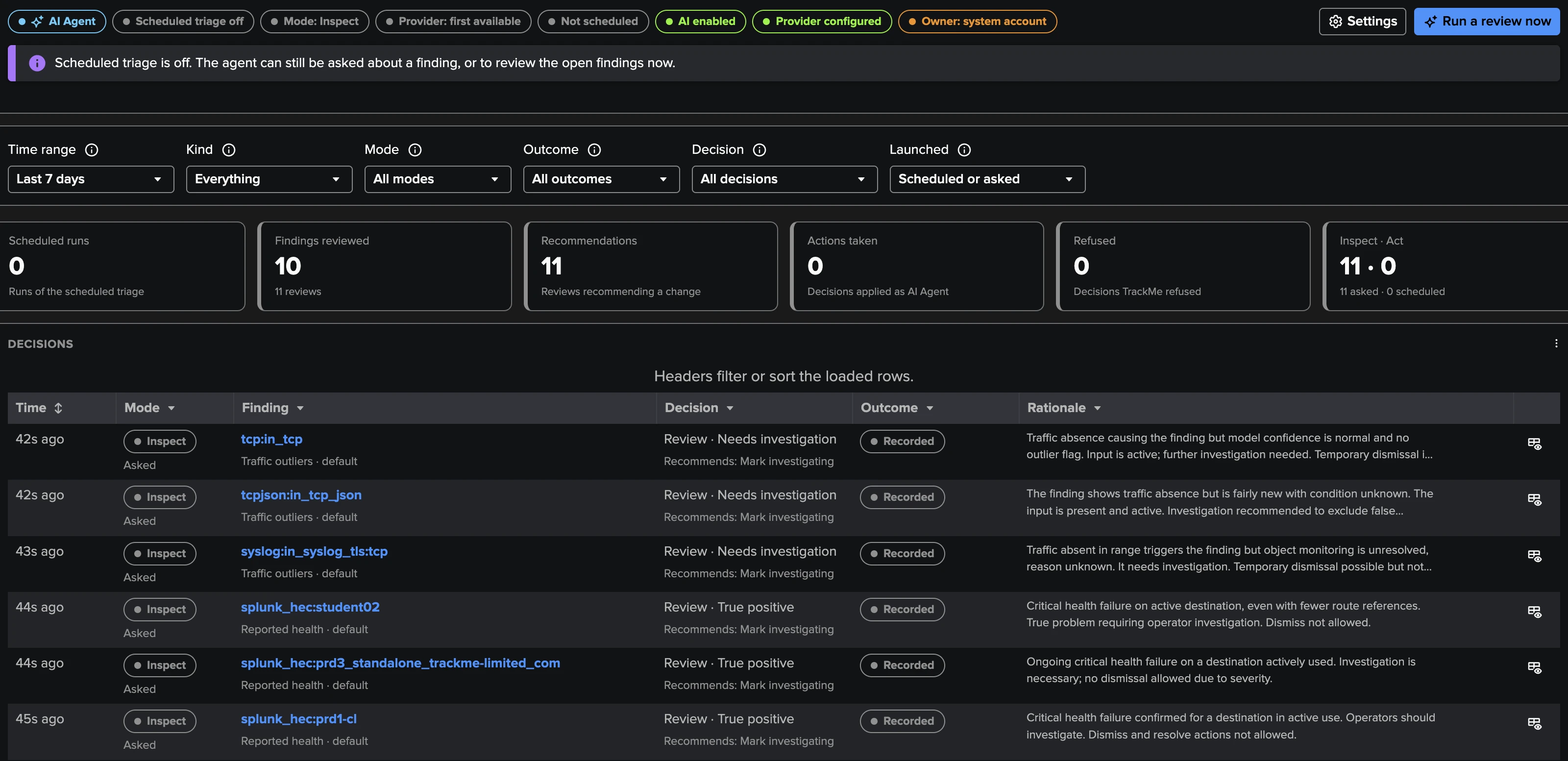
The agent never dismisses permanently, assigns or unassigns, changes a severity, or changes a policy or a setting. Every decision it applies is recorded under the actor AI Agent (a purple pill in the history), never under the person who asked; the decision log also records who asked, the AI provider and whether the run was scheduled.
Asking the AI Agent
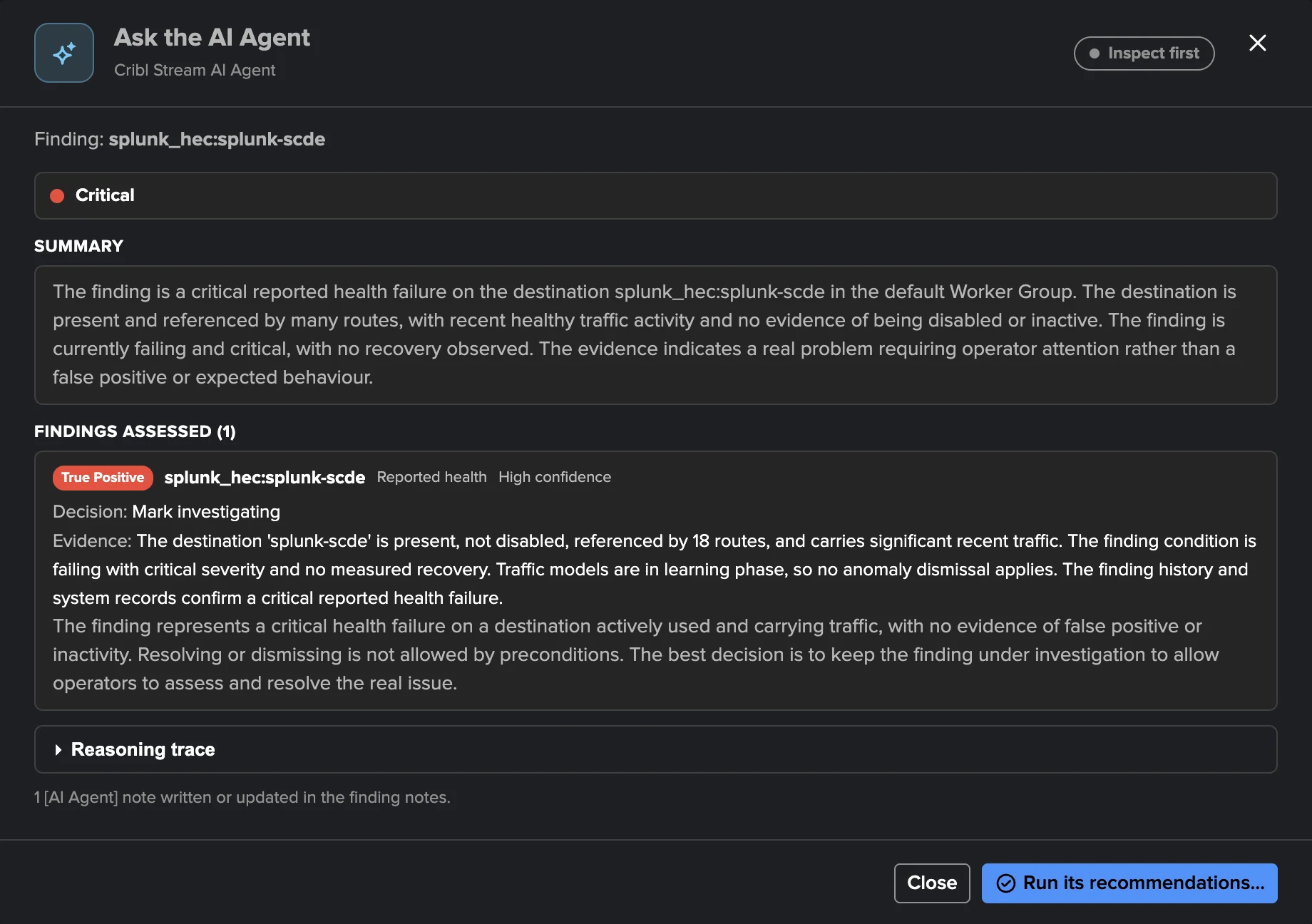
Ask the AI Agent… is in the finding and Finding group menus, the investigation and the AI Agent tab. The agent first inspects; you read its assessment and can then let it act on that inspection within 30 minutes. The AI Assistant of the workspace can also propose an AI Agent review in the chat. Asking needs AI to be enabled with at least one AI provider; on UAM it is reserved to the TrackMe administrators of the tenant, on Cribl Stream and Cribl Edge to the roles that can triage.
Scheduled reviews
The agent can also review the open and investigating findings every hour on its own. This is off by default. A scheduled run only starts when:
the AI Assistant is enabled and at least one AI provider is configured;
the tenant is enabled and its AI Agent is enabled (Settings → AI Agent);
the tenant owner is a real account, not
nobodyorsplunk-system-user— the Guardian check ai_automation_owner_is_system_user warns otherwise. On Cribl Stream and Cribl Edge the owner of the scheduled report must also be a Splunk administrator.
Each run reviews up to 10 findings (one per Finding group, most severe first), skips the findings it reviewed recently, and never overrides a person: a finding or a Finding group that an operator decided on, or that has an assignee, is left to the operators. By default the scheduled selection only includes critical and high findings: the shared filters of the automated AI reviews apply, with the finding severity as priority.
Settings
In the workspace Settings → AI Agent (each agent is also in Manage AI Agents automation, for enabling, mode, provider, review interval, runtime and custom instructions):
Setting |
Default |
Notes |
|---|---|---|
Enabled |
Off |
Scheduled reviews only; asking the agent needs only AI to be available. |
Mode |
Inspect |
Inspect or act, for scheduled runs. |
AI provider |
First available |
|
Review interval (days) |
1 |
A finding is not reviewed again within this interval unless it changed. |
Maximum runtime (seconds) |
3000 |
Fits the hourly cadence. |
Findings per run |
10 |
1 to 50. |
Custom instructions |
Empty |
Plain English the agent follows on every run (at most 4000 characters). |
Allowed decisions and longest dismissal |
See above |
Per decision. |
Custom instructions tell the agent what to treat as expected, what to look at first and
how to word its recommendations, for example “The accounts named svc_* are service
accounts.” They never widen what it may do: the allowed decisions and the checks TrackMe
makes before every decision still decide. Evaluate…, next to the field, runs the agent in
inspect mode with an unsaved draft, on one open finding or a short review, optionally side by
side with a run without instructions; an evaluation writes nothing (see
AI Agents for findings).
Everything the agents do is in the AI Agent tab, the finding history, the
[AI Agent] notes and the Review AI Advisor activity and Review Scheduled AI Advisor
activity dashboards. The AI side of the agents — how a review works, the evidence, the data
sent to the provider and the audit — is in AI Agents for findings. See also
The AI Advisors and AI Assistant & Concierge.
The shared workspace conventions
The three workspaces look and behave alike, so what you learn on one applies to the others.
- Table header filters and sorting
Text and category columns have a filter in their header: search the values, select exact values, or type a “contains” match. Numeric and date columns sort, with empty values always last. On the Findings tab these filters act on whole Finding groups. On tables loaded page by page (Cribl Edge nodes, UAM catalogs), header controls act on the loaded page, while the toolbar filters search everything. Header controls never change data or permissions.
- Policy view modes
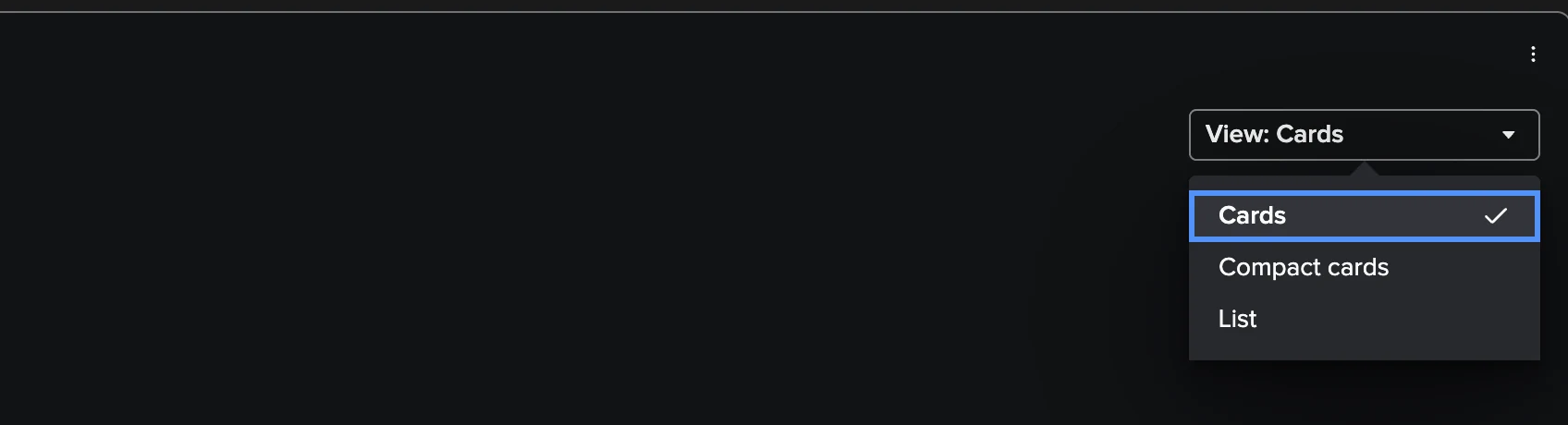
The Policies tab shows Cards (default), Compact cards or a sortable List. The choice is remembered per user and per tenant type (Cribl Stream and Cribl Edge share it) and writes no configuration.
- Menus
Finding, Finding group and selection menus stay within the screen and scroll. Set severity and Custom actions are submenus (Right Arrow opens, Left Arrow returns). An entry you cannot use stays listed, disabled, with its reason.
- One Save in Settings
Every Settings section — Notifications, Assignment, Finding actions, AI Agent and the tenant’s own sections — is saved with one Save, Discard or Reload.
- Deep links
Notification emails and the
finding.linktoken open the finding (or its Finding group) in place in the workspace; Cribl Edge links can also open a node or a Fleet.