Splunk HEC
The Splunk HEC tenant monitors the HTTP Event Collector (HEC) endpoints of one Splunk deployment: the heavy forwarders, indexers or Splunk Cloud indexers that receive HEC traffic, the pools they form behind a load balancer, and the tokens senders use. It answers the questions a Splunk administrator asks about HEC: are all my HEC endpoints up and receiving? are senders being refused, and why? where is the bottleneck when HEC answers “Server is busy”? which tokens send data Splunk rejects? did a business-critical token stop sending? is my load balancer spreading the traffic over every member of the pool? The answers are findings, raised by built-in policies, with the same triage, Finding groups, notifications, assignment and findings actions as the Cribl Stream and Cribl Edge tenants, and a findings AI Agent of its own, the Splunk HEC AI Agent.
A Splunk HEC tenant is a dedicated tenant type: it has no entities and no state colour,
and one tenant follows the HEC endpoints of one Splunk deployment. It reads the telemetry
Splunk already writes about HEC — the HEC metrics in _introspection and the HTTP input,
queue and output messages in _internal — on the local search tier or through a TrackMe
remote account. Nothing is installed on the endpoints, no new data is ingested, and TrackMe
never changes a HEC setting, a token or anything else on Splunk: the tenant only reads.
The Splunk HEC tenant is generally available since TrackMe 2.4.21.
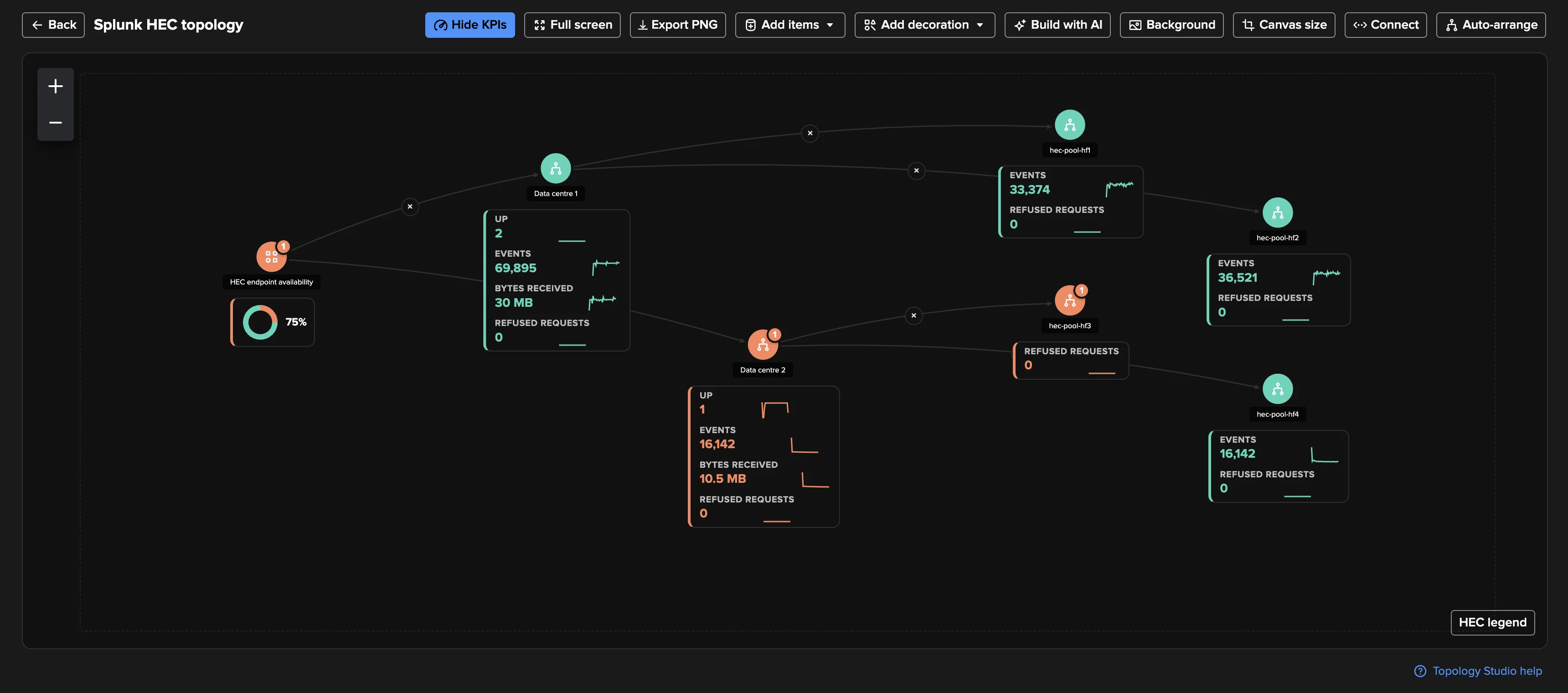
The view above is the HEC topology of a deployment with two pools of two heavy forwarders, generated from the workspace in one click and saved to Topology Studio (see Generated topologies). One heavy forwarder of Data centre 2 was stopped: the endpoint and its pool turned orange with the findings they opened, and the endpoint availability fell to 75 %.
For a guided tour on a live deployment, see the hands-on walkthrough Splunk HEC.
What it monitors
Object |
What TrackMe watches |
|---|---|
Endpoints |
Every Splunk instance whose HEC heartbeat reaches the search tier. Availability (an endpoint writes its HEC metrics every minute, traffic or not: no heartbeat means it is down), refused requests (server busy, refused tokens, rejected data), back pressure along its ingestion pipeline and the stage that cannot keep up, its output to the indexers, indexer acknowledgment under pressure or never polled, and optionally its host’s CPU and memory. |
Pools |
The endpoints behind one load balancer or with one role. Capacity (members up against the expected size), imbalance (a member up but starved of traffic), a traffic drop against the same hour of the previous days, traffic outliers against a traffic model, and, between the members, token consistency and configuration drift (Splunk versions, global HEC settings). |
Tokens |
The HEC inputs by name, whatever pool receives them. Rejected data (invalid format, incorrect index, missing or blank event, indexed fields, oversized events), silence of the tokens you select, and traffic outliers against each busy token’s traffic model. |
A token is always known by its name: TrackMe never reads, stores, logs or shows a token value.
How it works
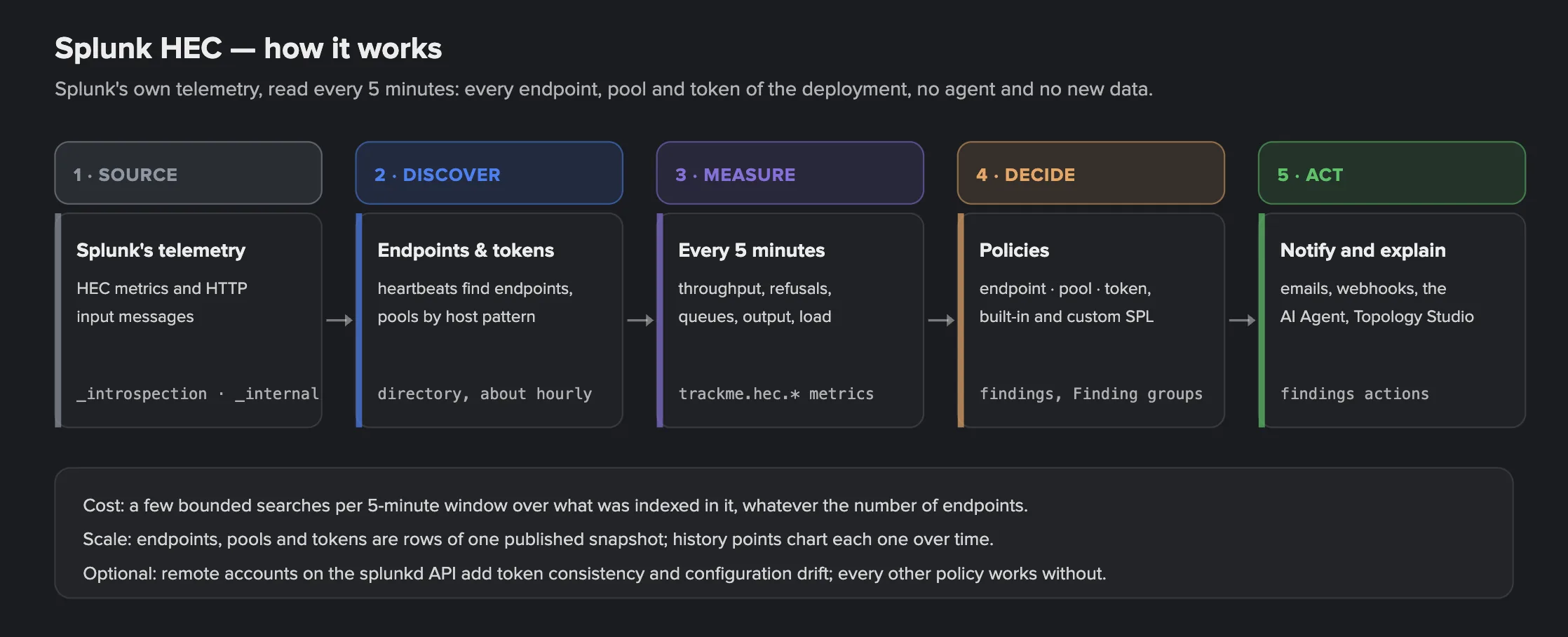
Splunk’s own telemetry is the source. Every HEC instance writes, every metrics interval
(60 seconds by default, limits.conf [http_input] metrics_report_interval), its HEC metrics
to _introspection (sourcetype=http_event_collector_metrics): an instance series, written
even when the endpoint is idle (a heartbeat), and a series per token while the token receives
data. It logs each refused request to splunkd.log (component=HttpInputDataHandler, with
the token name, the client address and the HEC reply code), and its queues, thread activity and
forwarding to metrics.log. Splunk forwards its internal indexes by default, so TrackMe sees
every HEC endpoint with no agent, no network path to the endpoint and no credential to it.
Bounded searches, whatever the fleet size. The collection runs a fixed number of searches per run, aggregated by host and token, over what Splunk indexed since the previous run (by index time, in settled 5-minute windows): its cost does not grow with one search per endpoint.
Job (Collection health label) |
What it does |
|---|---|
HEC activity (every 5 minutes) |
Reads the last settled 5-minute window: the HEC metrics of every endpoint and token, the refused requests by reply code, token and client, the ingestion queues and their threads, the output and its receivers, and the host’s CPU and memory. It publishes the window (endpoints, pools, tokens), writes the history points to the tenant’s TrackMe metric index, then evaluates the policies (Monitoring policies) and sends the notifications. |
Endpoint directory (every 10 minutes; rebuilt about once an hour) |
The endpoints (those seen in the last 24 hours, kept while they reported in the last 7 days) and the token names seen in the last 24 hours, their identity (Splunk version, OS, CPUs, memory) and the pool each one joins. With remote accounts bound, it also reads the optional splunkd API (see The splunkd API enrichment). |
Traffic models (twice an hour) |
Learns the incoming traffic of each pool and token per hour of the week, from the HEC metrics (see Traffic models). |
Monitoring policies (after every HEC activity run; on demand) |
Evaluates the policies on the newest window. Run now in Collection health evaluates them again. |
Endpoint states. In each window an endpoint is up (a heartbeat in the window), late (no heartbeat this window, but one in the last 5 minutes), stalled (no heartbeat, and its output was in trouble: its own telemetry waits behind the same blocked output) or silent. An endpoint silent for longer than the dormancy period of Endpoint availability (7 days by default) is dormant, a retired instance: it opens nothing. The directory keeps the endpoints that reported in the last 7 days.
Why “Server is busy”. HEC writes every request into one input queue, shared by every token, then into the ingestion pipeline (parsing, merging, typing, indexing) and, on a heavy forwarder, the output to the indexers. When a stage cannot keep up its queue fills, then the queues before it, until HEC’s own queue is full and HEC refuses requests with HTTP 503. The tenant reads every queue of that path and names the bottleneck: the stage after the furthest-downstream saturated queue, or the output when the backup reaches the indexing queue and an output queue is saturated too, and whether that stage’s thread was busy (working at its limit) or waiting on the next stage.
Before you start
A licence. A valid Enterprise, Unlimited, Unlimited trial or Developer licence. The Splunk HEC tenant is not available with the Foundation edition or the Foundation trial.
A source. The search tier that sees the HEC endpoints’ internal indexes:
local, this search tier, when it searches the indexers that hold the endpoints’
_internaland_introspection;or a TrackMe remote account (Remote Splunk deployments) to the search tier of another deployment, a Splunk Cloud stack included. The tenant’s scheduled searches run as the tenant owner, so the tenant owner must hold one of the remote account’s roles: the wizard and the Settings refuse the account otherwise (
remote_account_refused).
HEC telemetry that reaches the indexers. The endpoints forward their _internal and
_introspection indexes (the default forwarding of internal indexes does it). On Splunk
Cloud, _introspection and _internal are searchable and HEC runs on the indexers; the
tenant works the same way.
A tenant owner: nobody, or an account (typically a service account) holding the
capabilities the creation wizard lists, so that the tenant’s scheduled reports run. The
scheduled triage of the Splunk HEC AI Agent needs a Splunk administrator account as owner
(see The Splunk HEC AI Agent).
Optionally, remote accounts on the endpoints’ splunkd API, for the two policies that compare the configuration of pool members (see The splunkd API enrichment). Every other policy works without them.
Creating the tenant
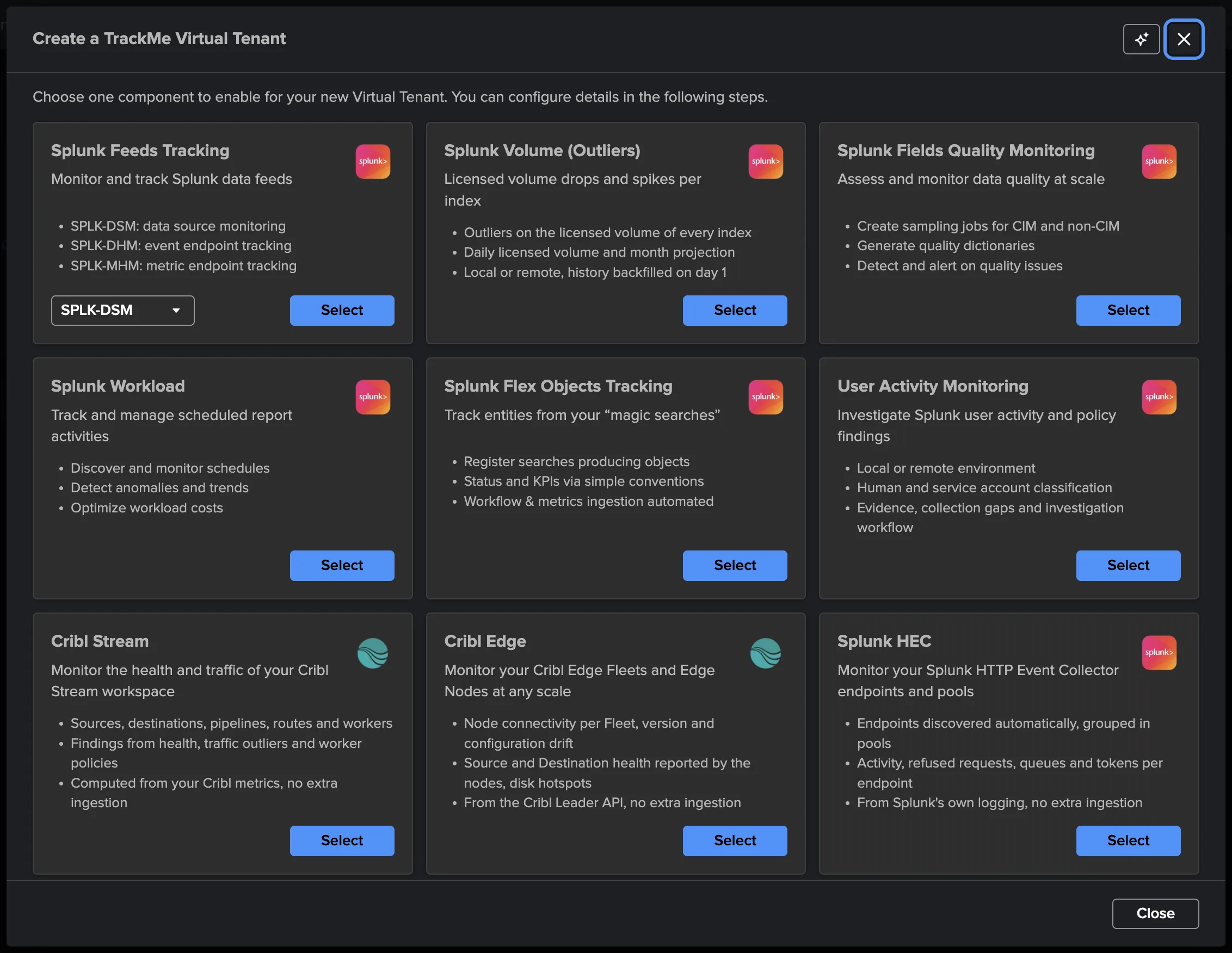
From the Virtual Tenants page, open Actions → Create a tracking tenant and choose the Splunk HEC card (“Monitor your Splunk HTTP Event Collector endpoints and pools”). Its first screen explains what the tenant does, with a How it works diagram on demand. The wizard has four steps.
1. Basics. The tenant identifier (lowercase letters, digits and hyphens, up to 20
characters, for example example-hec; it cannot be changed afterwards), an optional
alias and description.
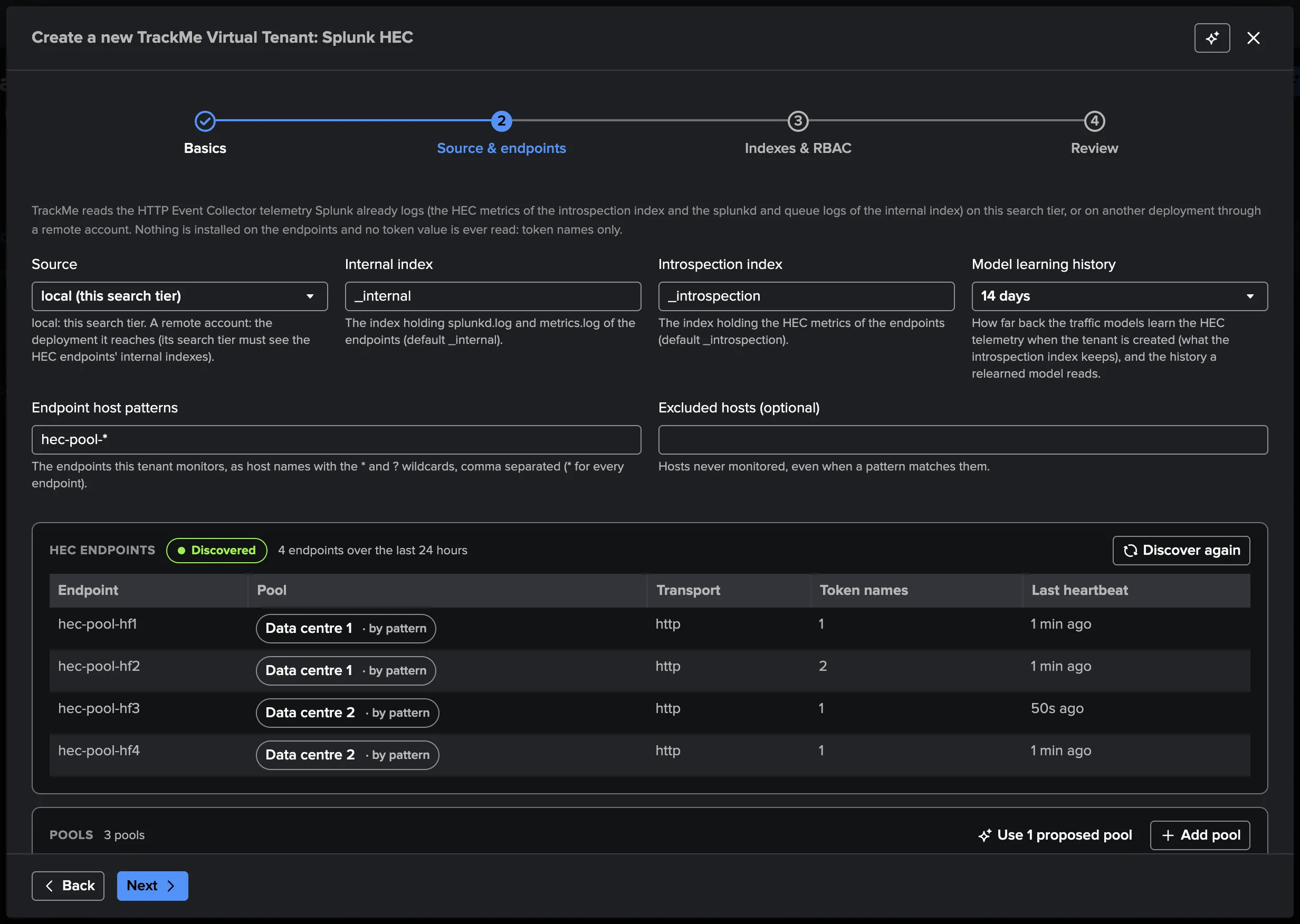
2. Source & endpoints.
Source:
local(this search tier) or a remote account. It is locked once the tenant exists: another deployment takes another tenant.Internal index (default
_internal) and Introspection index (default_introspection): where the endpoints’splunkd.log/metrics.logand their HEC metrics are. Locked once the tenant exists.Model learning history (14 days by default; from today on, 7, 14, 30, 60 or 90 days): how far back the traffic models learn the HEC telemetry when the tenant is created, and what a relearned model reads.
_introspectionmust keep that much (Splunk’s default retention is 14 days). Changed later in Settings → Collection.Endpoint host patterns: the endpoints this tenant monitors, as host names with the
*and?wildcards (*for every endpoint, the default), and Excluded hosts, never monitored even when a pattern matches them.HEC endpoints: TrackMe searches the HEC telemetry of the source and lists every endpoint that reported in the last 24 hours, with its transport, its token names and its last heartbeat. Discover again repeats the search. When nothing reported, the tenant can still be created: endpoints join it as soon as they report.
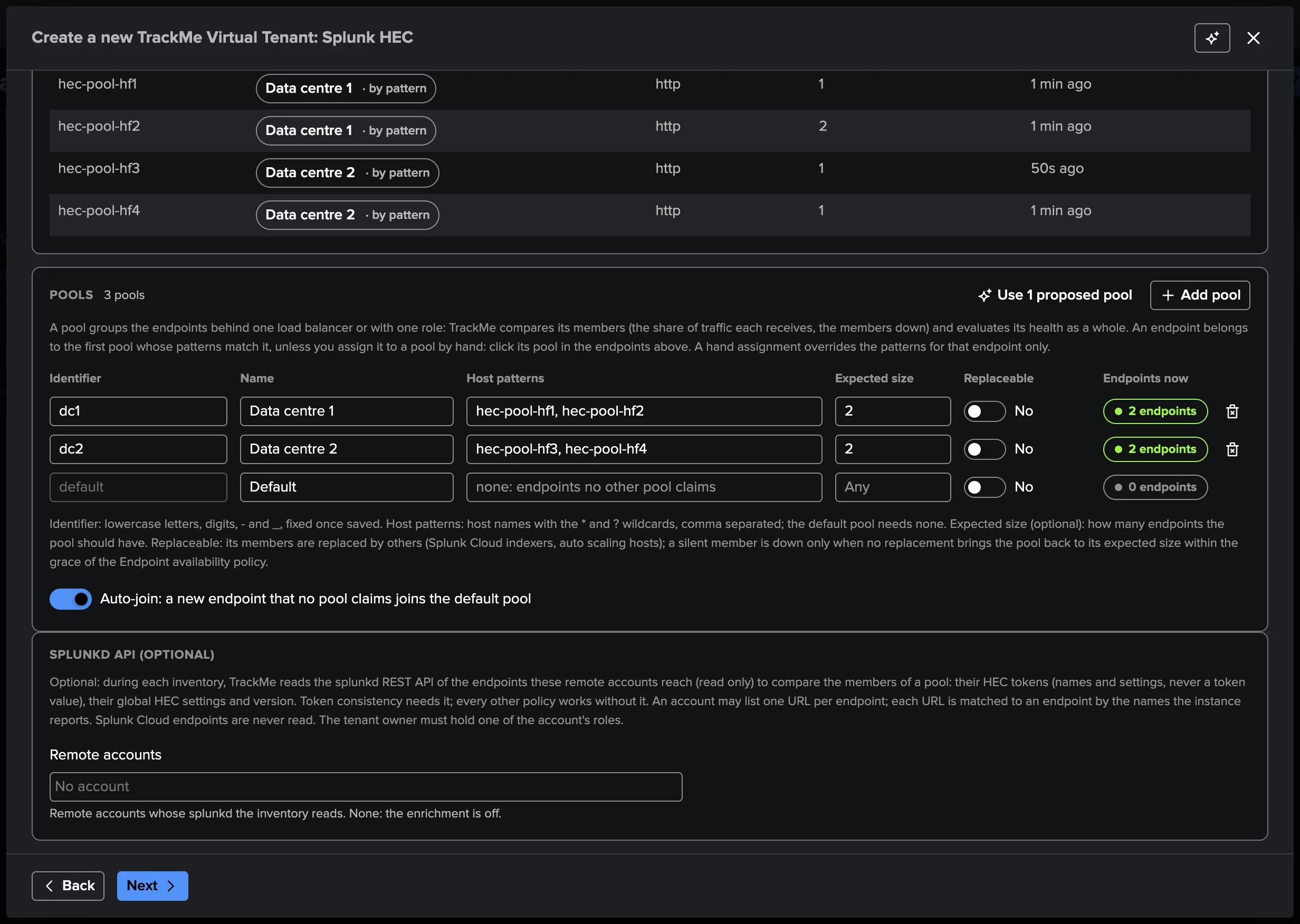
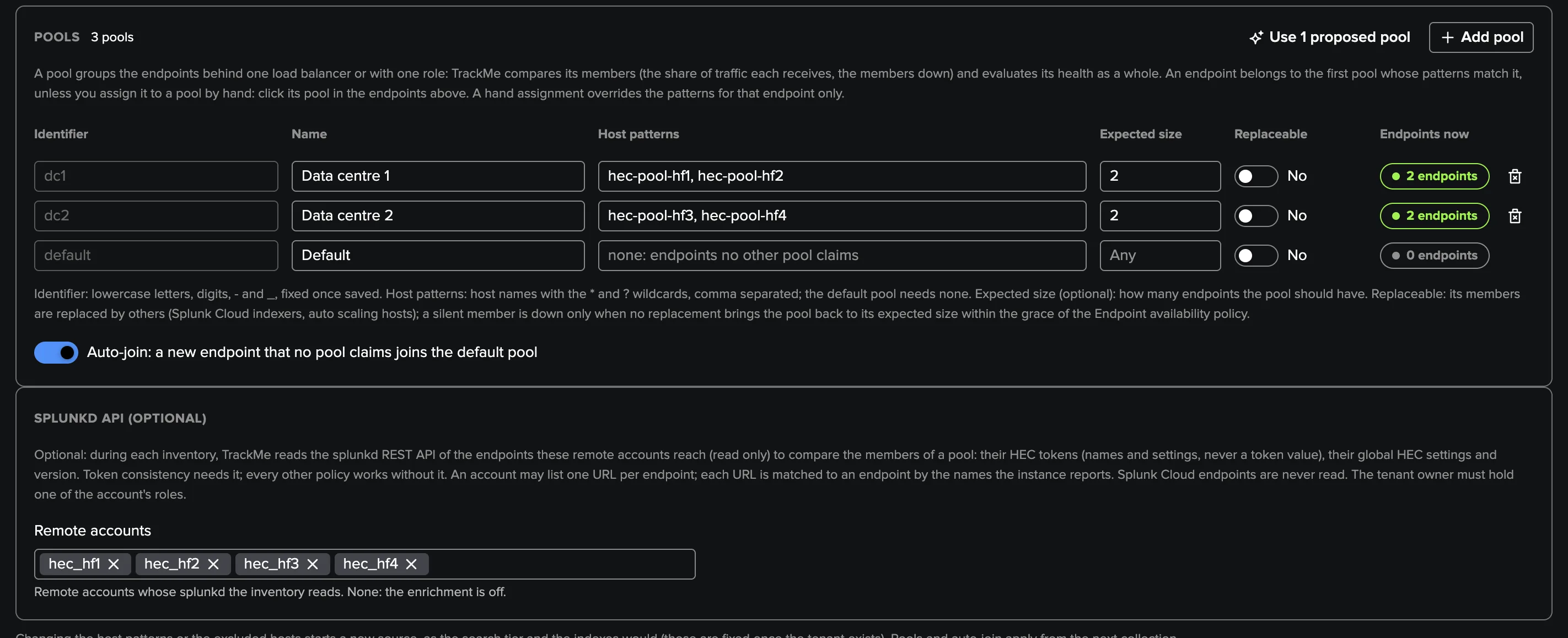
Pools: Use the proposed pools applies the pools TrackMe proposes from the host names (see Pools), or Add pool defines your own. Each endpoint’s pool is shown; click it to assign the endpoint to another pool by hand.
Splunk Cloud: when the discovery finds Splunk Cloud indexers (
*.splunkcloud.com), the wizard adds the Splunk Cloud indexers pool on its own, before the default pool: one per stack, matchingidx-*.<stack>.splunkcloud.com, with replaceable members, because Splunk Cloud replaces its indexers under new host names. A card in the Pools section says so. The other endpoints of the deployment stay in their pools, and a pool of yours that already claims those indexers is left alone. Remove the pool or turn Replaceable off and the wizard keeps your choice; the card then warns that every replaced indexer would be reported down, with a button that adds the pool back.Auto-join (on by default): a new endpoint that no pool claims joins the default pool. Off, it waits as discovered: listed, but not evaluated by the pool policies.
splunkd API (optional): the remote accounts whose splunkd the directory reads (none: the enrichment is off).
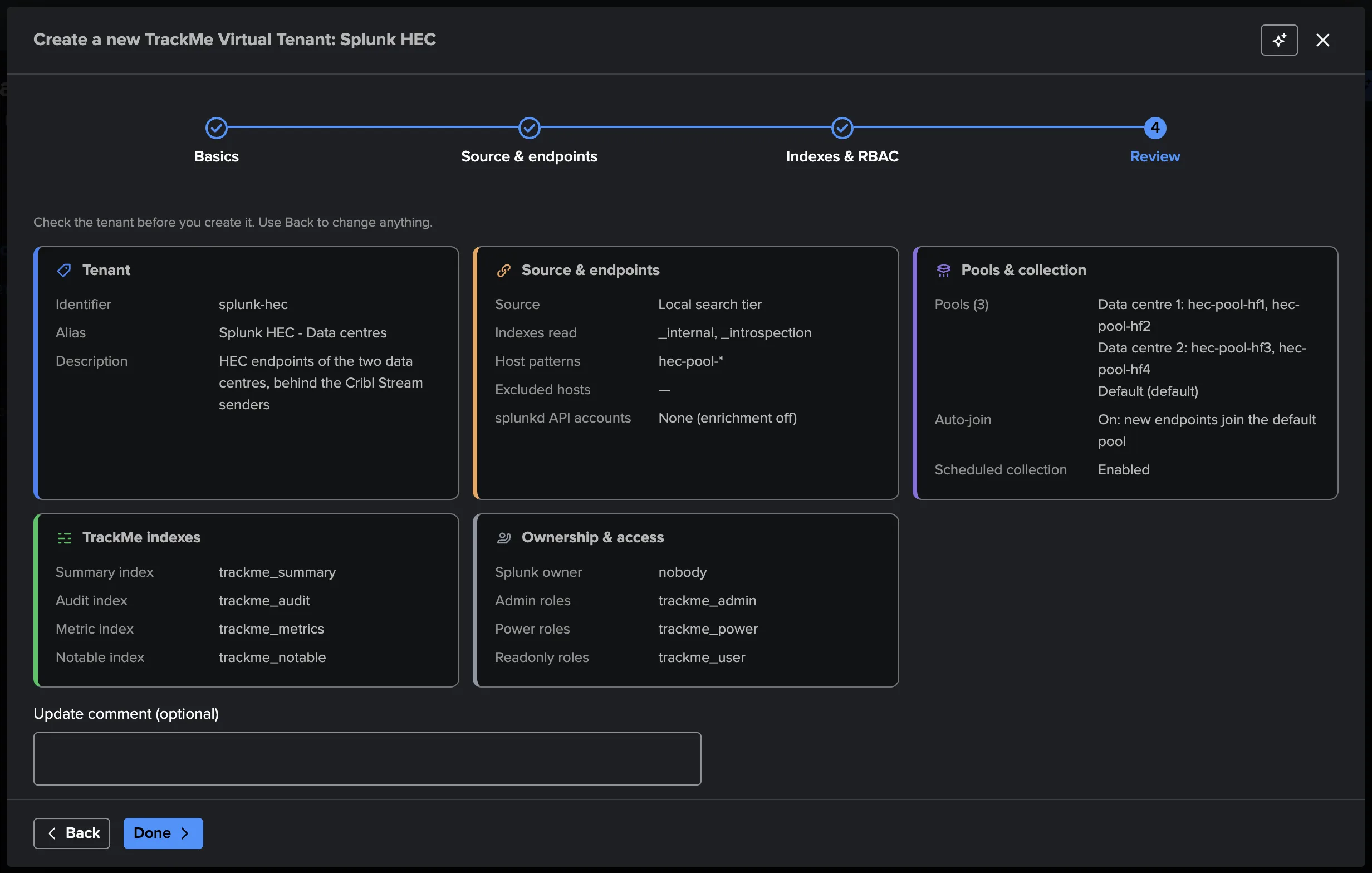
3. Indexes & RBAC. The tenant’s indexes (summary, audit, metric, notable), its admin, power and user roles, and its owner, as for any tenant.
4. Review. Check the summary — source, indexes read, host patterns, pools, auto-join, splunkd API accounts, indexes and roles — and create the tenant. TrackMe creates the tenant’s collections and reports and starts the first collection: the endpoints, pools and tokens appear in the workspace within a few minutes (Open workspace).
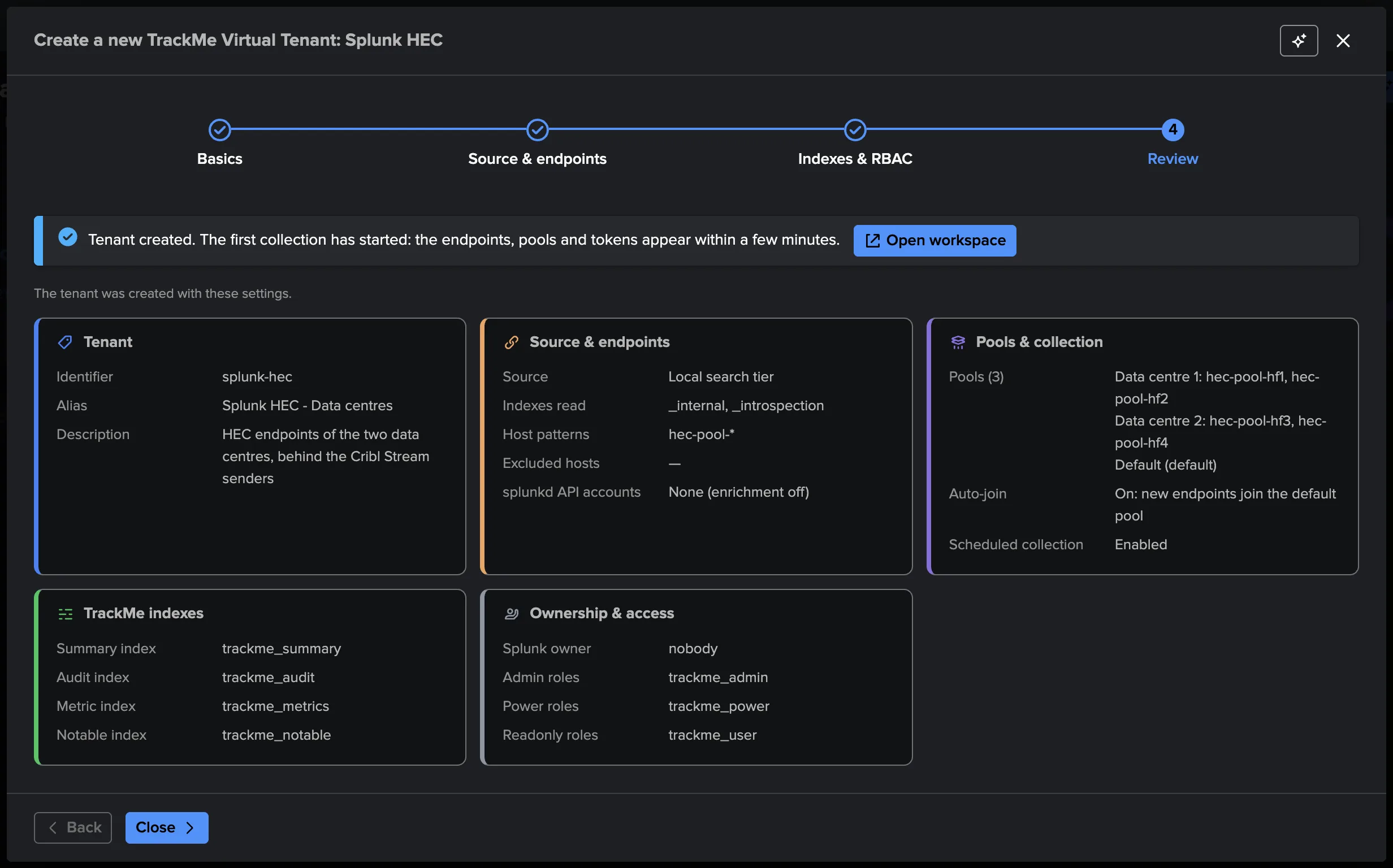
Collection is scheduled from the start: the HEC activity is read and the policies evaluated every 5 minutes, the endpoint directory rebuilt about once an hour, the traffic models trained twice an hour. To pause it, turn off Scheduled collection in Settings → Collection.
The workspace
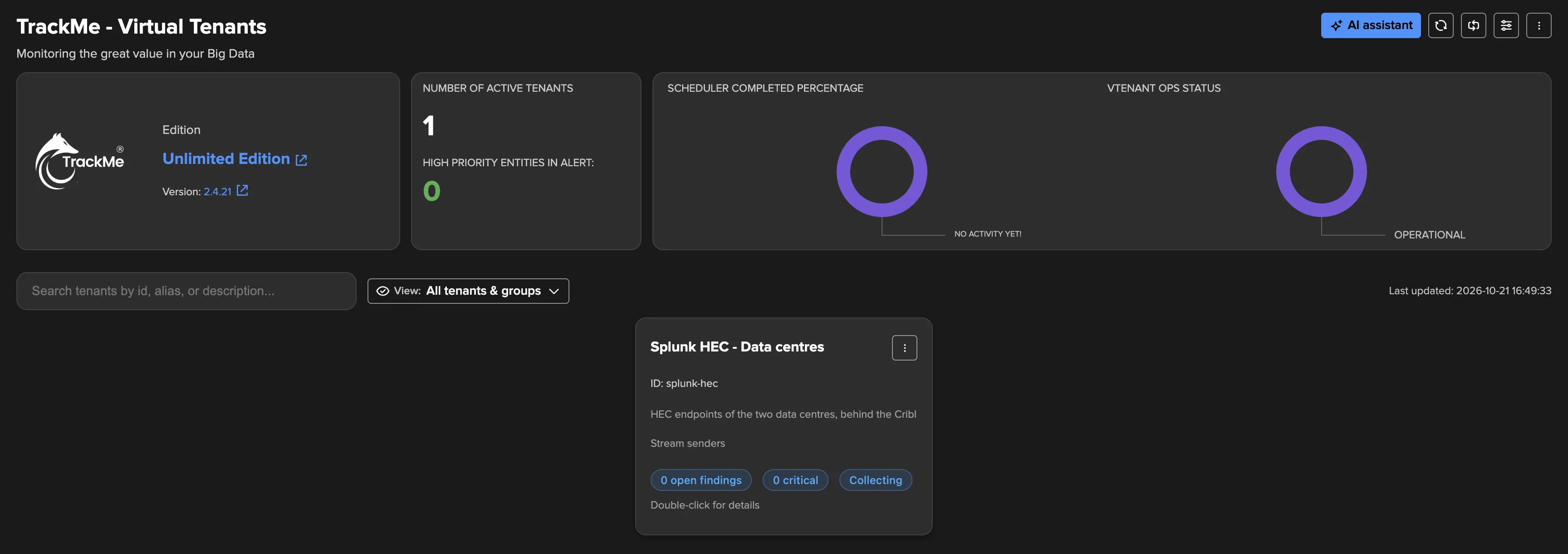
Open the tenant from Virtual Tenants: Tenant Home shows the Splunk HEC workspace, built with the same components as the Cribl workspaces. The status strip shows the source, the last run of HEC activity, Endpoint directory and Traffic models, Refresh and, for the TrackMe administrators of the tenant, Collect now.

Tab |
What it is for |
|---|---|
Findings |
The open findings and Finding groups of the tenant, their triage, assignment and findings actions. |
Overview |
The tiles of the deployment, the traffic over time, the pools, the endpoints needing attention, the discovered endpoints and the busiest tokens. |
Endpoints |
Every endpoint, by pool, filtered and paged by the server. Opens the endpoint. |
Tokens |
Every token name seen in the last 24 hours. Opens the token. |
Traffic models |
The traffic model of each pool and token, its state and expected range; opens a model and tunes one or several (see Traffic models). |
Policies |
The built-in policies and the custom policies of the tenant. |
Collection health |
Whether collection runs as configured, job by job, the source and the traffic models. |
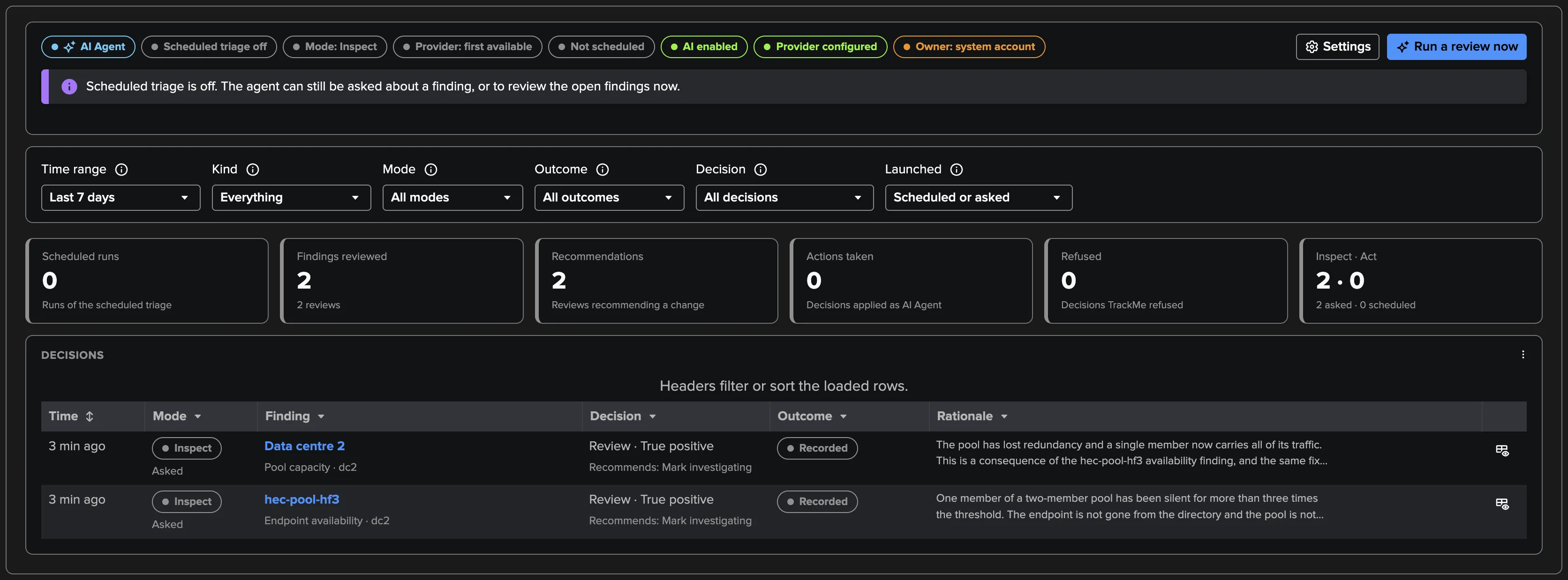
AI Agent |
The Splunk HEC AI Agent: whether it can run, its totals, Run a review now and its decision log. |
Settings |
Source & pools, Collection, Notifications, AI Agent, Assignment, Finding actions. |
The last five minutes
The states, findings and history come from the collected windows, which are settled on purpose (a window is read once its telemetry is indexed). The figures you look at are more recent: when the workspace opens, and at every refresh (automatic or manual), TrackMe also reads the statistics of the last five minutes up to now from Splunk and lays them over the collected rows. The badge says Last 5 minutes · as of HH:MM:SS; when that read fails, the workspace shows the collected window with the reason (Collected window). This read is an ordinary historical search over fixed bounds, run with your own rights: it never changes a state, a finding or the history. It runs at most two searches at a time, and a read still running is never started twice.
The large charts (the Overview traffic, the endpoint, pool and token drilldowns, a finding’s history) also read their latest buckets from Splunk when the last collected window is behind, and say so under the chart.
Overview
The tiles answer the HEC questions at a glance: Endpoints up, Events and Bytes per second, Active tokens, Refused requests (load balancer probes excluded), Server busy (HTTP 503: HEC could not queue the request), Back pressure (endpoints whose queues backed up), and when it happens Stalled endpoints and Oversized events. Refused requests, server busy, back pressure and stalled open the Endpoints tab sorted or filtered on them.
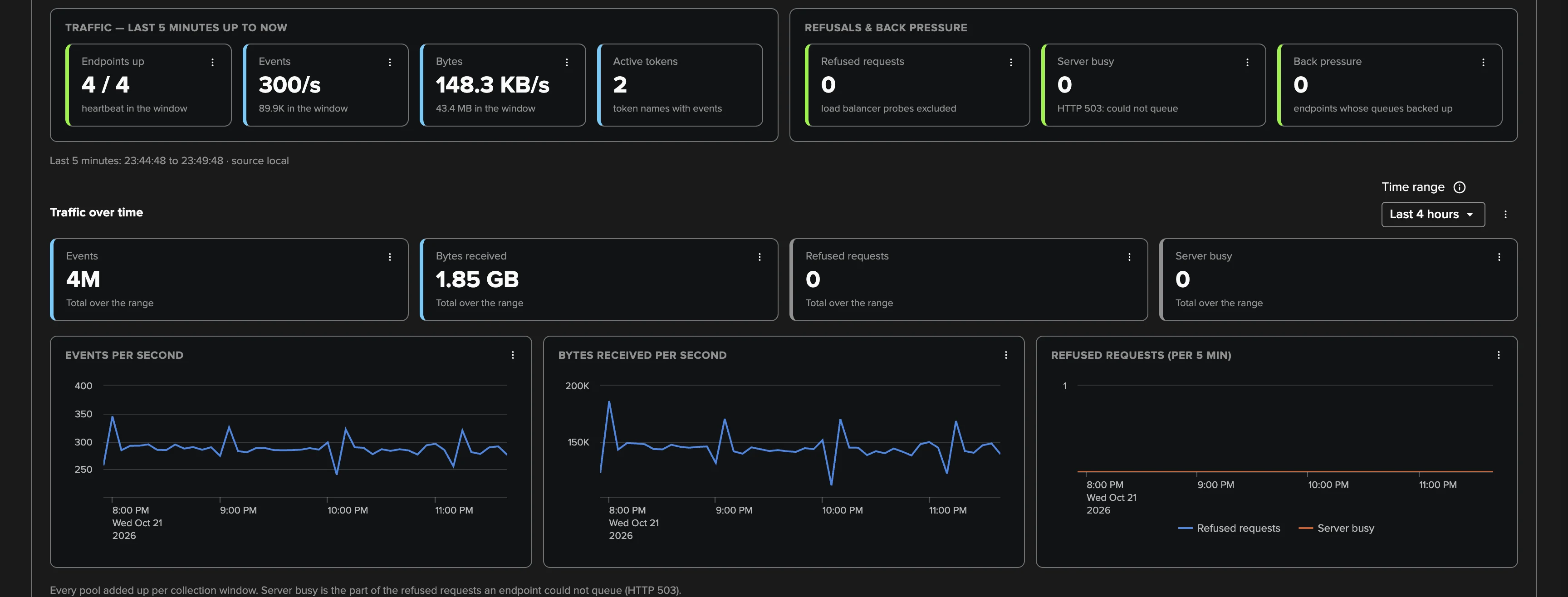
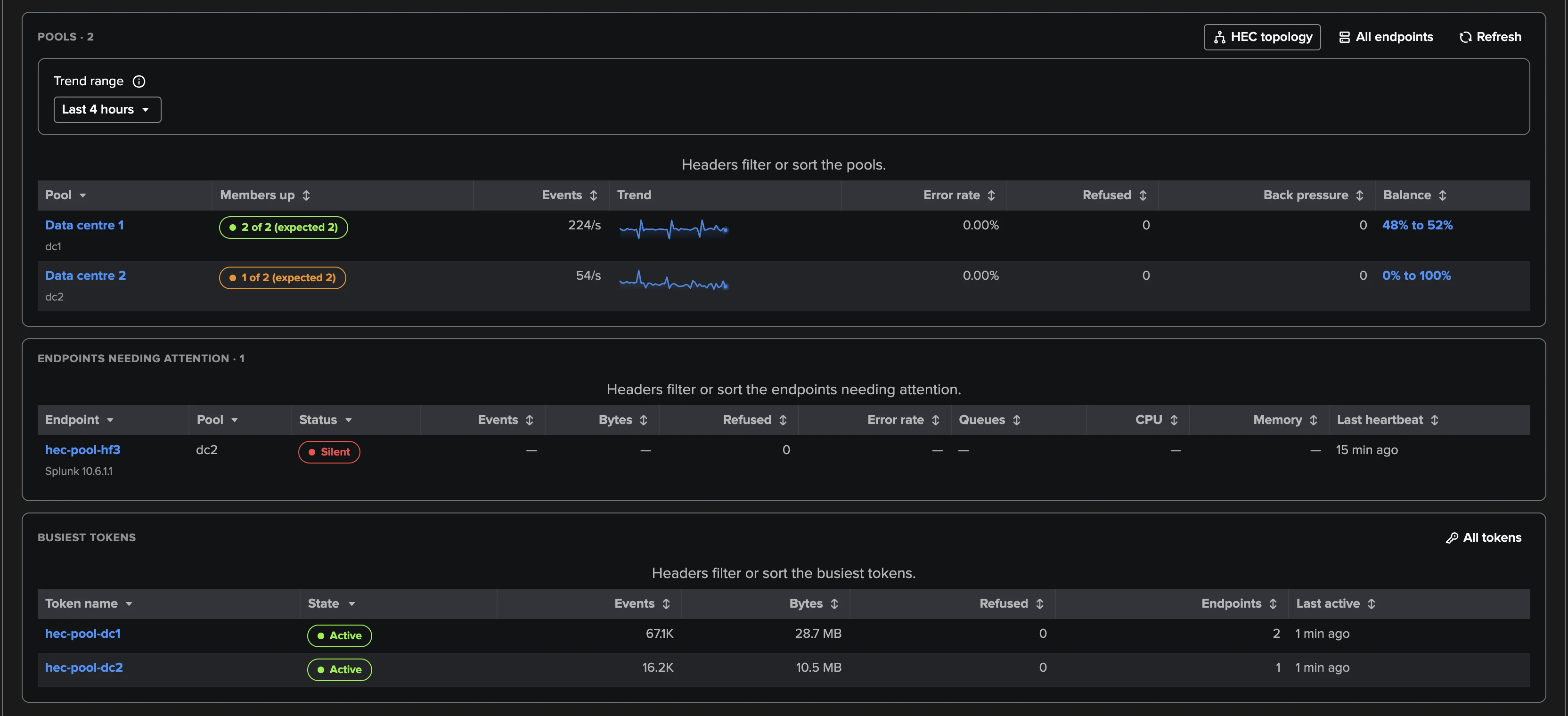
Below them: Traffic over time (events and bytes per second, refused requests and server busy replies per bucket, over a range you choose), the Pools (members up, traffic, refusals, back pressure, a trend, and the pool’s traffic distribution), Endpoints needing attention (not up, refusing, backed up, dropping oversized events, failing destinations), the Discovered endpoints waiting for a pool, and the Busiest tokens. HEC topology, on the Pools panel, draws every pool and its endpoints with their live status (see Generated topologies).
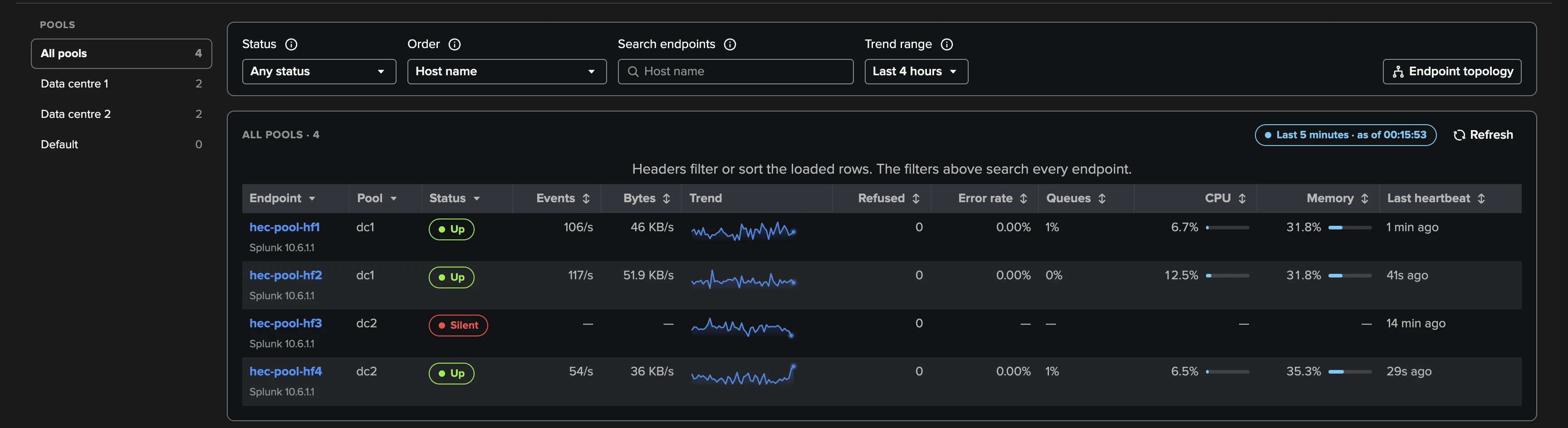
Endpoints
A sidebar selects All pools, one pool (with its members in the latest window), or the
Discovered endpoints. The table, paged by the server, filters by status (up, stalled,
late, silent) and host name, and sorts by host name, most events, most refused requests, most
server busy replies, highest error rate, most failed requests or back pressure first. Each row
shows the pool, the status, the traffic, the refused requests, the fullest ingestion queue (or
the bottleneck), a trend over the Trend range, and the host’s CPU (user and system,
average over the window) and Memory used (the peak over the window), as a percentage with a
bar that turns amber from 75 % and red from 90 %. Both are host-wide (the introspection
Hostwide data: every process on the endpoint’s host); a dash means the window holds no host
resource telemetry for the endpoint, as for a silent one. Endpoint topology draws the
endpoints the tab selects (see Generated topologies).
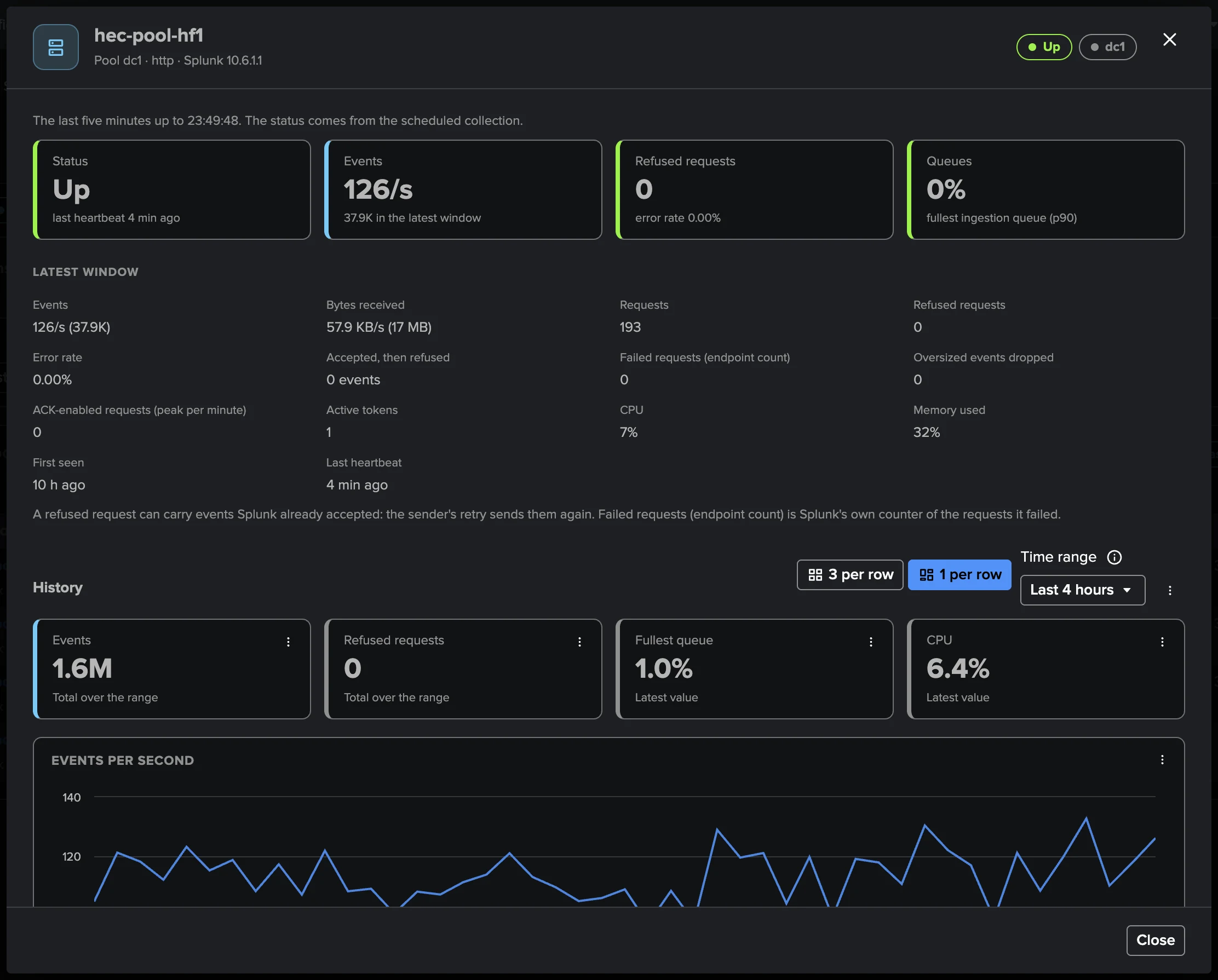
The endpoint drilldown shows its status and last heartbeat, events per second, refused requests and its queues, then:
Latest window: events, bytes received, requests, refused requests (with the server busy share), the error rate (excluding the empty probe requests of a load balancer), the events accepted, then refused (a request stops at its first error: the events before it are indexed, and the sender’s retry duplicates them), oversized events dropped, active tokens, CPU, memory, first seen and last heartbeat;
Refused requests by HEC reply code;
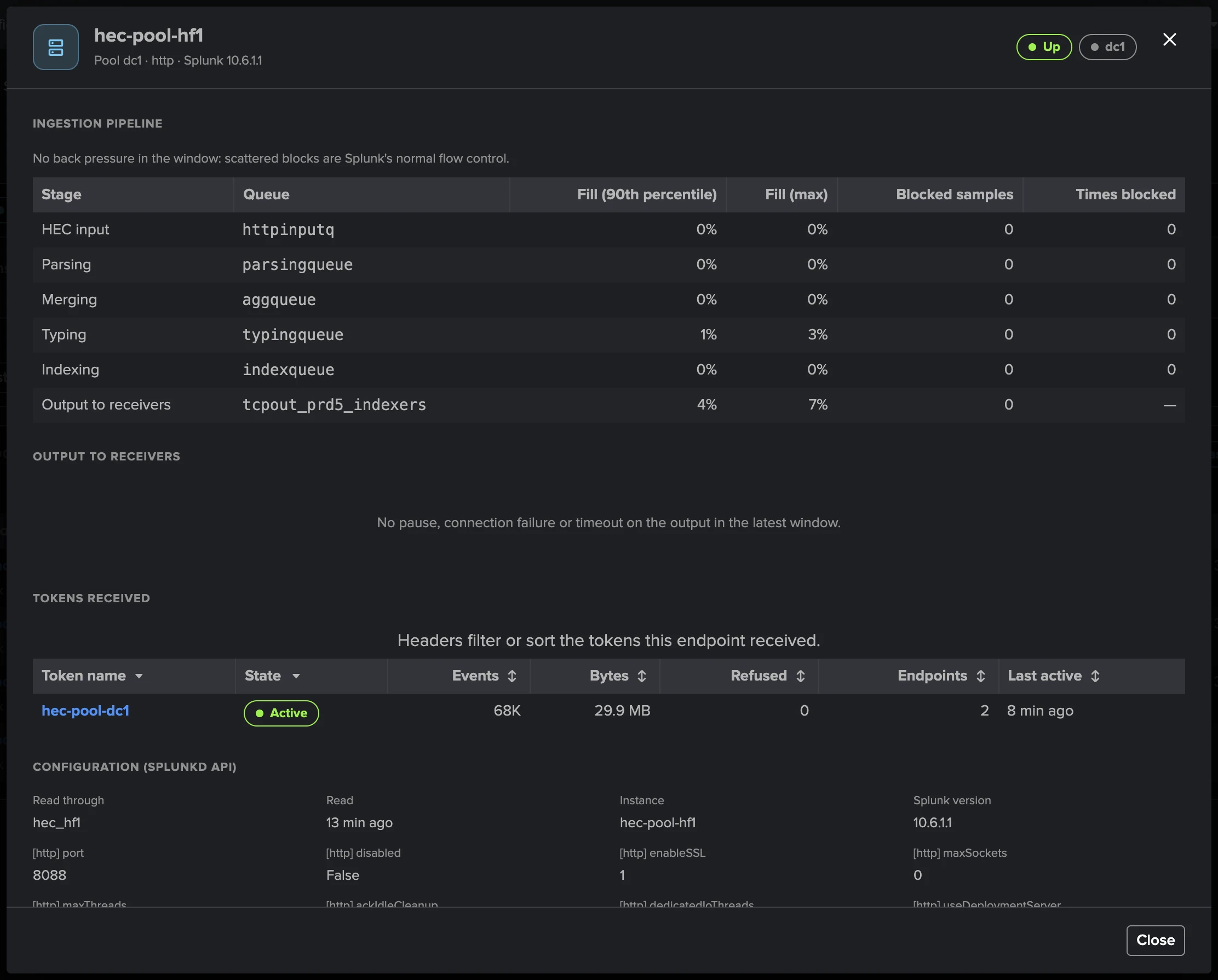
Ingestion pipeline: each queue of the HEC path with its stage, its fill (90th percentile and maximum), its blocked samples, the bottleneck and how busy its thread was;
Output to receivers: each destination with its longest pause, connection failures and timeouts, and, when their own logs are searchable from the source, the Receivers and whether they stopped listening;
History (events per second, refused requests, fullest queue, CPU) and, when bound, the Configuration (splunkd API).
Why it was flagged. A refused-requests or back-pressure figure in the tables, the tiles of the drilldown or a pool row opens a screen that shows why, from Splunk’s own logs, over the last hour, 4 hours or 24 hours: the summary (the refused total with its top reply codes and clients, or the saturated queues and the stage after the furthest-downstream one, with the output pauses that caused it), the timeline, the breakdown and the raw lines (at most 50, token-shaped values masked), each with Open in Search.
Pools
A pool groups the endpoints behind one load balancer or with one role. TrackMe compares its members — the members up, the share of the traffic each one receives, their versions and settings — and judges its capacity and its traffic as a whole. A tenant has up to 200 pools, and always a default pool.
Membership. An endpoint belongs to the pool it is assigned to by hand, else the first
pool whose host patterns match it (case-insensitive * and ? wildcards, for
example hf-*.example.com), else the default pool’s own patterns, else the default pool when
auto-join is on. Otherwise it is listed as discovered: shown, evaluated by the
endpoint policies, but by no pool policy. An endpoint excluded or outside the tenant’s host
patterns is in no pool, whatever its assignment.
Assignments (up to 500) pin one endpoint, by its exact host name, to a pool; By pattern removes the assignment. An assigned endpoint the discovery did not report stays listed as Not seen in 24 hours.
Proposed pools: the discovery proposes one pool per host-name family (the host names with their trailing digits or cloud instance id removed; a family of one host joins the default pool) and one Splunk Cloud indexers pool per Splunk Cloud stack.
Expected size (optional, 1 to 10,000): how many endpoints the pool should have. Without it, Pool capacity learns the size from the pool’s own history.
Replaceable: the pool’s members are replaced by others with new host names (Splunk Cloud indexers, auto scaling groups, containers). A silent member is then judged through its pool: while the pool is back at its expected size, it was replaced and opens nothing; when no replacement arrives within the replacement grace of Endpoint availability (30 minutes by default), it is down as in any pool. A replaced member’s open findings close as endpoint replaced (never as recovered), it leaves the directory at its next rebuild, and the pool drilldown lists the last replaced members. The discovery turns it on for the Splunk Cloud pools it proposes, and the creation wizard adds those pools on its own (see Creating the tenant). A replaceable pool takes no hand assignment.
Pools are configuration: a pool change applies at the next HEC activity run. Moving an endpoint moves its findings: those under the old pool close and open under the new one if the condition holds; its history is kept by host.
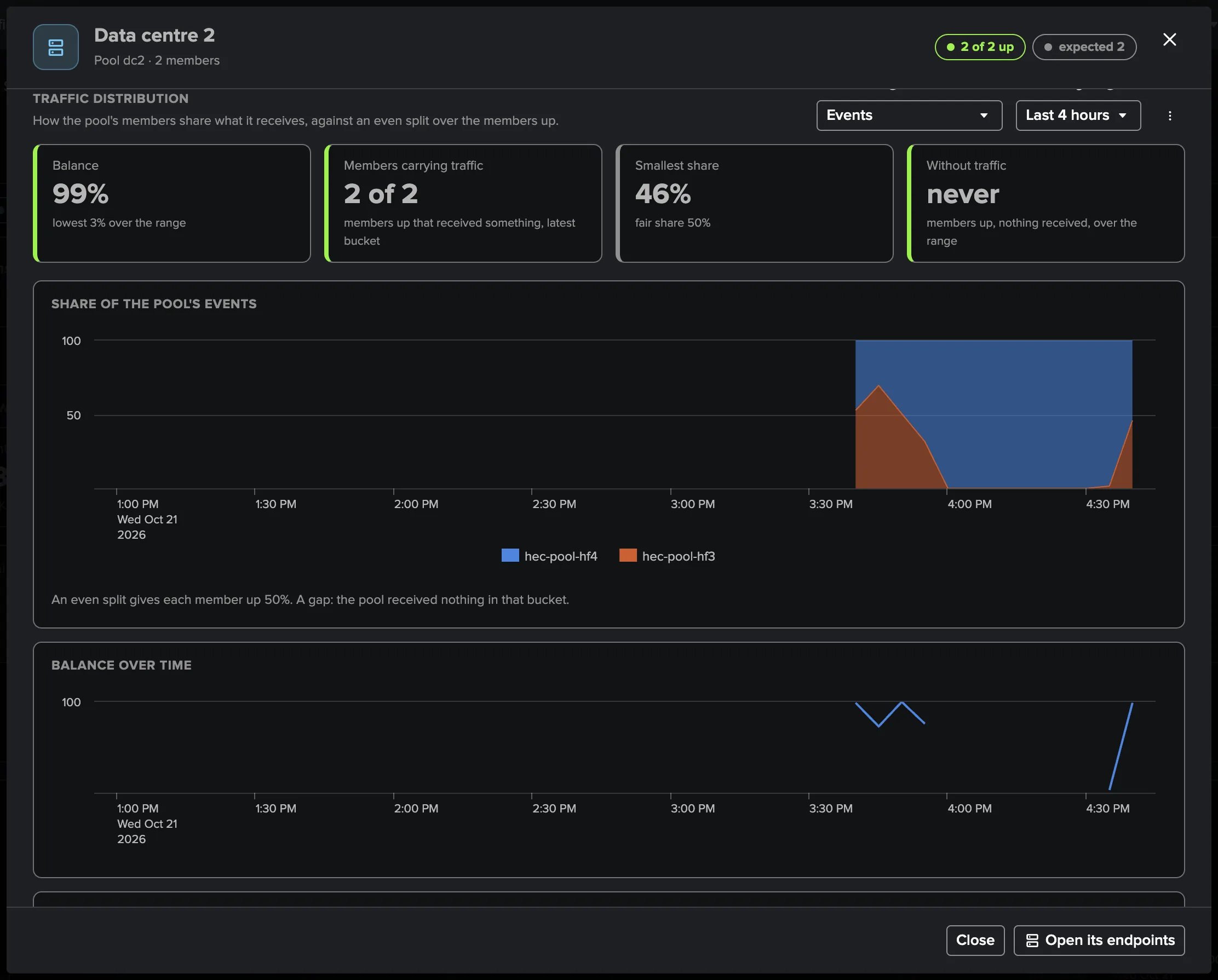
The pool drilldown (from a pool’s name or Balance in the Overview, the Endpoints tab or a pool finding) shows the latest window, then the Traffic distribution over a range: Balance (100 for an even split over the members up, 0 when one member takes everything), the members carrying traffic, the smallest share against the fair share, the members up that received nothing, the share of each member over time, the balance over time and the members table, then the pool history and its replaced members.
Tokens
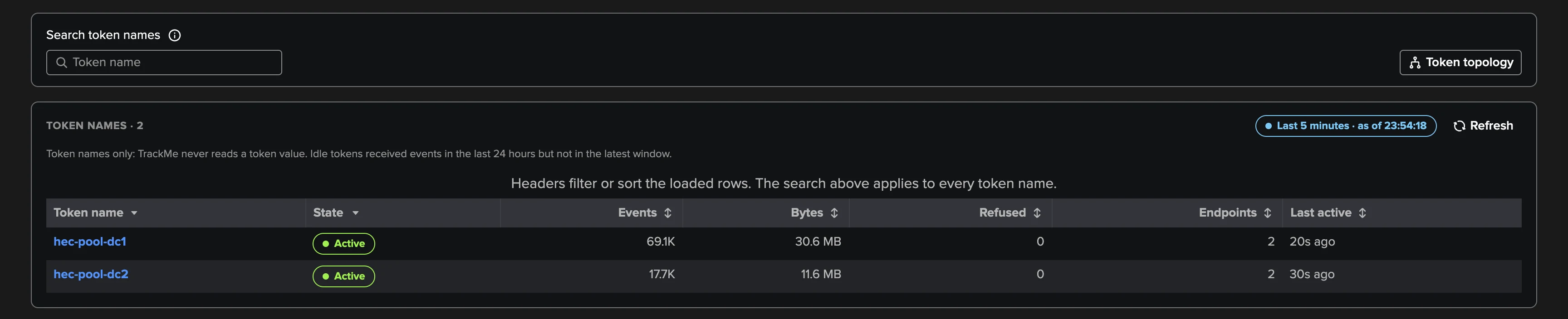
The Tokens tab lists every token name seen in the last 24 hours: the pools and endpoints that received it, its last activity, its events, bytes and refused requests. A token name in this tab, the Overview’s busiest tokens, an endpoint or a token finding opens the token drilldown: its state in the latest window (active or idle), events per second, refused requests and error rate, its last 24 hours, an alert naming the index when Splunk refused its events for an incorrect index, its Traffic over time, the Endpoints involved (each endpoint that received or refused it, its share of the token’s events against an even split), and the Errors (classes, HTTP statuses, reply codes in plain words, indexes refused, client addresses). Token topology draws the tokens the tab lists under the pools that received them (see Generated topologies).
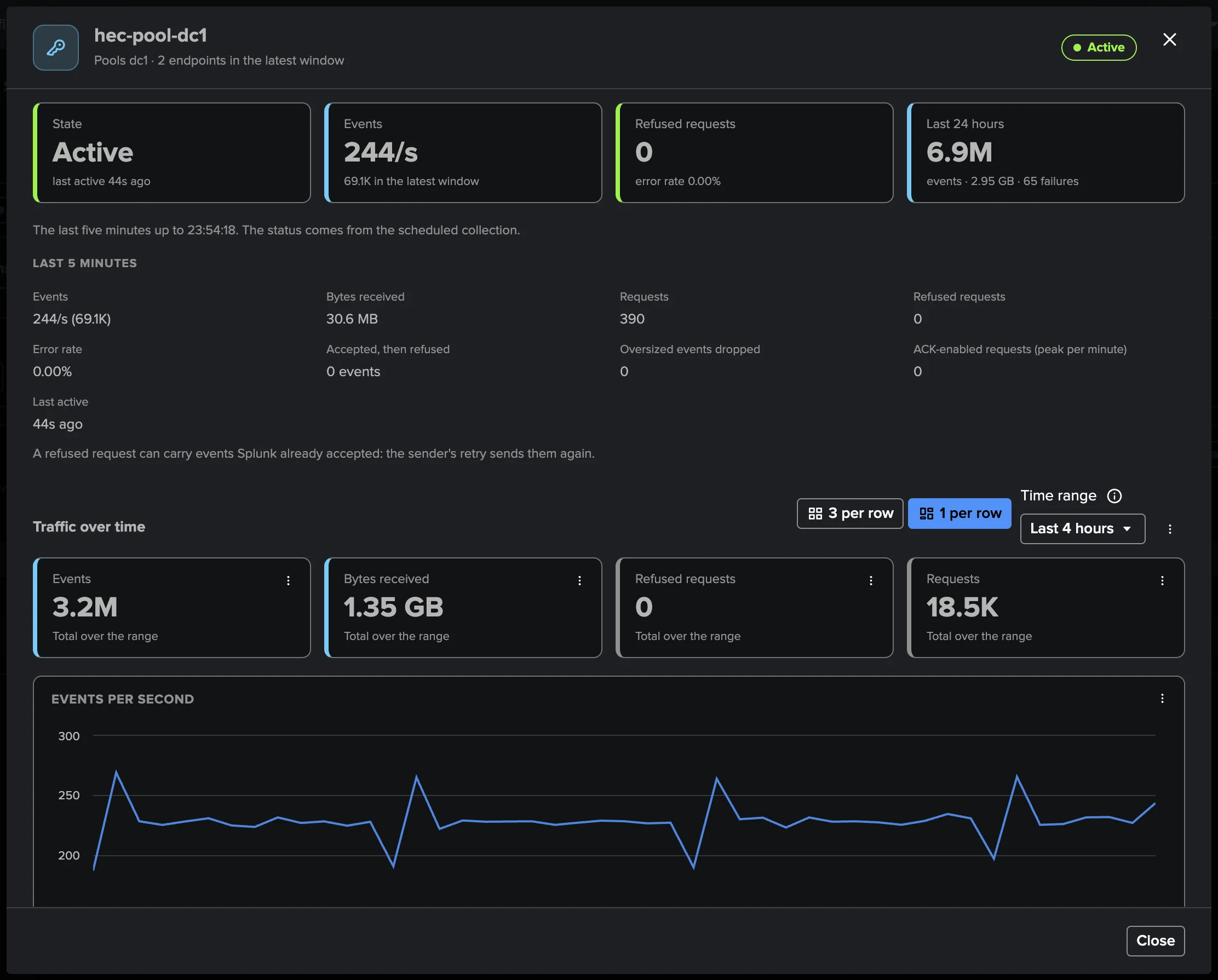
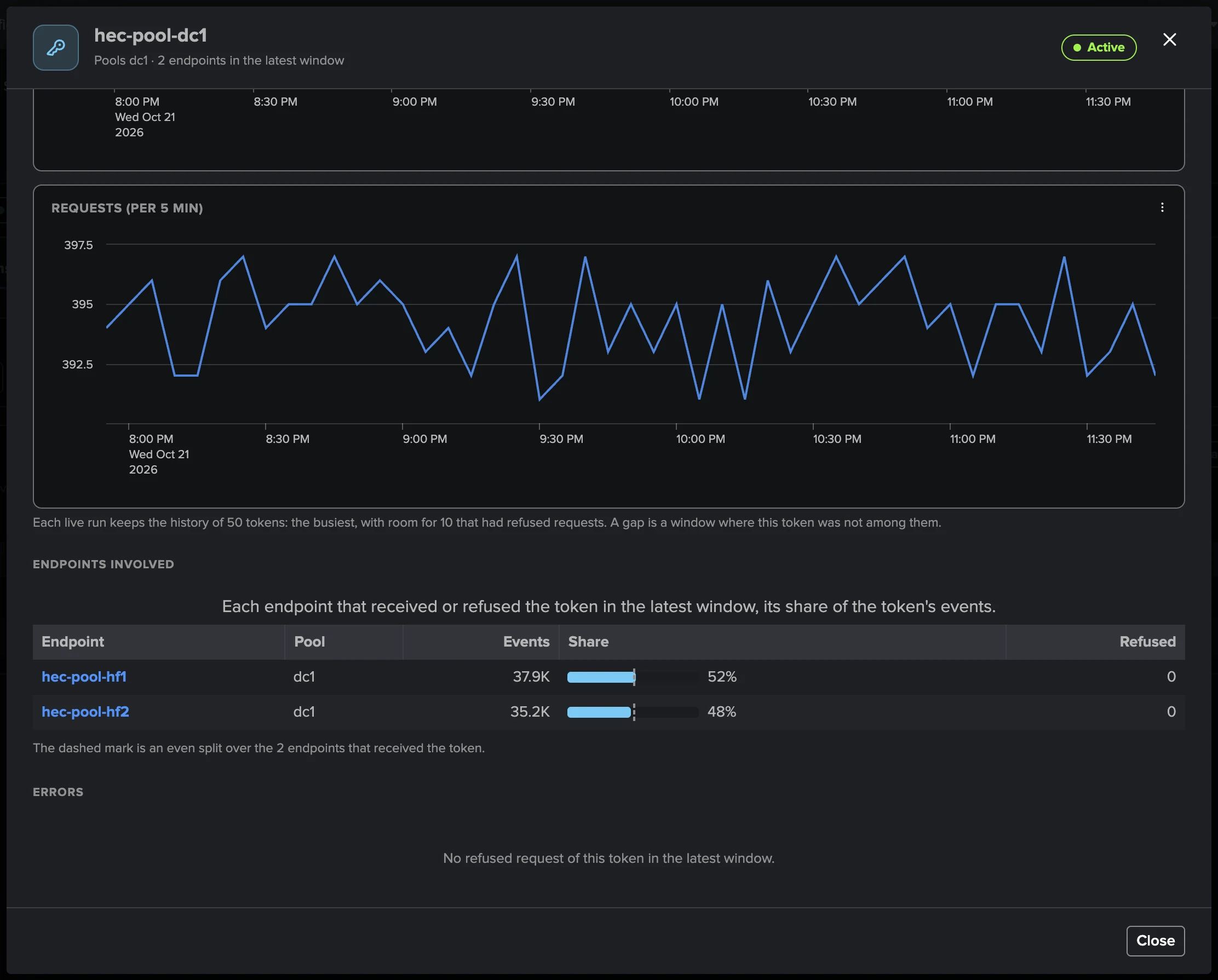
The traffic history of a token is written for the 50 busiest tokens of each window, with 10 places kept for tokens with refused requests: a window where a token was outside them is a gap in its chart, not a zero.
Policies
The catalogue of the eighteen built-in policies, in three categories: Endpoints, Pools and Tokens. Seventeen are on out of the box; Endpoint resources is off (it watches the host, not HEC). Token silence is on but decides nothing until you select tokens, and Token consistency needs the splunkd API.
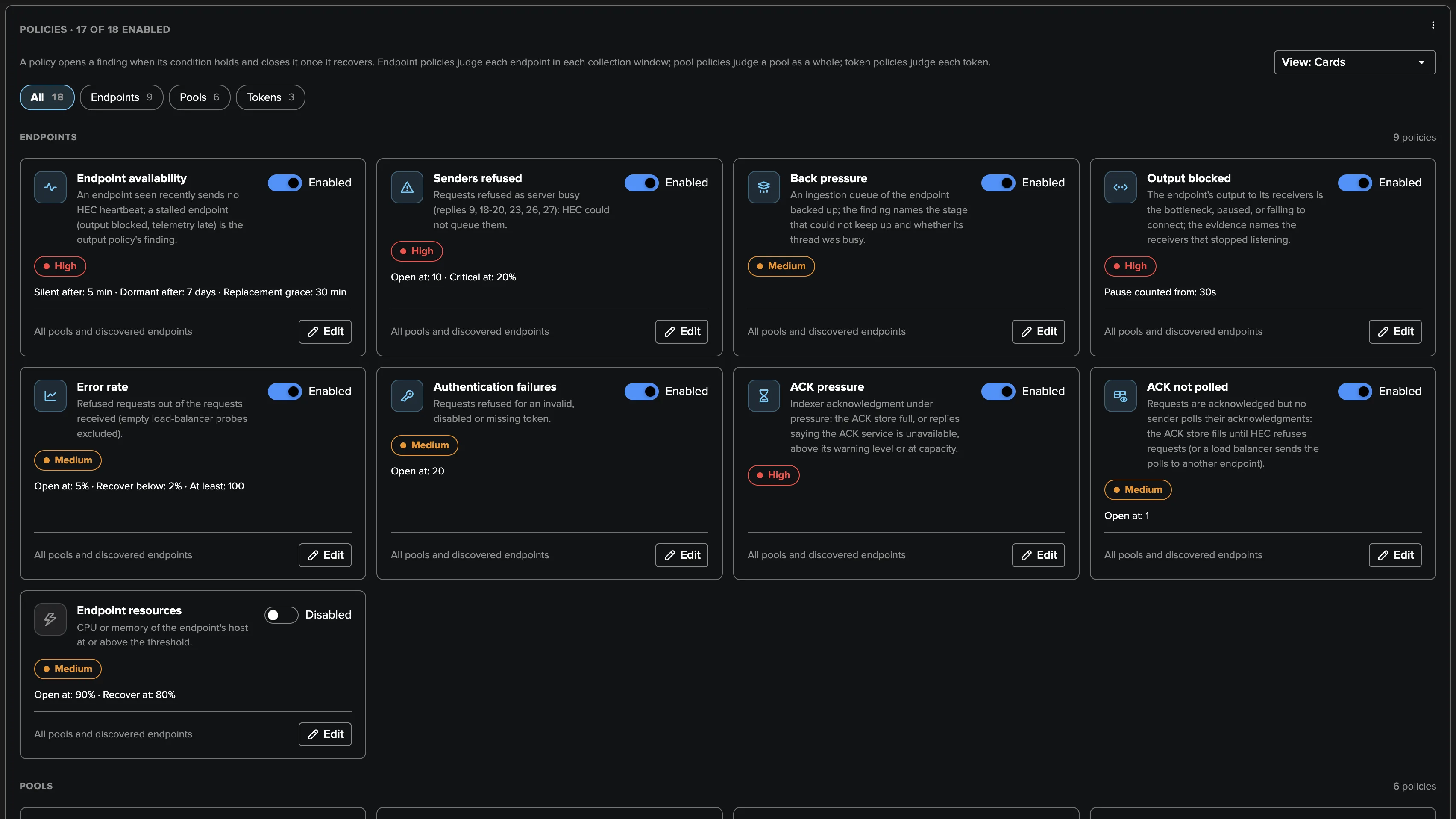
Show them as cards, compact cards or a list. A TrackMe administrator of the tenant turns a policy on or off and opens its editor:
General: on / off, severity, the checks to open (consecutive failing 5-minute windows) and to recover, the policy’s own conditions with their help, During bank holidays (see Bank holidays) and the Pools it applies to (empty: every pool; the endpoint policies also cover the discovered endpoints). A token policy has no pool scope: a token goes to every pool that accepts it.
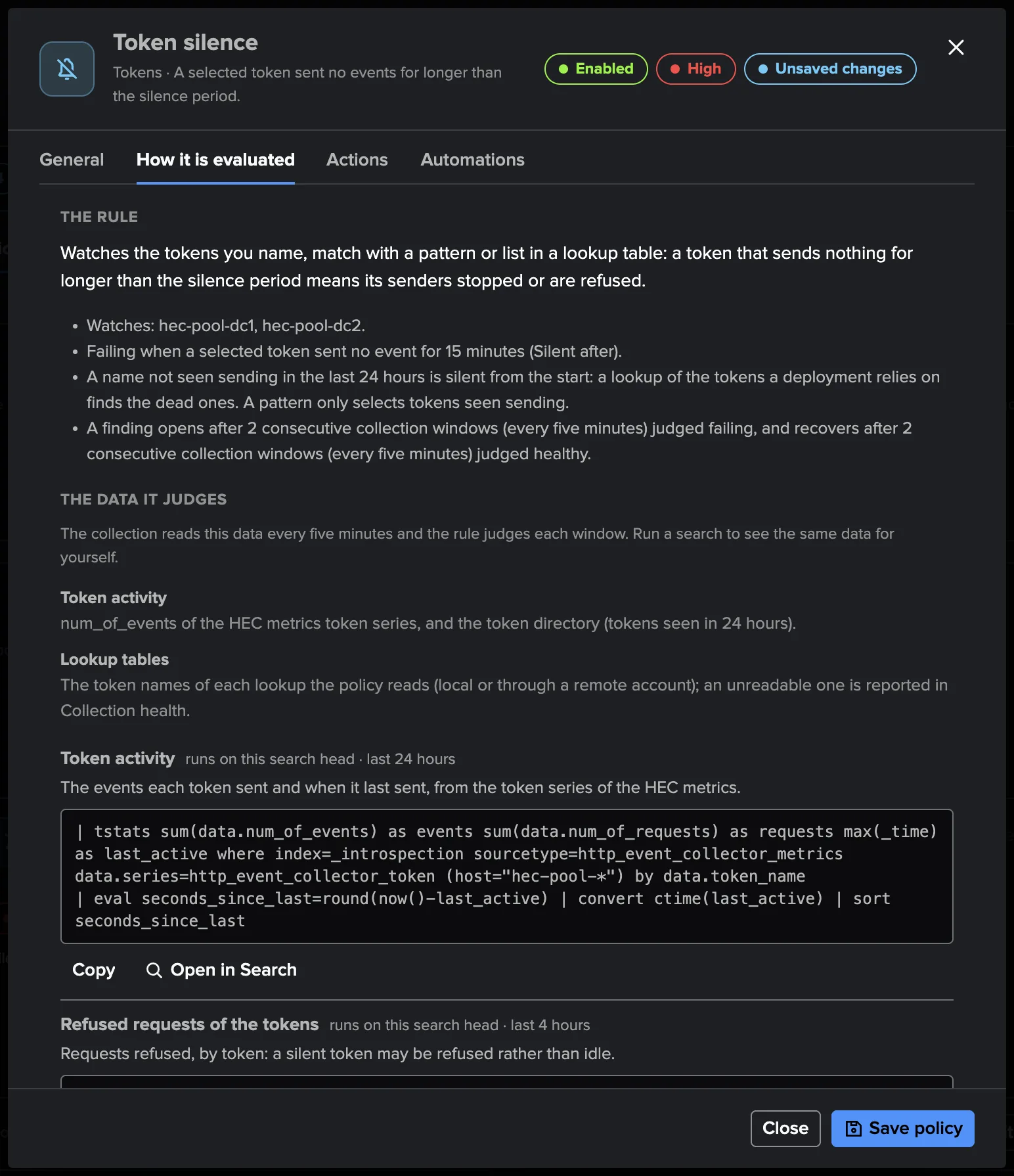
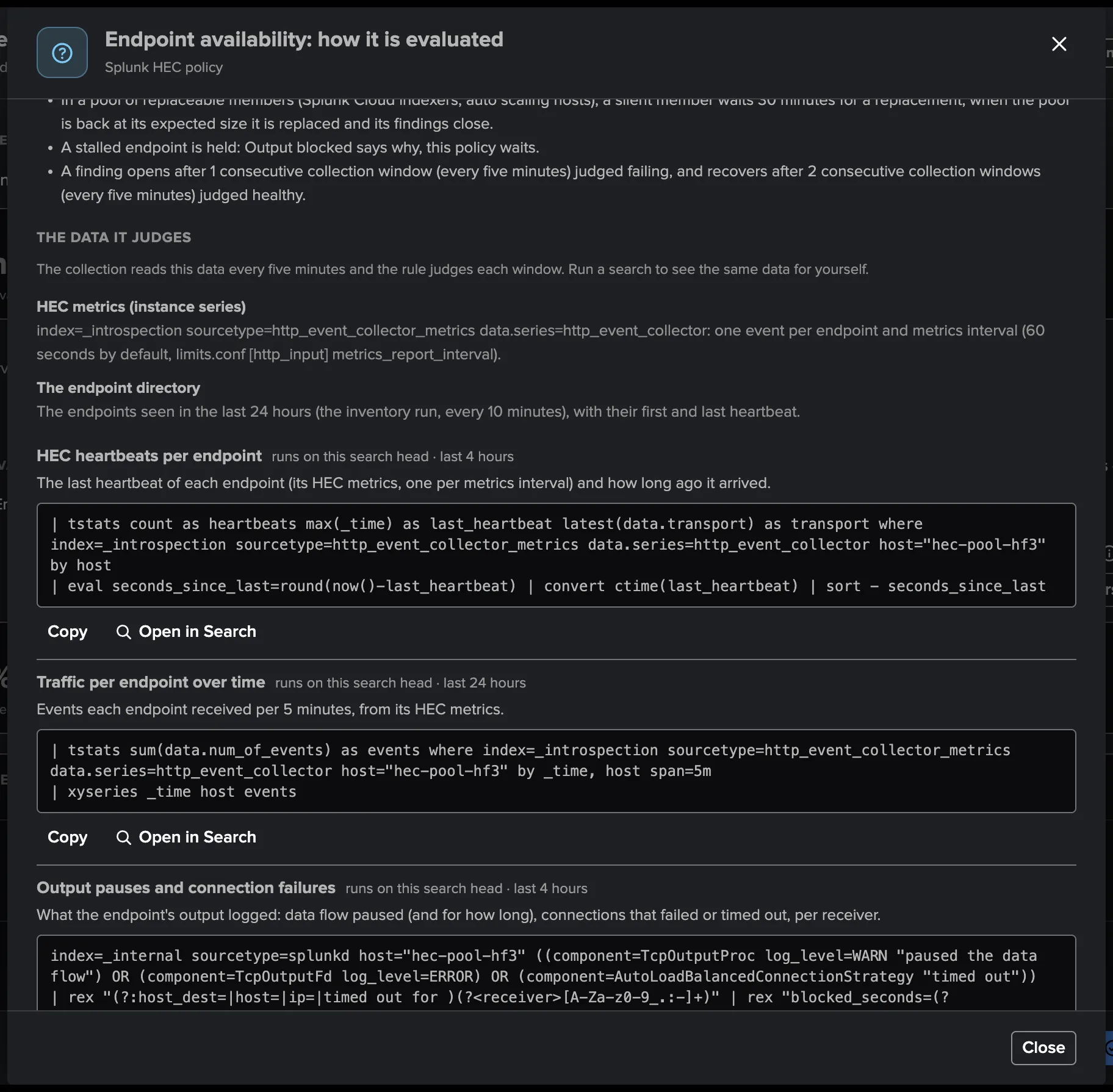
How it is evaluated: what the policy does and how it decides with its current settings, the data it reads, ready-to-run searches built from the tenant’s own source (its indexes, host patterns and remote account), each with Open in Search and Copy, how to investigate, the causes and resolutions, the related policies and notes. The same help opens from a finding’s investigation, with the searches narrowed to its endpoint or token.
Actions and Automations: the findings actions offered on this policy’s findings and the rules that call them.
Every policy, its settings and defaults are in Built-in policies.
Tokens that must keep sending
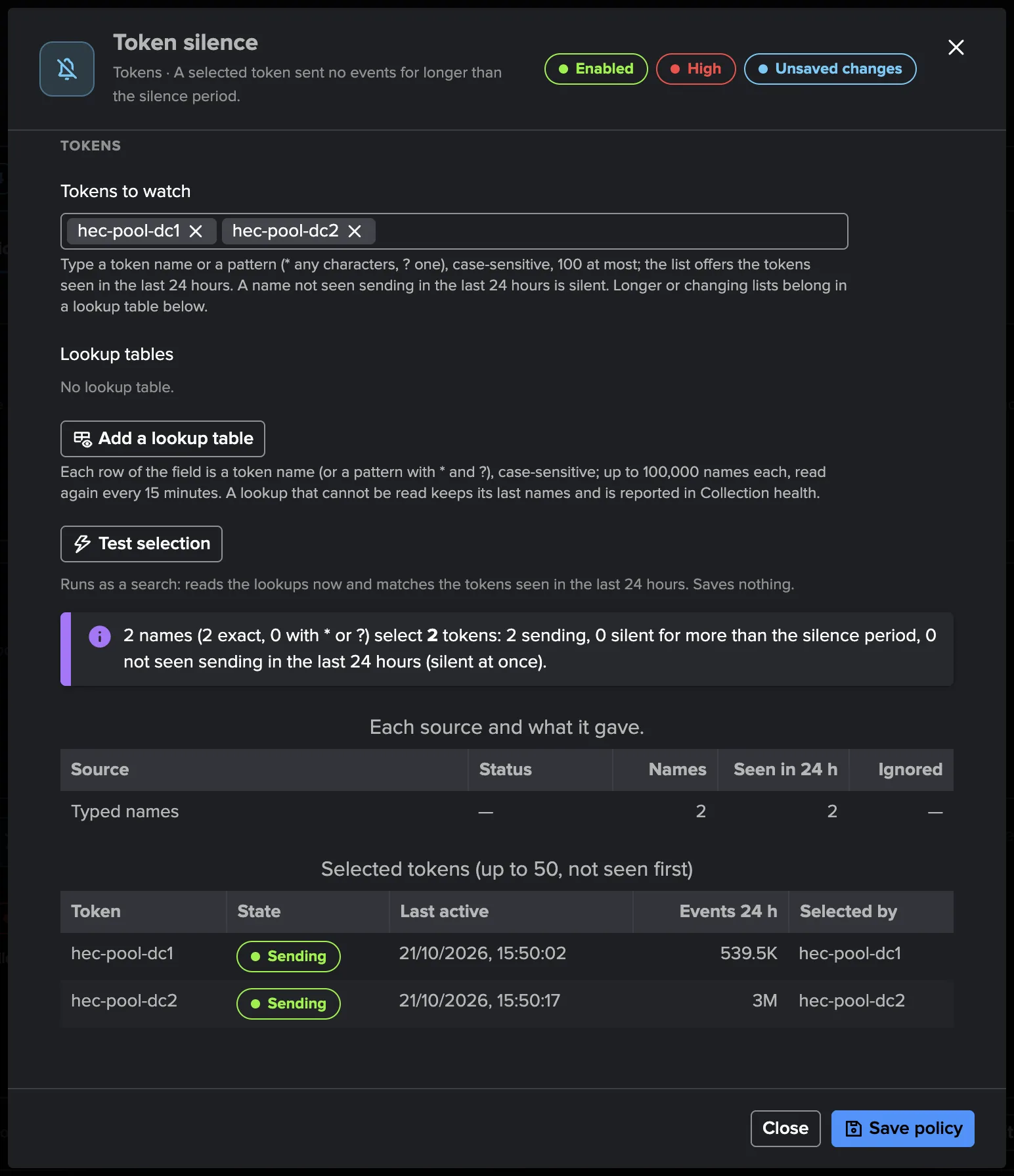
Token silence opens a finding when a token you select sends no event for longer than the silence period (15 minutes by default). Its editor, Tokens to watch, selects them from two sources that add up:
Token names typed in the policy (the list offers the tokens seen in the last 24 hours), up to 100 names or patterns, case-sensitive, with
*(any characters) and?(one character), for exampleapp.prodorpayments-*;Lookup tables from Splunk, for long or changing lists such as the tokens a deployment relies on: up to 20 lookups, on the local search tier or on a remote deployment through a TrackMe remote account, each with the field holding the token names and a match mode, Exact (the default) or Wildcard. A lookup holds up to 100,000 distinct names and is read again every 15 minutes; one that cannot be read keeps its last good names, and Collection health says so (
token_lookups_failing).
A name selected exactly that was not seen sending in the last 24 hours is silent at once: this is how a lookup of the tokens you rely on finds the dead ones. A pattern selects only the tokens seen sending.
Test selection checks the selection before you save: it runs as a search, reads every lookup now and matches the latest token directory and window. It shows the tokens selected by state (sending, silent, not seen in 24 hours), up to 50 examples with the entry that selected each, what each source gave, and the patterns that select nothing. It saves nothing.
Custom policies
When no built-in policy covers a rule of your own, write it as an SPL search on the tenant’s Splunk data: Policies → Custom policies → Create policy. On a Splunk HEC tenant each result row names an endpoint (a host name within the tenant’s host patterns), a pool (a pool id of the tenant) or a token (a token name). A custom finding joins the Finding group of its object and is triaged, notified, offered findings actions and reviewed by the AI Agent like a built-in one. A host outside the tenant’s host patterns, or a pool it does not define, is not monitored: the row is skipped and its earlier findings recover.
The editor, the preview, the version history and the lifecycle are the same as on a Cribl Stream tenant (see Custom policies). Only the tenant’s TrackMe administrators see and edit custom policies, because they hold SPL; their execution health is in Collection health → Custom policies.
Collection health
One card per job — HEC activity, Endpoint directory, Traffic models and Monitoring policies — with its schedule, its last run and its outcome, the next run and Run now. A run that Splunk completed short, or whose searches carried Splunk messages, says so: those messages are recorded, never a failure. The Endpoint directory card also says what the splunkd API enrichment read. The Source panel shows the search tier and indexes the tenant reads and whether HEC endpoints were observed; the Traffic ML models panel shows the models, their confidence and the learning history.
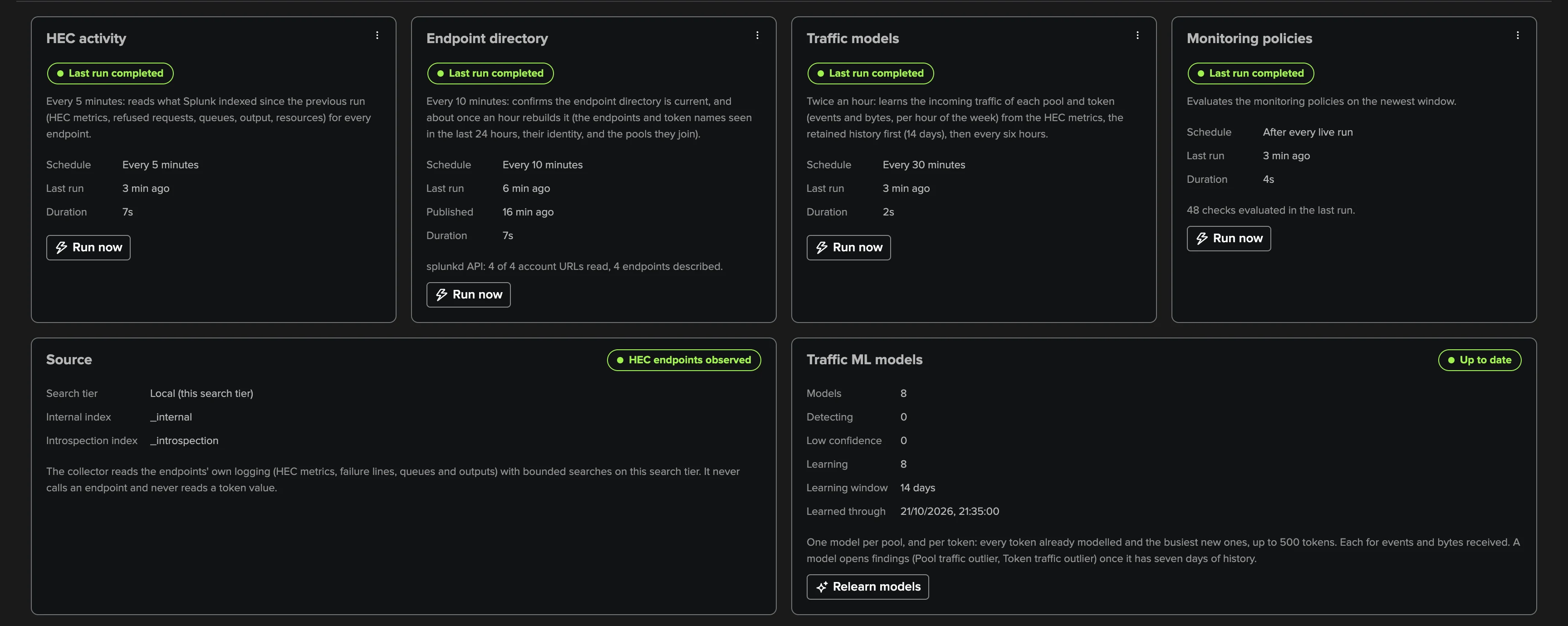
When collection does not run as configured, the tab lists the problems in plain words, and the
Configuration Guardian raises Splunk HEC collection needs attention
(cribl_collection_health). Every condition is in Splunk HEC reference.
Settings
One Save covers every section:
Source & pools: the source, the two indexes (locked once configured), the host patterns and excluded hosts, the pools with their patterns, assignments, expected size and replaceable members, auto-join, and the splunkd API accounts. Changing the host patterns or excluded hosts starts a new source revision. Repair workspace checks the tenant’s collections and reports and keeps findings and settings.
Collection: Scheduled collection on or off, and the Model learning history.
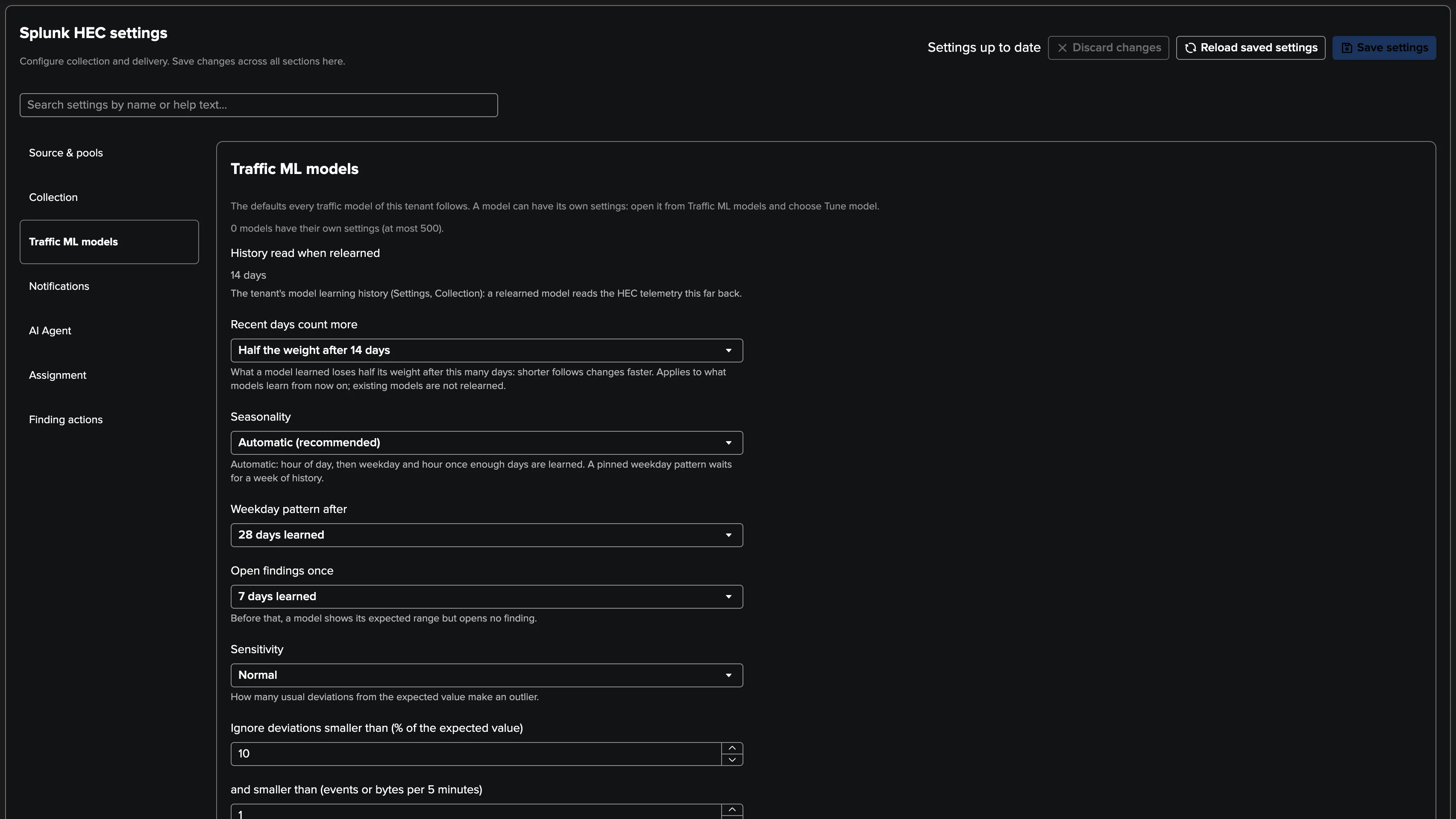
Traffic ML models: the defaults every traffic model of the tenant follows (see Traffic models).
Notifications: finding emails (events, minimum severity, policies, delivery account, recipients, digest or one email per Finding group, charts, test email).
AI Agent: the Splunk HEC AI Agent (see The Splunk HEC AI Agent).
Assignment: assignment groups, their team email, ordered routing rules and manual overrides.
Finding actions: drilldown searches, links and webhooks offered on findings, and the Automations that call an action automatically.
A TrackMe administrator of the tenant manages these settings; other roles read them.
Traffic models
The Splunk HEC tenant learns what each pool and each token usually receives — its events and its bytes received — per hour of the week, with the model arithmetic of the Cribl Stream tenant’s traffic models (Traffic ML models and Expected traffic): recent weeks count more, the hour of the day first, then the weekday and hour once four weeks are learned, and an expected range of the usual value plus or minus three standard deviations, never tighter than 10 % of it. Endpoints get no model: load balancing moves traffic between the members of a pool, and Pool imbalance already watches their shares.
Learned from the HEC telemetry itself, not from the history TrackMe writes: on its first runs, a new tenant learns the history the source keeps in
_introspection, as far back as its Model learning history (14 days by default, chosen in the wizard; see Creating the tenant), so its models can reach normal confidence within the first runs. Then the models learn new traffic every six hours.One model per pool, and per token for the 500 busiest tokens, admitted busiest first. A modelled token that sends nothing is learned at zero; a series without traffic for 14 days is retired.
Confidence: learning (less than a day: no expected range), low confidence (1 to 7 days: the range is drawn, no finding), detecting (7 days and more, normal confidence).
Bank holidays: the training leaves out the hours of the tenant’s bank holidays when the Exclude from ML training effect applies to the tenant (on by default; see Bank holidays), as for Cribl Stream.
The Traffic models tab counts the series, how many detect, how many have a range but low confidence, how many have no range yet (learning or paused) and the outliers now (drops and spikes). Its table lists every model — pool or token, measurement, state, the latest value per five minutes, the expected range and how far outside it the value is — filtered by object, pool, state or name. A name opens the model view: its state, the days learned, its seasonality, the expected range now, and the measured traffic against the expected band.
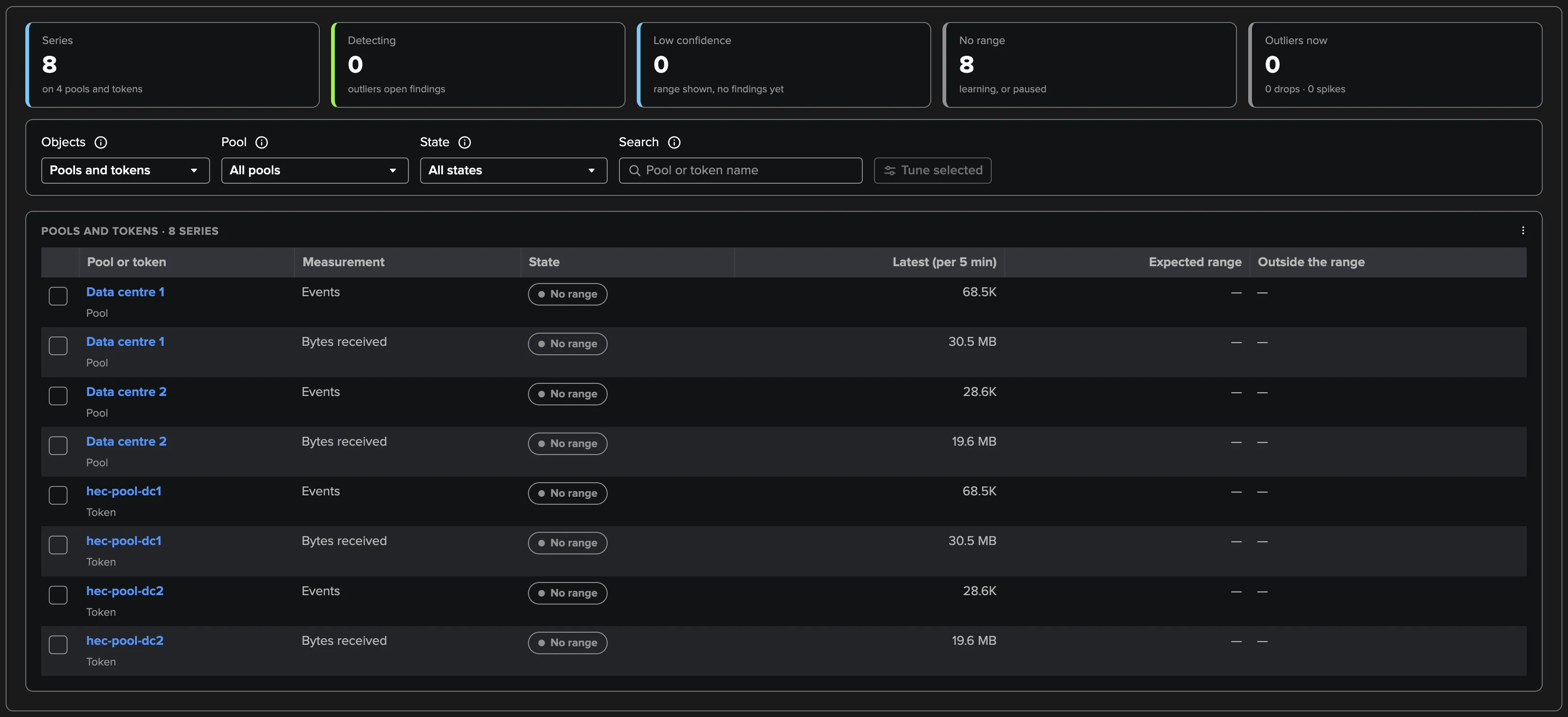
The expected range on the charts. The pool and token histories, and the trend of a Pool or Token traffic outlier finding, draw the measured traffic (events, bytes received) against the range its model expects, with the spikes and drops marked, a Traffic ML model pill with the model’s state and the number of buckets outside the range. The Expected range toggle shows or hides the band (remembered per browser, as on Cribl Stream), and the Traffic ML model button opens the model.
Tuning. A TrackMe administrator of the tenant sets the defaults every model follows in Settings → Traffic ML models (how much more recent days count, seasonality, when the weekday pattern starts, when findings open, sensitivity, the smallest deviation that counts), and gives one model, or several of one measurement (Tune selected in the Traffic models tab), its own settings with Tune model: the same settings plus the training days, the direction (drops, spikes or both), a pause and excluded periods the model must not learn from. The tuning screen simulates the current and the proposed range over the last 24 hours, 7 or 30 days, with the drops and spikes each would have raised, before anything is saved. A paused model keeps learning but gives no range; pausing the measurement a finding is judged on closes that finding.
Not an anomaly. When a Pool or Token traffic outlier finding was expected — a maintenance, a load test, a migration of senders — a power or admin role of the tenant marks it Not an anomaly, from the finding or from a chart interval of the model view: the period is excluded from what the model learns, the model relearns without it at the next training run, and the finding is dismissed with your reason as its note.
Relearn. Collection → Relearn models forgets every model and learns the history again on the next training run; Open models in search lists them. A model relearned on 14 days of history goes back to hour-of-day seasonality until it learns four weeks again.
Two policies use the models: Pool traffic outlier and Token traffic outlier open a finding when the window’s events (or bytes) fall below or rise above the model’s range for that hour, once the model reaches normal confidence (or low confidence, if you choose), and only when the window or the model reaches the At least amount per five minutes (100 by default). A modelled token absent from the window is judged at zero: the drop that matters most.
Pool traffic drop is the simpler check that needs no model: the pool’s rate against the median of the same hour of the day over the previous 7 days.
The splunkd API enrichment
The telemetry tells what HEC does, not how it is configured. Two policies compare the configuration of the members of a pool, and need the splunkd REST API of the endpoints: Token consistency (a token missing on some members, or with a different status, index, allowed indexes or ACK) and the HEC settings part of Configuration drift (the Splunk versions are compared without the API). The enrichment is optional and read only.
Setting it up. In Settings → Source & pools → splunkd API (optional), choose up to 20 TrackMe remote accounts (Remote Splunk deployments) whose URLs reach the endpoints’ management port. An account may list one URL per endpoint (up to 50 HTTPS URLs). The tenant owner must hold one of each account’s roles.
What is read. At each rebuild of the endpoint directory, for every URL:
/services/server/info (the instance’s names and version), /services/data/inputs/http/http
(the global [http] settings) and /services/data/inputs/http (the HEC tokens by name, up
to 200 per endpoint: disabled, index, allowed indexes, ACK, output group). The token value is
dropped while the answer is parsed: it is never stored, logged or returned. Each URL is
matched to an endpoint of the directory by the names its instance reports; two URLs matching
one endpoint bind neither.
Splunk Cloud is never read: an account URL on *.splunkcloud.com is skipped and a
Splunk Cloud endpoint is never described or compared (Splunk Cloud indexers have no
customer-reachable management port). The rest of the tenant works on Splunk Cloud from
_introspection and _internal.
Failures never fail the directory. A URL that cannot be read is counted, and its endpoint keeps its earlier facts while they are fresh (3 hours). The Endpoint directory card in Collection health says what was read and why the rest was not, per account: for example splunkd API: 3 of 4 account URLs read, 3 endpoints described, 1 could not be read (api_hf: connection failed). The reasons are connection failed, timed out, access denied (check the account token), HTTP error, answer too large, unexpected answer, out of time this run and read failed; the card also counts URLs that matched no endpoint, Splunk Cloud URLs skipped, accounts the tenant owner may not use and accounts unavailable. The endpoint drilldown shows the facts in Configuration (splunkd API).
![Configuration (splunkd API) of hec-pool-hf1: read through hec_hf1, the Splunk version, the global [http] settings and the token hec-pool-dc1 with its status, index, allowed indexes and ACK](_images/hec-splunkd-api.webp)
Note
The reads follow the trust model of every TrackMe remote-account read: the remote account has no certificate verification setting. Bind accounts whose management port is reached over a trusted network.
Findings in practice
A Splunk HEC finding is about one object and one policy:
The finding is about |
Raised by |
|---|---|
An endpoint |
Endpoint availability, Senders refused, Back pressure, Output blocked, Error rate, Authentication failures, ACK pressure, ACK not polled, Endpoint resources. |
A pool |
Pool capacity, Pool imbalance, Pool traffic drop, Pool traffic outlier, Token consistency, Configuration drift. |
A token |
Rejected data, Token silence, Token traffic outlier. |
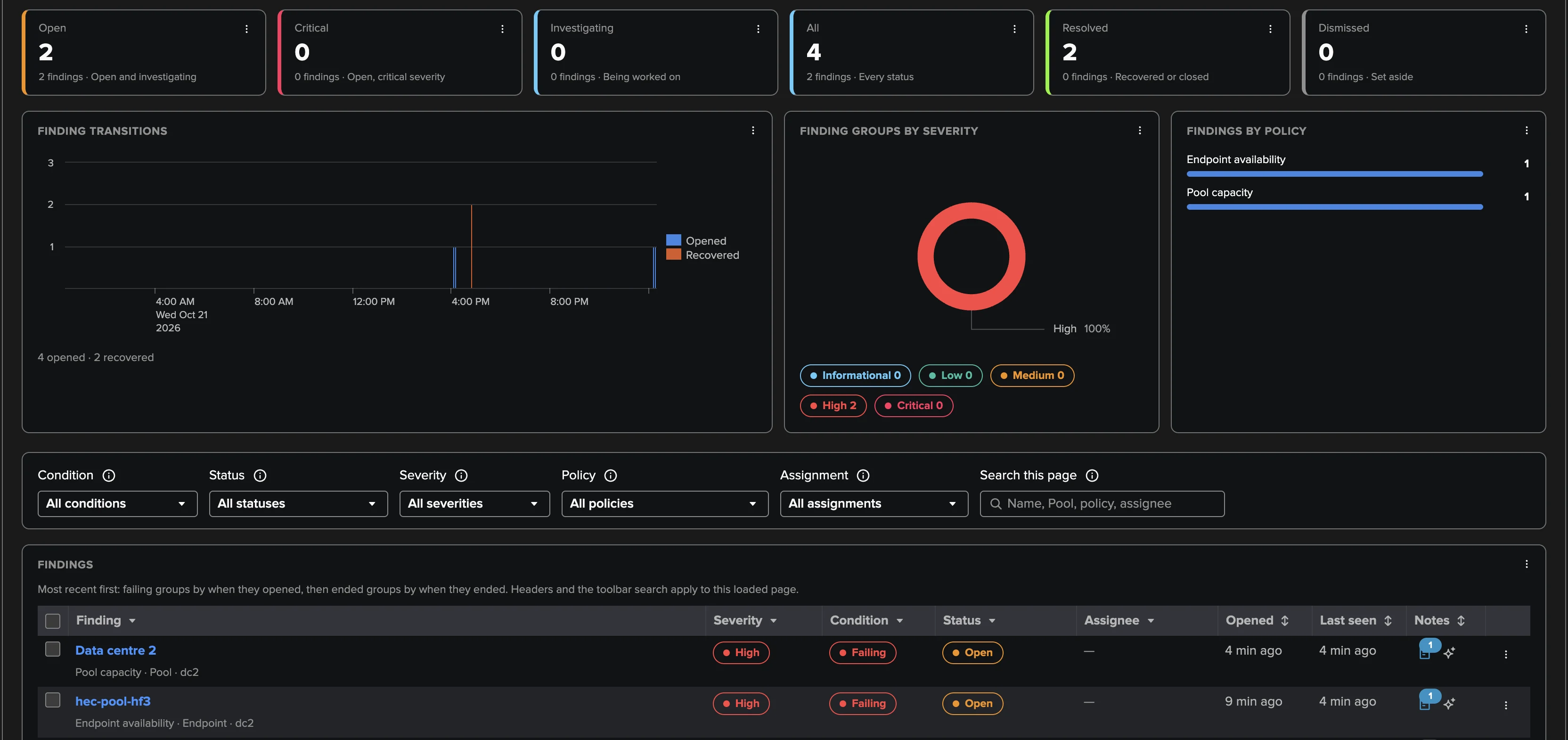
Findings work as on Cribl Stream and Cribl Edge. Each object gathers its findings in one automatic Finding group, the unit you triage and get notified about. A finding recovers by itself when the measured condition clears, and closes by itself when its object leaves the tenant’s scope, when its endpoint was replaced, or when nothing evaluated it for 24 hours. Triage, notes, snooze, dismissal, the severity override and assignment are the same as for every findings tenant; a Pool or Token traffic outlier finding can also be marked Not an anomaly (see Traffic models). The investigation of a HEC finding gives the decision in plain words, the measurement and what it was compared with, the recorded facts, the trend of the KPIs its policy judges, and How it is evaluated; Open resource opens the endpoint, pool or token drilldown in place.
The shared concepts are described once:
Findings, Finding groups and findings actions — findings, statuses, triage, severity, notifications;
Finding groups — Finding groups, automatic and manual;
Findings actions — drilldowns, links, webhooks and automation rules;
Webhook accounts — the accounts a webhook action posts with;
Assignment and automatic routing — assignment groups, routing rules and team emails.
Links into the workspace. An email, an action or a dashboard can open the workspace on an
object: TenantHome?tenant_id=<tenant>&tab=endpoints&host=<host> opens an endpoint,
tab=overview&pool=<pool id> a pool and tab=tokens&token=<token name> a token.
An endpoint that stops: what you see
Take a pool of four heavy forwarders, hf-1.example.com to hf-4.example.com, behind a
load balancer, and stop splunkd on hf-2:
In the next window,
hf-2is late (no heartbeat this window, one in the last 5 minutes): no finding yet, and Topology Studio draws it green with a Late cue.Once it has sent no heartbeat for 5 minutes (Silent after, 300 seconds), it is silent: Endpoint availability opens a High finding on it at the first silent check. Had every member of the pool stopped, the finding would be Critical.
Pool capacity compares the members up (3) with the pool’s expected size (4, set or learned) and opens a High finding on the pool after two checks (Critical below half the expected size).
The other members now take its share: Pool imbalance stays quiet, since no member up is starved.
When
hf-2reports again, both findings recover after two healthy checks.
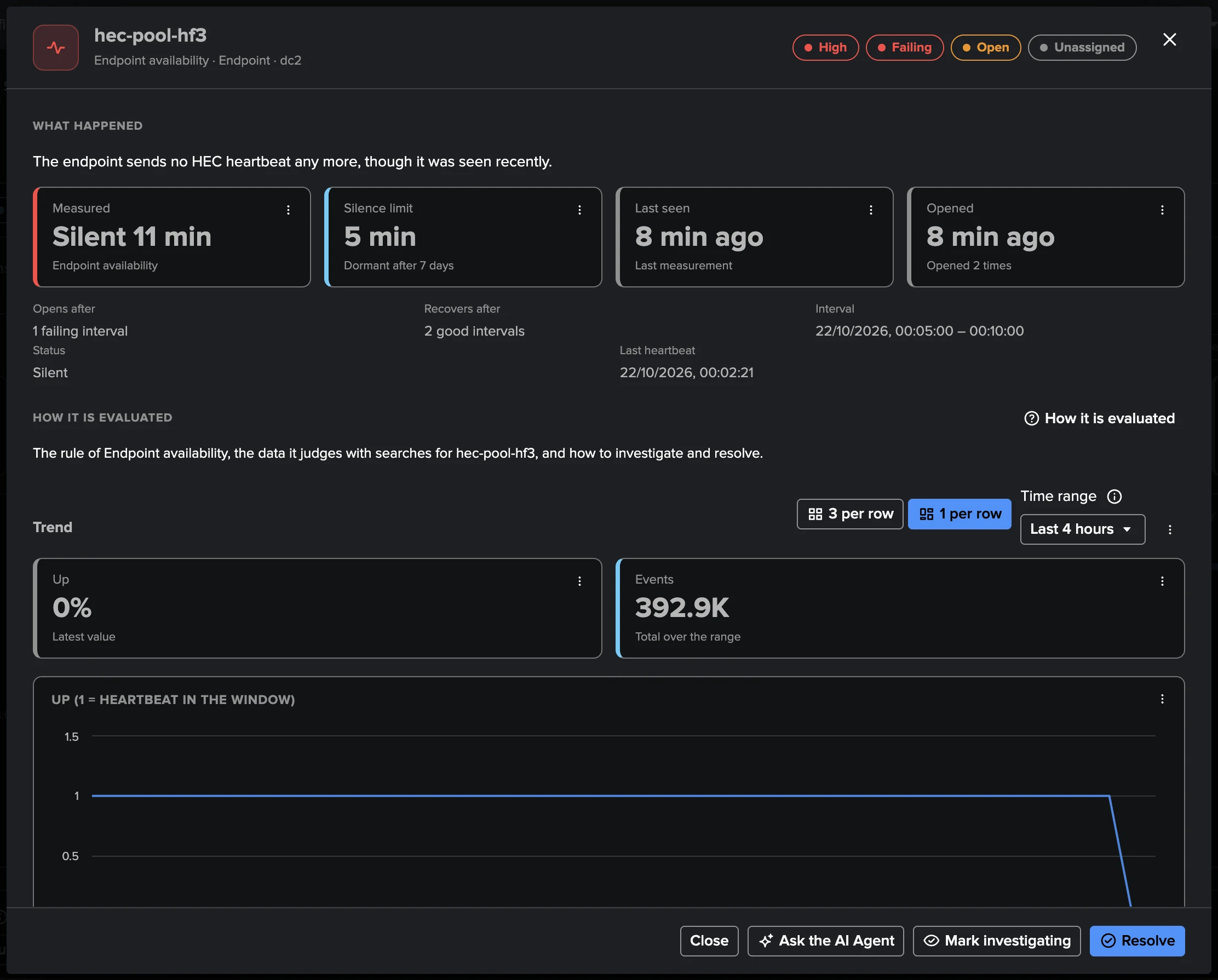
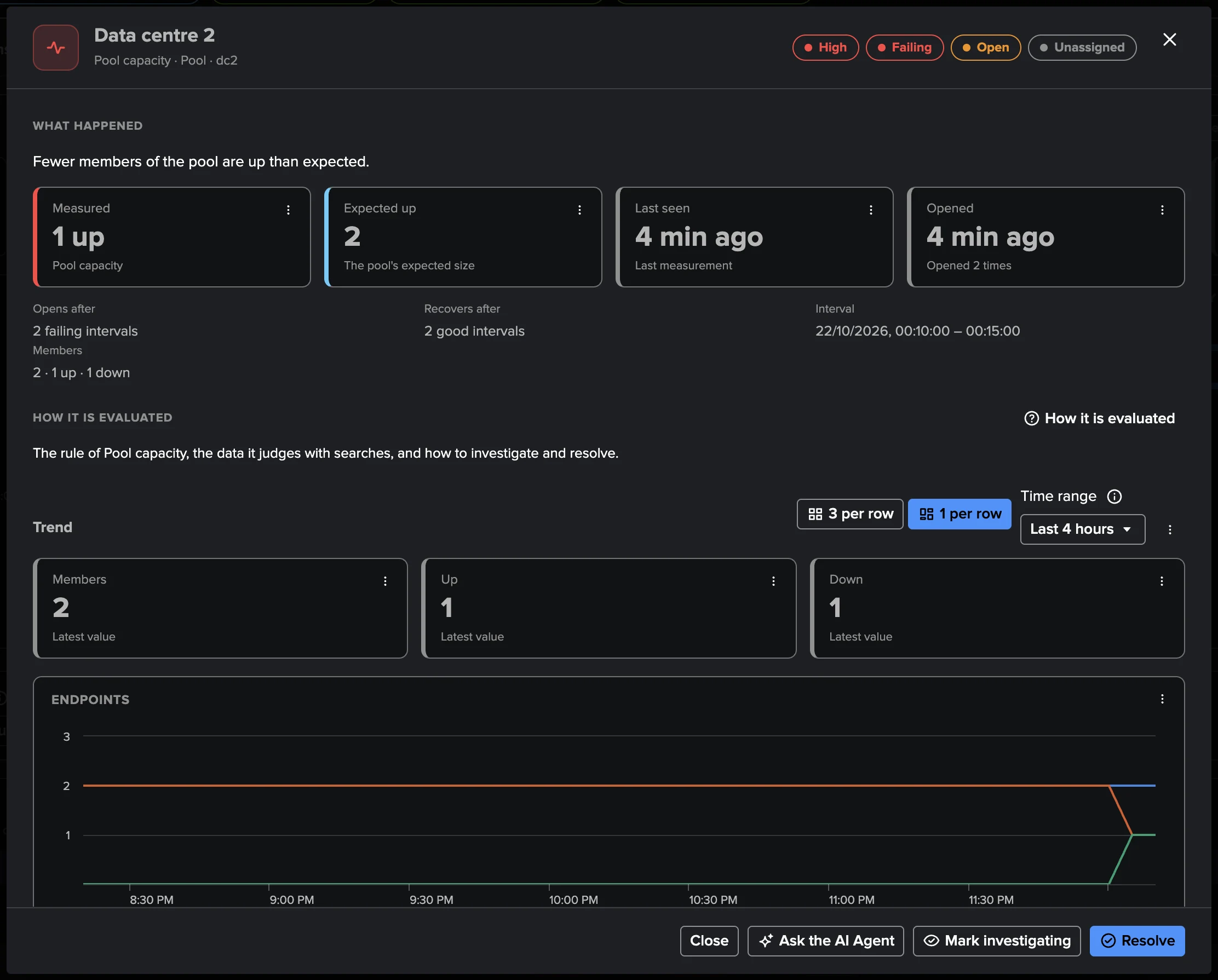
The screens below come from a deployment with two data centres, a pool of two heavy
forwarders each, where hec-pool-hf3 of Data centre 2 was stopped: Endpoint
availability opened on it at the first silent check, then Pool capacity on its pool, 1 of
2 members up, after two checks. On the generated HEC topology, both turn orange with their finding
badge, and the endpoint availability falls to 75 % (the view at the top of this page).
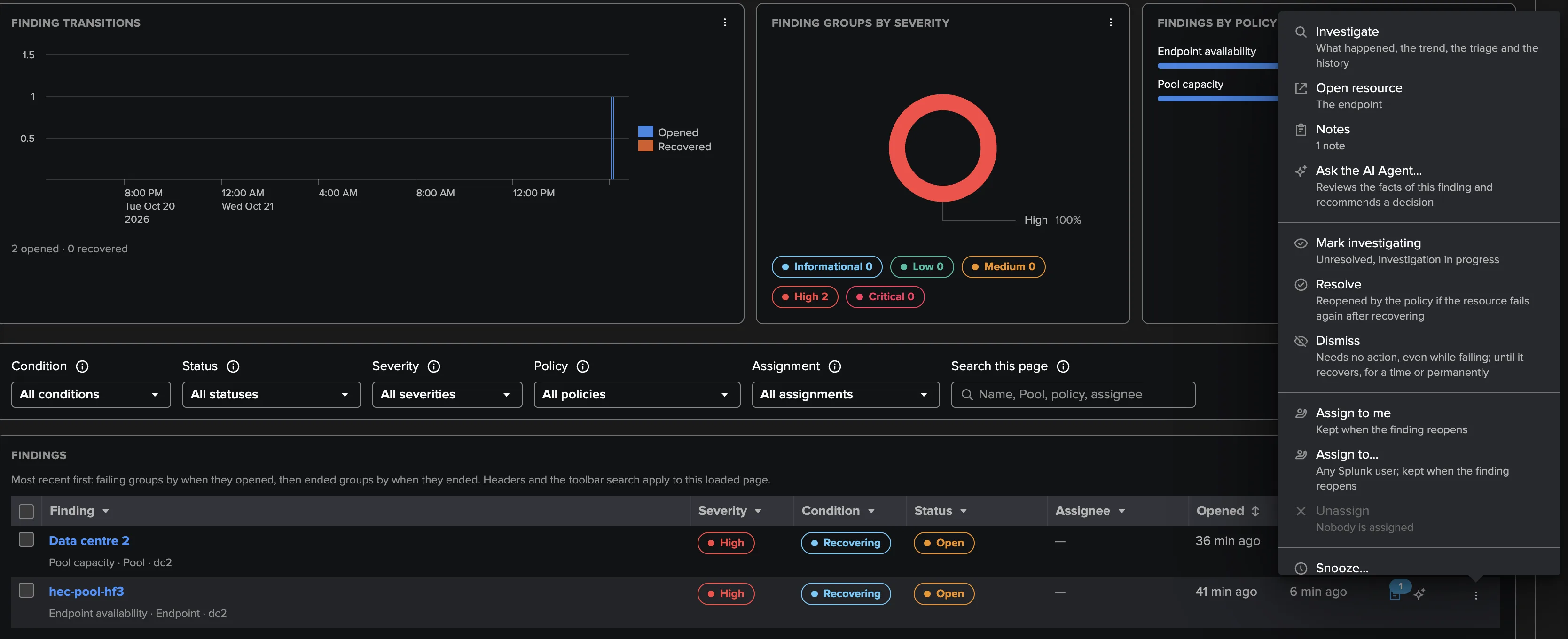
Had the forwarder’s output been blocked instead (indexers not accepting data), its own telemetry would wait behind the same output and arrive late: the endpoint is stalled, Endpoint availability holds, and Output blocked opens a finding naming the destinations, their pauses and, when their logs are searchable, the receivers that stopped listening.
Notifications
Finding notifications work as for the Cribl tenants (Findings, Finding groups and findings actions): turn them on in Settings → Notifications, pick the events, a minimum severity, the policies, a delivery account and recipients, and choose a digest or one email per Finding group, with charts. Emails are sent after the policy evaluation and link to the finding in the workspace. Send test email checks the delivery.
Every transition is also written as an indexed event (trackme:cribl:finding and
trackme:cribl:finding_group, object_category=splunk_hec), whatever the notification
settings, for your own Splunk alerts, Enterprise Security or SOAR: see
Splunk HEC reference.
Bank holidays
A Splunk HEC tenant uses the bank holiday calendars of its scope: the system default calendars, unless it selects its own or none. While a holiday of its calendars is active, the policies set to hold open no new finding. Each policy decides it in its editor (During bank holidays: Hold new findings or Keep opening findings). By default the policies that judge traffic hold — Pool traffic drop, Pool traffic outlier, Token traffic outlier and Token silence — since traffic is expected to change on a holiday; every other policy keeps opening findings, so an endpoint down on a holiday still opens its finding.
While a holiday holds a policy, a failure opens no new finding and sends no notification; a finding already open is still evaluated and can recover and close; a resolved or dismissed finding is not reopened by a held failure. When the calendars cannot be read, nothing is held.
Topology Studio
Splunk HEC objects are Topology Studio objects (Topology Studio): the pools, endpoints and tokens of a HEC tenant.
Add entities: pick pools, endpoints (by pool, searchable, the discovered ones included) and tokens, each with its live status.
Groups (Add an aggregate node, Follow a selection): a group of pools, endpoints or tokens, narrowed by pool (the discovered endpoints included), by a name that contains a text, and optionally to the objects with a finding. Start from Endpoints of a pool, Every token or Anything failing. A group follows its objects as they come and go (up to 2,000 objects per kind) and shows its health and healthy share; groups carry no summed KPI.
Templates, offered when you can read a Splunk HEC tenant (on the empty canvas and in the Add items menu): Pools overview (one node per pool), Endpoints by pool (each pool over its endpoints, up to 10 pools of 12 endpoints), Problems wall (three groups: pools, endpoints and tokens with open findings) and Busiest tokens (the 12 busiest tokens under the pools that received them).
Status: findings first (red or orange; blue when only snoozed). Otherwise, while the collected window and the policy evaluation are current: an endpoint up is green, a late endpoint green with a Late cue (Endpoint availability has not decided yet), a silent, dormant or stalled endpoint without a finding quiet grey; a pool at or above its expected size green, below it without a finding quiet; a token with events green, an idle one quiet. Quiet objects are disclosed and stay outside a group’s healthy share.
KPIs: for an endpoint, up, events, bytes, rates, requests, refused, error rate, fullest queue, ACK-enabled requests, CPU, memory; for a pool, members up, members, down, stalled, back pressure, traffic, refused, error rate, fullest queue; for a token, events, bytes, requests, refused, error rate. Endpoints, pools and tokens have 24-hour sparklines.
The integrity linter reports a pool removed from the tenant’s configuration or an endpoint no longer in the directory; a token is never reported removed.
Topology Alerts (Topology Alerts) work on HEC objects and groups.
Build with AI (Build with AI — a topology from a description) lists HEC tenants (”· Splunk HEC”) with three starting points: HEC endpoints by pool, HEC problems wall and Busiest HEC tokens. The builder knows the pools, endpoints, busiest tokens and open findings by name, never a token value.
Opening an object from a view opens the HEC workspace on it.
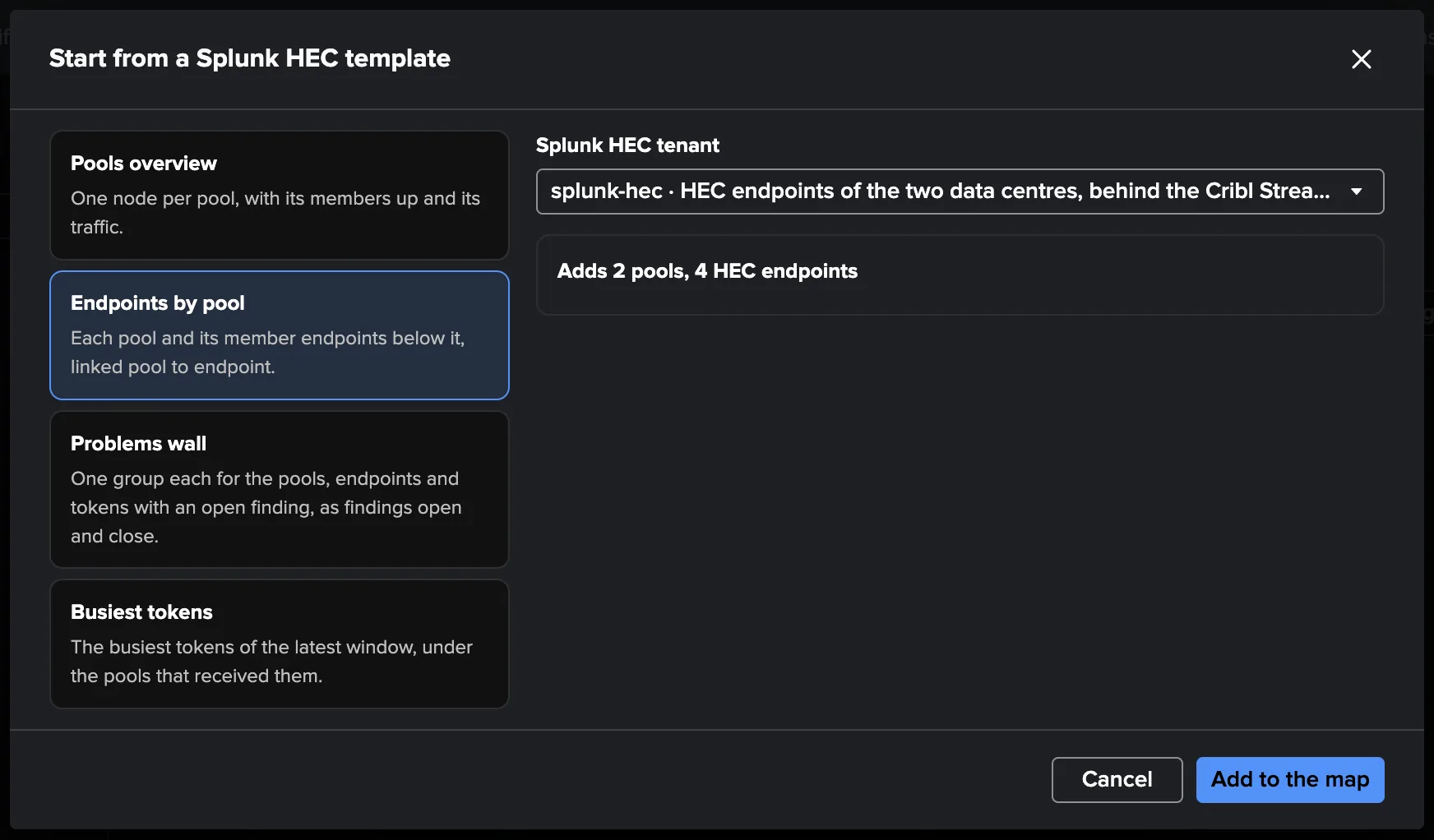
Generated topologies
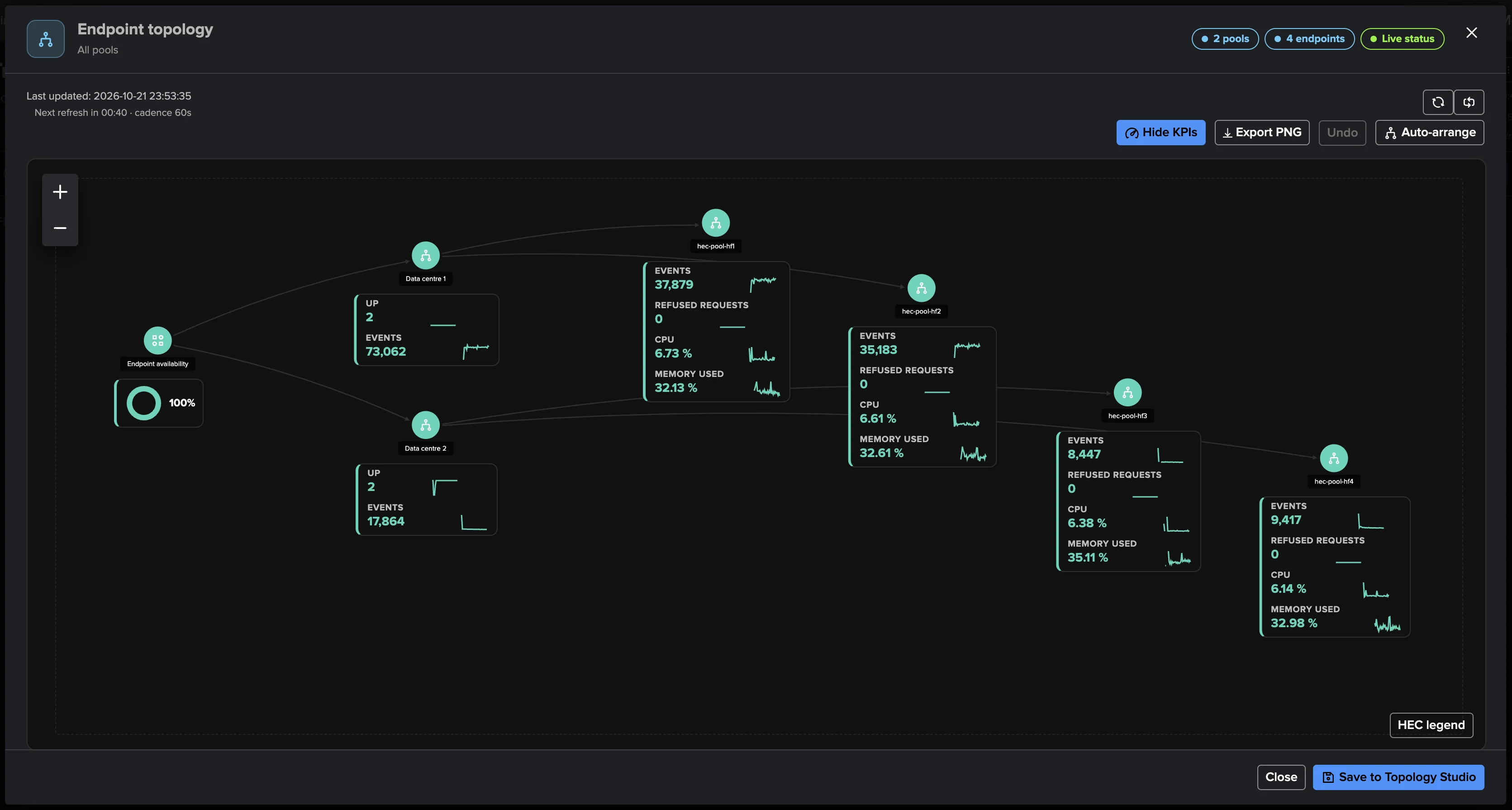
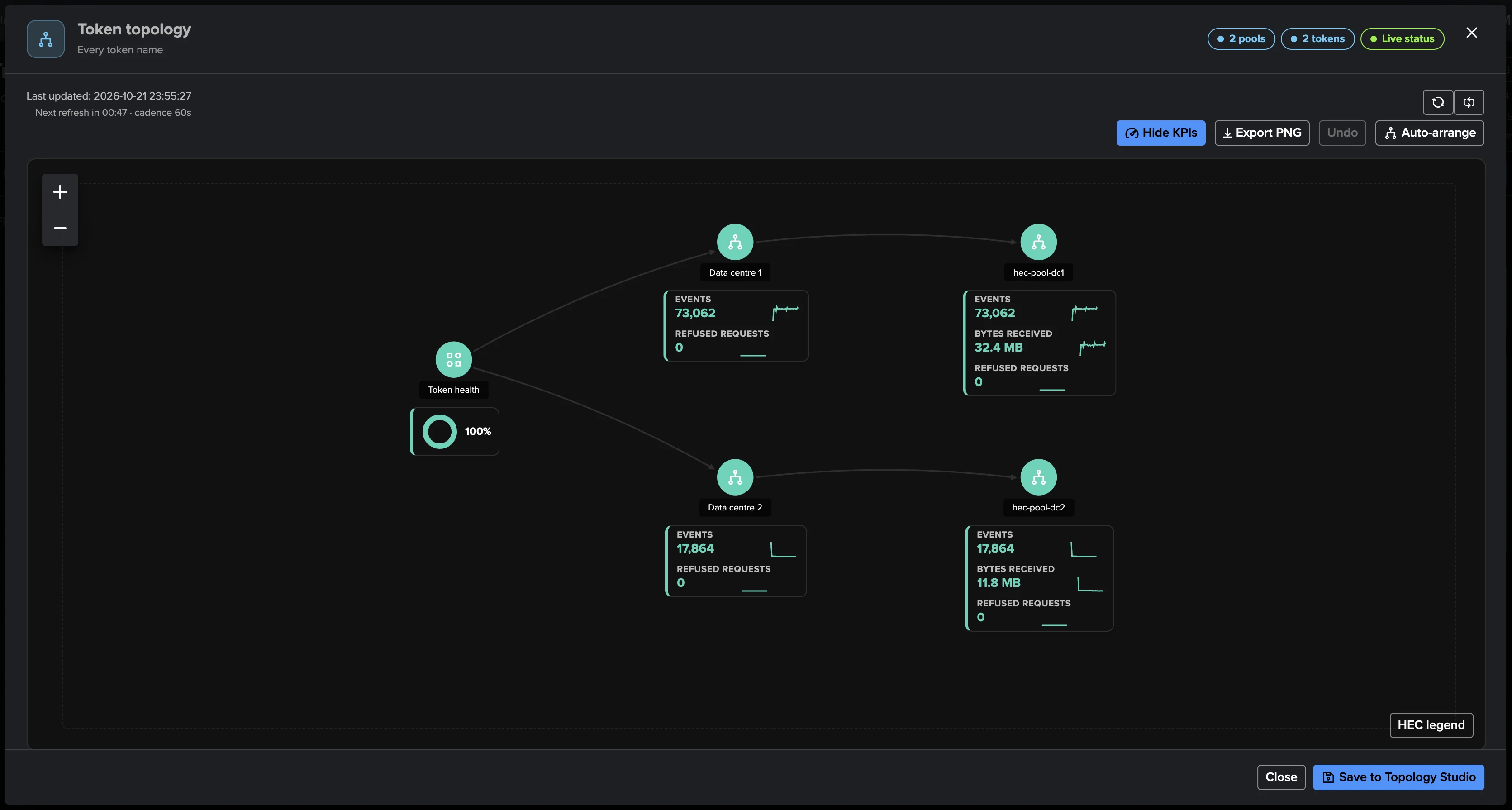
Each workspace tab draws its own map on the Topology Studio canvas, the way the Cribl Stream Worker and Flow topologies do. HEC topology is on the Overview’s Pools panel, Endpoint topology in the Endpoints toolbar and Token topology in the Tokens toolbar.
HEC topology: the endpoint availability (a donut over every endpoint), each pool with its members up, events, bytes received and refused requests, and each endpoint below its pool with its events and refused requests.
Endpoint topology: the endpoints the tab selects (its pool, status, search and order) under their pool, each with its events, refused requests, CPU and memory. Endpoints no pool claims sit under a Discovered endpoints group.
Token topology: the tokens the tab lists under the pools that received them (a token sent to several pools is linked from each, one no pool received sits under a No pool group), with their events, bytes received and refused requests.
Every node shows its live status and its 24-hour sparklines, refreshed every minute; the canvas keeps the positions you give it, and Auto-arrange, Hide KPIs and Export PNG work as in Topology Studio. A topology draws up to 50 endpoints or tokens: when the tab selects more, it draws the first 50 and says how to narrow the selection. Save to Topology Studio saves it as a view, proposing its name and description, with the roles that can view and edit it. From then on it is a view like any other: edit it, share it, add Topology Alerts.
The Splunk HEC AI Agent
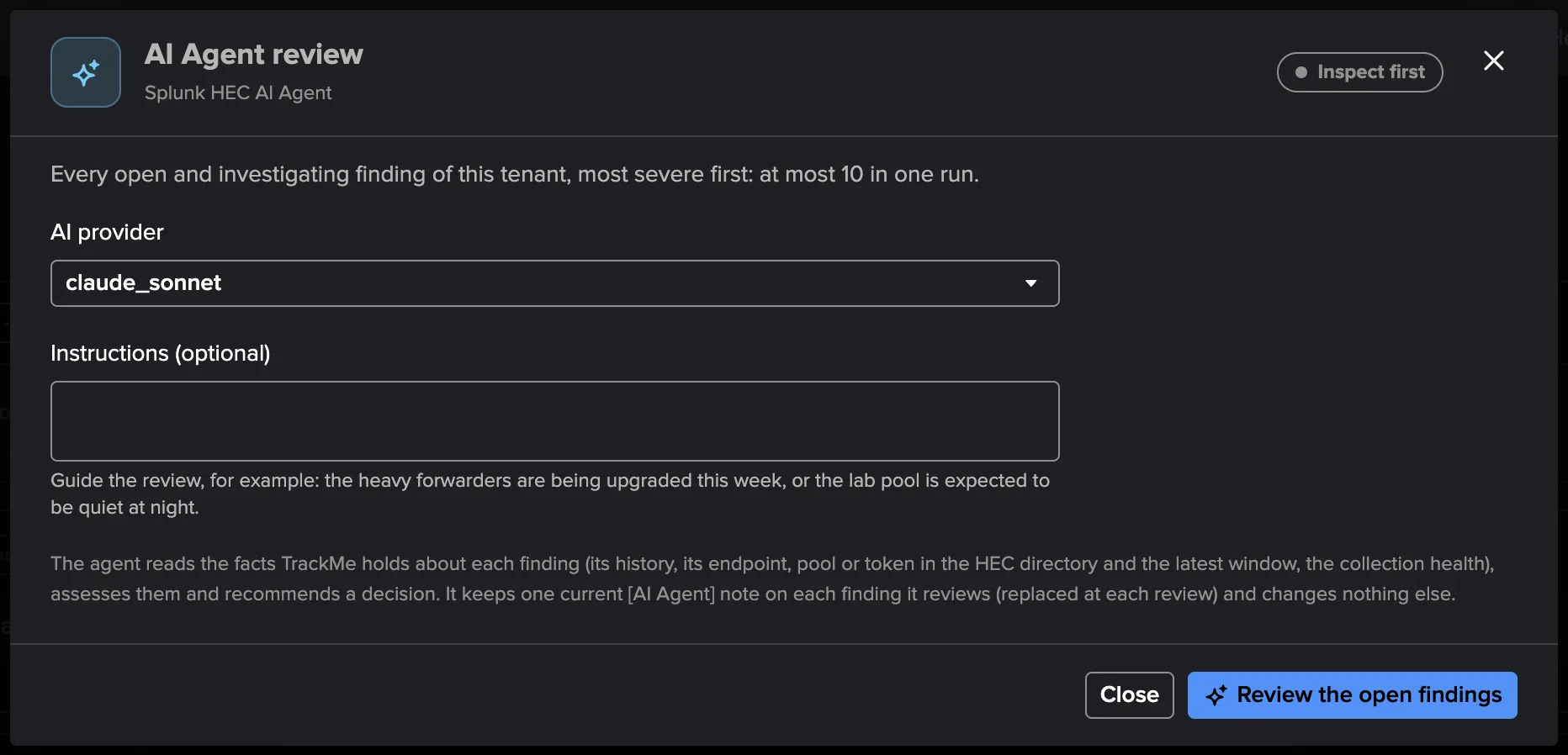
The Splunk HEC AI Agent reviews HEC findings the way an operator would, from facts TrackMe already holds. It is its own agent, built on the same framework as the other findings AI Agents (AI Agents for findings). It assesses each finding — true positive, likely false positive, expected behaviour, endpoint or pool not in use or needs investigation — recommends a decision, and keeps one current [AI Agent] note on the finding.
Inspect only recommends: nothing changes but the note.
Act applies the recommendation, but only what the tenant allows.
What it reads. The finding (its policy, settings, evidence, history, episodes and Finding group), and its object in the published directory and latest window: an endpoint’s status, last heartbeat, refusals, queues and bottleneck, output, version, resources and splunkd API status; a pool’s definition (expected size, replaceable) and its members; a token’s latest window, last 24 hours and endpoints, by name only. It also reads whether the endpoint or pool is still there (only a current directory can prove an endpoint gone, once the finding has not been evaluated for an hour; a token is never gone), the tenant’s Collection health and its own past decisions. It runs no search.
What it may decide (act mode, each decision with its own setting, checked again by TrackMe before it is applied):
Decision |
Default |
Condition checked by TrackMe |
|---|---|---|
Mark investigating |
Allowed |
The finding is open. |
Dismiss for a time |
Allowed, 7 days at most (up to 90) |
A critical or high finding that is still failing only when its endpoint is no longer in the directory (retired, dormant or replaced) or its pool is no longer defined. |
Resolve |
Not allowed |
Only after a measured recovery. |
The agent never dismisses permanently, assigns, or changes a severity, a policy, the pools or the source. A scheduled run never overrides an operator decision, and the agent makes at most one decision per Finding group in a run.
Asking and scheduling. Ask the AI Agent… is in the finding and Finding group menus and
the investigation view, and Run a review now on the AI Agent tab reviews the open
findings: the agent inspects first, then Run its recommendations… lets it act on that
inspection. Scheduled triage is off by default: turned on in Settings → AI Agent, it
reviews up to 10 findings an hour (one per Finding group, the most severe first, by default only
critical and high), skips a finding reviewed in the last day unless it moved, and needs the AI
Assistant enabled, an AI provider, the tenant enabled and a tenant owner that is a Splunk
administrator account (not nobody). Custom instructions and Evaluate… work as for
the other findings agents (AI Agents for findings). The settings and their defaults are in
Splunk HEC reference; the Manage AI Agents automation page
(AI Agents automation) lists the tenant with its agent.
AI Assistant
On a Splunk HEC tenant’s Tenant Home, the AI Assistant (AI Assistant & Concierge) knows what the tenant is, its configuration, its policies and their settings, the pools, the endpoints needing attention, the busiest tokens and the open findings: ask it why an endpoint refuses requests, what a policy checks, or what to do about a finding. When a finding or the open findings would benefit from a review, it proposes a Splunk HEC AI Agent review as a consent card: nothing runs until you confirm. It proposes no Concierge action.
Troubleshooting
Symptom |
What to check |
|---|---|
The wizard lists no HEC endpoint |
No endpoint reported HEC metrics on this source in the last 24 hours. Check that HEC is
enabled, that the endpoints forward |
The source is refused: |
The tenant owner holds none of the remote account’s roles: its scheduled searches would be refused. Add one of the owner’s roles to the account, or choose another owner. |
The workspace shows no endpoint |
The first collection has not published yet: Collect now, then Collection health. |
Collection health: |
No endpoint for an hour after configuration: HEC disabled, internal indexes not searchable from the source, or host patterns matching nothing. |
An endpoint is late or stalled but no finding opened |
Expected: a late endpoint has reported in the last 5 minutes; a stalled one’s telemetry waits behind its blocked output, and Output blocked says why. |
Error rate is high but nothing is busy |
Open the refused requests (Why it was flagged): the reply classes say whether senders use refused tokens (Authentication failures) or send data Splunk rejects (Rejected data). Empty load balancer probes (reply 5) are never counted. |
Rejected data: incorrect index (reply 7) |
The sender writes to an index the token may not use or that does not exist: create the index, add it to the token’s allowed indexes, or fix the sender. The token drilldown names the index refused. |
ACK not polled |
A sender uses indexer acknowledgment but never polls |
Token consistency or the HEC settings of Configuration drift decide nothing |
They need splunkd API accounts bound in Settings → Source & pools, with fresh facts from two members up of the pool. Splunk Cloud members are never compared. The Endpoint directory card says what the API read and why the rest was not. |
Token silence decides nothing |
No token is selected: type token names or add a lookup table, then use Test selection. |
Collection health: |
A Token silence lookup table could not be read, is too large or is empty. Check that the lookup exists, is shared with the TrackMe app, that the owner can read it and, on a remote deployment, that its remote account connects. |
Pool or Token traffic outlier opens nothing |
The models need 7 days of history (normal confidence) by default, and the traffic must reach the At least amount per five minutes. |
Splunk Cloud indexers keep opening Endpoint availability findings |
Mark their pool replaceable (the discovery proposes it for Splunk Cloud pools): a replaced indexer then opens nothing while the pool is at its expected size. |
“Last 5 minutes” falls back to Collected window |
The read of the last five minutes failed (the badge gives the reason). The collected data always shows; the next refresh tries again. |
A run failed and the reason is unclear |
The collector log, |
What the Splunk HEC tenant does not do
No writes to Splunk: TrackMe never changes a HEC setting or a token, and never restarts anything.
No token values and no event content: tokens are known by name; the raw lines shown as evidence have token-shaped values masked.
No per-request tracing: Splunk logs refused requests, not successful ones.
No health probe of the endpoints: TrackMe never calls an endpoint’s HEC port; the splunkd API enrichment is optional and never reads Splunk Cloud.
No Stop monitoring this object on findings: narrow the host patterns or exclude the host instead.
No Concierge actions: the AI Assistant answers questions and can propose a Splunk HEC AI Agent review.
Next: the reference
Every policy with its settings and defaults, the jobs and their schedules, the limits, the settings, the AI Agent, the indexed finding events, the permissions, the Configuration Guardian conditions and the run reasons: Splunk HEC reference.