Virtual Tenants explained
A virtual tenant is TrackMe’s unit of multi-tenancy: a self-contained, isolated instance of TrackMe living inside your Splunk app. It owns its data, its configuration, its trackers, its access control, and — optionally — its own remote Splunk deployment to monitor. You create, scope, operate, and destroy tenants independently of one another.

Why tenants exist
Manually, a single flat monitoring space does not survive contact with a real Splunk estate. Tenants let you carve that estate into domains that match how your organisation actually works. Common reasons to create separate tenants:
Segmentation — by company, country, business unit, or team.
By technology — keep firewall data, performance data, and application logs in their own spaces with their own thresholds.
By scope — one tenant per Splunk cluster, per index family, or per search head tier.
Access control — give different teams ownership of different data spaces without exposing each other’s entities (see Roles & access control).
Everything else in TrackMe — entities, policies, thresholds, alerts — is scoped to a tenant. There is no global entity list.
Anatomy of a tenant
From a user’s point of view, a tenant is made of the following:
Element |
What it is |
|---|---|
Tenant identifier ( |
The immutable internal name (lowercase letters, digits, underscores; up to 40 characters). It is stamped as an indexed field on every event and metric TrackMe generates for the tenant. Choose it carefully — it cannot be changed later. |
Tenant alias |
A human-readable display name shown in the UI and used to order tenants. Editable at any time. |
Description |
Free text describing the tenant’s purpose. |
Status |
|
Owner |
The Splunk user that owns the tenant’s knowledge objects and on whose behalf its trackers execute. |
Enabled components |
Which monitoring components the tenant runs (see below). |
Indexes |
The Splunk indexes the tenant uses (summary, audit, metric, notable). |
Default settings |
Per-tenant defaults — time range, monitoring policy, default priority, ML outliers configuration — that cascade down to entities and can be overridden per entity. |
Components and tenant types
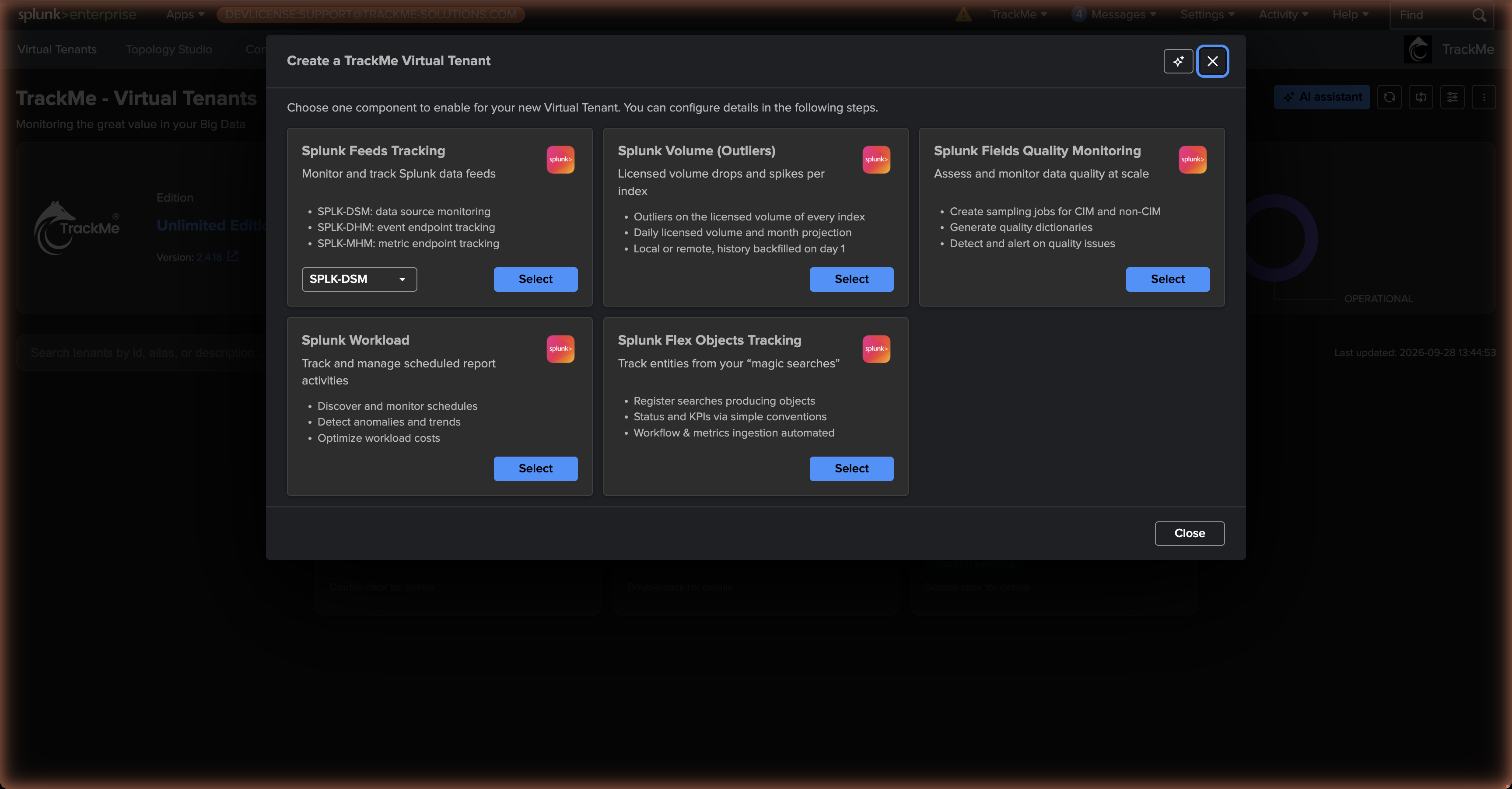
A tenant is tied to one or more monitoring components. When you create a tenant you choose which to enable; each can be turned on or off later.
Tenant type |
Components it brings |
|---|---|
splk-feeds |
The data-flow family: DSM (Data Source Monitoring), DHM (Data Host Monitoring), and MHM (Metric Host Monitoring). Each is enabled independently. |
splk-vol |
VOL — Volume Outliers: the licensed volume of every index, read from the license usage logs. One tenant covers a whole Splunk deployment, local or remote. |
splk-wlk |
WLK — Workload Knowledge: scheduled-search execution health and SVC consumption. |
splk-flx |
FLX — Flex Objects: custom trackers you define with your own SPL. |
splk-fqm |
FQM — Fields Quality Monitoring. |
splk-cim |
Common Information Model compliance tracking. |
splk-uam |
UAM — User Activity Monitoring: a dedicated tenant type with no entity component — the accounts, their scheduled searches, activity and resource usage on one indexing layer, through one or more search head tiers, turned into findings. A tenant is either an entity tenant or a UAM tenant. |
cribl-stream |
Cribl Stream: a dedicated tenant type with no entity component — one Cribl Stream connection, its Sources, Destinations, Pipelines, Routes, Packs and Workers, read from the Cribl metrics in a Splunk metric index and from the Cribl Leader API, with findings from policies and traffic ML models. Requires the Enterprise or Unlimited edition. |
cribl-edge |
Cribl Edge: a dedicated tenant type with no entity component — the Fleets of one Cribl Edge Leader and their Edge Nodes, Sources and Destinations, read in bulk from the Leader’s node directory at any fleet size, with findings from policies. Requires the Enterprise or Unlimited edition. A tenant is either Cribl Stream or Cribl Edge. |
Each component is covered in Part 3.
Saved Views
On a large estate the Virtual Tenants grid can hold dozens of tenant and Virtual Group cards. A Saved View is a named, curated subset of that grid — a hand-picked set of tenant cards (optionally narrowed to specific components) plus Virtual Group cards — so a team lands on just the tenants relevant to them instead of the whole estate. It is a pure display convenience: Saved Views never touch monitoring, scoring, or alerting.
A power or admin user creates one from the Virtual Tenants page (Create a saved view) via a short wizard — identity, the tenants and components to include, the Virtual Groups to include, and the roles allowed to use it. Each user then picks a view from the selector in the search-bar row (the default is All tenants & groups); the choice is remembered per browser and silently falls back to All if the view is later removed or access is revoked.
Note
Saved Views are RBAC-scoped — a view lists the Splunk roles allowed to see it
(administrators always can). Creating and managing views requires the power capability
(trackmepoweroperations); simply using one needs only read access.
License limits
Some license editions cap the number of tenants you can create. If you reach the limit, creation is refused until you remove a tenant or apply a higher edition. See the License page for the edition matrix.
See also
Creating a tenant — create your first tenant.
Roles & access control — control who can see and manage a tenant.
Virtual Groups — aggregate entities across several tenants.