Configuration — in depth
Tip
This is the in-depth reference for TrackMe’s Configuration page. For the readable overview, start with Configuration. This page walks every Configuration tab, the service-account creation and minimal-permission setup, and the logging mechanics.
Hint
Looking for a Quickstart?
If you are looking for a quickstart, you can refer to the QUICK START - Starting with TrackMe: (feed tracking quickstart)
The quickstart guide provides a step-by-step guide to get started with TrackMe, focusing on feed tracking, the easy and simple way
Using a service account for TrackMe is not mandatory
It is not mandatory to use a service account for TrackMe, as described in the next steps, but it can be considered a good practice which provides several advantages in terms of management and monitoring
However, this is not required as such and not doing so will not prevent TrackMe from operating normally
By default, TrackMe will create knowledge objects and run searches as the “nobody” user (Splunk system account), which does not require any setup
Hint
Distinguishing permissions requirements between service accounts, TrackMe administrators, Power and read-only users
A service account is a Splunk user (internal or SAML) that is used by TrackMe to perform scheduled activities, such as the creation of knowledge objects, the execution of scheduled searches, the creation of Virtual Tenants, etc.
TrackMe users can have different levels of permissions. TrackMe comes with 3 built-in concepts for users: administrators, power users, and read-only users
TrackMe leverages sophisticated techniques to ensure that you can define minimal permissions, for both the service account and the TrackMe users
This allows for TrackMe users (TrackMe admins, power and read-only users) to avoid having to provide potentially dangerous capabilities such as list_settings, list_storage_passwords, etc.
TrackMe comes with 3 built-in roles, trackme_admin, trackme_power and trackme_user
trackme_user inherits from Splunk built-in user role, trackme_power inherits from trackme_user and trackme_admin inherits from trackme_power
Each TrackMe built-in role enables the associated TrackMe capability, for instance trackme_admin enables the trackmeadminoperations capability
Summary Requirements for the TrackMe Service Account
The following requirements are the minimal requirements for the TrackMe service account:
Indexes Access
The service account should be able to search all non-internal indexes and all internal indexes (or at least the indexes containing data to be monitored, as well as the _internal index)
Capabilities
The service account should have the following capabilities at the minimum:
Hint
Inherit from Power role
At the minimum, the service account should inherit from the Power role, which provides the basic required Splunk capabilities.
Then add additional capabilities as needed.
Capability |
Note |
|---|---|
schedule_search |
Required for running scheduled searches (provided by the Power role) |
search |
Required for running searches (provided by the Power role) |
trackmeadminoperations |
Can be inherited from the trackme_admin role (not provided by the Power role) |
trackmepoweroperations |
Can be inherited from the trackme_power role (not provided by the Power role) |
trackmeuseroperations |
Can be inherited from the trackme_user role (not provided by the Power role) |
Summary Requirements for TrackMe Administrators
Essentially, TrackMe administrators need to have the following capability:
Capability |
Note |
|---|---|
trackmeadminoperations |
Can be inherited from the trackme_admin role |
In addition, and to be able to access and update the configuration menu items (Menu Configuration), administrators need:
These are required capabilities by the Splunk UCC Framework, which is used by TrackMe for the purposes of the configuration level backend
This is in fact optional; however, lacking these capabilities will not allow using the configuration UI to create remote service accounts for instance
These capabilities would be required for users in charge of the highest level of administration of TrackMe; these are not required for the service accounts
These capabilities are required only for the configuration UI; these are not required for the creation and/or management of TrackMe knowledge objects (virtual tenants, trackers, …)
Capability |
Note |
|---|---|
list_settings |
Allows accessing the configuration UI |
list_storage_passwords |
Allows accessing the configuration UI |
admin_all_objects |
Allows updating the configuration items |
Service Account and Permissions
To operate, TrackMe allows and recommends defining a Splunk user that has the ownership of any knowledge objects created by TrackMe as part of the Virtual Tenant lifecycle:
Knowledge Objects (such as reports, alerts…) will be assigned to the user tagged as the owner of the Virtual Tenant
Scheduled activities will run on behalf of the service account owner
By default, TrackMe assigns the user “admin” as the default owner of the Virtual Tenant; it is best practice to create your own service account owner. The following minimal permissions and capabilities are required:
The service account needs to be a member of the built-in role
trackme_adminas this provides thetrackmeadminoperationscapability, or this capability needs to be granted explicitlyThe service account needs to be able to search all
non-internal indexesand allinternal indexesThe service account needs to be able to run scheduled searches; typically you can use the Splunk built-in
powerrole
TrackMe implements a strict least privileges approach; consult Roles & access control
Note
Local service account user or SAML service account
You can set up the service account user as a local user or a SAML user on the TrackMe Search Heads tier
For other Search Head tiers, TrackMe can interact with the Splunk API for various powerful use cases such as TrackMe Flex Object trackers or the Workload component
This requires a service account on the target Search Heads tier and a bearer token to be created
If you want to create a SAML service account for TrackMe’s remote search capabilities, you need to have the SAML AQR setup, and an Identity Provider (IDP) supported by Splunk
Reference: https://docs.splunk.com/Documentation/Splunk/latest/Security/Setupauthenticationwithtokens
Reference: https://docs.splunk.com/Documentation/SplunkCloud/latest/Security/SAMLConfigJWT
Creating a Service Account for TrackMe with Minimal Permissions
Warning
** permissions requirements for alert actions (stateful, notables…)**
Make sure to give the following capabilities to the service account:
Capability |
Note |
|---|---|
list_settings |
Allows accessing the configuration UI |
list_storage_passwords |
Allows accessing the configuration UI |
admin_all_objects |
Allows updating the configuration items |
Note
Version 2.0.48 and later required for minimal permissions
TrackMe version 2.0.48 and later is required for the following procedure allowing a strict minimalist service account
Before this version, the service account needs to have extended capabilities such as list_settings and list_storage_passwords capabilities; therefore, the recommendation was for the service account to be a member of admin/sc_admin
Some advanced use cases such as Flex Object trackers dealing with the Splunk
| restcommand or SOAR-related use cases may need additional capabilities to be granted to the service account user
One option is to create a specific role for the TrackMe service account with:
Inheritance roles:
powerRole membership:
trackme_adminIndexes:
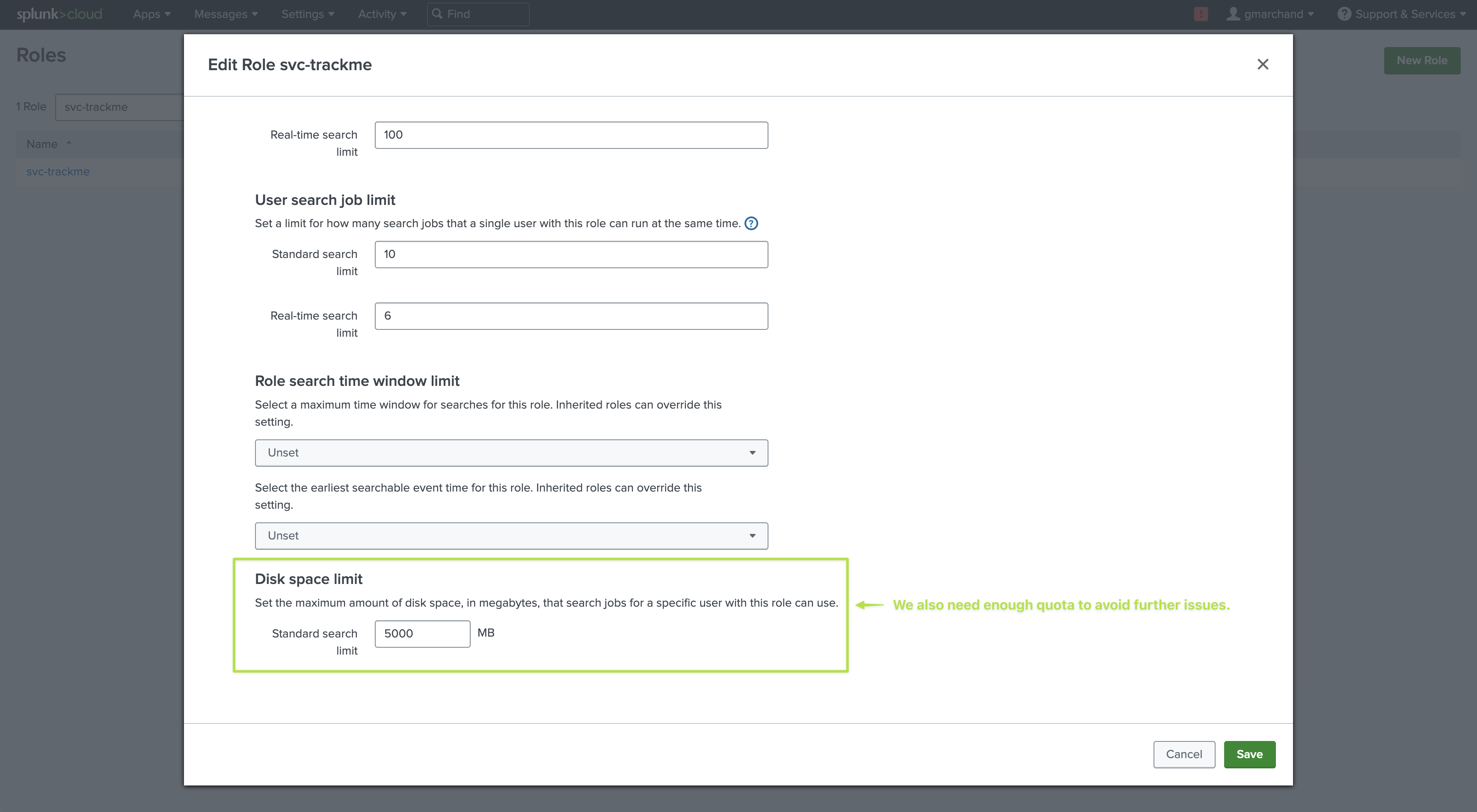
all non-internalandall internalindexesResources: While TrackMe is optimized to distribute scheduled searches, it should be capable of running sufficient concurrent searches and it requires a large file quota to avoid issues
Hint
trackme_admin membership for the service account
Before version 2.0.61, the service account needs to be an explicit member of the
trackme_adminrole (or the admin role in the tenants); this is needed because TrackMe requires explicit role membership (opposed to inheritance) to grant access to the Virtual TenantsFrom version 2.0.61, all RBAC dimensions in TrackMe support inheritance transparently
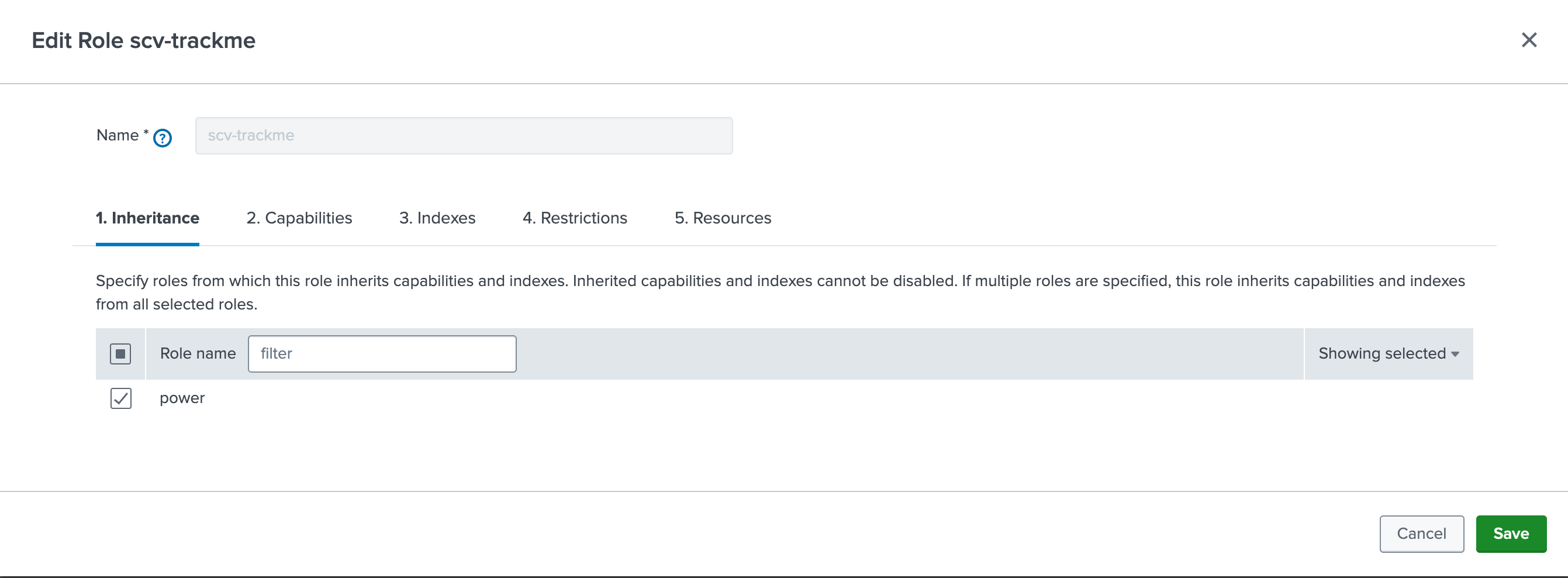
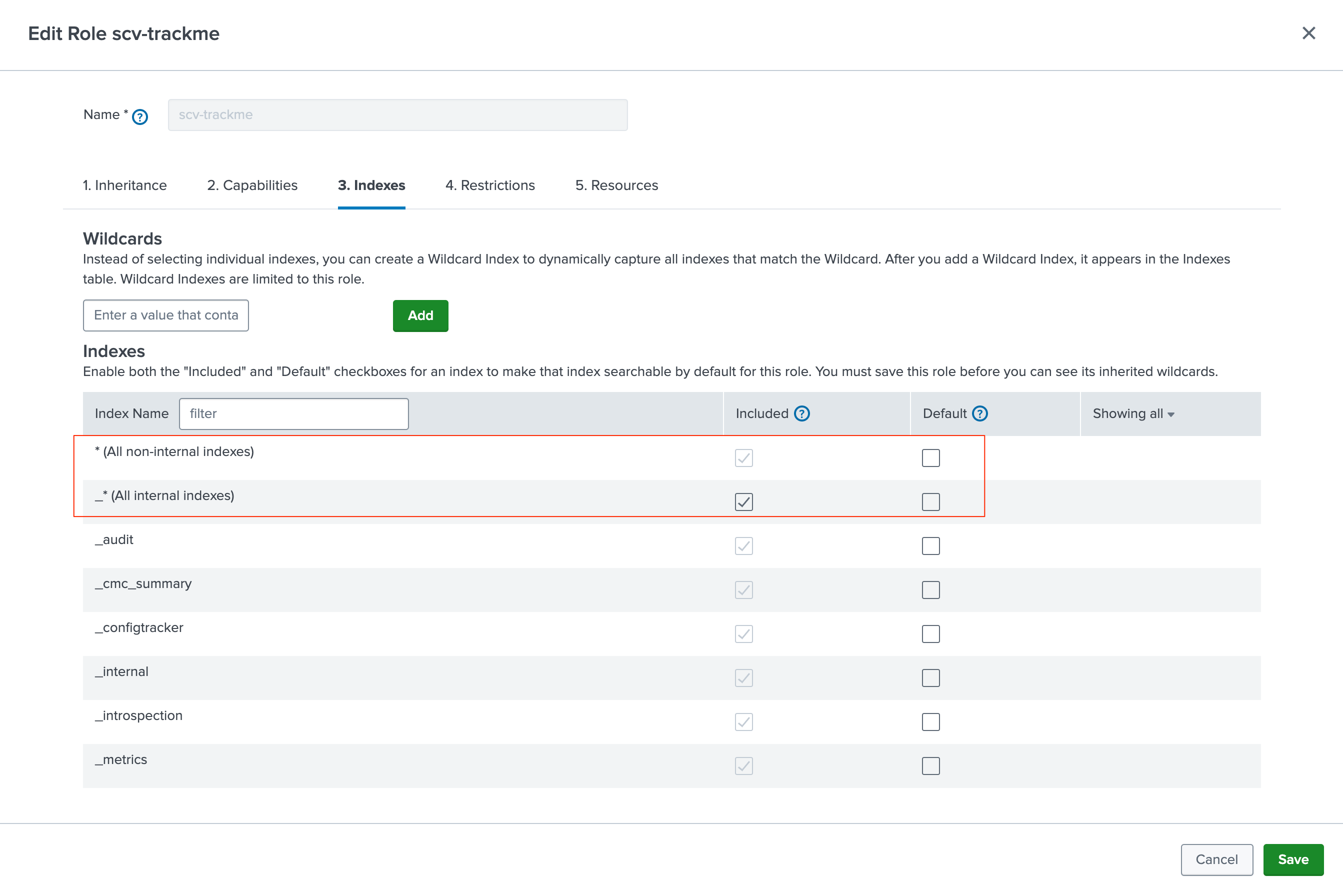
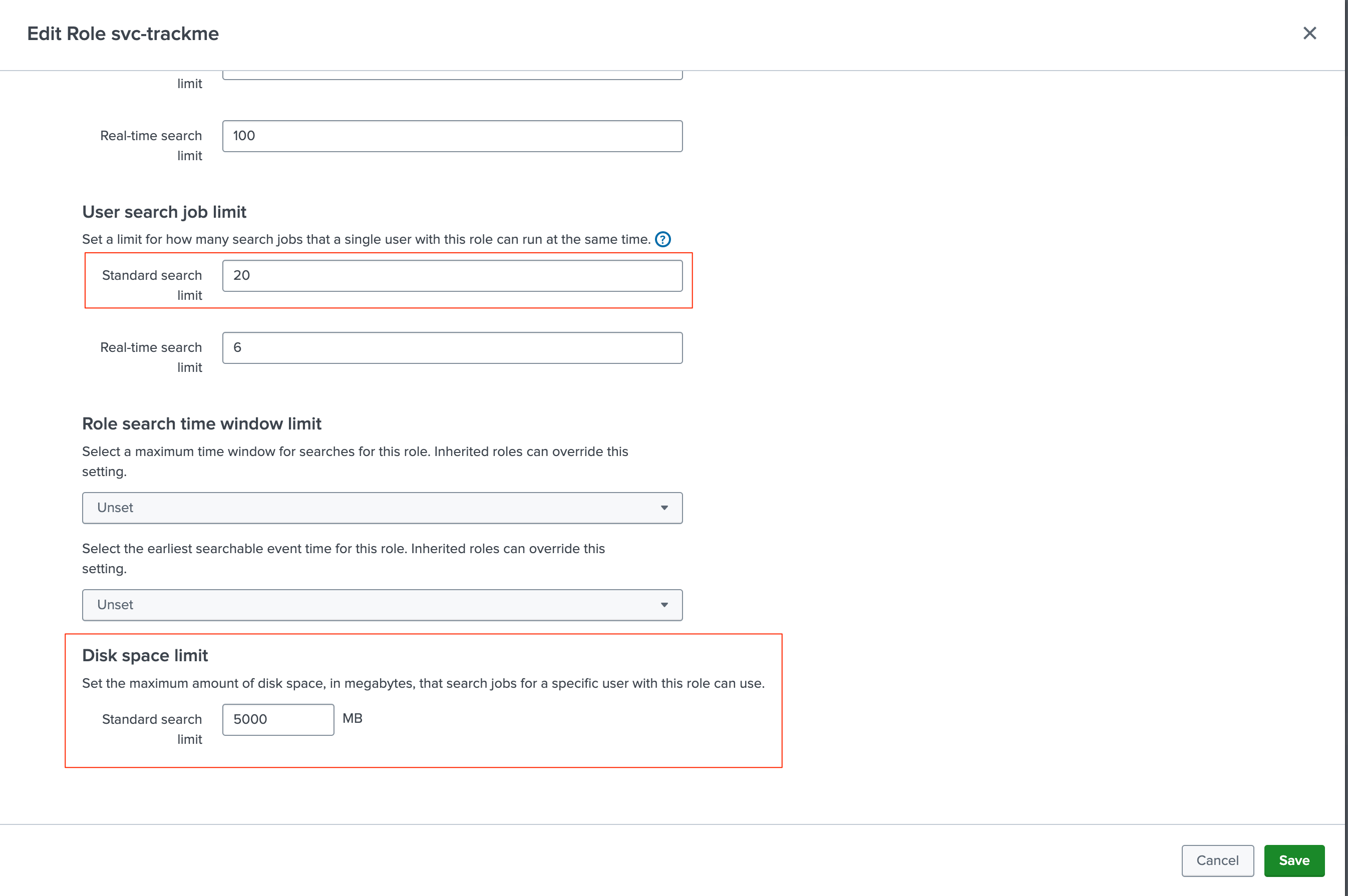
You can can then create the service account itself, example:
The user is a member of the
svc-trackmeroleAs mentioned above, it is also a member of
trackme_adminto be granted access to the Virtual TenantsUncheck the box “Require password change on first login”
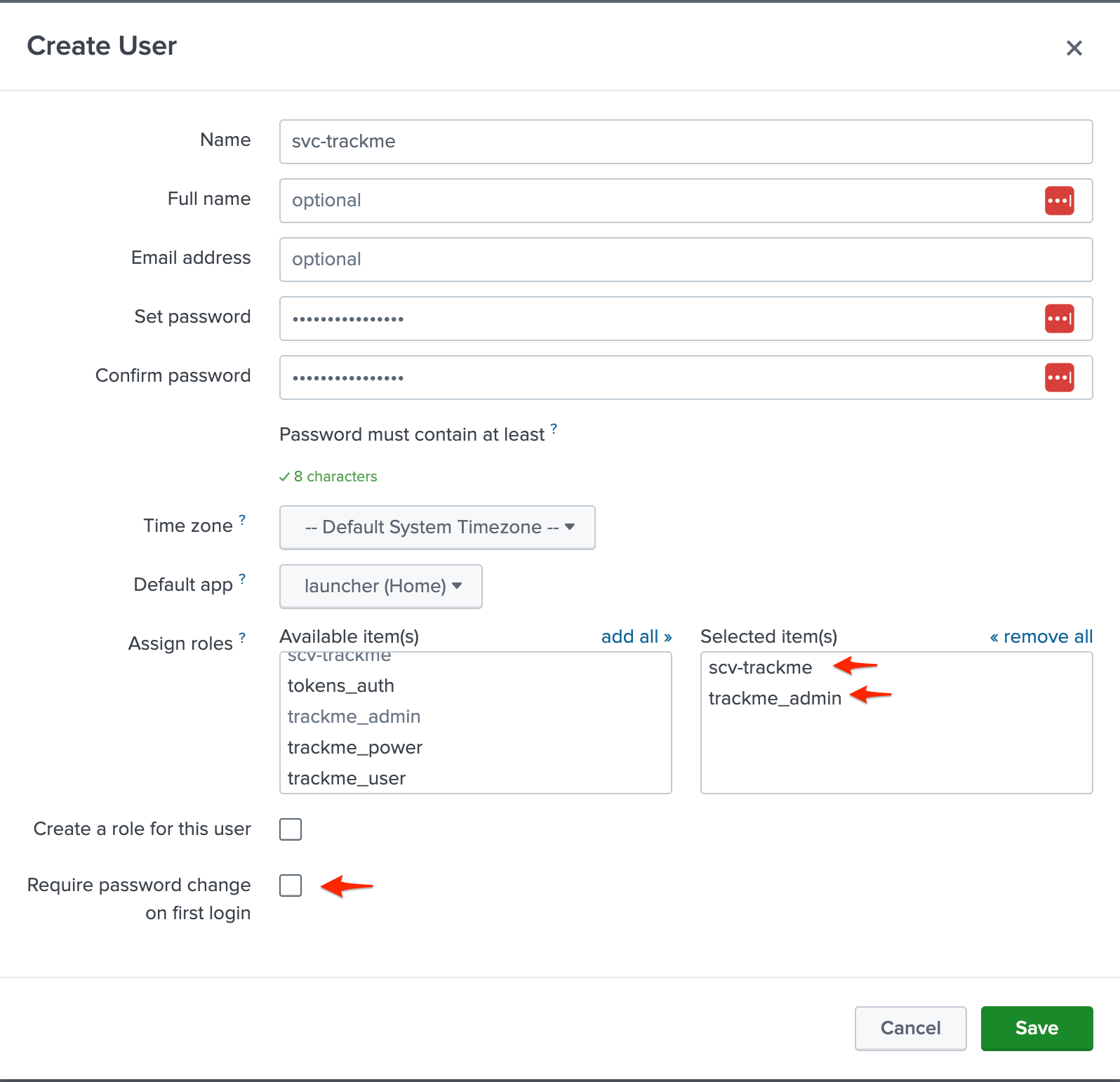
When you create a Virtual Tenant, you will specify the service account as the owner of the Virtual Tenant:
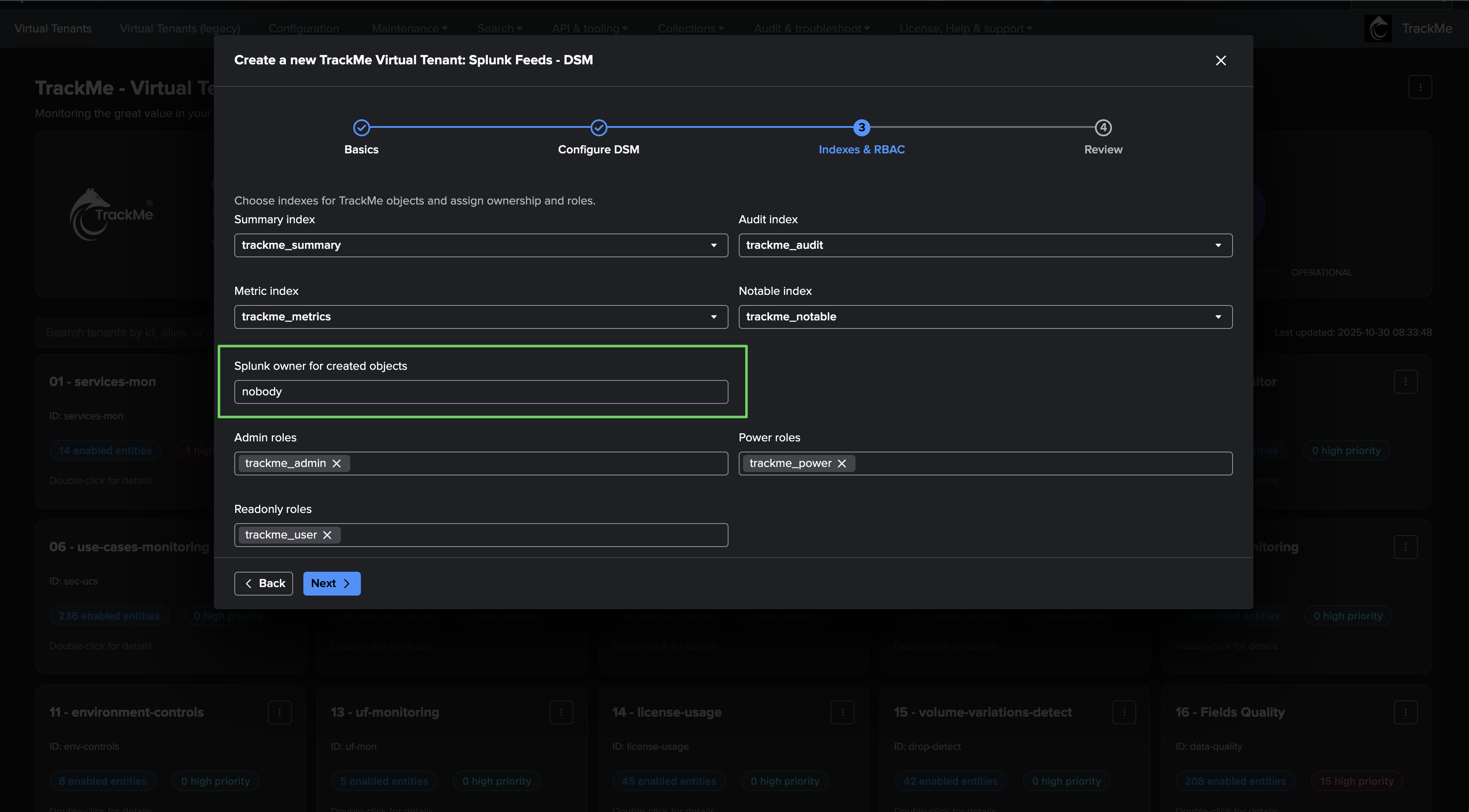
Hint
preset RBAC for the tenant creation UI
You can preset the owner and roles applied when creating a new Virtual Tenant from the UI
Go to Configuration → System settings → General, in the Knowledge objects & RBAC defaults group

The Default owner, Default admin role, Default power role and Default user role fields pre-fill the corresponding dropdowns in the Virtual Tenant creation wizard:

Minimal capabilities and resources for Remote Accounts and the user associated with the bearer token
TrackMe remote capabilities rely on a Splunk bearer token authentication, this token is associated with a Splunk user on the remote side which itself is associated with specific roles, capabilities, permissions and resources restrictions:
Roles and capabilities: The user can be created with minimal permissions using the Splunk
userrole out of the box role. (you can inherit from user or a role providing the same capabilities than power)Indexes: Make sure the user can access to both normal and
internalindexes.Restrictions: The user for TrackMe should not have any time limits restrictions, there are use cases which require long term searches.
Resources: It is recommended to give to this user
enough concurrent searches(unlike very basic or minimal user) as well as asufficient quota. (5GB or 10Gb for instance)Additional capability required: Finally, for the purposes of the Workload, this user also needs to have the following capabilities granted
admin_all_objects,select_workload_pool,list_workload_poolsandlist_workload_ruleswhich are required for TrackMe’s backend to access to all objects of all applications in a remote manner. (for the Metadata in the Workload component)
Capability |
Comment |
|---|---|
admin_all_objects |
Required |
select_workload_pool |
Required |
list_workload_pools |
Required |
list_workload_rules |
Required |
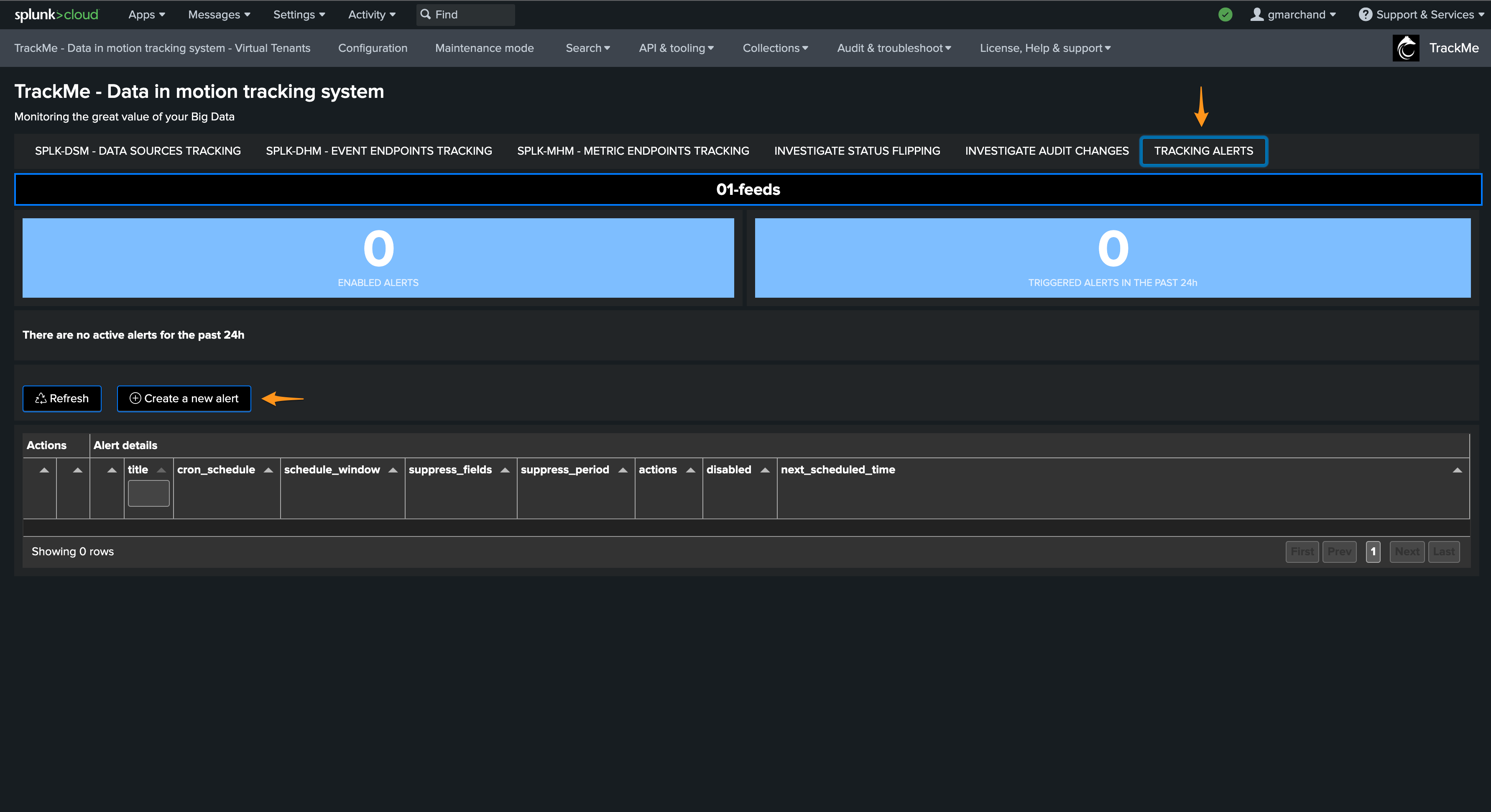
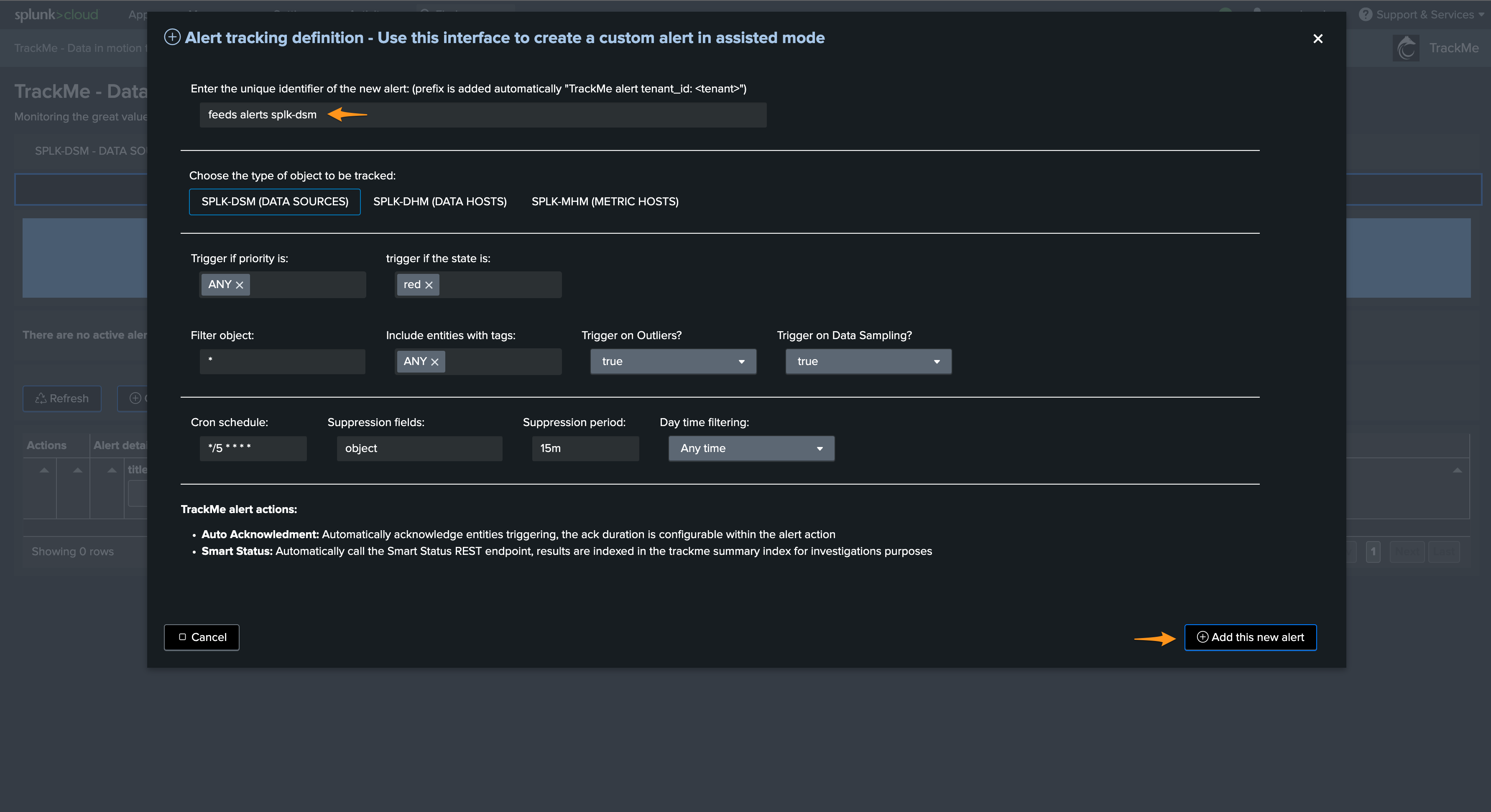
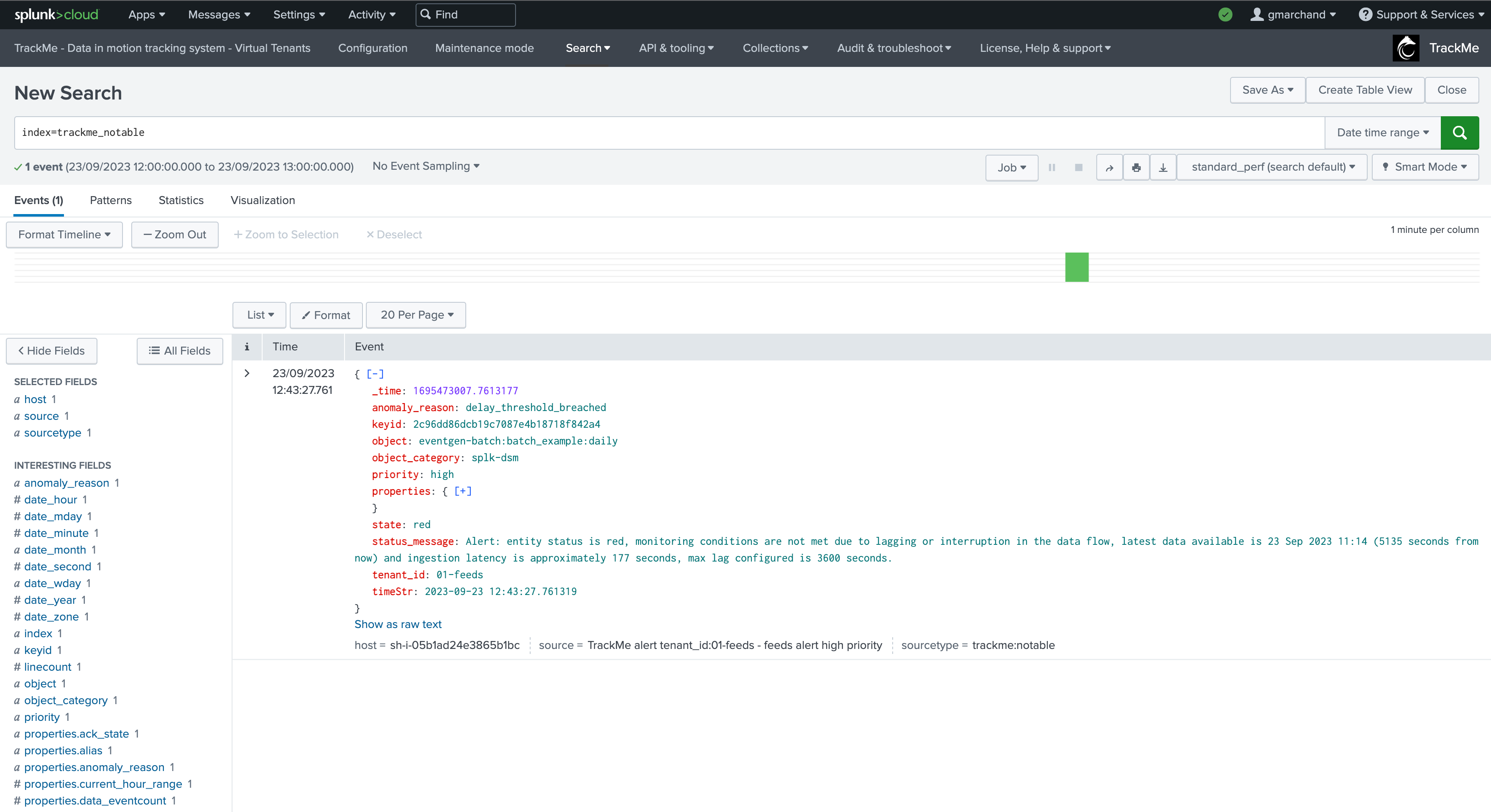
Users and roles
TrackMe is deeply RBAC capable, consult the following documentation to configure users accesses for TrackMe:
Web Browsers and system compatibility
TrackMe should work fine with most Web Browsers and systems; however, if you experience icon issues due to the lack of support of ASCII emojis, you can enable the Bootstrap compatibility mode:
Accessing TrackMe Configuration
From version 2.4.8, TrackMe’s configuration is managed through native React interfaces grouped under the top-navigation Configuration menu (and, for the AI providers, under the Artificial Intelligence menu). These replace the generic Splunk UCC configuration page as the primary management surface:
Interface |
Navigation |
Replaces / covers |
|---|---|---|
System settings |
Configuration → System settings |
Every system-level setting ( |
Manage Remote deployment accounts |
Configuration → Manage Remote deployment accounts |
Remote Splunk deployment accounts — see Remote Splunk deployments |
Manage Email delivery accounts |
Configuration → Manage Email delivery accounts |
External SMTP delivery accounts — see Alerting & third-party integration — in depth |
Manage S3 export accounts |
Configuration → Manage S3 export accounts |
Off-site backup S3 / S3-compatible targets — see Off-site export to S3 (2.4.3) |
Manage AI Provider accounts |
Artificial Intelligence → Manage AI Provider accounts |
LLM provider accounts — see Configuring AI Provider accounts |
Note
The legacy Splunk UCC configuration page remains available as a fallback
TrackMe still relies on the Splunk UCC Framework (https://splunk.github.io/addonfactory-ucc-generator)
as the persistence backend — every native interface reads and writes through the same UCC REST
endpoints, so credential encryption (storage_passwords), save-time validation, and Search Head
Cluster replication are unchanged. The legacy UCC page is no longer listed in the navigation but is
still reachable directly at /app/trackme/configuration if ever needed.
Hint
Administrator permissions are still required
Because persistence still flows through the UCC endpoints, opening these interfaces requires the
native Splunk capabilities list_settings, list_storage_passwords and admin_all_objects
(in addition to trackmeadminoperations). A user lacking them is shown a clear insufficient
permissions message directing them to their Splunk administrators. These capabilities are not
required by the service account, nor to manage tenants and trackers day to day.
Default configurations are located in the following configuration file:
trackme/default/trackme_settings.conf
The configuration user interface writes a local/trackme_settings.conf, which is automatically
replicated across the members when running in a Search Head Cluster. Alternatively, you can deploy a
local/trackme_settings.conf directly (in a Search Head Cluster, under
shcluster/apps/trackme/local/). The recommended method as a basis is to configure TrackMe through
the intended configuration user interfaces described below.
System settings
Configuration → System settings is a single page covering every system-level setting stored in
trackme_settings.conf. It replaces the per-tab layout of the legacy UCC page with a docs-style
left-hand navigation, colour-coded topic cards, a cross-setting search box, and a per-setting
documentation modal (the blue information icon next to each field) that explains what the setting does
and when to change it.

Only changed values are saved: edit any field, and the Save changes button reports how many sections have pending changes; the sidebar and topic cards flag exactly where the unsaved edits are.

The left-hand navigation groups the settings by stanza — each entry corresponds to a stanza of
trackme_settings.conf:
Section |
Purpose |
|---|---|
General |
General behaviour: performance & backend (multi-threading, pagination, KV-collection mode, splunkd timeout, shadow filesystem cache), knowledge-object & RBAC defaults (default owner, admin/power/user roles for the tenant-creation UI), state events, stateful alerting & acknowledgments, email defaults, the Artificial Intelligence feature toggles, and integrations & licensing |
Indexes |
The default TrackMe indexes for Virtual Tenants (summary, metric, audit, notable) and the base
index search filter. If you create tenant-specific indexes, use a strict prefix convention such
as |
User interfaces |
UI defaults ( |
splk-general |
Splunk-specific defaults: feed thresholds and delays, the delayed inspector and auto-disablement, elastic and workload options, and CMDB integration defaults |
splk-data-sampling |
Options for the Data Sampling feature (splk-dsm / splk-feeds) |
splk-outliers-detection |
Options for the Machine Learning outlier-detection features (training & scheduling, detection defaults, thresholds & boundaries, algorithms & storage) |
SLA |
SLA classes and the SLA calculation / breach-events behaviour |
Maintenance |
The Maintenance KDB SLA-exclusion behaviour |
Health Tracker |
The per-tenant health-tracker task frequencies and the maximum cycle duration |
Backup & Restore |
Backup retention, the archive directory, and the active S3 export account — see Backup & restore |
Topology Studio |
Deployment-wide Topology Studio controls: version retention, live refresh interval, the default views display mode, icon and background limits, alert run history, snapshot and email-image ceilings — see System-wide settings |
Bank Holidays |
Default calendars and the effects of holidays on alerting, ML training, SLA and monitoring windows — see Bank holidays |
Logging |
The logging level for TrackMe (see TrackMe Logging below) |
Tip
AI Assistant on the configuration pages
When the AI Assistant is enabled, an AI assistant button appears on System settings and on each account-management page (and inside their modals). It has full, context-aware knowledge of the configuration on screen — ask what a setting does, how to configure an account, or how to interpret a failed connectivity test. Configuration values are shared with the assistant with sensitive items redacted; secrets are never exposed.
Remote Splunk deployment accounts
Configuration → Manage Remote deployment accounts is where you configure any remote Splunk environment you monitor with TrackMe (Enterprise, Cloud, utility nodes). The full walkthrough — adding an account, the pre-save connectivity test, HA/DR endpoints, RBAC roles and automatic token rotation — is documented here: Remote Splunk deployments.

Email delivery accounts
Configuration → Manage Email delivery accounts defines the external SMTP delivery accounts TrackMe
uses to send notifications (stateful alerting, AI Routines, Configuration Guardian). The local MTA
(localhost) is always available without an account — only external mail servers need one. The full
walkthrough is documented in Alerting & third-party integration — in depth.

S3 export accounts
Configuration → Manage S3 export accounts defines the S3 / S3-compatible targets used for off-site export of TrackMe backup archives. S3 export is optional and fully opt-in; the active target is selected in the Backup & Restore settings. The full walkthrough is documented in Off-site export to S3 (2.4.3).

AI Provider accounts
Artificial Intelligence → Manage AI Provider accounts defines the Artificial Intelligence (LLM) provider accounts used by TrackMe’s AI features (AI Assistant, AI Advisors, stateful-alert AI status reports). This is documented in detail here: Configuring AI Provider accounts.
Virtual Tenants configuration
Virtual Tenant records are created and deleted automatically by TrackMe when managing Virtual Tenants through the Web or REST API. Tenant-level configuration is edited from the Configure tenant modal, reachable from the per-tenant 3-dot menu on the Virtual Tenants page — see Managing tenants.
TrackMe Logging
The logging level for TrackMe is set from Configuration → System settings → Logging. All custom commands, REST endpoints, and any other TrackMe components rely on this setting to define the level of logging.
It is not recommended in a Production context to set TrackMe in DEBUG mode in normal circumstances as TrackMe will be extremely chatty in debug.
A typical logging message will look like: (INFO mode in this example)
2023-01-10 17:22:04,520 INFO trackmesplkflxparse.py stream 366 tenant_id="flx-demo-dma", context="live", TrackMeSplkFlxParse has terminated successfully, turn debug mode on for more details, results_count="2"
The logging level is extracted at search time, via props.conf settings, example:
# catch all sourcetype
[(?::){0}trackme:custom_commands:*]
EXTRACT-log_level = \d{4}-\d{2}-\d{2}\s\d{2}:\d{2}:\d{2}\,\d*\s(?<log_level>\w*)\s
Therefore, you can review errors for instance with the following SPL search which would review both REST API endpoints errors and the custom commands:
(index=_internal sourcetype=trackme:rest_api log_level=ERROR) OR (index=_internal sourcetype=trackme:custom_commands:* log_level=ERROR)
We strongly believe that the truth stands in the logs; therefore, we take great care at making sure logging in TrackMe is giving you the greatest level of quality and reliability!
See the following documentation for more about logging & troubleshooting in TrackMe: