QUICK START - TrackMe Impact-Based Alerting (IBA)
Impact-Based Alerting (IBA)
Impact-Based Alerting (IBA) is a new core alerting model introduced in TrackMe 2.3.5.
IBA transforms how TrackMe determines entity status by using a flexible, configurable scoring system instead of hardcoded rules.
Inspired by Risk-Based Analysis (RBA) in security contexts, IBA allows administrators to fine-tune how different anomalies contribute to entity health status.
IBA provides complete transparency through detailed score breakdowns, making it easy to understand why an entity is in a particular state.
For users migrating from previous versions, the transition is seamless and requires no manual intervention.
This guide focuses on feeds tracking (DSM and DHM components) as the primary use case, with extensions to other TrackMe components covered in later sections.
What is Impact-Based Alerting?
Impact-Based Alerting (IBA) is TrackMe’s intelligent scoring system that determines entity health status based on a cumulative impact score. Instead of using fixed rules, IBA aggregates scores from various anomaly types over a 24-hour rolling window, providing a flexible and tunable approach to alerting.
Domain Positioning
Inspired by security-grade risk scoring, IBA brings impact-driven alerting to data monitoring. IBA applies risk-based scoring principles to data reliability and observability in TrackMe.
Key Concepts:
Impact Score: A numeric value (0-100) assigned to each anomaly type when detected
Total Score: The cumulative sum of all impact scores for an entity
Score Aggregation: Scores are aggregated over a 24-hour rolling window
Status Determination: Entity status (green, orange, red, blue) is determined by the total score
Score Transparency: Every score includes a detailed breakdown showing exactly which anomalies contributed
Why IBA Matters:
Smarter Alerting: Fine-tune impact scores per tenant, component, and anomaly type to match your environment’s priorities
Reduced False Positives: One-click suppression capabilities allow you to mark outliers or entire entities as false positives
Complete Transparency: Detailed score breakdowns show exactly why an entity is in a particular state
Flexible Configuration: Adjust impact scores through an intuitive UI without code changes
Audit Trail: Full traceability of score events and anomaly reasons, even when suppressed


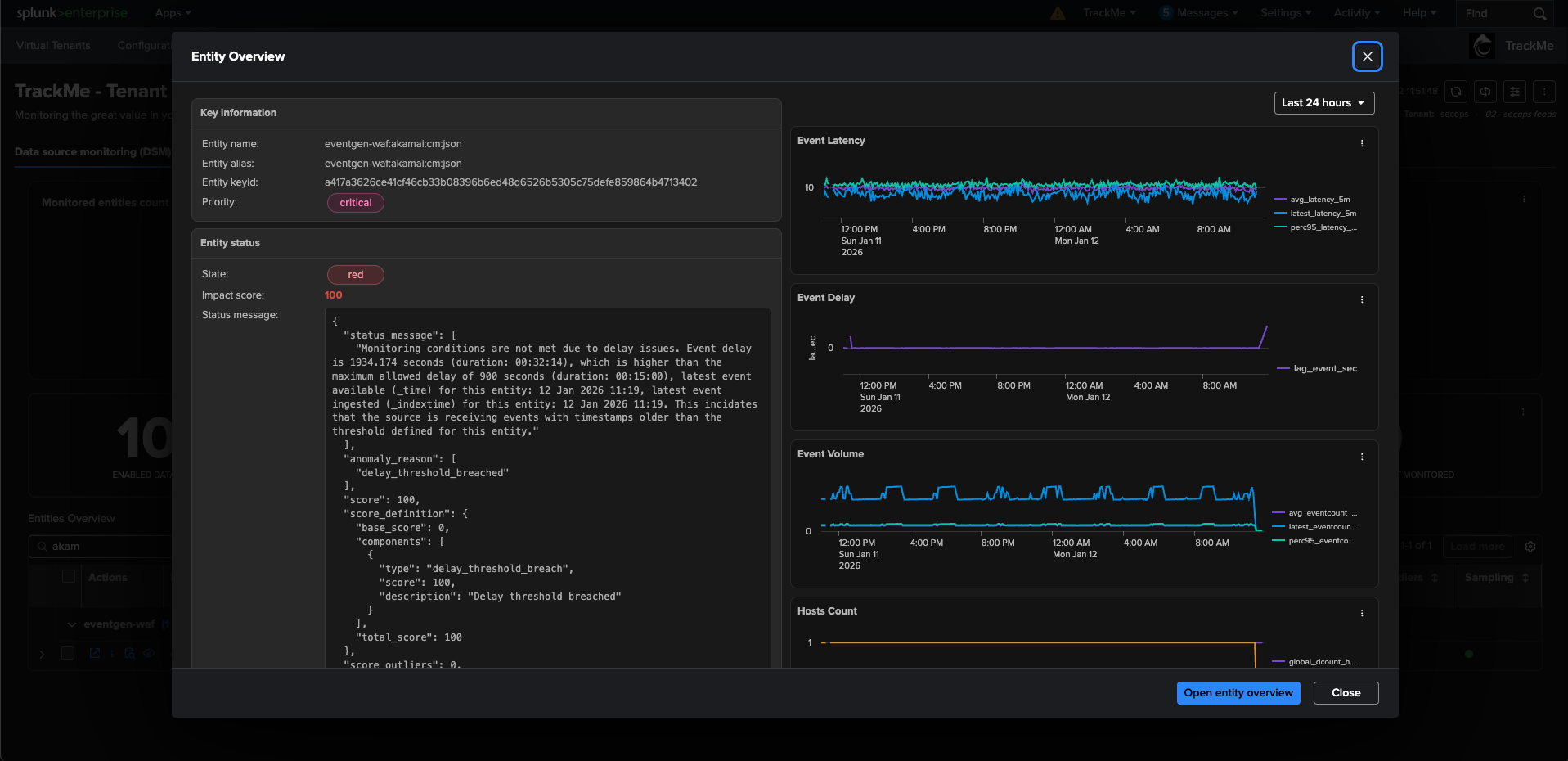
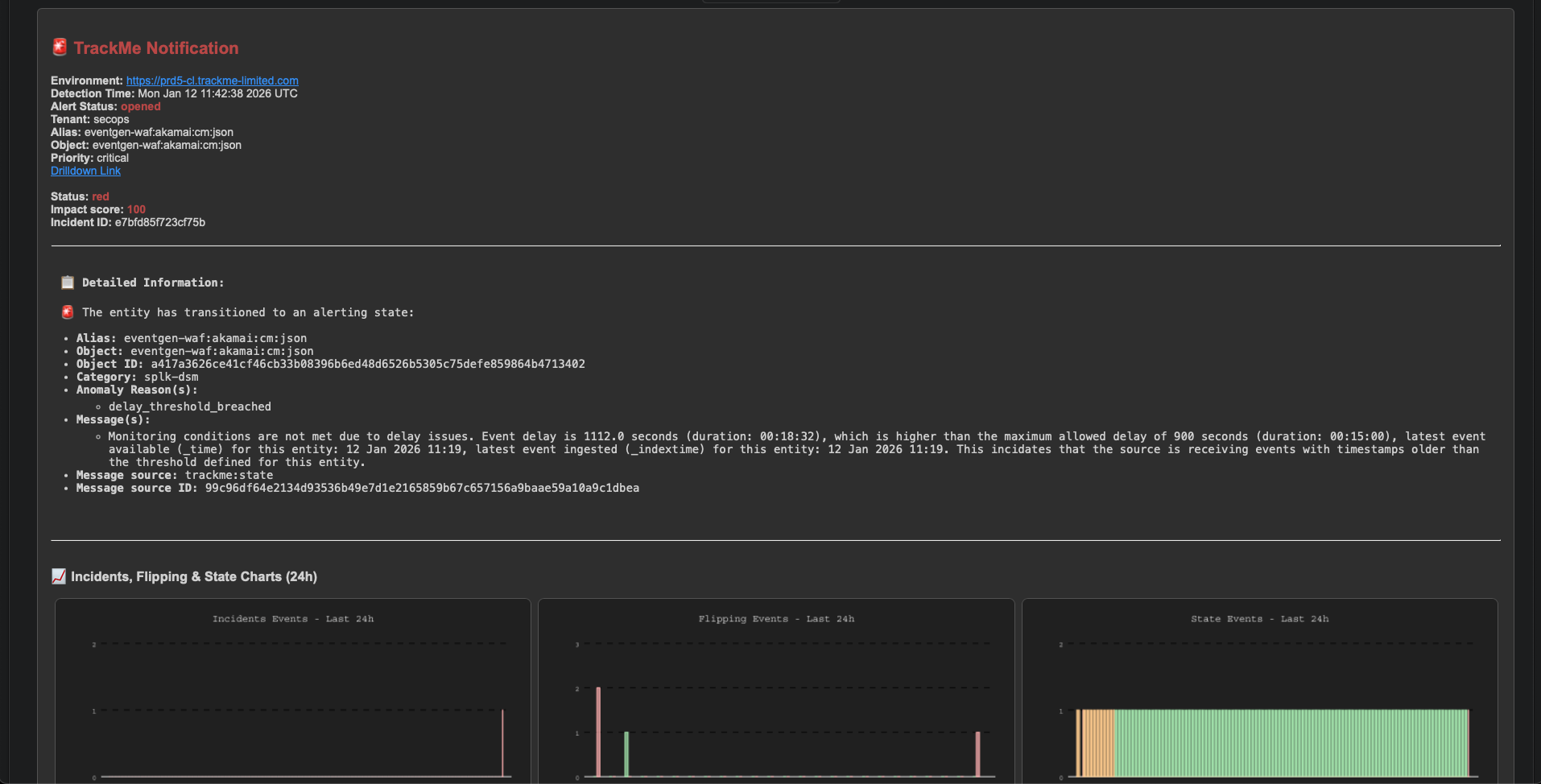
Understanding Entity Status in IBA
TrackMe entities can have four possible statuses, each determined by the total impact score:
- Green Status
Condition: Total score = 0 (no anomalies detected)
Meaning: The entity is healthy and operating normally
Visual Indicator: Green status dot
- Orange Status
Condition: Total score > 0 and < 100 (anomalies present but below critical threshold)
Meaning: Potential issues detected that require attention but don’t warrant a critical alert
Visual Indicator: Orange status dot
Use Case: Early warning for issues that may escalate if not addressed
- Red Status
Condition: Total score >= 100 (critical threshold breached)
Meaning: Critical issues detected that require immediate attention
Visual Indicator: Red status dot
Use Case: Triggers alerts and notifications for immediate action
- Blue Status
Condition: Special state (e.g., logical group protection, minimal disruption time)
Meaning: Entity is part of a logical group that provides protection
Visual Indicator: Blue status dot
How Impact Scoring Works for Feeds Tracking (DSM)
The Data Sources Monitoring (DSM) component tracks data sources (index/sourcetype combinations) and uses IBA to determine entity status based on various anomaly types.
DSM Anomaly Types and Default Impact Scores:
Anomaly Type |
Default Score |
Description |
|---|---|---|
Delay Threshold Breach |
100 |
Data flow is interrupted - no new events received (static delay policy) |
Variable Delay Threshold Breach |
100 |
Data flow is interrupted - no new events received within the active variable delay slot threshold (variable delay policy, since v2.3.12) |
Latency Threshold Breach |
48 |
Events are being indexed but with high latency |
Data Sampling Anomaly |
36 |
Quality issues detected in event format recognition |
Min Hosts Dcount Breach |
100 |
Minimum number of distinct hosts threshold breached |
Future Tolerance Breach |
36 |
Events detected with timestamps too far in the future |
ML Outliers Detection |
36 (default) |
Machine Learning models detected abnormal volume patterns |
Score Calculation Example:
Let’s consider a DSM entity with multiple anomalies:
Base Score: 0 (no upstream threshold breaches from hybrid trackers)
Delay Threshold Breach (or Variable Delay Threshold Breach): Score = 100 (default)
ML Outliers Detection: Score = 36 (default)
Total Score: 136
Result: Red status (score >= 100)
Score Definition Breakdown:
The system maintains a detailed breakdown of the score:
{
  "base_score": 0,
  "components": [
    {
      "type": "delay_threshold_breach",
      "score": 100,
      "description": "Delay threshold breached"
    },
    {
      "type": "ml_outliers_detection",
      "score": 36,
      "description": "ML outliers detected"
    }
  ],
  "score_outliers": 36.0,
  "score_source": ["lowerbound_outlier"],
  "total_score": 136.0
}
Understanding the Score Components:
base_score: Score from upstream tracker/search results (e.g., threshold breaches detected by hybrid trackers)
components: Array of anomaly components contributing to the score, each with: - type: The anomaly type (e.g., “delay_threshold_breach”) - score: The impact score for this anomaly - description: Human-readable description
score_outliers: Cumulative outlier score (if ML outliers are detected)
score_source: Array of score sources (e.g., “lowerbound_outlier”, “false_positive”, “manual_score”)
total_score: Final calculated score used for status determination
Configuring Impact Scores for DSM
Impact scores are configured per Virtual Tenant account, allowing you to customize how different anomaly types contribute to entity status for each tenant.
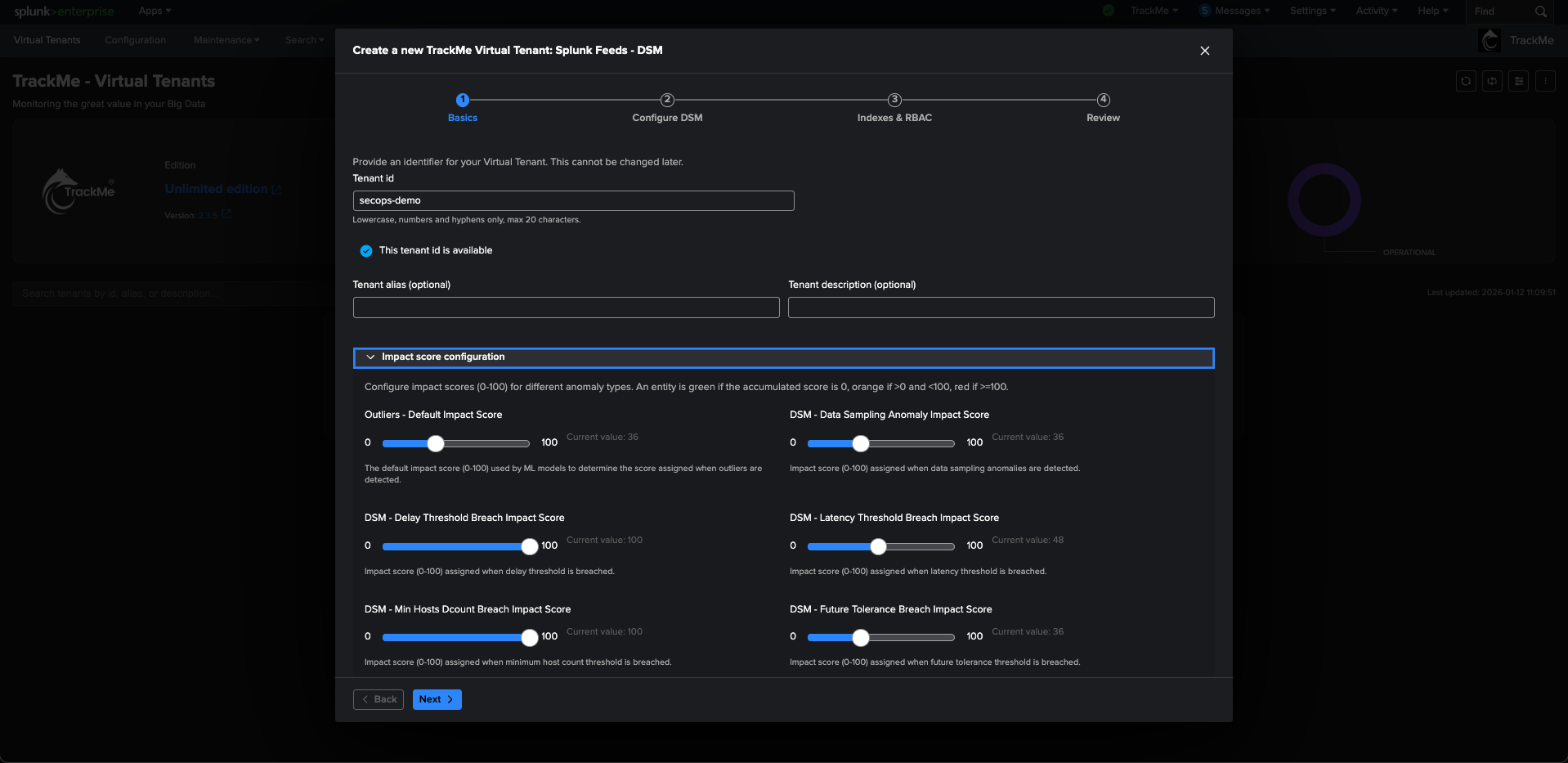
During Virtual Tenant Creation:
When creating a new Virtual Tenant for DSM (Data Sources Monitoring), you can configure impact scores in the wizard:
Navigate to the “Impact score configuration” section (collapsible panel)
Adjust sliders (0-100) for each anomaly type:
Outliers - Default Impact Score: Applies to ML outlier detections (default: 36)
DSM - Data Sampling Anomaly Impact Score: Quality issues (default: 36)
DSM - Delay Threshold Breach Impact Score: Data flow interruption (default: 100) - applies to both static and variable delay policies
DSM - Latency Threshold Breach Impact Score: High indexing latency (default: 48)
DSM - Min Hosts Dcount Breach Impact Score: Minimum hosts threshold (default: 100)
DSM - Future Tolerance Breach Impact Score: Future timestamp issues (default: 36)
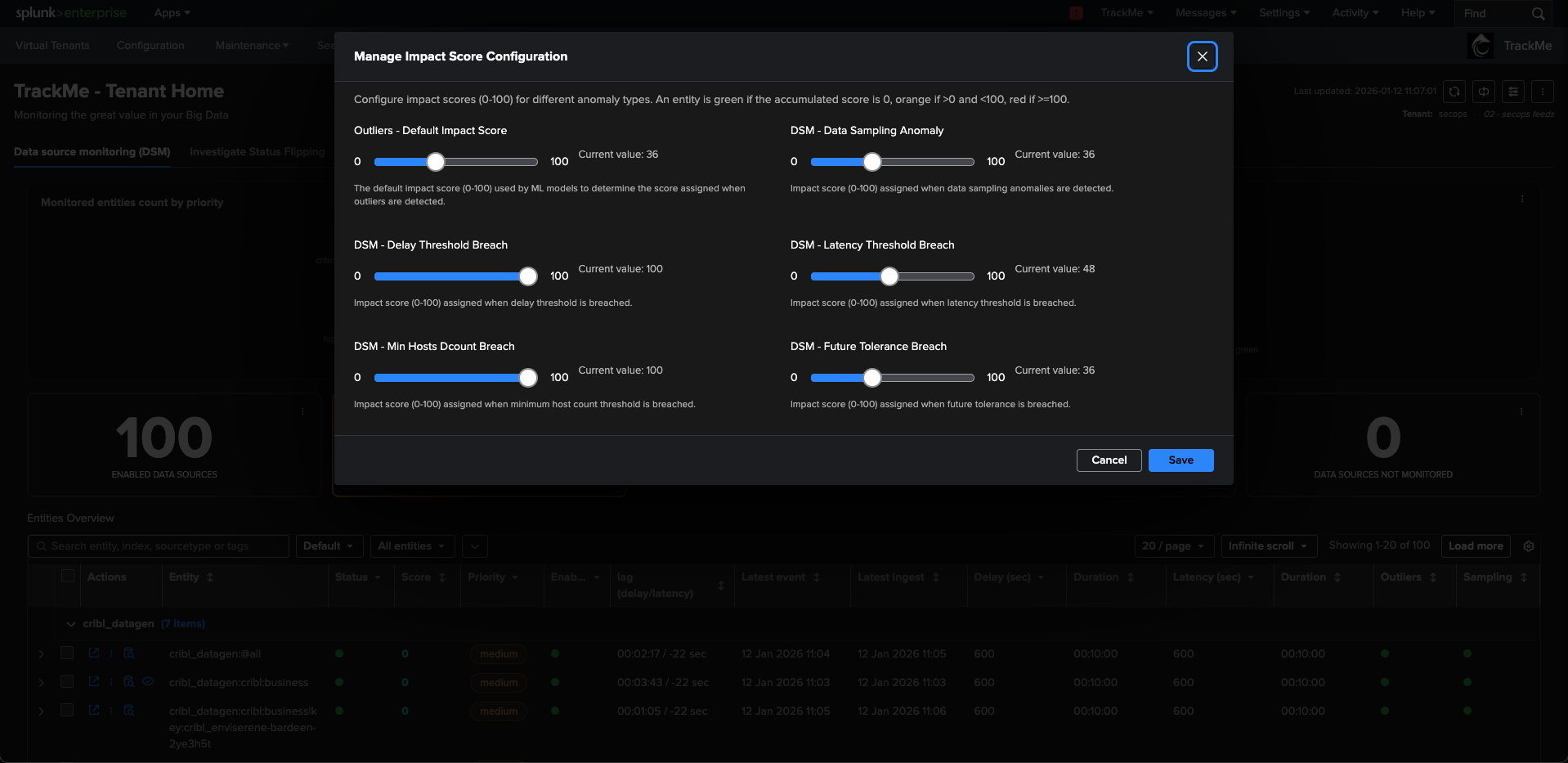
After Virtual Tenant Creation:
You can update impact scores for existing tenants:
Navigate to the Virtual Tenant home interface
Click the kebab menu (three dots) for the tenant
Select “Manage: Impact score”
Adjust the sliders for each anomaly type
Save the configuration
Per-Entity Score Weight Overrides (DSM and DHM):
For DSM and DHM components, you can override impact score weights on a per-entity basis through the lagging policy configuration. This allows fine-grained control for specific entities that may have different priorities or requirements than the tenant-level defaults.

How to Configure Per-Entity Score Weights:
Navigate to the entity detail modal for the DSM or DHM entity you want to configure
Click on “Manage lagging policy” (or access via the entity kebab menu)
In the lagging policy modal, locate the “Impact Score Weights” section
Adjust the sliders for: - Delay impact score weight: Custom impact score (0-100) for delay threshold breaches - Latency impact score weight: Custom impact score (0-100) for latency threshold breaches
The modal displays the “Inherited impact score” value, showing the tenant-level default
Click “Apply lagging policy” to save the entity-specific overrides
Important Notes:
Per-entity score weights override tenant-level defaults for that specific entity only
Other entities continue to use tenant-level defaults unless they also have per-entity overrides
Per-entity overrides apply only to delay and latency threshold breaches (not other anomaly types)
These overrides are stored in the entity’s lagging policy configuration
Other TrackMe components (MHM, FLX, FQM, WLK) use different mechanisms for per-entity customization
Use Cases for Per-Entity Overrides:
Critical Data Sources: Increase delay/latency scores for mission-critical feeds
Low-Priority Sources: Decrease scores for less critical feeds to reduce alert noise
Special Handling: Adjust scores for entities with known patterns or maintenance windows
Gradual Rollout: Test new score configurations on specific entities before applying tenant-wide
Best Practices for DSM Impact Score Configuration:
Delay Threshold Breach (and Variable Delay Threshold Breach): Keep at 100 (default) - this is a critical indicator of data flow interruption
Latency Threshold Breach: Consider 48-60 range - high latency is important but less critical than delay
Data Sampling Anomaly: Adjust based on your quality requirements (default: 36)
ML Outliers: Start with default (36) and adjust based on false positive rates
Future Tolerance Breach: Keep at default (36) unless you have specific requirements
Example Configuration Scenarios:
- Scenario 1: High-Volume, Low-Latency Tolerance Environment
Delay Threshold Breach: 100 (critical)
Latency Threshold Breach: 60 (increased importance)
Data Sampling Anomaly: 50 (quality is important)
ML Outliers: 30 (reduce false positives)
- Scenario 2: Quality-Focused Environment
Delay Threshold Breach: 100 (critical)
Latency Threshold Breach: 40 (less critical)
Data Sampling Anomaly: 60 (quality is paramount)
ML Outliers: 40 (balance detection and false positives)
Understanding Score Aggregation and Time Windows
Impact scores are aggregated over a 24-hour rolling window, meaning:
Scores from anomalies detected in the last 24 hours contribute to the total score
Older scores automatically expire after 24 hours
The total score reflects the current state of the entity over this window
How Score Events Work:
Score events are generated when anomalies are detected and stored in TrackMe’s metrics store. These events include:
Timestamp: When the anomaly was detected
Score Value: The impact score for this anomaly
Score Source: The source of the score (e.g., “delay_threshold_breach”, “ml_outliers_detection”)
Anomaly Details: Additional context about the anomaly
Viewing Score Events:
You can view the underlying score events for any entity:
Click on the impact score value in the entity detail modal or overview table
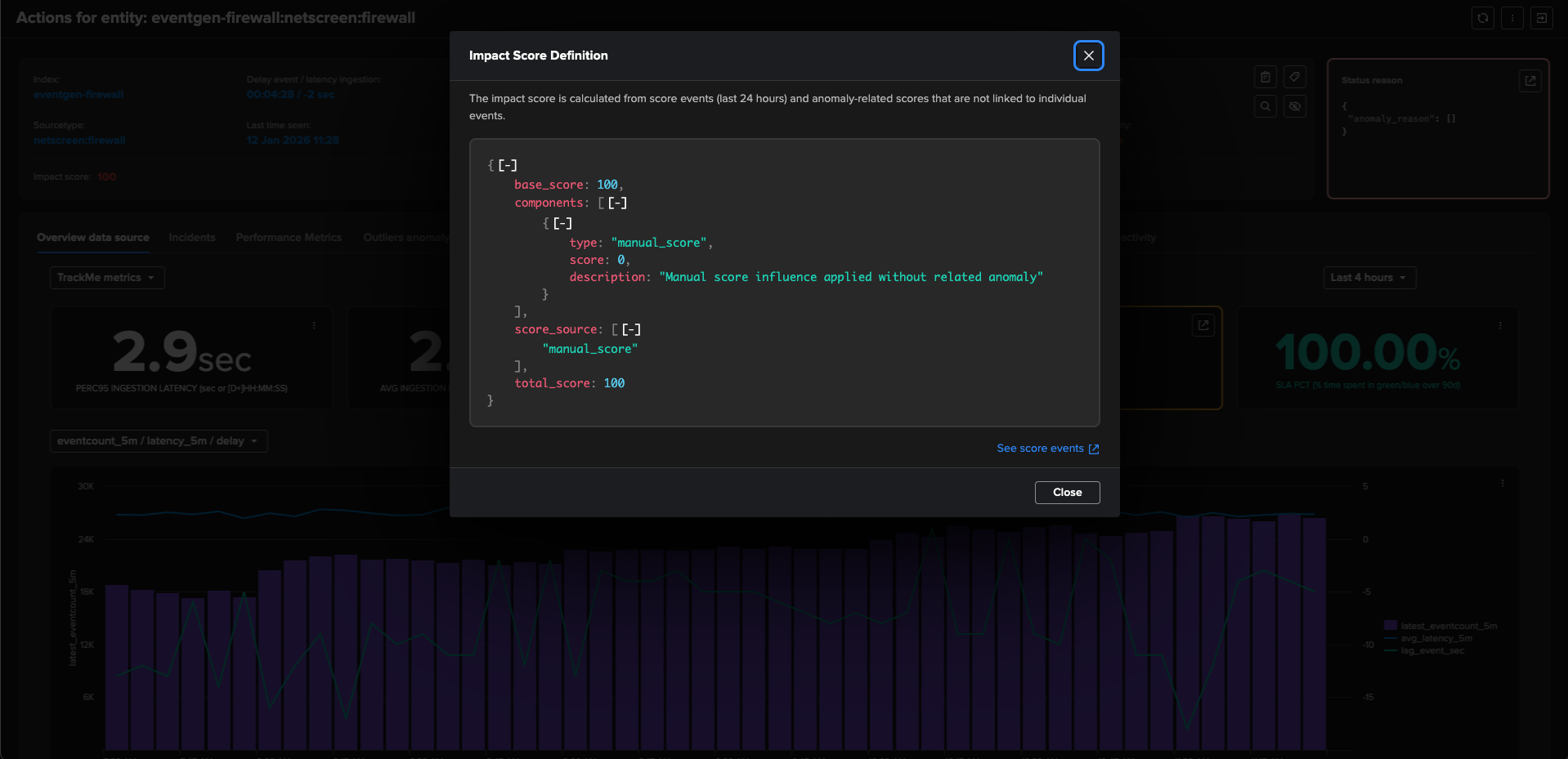
This opens the Score Definition Modal showing the breakdown
Click “See score events” link at the bottom
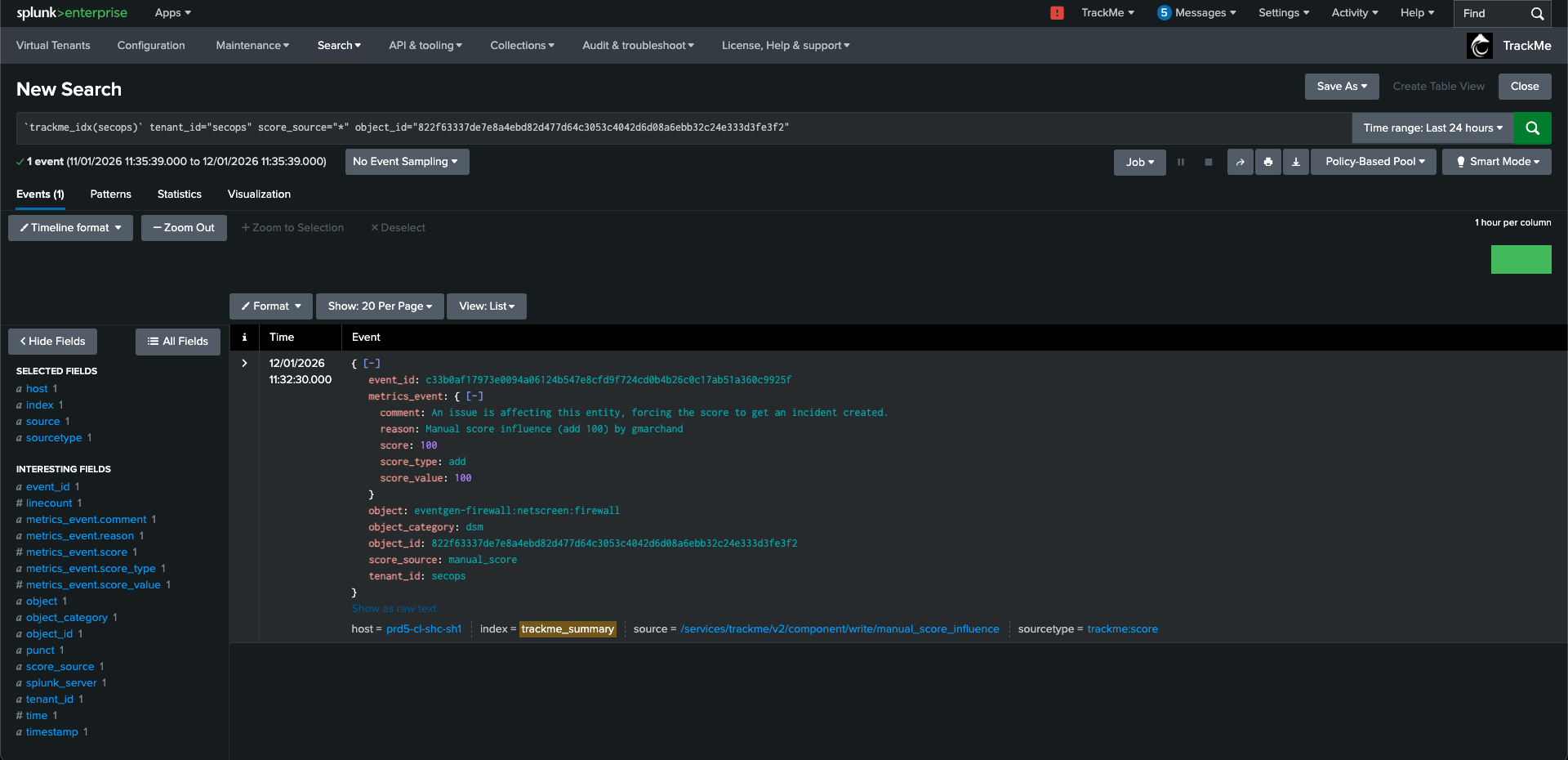
This opens a Splunk search showing all score events for the entity in the last 24 hours
Score Event Query Example:
The score events search query looks like:
`trackme_idx(tenant_id)` tenant_id="your_tenant_id" score_source="*" object_id="your_object_id"
The query filters score events for the specific entity and shows: - When each score event was generated - The score value (positive or negative) - The score source - Additional metadata
False Positive Management
IBA provides powerful false positive management capabilities, allowing you to suppress alerts while maintaining full audit trail transparency.
Global False Positive (Entity-Level):
To suppress all alerts for an entity:
Open the entity detail modal
Click the kebab menu (three dots)
Select “Set as false positive” (first action in “Actions” category)
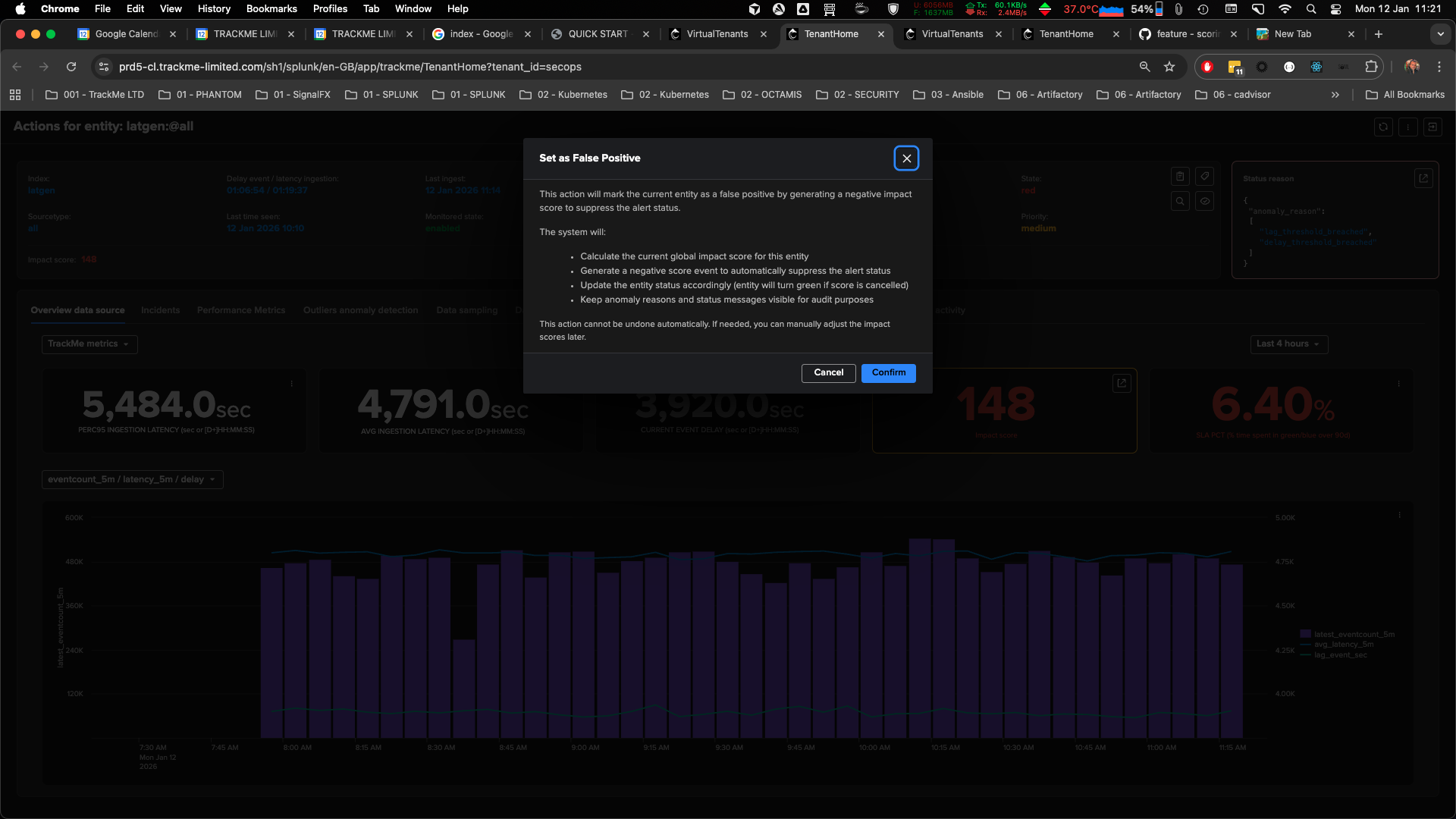
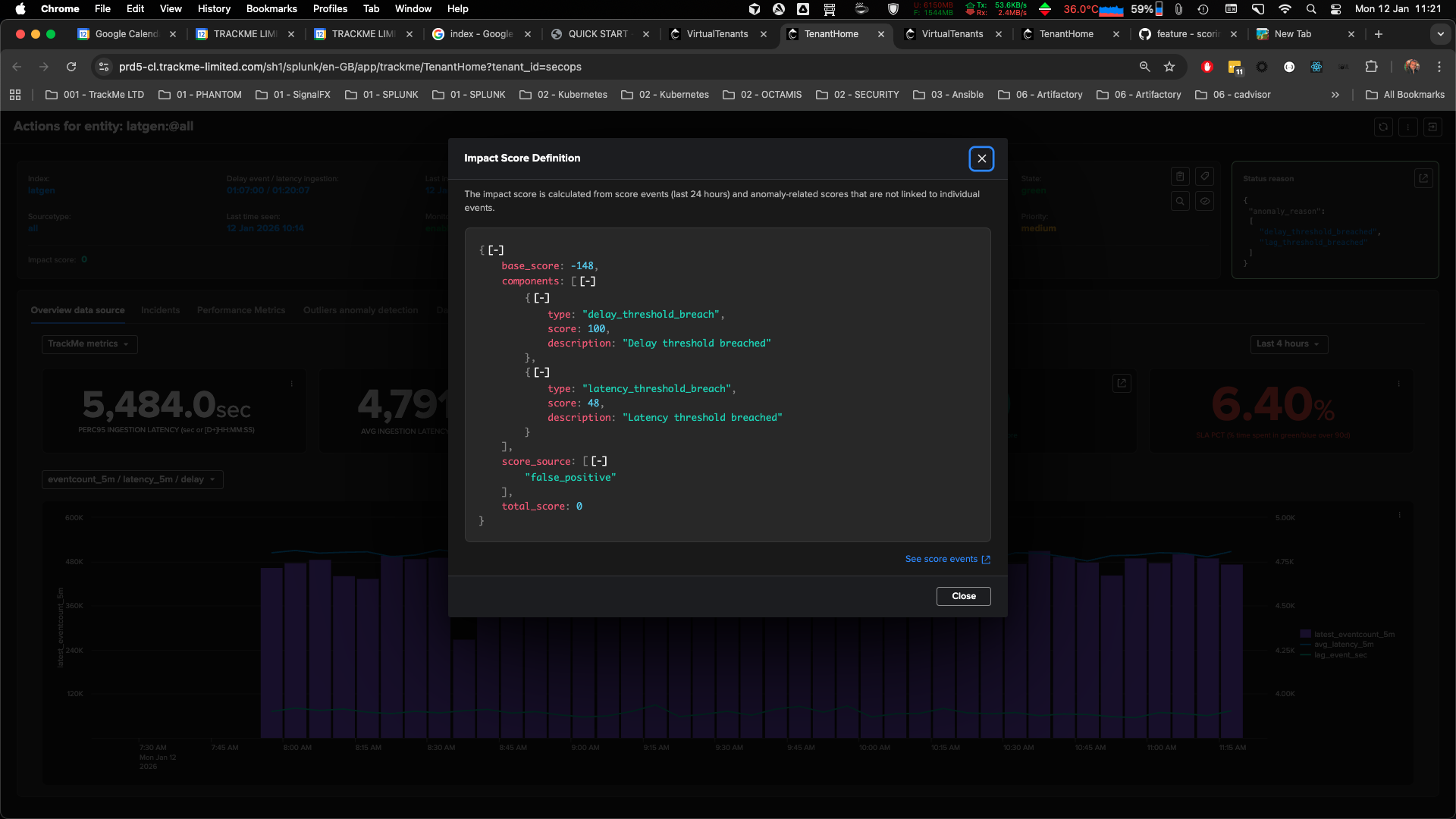
The system generates a negative score event that cancels out all positive scores
The entity transitions to green status when total_score <= 0
Anomaly reasons remain visible for audit purposes
Important Notes:
False positive actions require power/admin user privileges
Anomaly reasons are preserved even when suppressed (for audit trail)
Score events are traceable - you can see what was suppressed and when
False positives can be reversed by adjusting scores manually if needed
Outliers False Positive:
When ML outliers are detected but you determine they are false positives:
Navigate to the Outliers overview tab
Click “Set as false positive” button (or use the kebab menu)
The system generates a negative score event that cancels out the positive outlier score
The entity state transitions based on the resulting score: - If score_outliers >= 100: Red status - If score_outliers > 0 and < 100: Orange status (with ml_outliers_detection in anomaly reasons) - If score_outliers <= 0: Green status (outliers suppressed)
Manual Score Influence
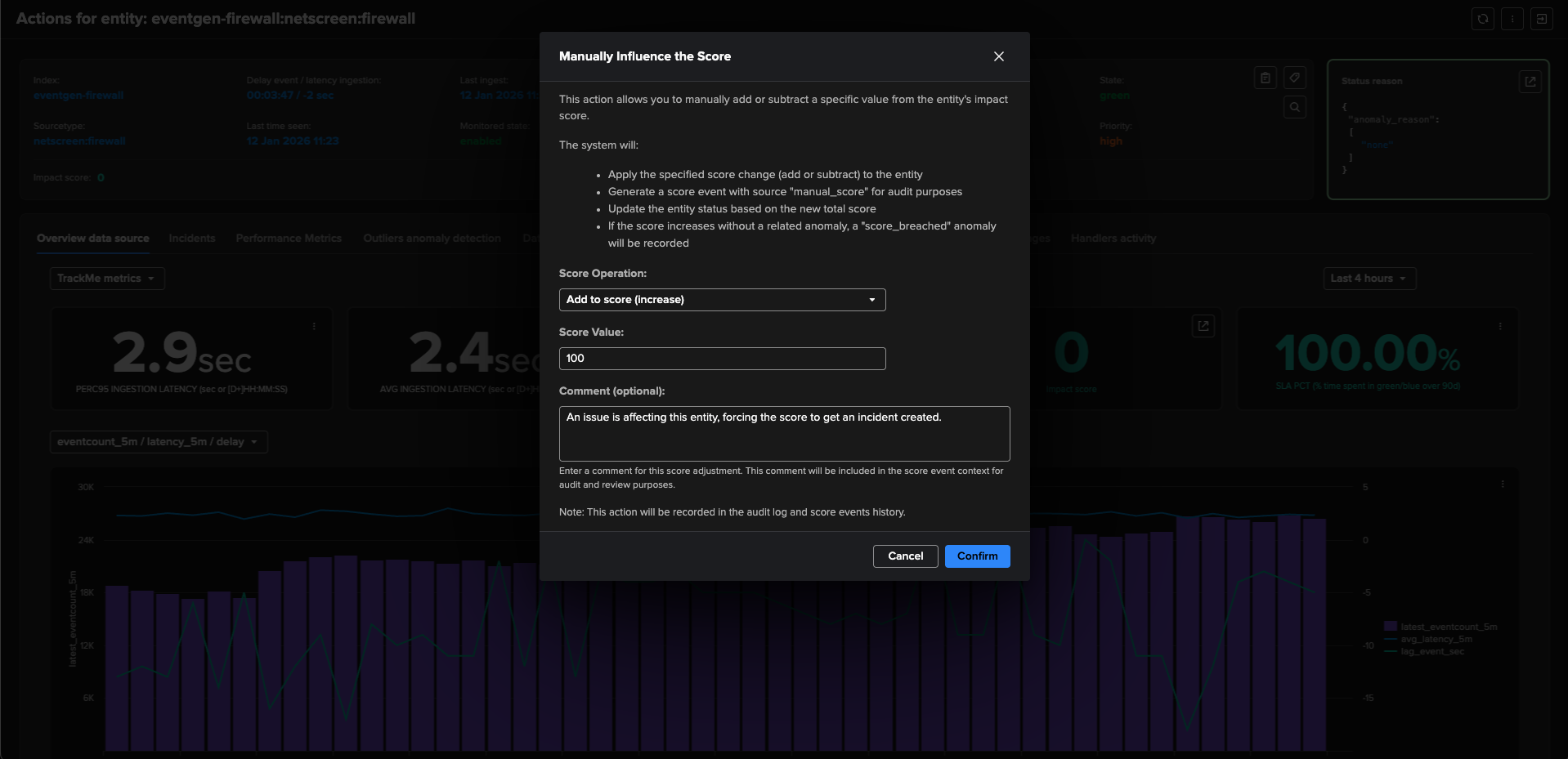
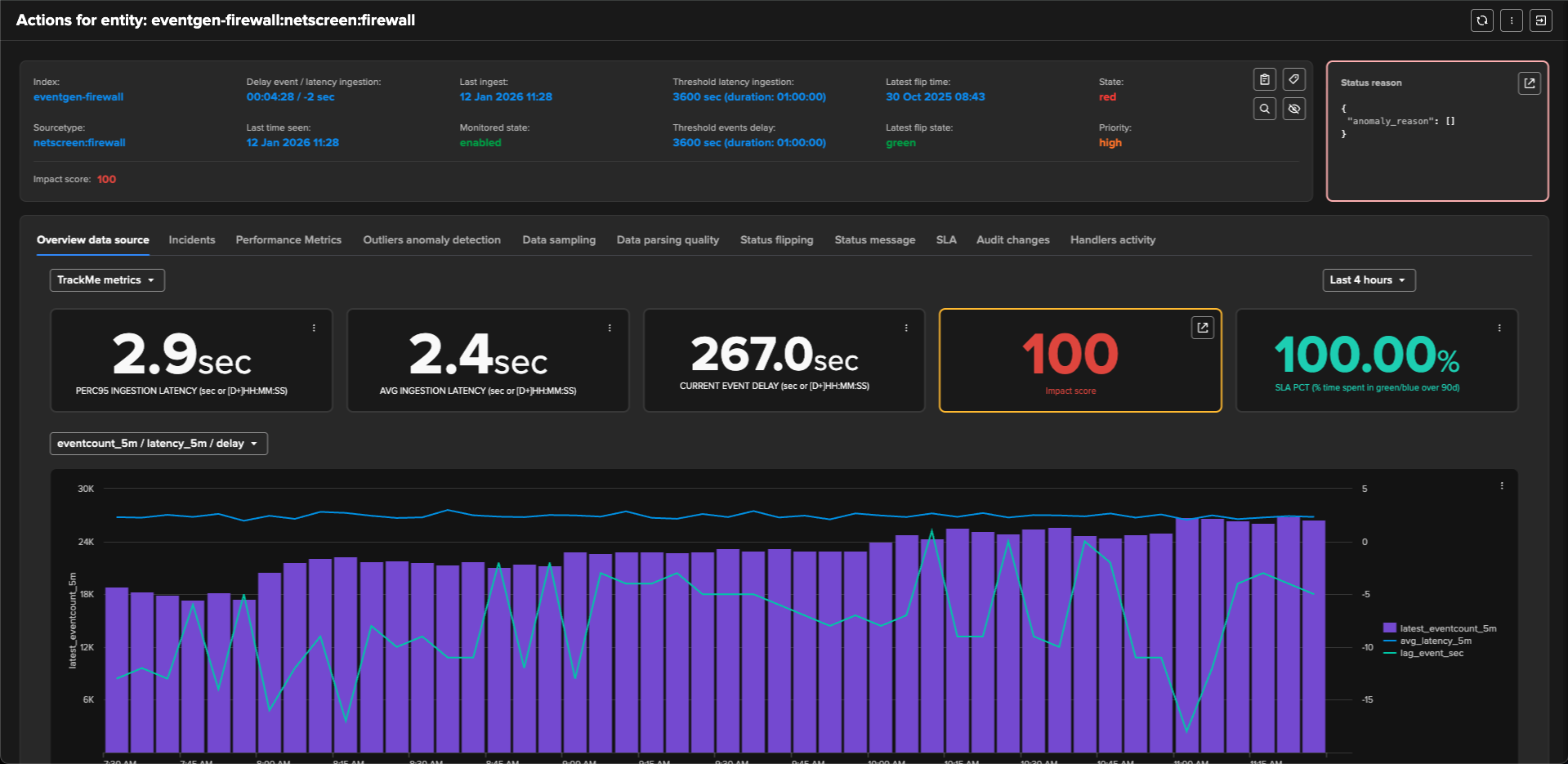
For fine-grained control, power/admin users can manually add or subtract specific values from an entity’s impact score.
Use Cases:
Manually adjusting scores for entities that need special attention
Fine-tuning entity status without triggering false positive suppression
Adding temporary score adjustments for testing or investigation
Subtracting scores to reduce alert severity
How to Use Manual Score Influence:
Open the entity detail modal
Click the kebab menu (three dots)
Select “Manually influence the score” (second action in “Actions” category)
Choose operation type: - Add to score: Increase the score (positive value) - Subtract from score: Decrease the score (negative value)
Enter a value (1-100)
The system generates a score event with score_source=”manual_score”
Entity status updates based on the new total score
Important Notes:
Manual score events are included in the score definition breakdown
If manual score increases cause positive score without related anomalies, a score_breached anomaly is recorded
Manual score events are traceable in score events search
Manual scores persist until they expire (24-hour window) or are adjusted
Bulk Operations
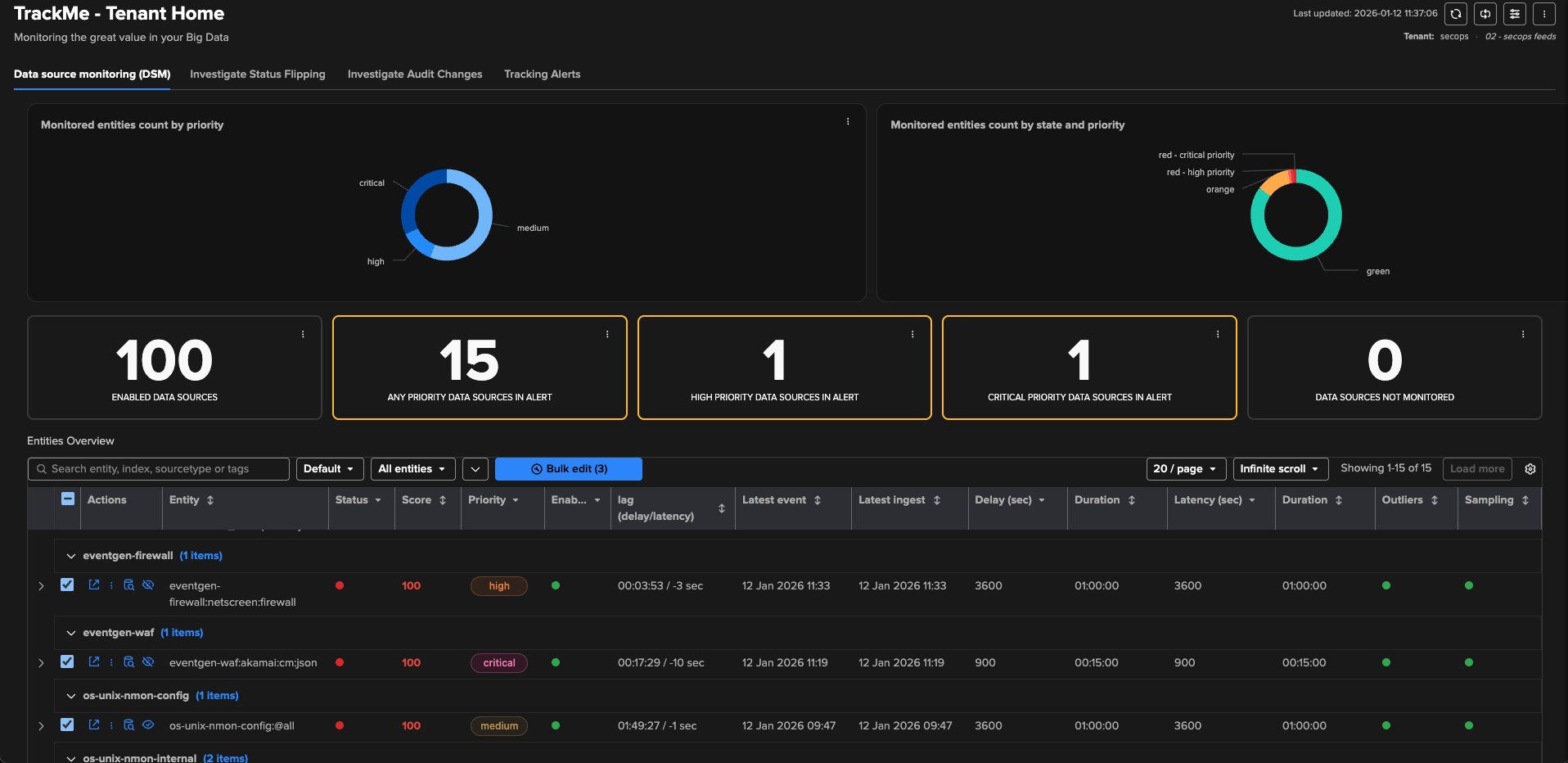
IBA supports bulk operations for managing impact scores across multiple entities efficiently.
Bulk False Positive:
Select multiple entities in the overview table
Click “Bulk edit” button
Select “Set as false positive” action (first in “Impact Score” category)
The system sequentially processes each entity
Summary toast notification shows success/skip/error counts
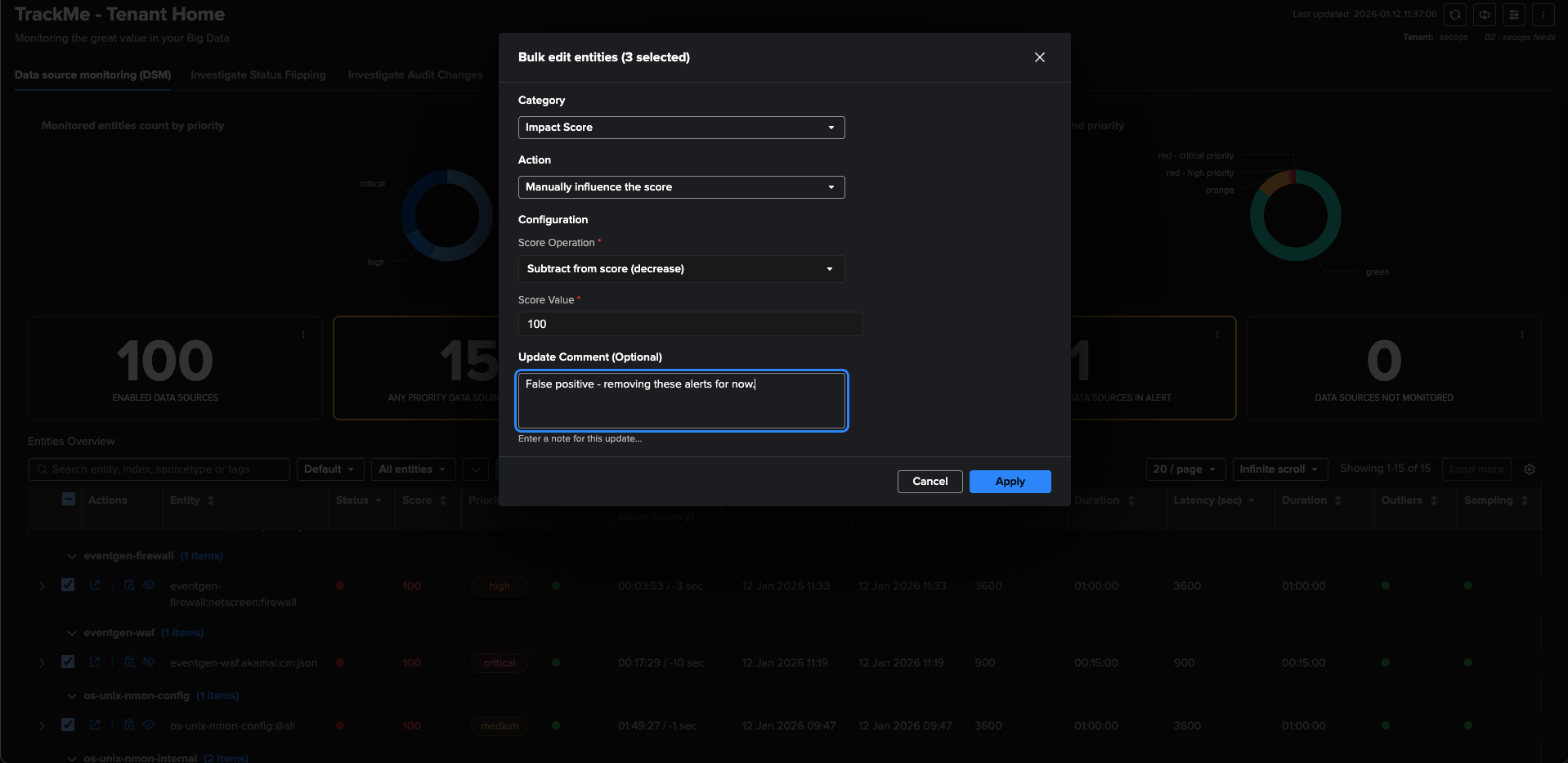
Bulk Manual Score Influence:
Select multiple entities in the overview table
Click “Bulk edit” button
Select “Manually influence the score” action (second in “Impact Score” category)
Choose operation type (add/subtract) and enter score value
The system sequentially processes each entity
Summary toast notification shows success/skip/error counts
Important Notes:
Bulk operations include a 500ms delay between successful calls to allow Splunk to ingest metrics
Individual failures don’t stop the entire operation
API responses indicating “no action needed” are ignored (counted as skips)
Summary notifications provide clear feedback on the operation results
Impact Scoring for Data Hosts Monitoring (DHM)
The Data Hosts Monitoring (DHM) component tracks data from a host perspective (sourcetypes associated with hosts) and uses similar IBA principles as DSM.
DHM Anomaly Types and Default Impact Scores:
Anomaly Type |
Default Score |
Description |
|---|---|---|
Delay Threshold Breach |
100 |
Data flow is interrupted - no new events from host (static delay policy) |
Variable Delay Threshold Breach |
100 |
Data flow is interrupted - no new events from host within the active variable delay slot threshold (variable delay policy, since v2.3.12) |
Latency Threshold Breach |
48 |
Events from host are being indexed but with high latency |
Future Tolerance Breach |
36 |
Events detected with timestamps too far in the future |
ML Outliers Detection |
36 (default) |
Machine Learning models detected abnormal volume patterns |
Key Differences from DSM:
DHM focuses on host-level tracking rather than index/sourcetype combinations
DHM does not include “Data Sampling Anomaly” or “Min Hosts Dcount Breach” anomaly types
Otherwise, the scoring mechanism works identically to DSM
Configuring Impact Scores for DHM:
The configuration process is identical to DSM:
During Virtual Tenant creation, select “splk-dhm” component
Configure impact scores in the “Impact score configuration” section: - Outliers - Default Impact Score: Default: 36 - DHM - Delay Threshold Breach Impact Score: Default: 100 - DHM - Latency Threshold Breach Impact Score: Default: 48 - DHM - Future Tolerance Breach Impact Score: Default: 36
Per-Entity Score Weight Overrides:
Like DSM, DHM also supports per-entity score weight overrides through the lagging policy configuration. You can override delay and latency impact score weights for individual host entities using the same process described in the DSM section above.
Best Practices for DHM:
Similar to DSM, keep Delay Threshold Breach at 100 (critical)
Adjust Latency Threshold Breach based on your requirements (default: 48)
Consider host-specific requirements when configuring scores
Use false positive management for known host maintenance windows
Extending IBA to Other TrackMe Components
While this guide focuses on feeds tracking (DSM and DHM), IBA extends to all TrackMe components. Here’s a brief overview:
Metrics Host Monitoring (MHM):
Metric Alert: Default score 100 (critical metric threshold breached)
Future Tolerance Breach: Default score 36
Flex Objects (FLX):
Inactive: Default score 100 (entity is inactive)
Status Not Met: Default score 100 (custom status condition not met)
Threshold Breach: Configurable per threshold (default: 100)
Fields Quality Monitoring (FQM):
Status Not Met: Default score 100 (quality condition not met)
Threshold Breach: Configurable per threshold (default: 100)
Workload (WLK):
Skipping Searches: Default score 100
Execution Errors: Default score 100
Orphan Search: Default score 100
Execution Delayed: Default score 100
Out of Monitoring Times: Default score 100
Status Not Met: Default score 100
Configuration for Other Components:
The impact score configuration process is similar across all components:
Create or manage a Virtual Tenant for the component
Configure impact scores in the wizard or management UI
Adjust scores based on your priorities and requirements
Use false positive management and manual score influence as needed
Score Definition Modal and Transparency
The Score Definition Modal provides complete transparency into how impact scores are calculated.
Accessing the Score Definition Modal:
Click on the impact score value in the entity detail modal (cartouche)
Click on the impact score value in the overview table
Click the link icon on the Impact Score single view card in overview tabs
What the Modal Shows:
Explanation Text: “The impact score is calculated from score events and anomaly-related scores that are not linked to individual events.”
Score Definition Breakdown: JSONTree component showing: - base_score: Base score from score events - components: Array of anomaly components with scores - score_outliers: Outlier score if present - score_source: Array of score sources - total_score: Final calculated score
Score Events Link: “See score events” link that opens a Splunk search showing all score events for the entity in the last 24 hours
Understanding the Breakdown:
Each component in the score definition includes: - type: The anomaly type (e.g., “delay_threshold_breach”) - score: The impact score for this anomaly - description: Human-readable description
This breakdown makes it easy to understand: - Why an entity is in a particular state - Which anomalies are contributing to the score - How much each anomaly contributes - Whether false positives or manual scores are affecting the total
Best Practices and Recommendations
Getting Started:
Start with Defaults: Begin with default impact scores and observe behavior
Monitor False Positives: Track false positive rates and adjust scores accordingly
Use Score Definition Modal: Regularly review score breakdowns to understand entity states
Leverage False Positive Management: Use false positive suppression for known issues
Gradual Tuning: Adjust scores incrementally based on your environment’s needs
Scoring Strategy:
Critical Anomalies: Keep at 100 (e.g., delay threshold breach, inactive entities)
Warning Anomalies: Use 36-60 range (e.g., latency, outliers, future tolerance)
Quality Anomalies: Adjust based on quality requirements (e.g., data sampling)
Balance Detection and False Positives: Adjust ML outlier scores based on detection accuracy
Operational Practices:
Regular Review: Periodically review score definitions to ensure they match your priorities
Documentation: Document any custom score configurations for your team
Audit Trail: Use score events search to investigate entity state changes
Testing: Use manual score influence to test alerting thresholds before making permanent changes
Troubleshooting:
Unexpected Red Status: Check score definition modal to see which anomalies contributed
False Positives: Use false positive management to suppress known issues
Score Not Updating: Verify score events are being generated (check score events search)
Configuration Not Applied: Ensure Virtual Tenant account has impact score fields configured
Conclusion
Impact-Based Alerting (IBA) represents a fundamental shift in how TrackMe evaluates and alerts on data quality issues. By providing:
Flexible Configuration: Fine-tune impact scores per tenant, component, and anomaly type
Complete Transparency: Detailed score breakdowns and traceable score events
False Positive Management: One-click suppression with full audit trail
Manual Control: Fine-grained score adjustments for special cases
Bulk Operations: Efficient management across multiple entities
IBA puts you in complete control of how TrackMe evaluates entity health, making alerting smarter, more tunable, and far more actionable.
Next Steps:
Create or update Virtual Tenants with impact score configuration
Monitor entity states and review score definitions regularly
Adjust impact scores based on your environment’s priorities
Leverage false positive management and manual score influence as needed
Explore IBA features for other TrackMe components (MHM, FLX, FQM, WLK)
For more information about specific TrackMe components and advanced IBA features, refer to the TrackMe administration and user guides.