Bank Holidays management
Introduction to the bank holidays management
Hint
Key features of the bank holidays management:
Bank holidays prevent alerts from triggering, similar to maintenance mode
Custom bank holiday periods: Create custom bank holiday periods with specific dates and times
Country holiday import: Import bank holidays for over 40 countries using the date-holidays library
Recurring holidays: Automatically create future occurrences for recurring holidays
Automatic maintenance: Past recurring holiday periods are automatically cleaned up daily
SLA integration: Bank holiday periods are automatically included in the maintenance knowledge database for SLA calculations
Visual calendar: View bank holidays in an intuitive calendar format, grouped by year
Bank holidays apply globally
Bank holiday periods apply to all tenants globally
When a bank holiday period is active, TrackMe alerts are prevented from triggering, similar to maintenance mode
Bank holidays are integrated with the maintenance knowledge database to influence SLA calculations
TrackMe permissions requirements
To access and manage the Bank Holidays features, you need to have the following permissions:
Read-only access: TrackMe user (capability: trackmeuseroperations)
Create, update, delete operations: TrackMe admin (capability: trackmeadminoperations)
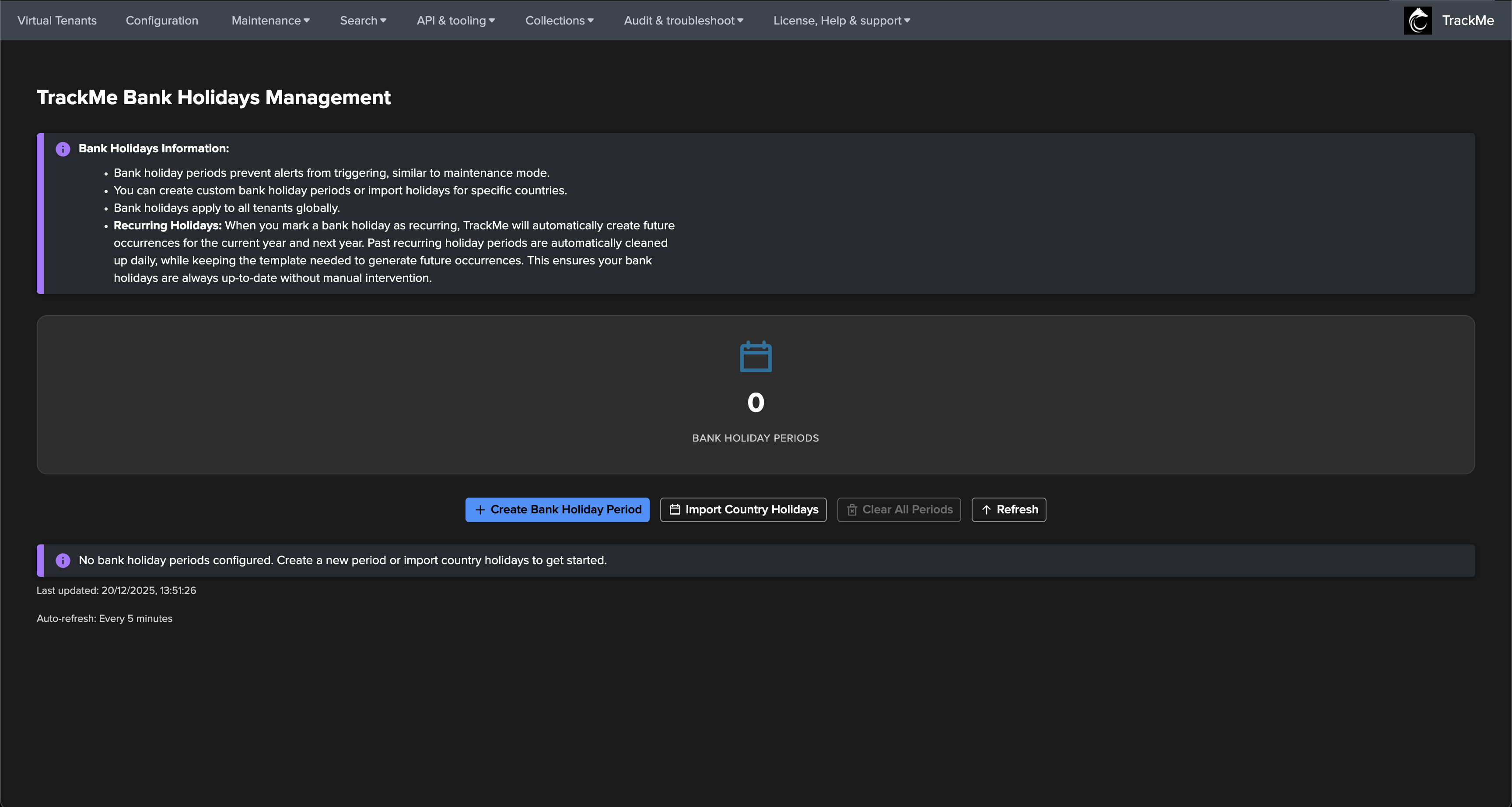
Accessing the Bank Holidays management interface
Access the bank holidays management user interface from the menu / Maintenance / Bank Holidays:
Creating a custom bank holiday period
Create a custom bank holiday period with specific dates and times:
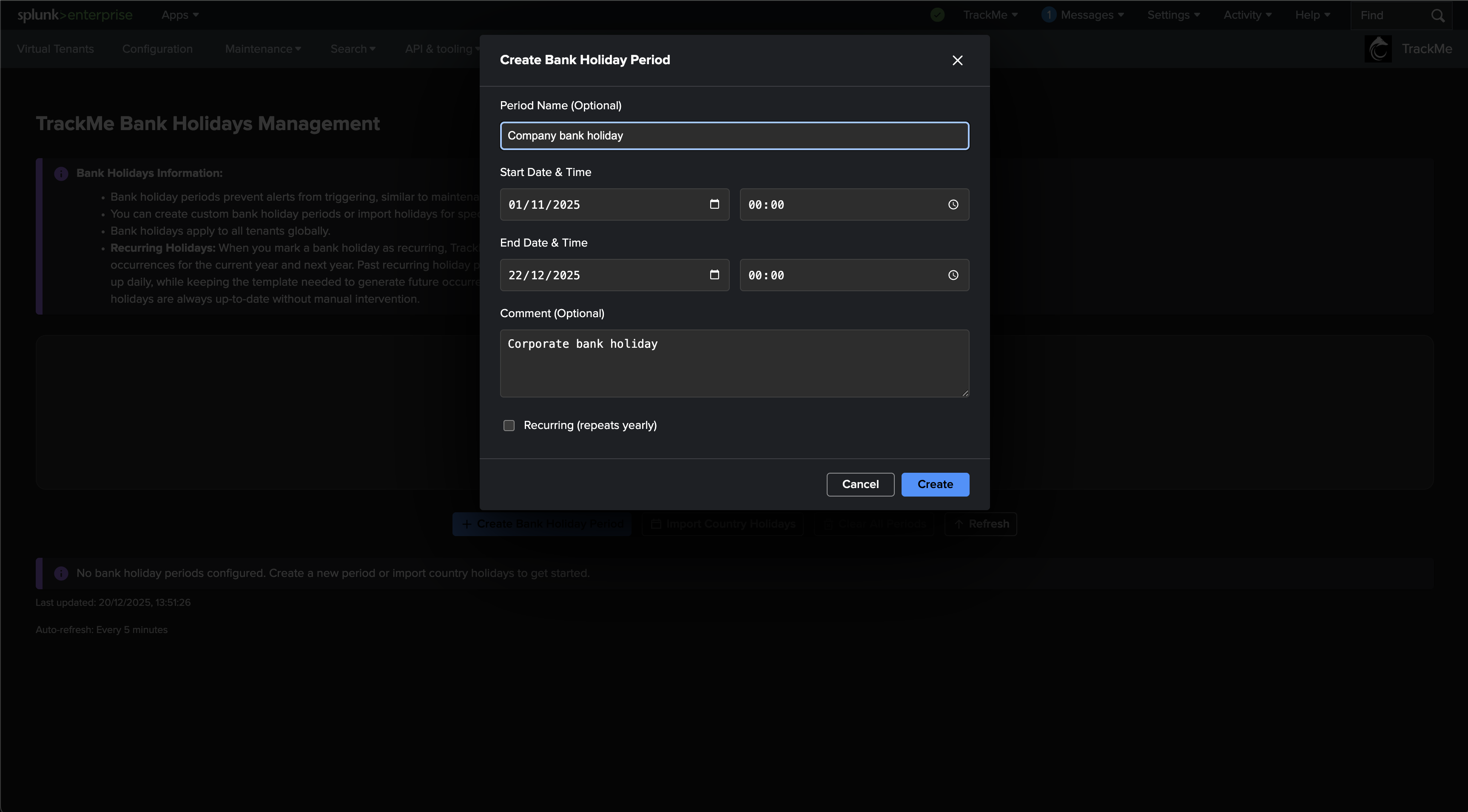
When creating a bank holiday period, you can specify:
Period name: A descriptive name for the bank holiday (e.g., “Company Holiday”, “Year-End Closure”)
Start date and time: When the bank holiday period begins
End date and time: When the bank holiday period ends
Comment: Optional additional information about the period
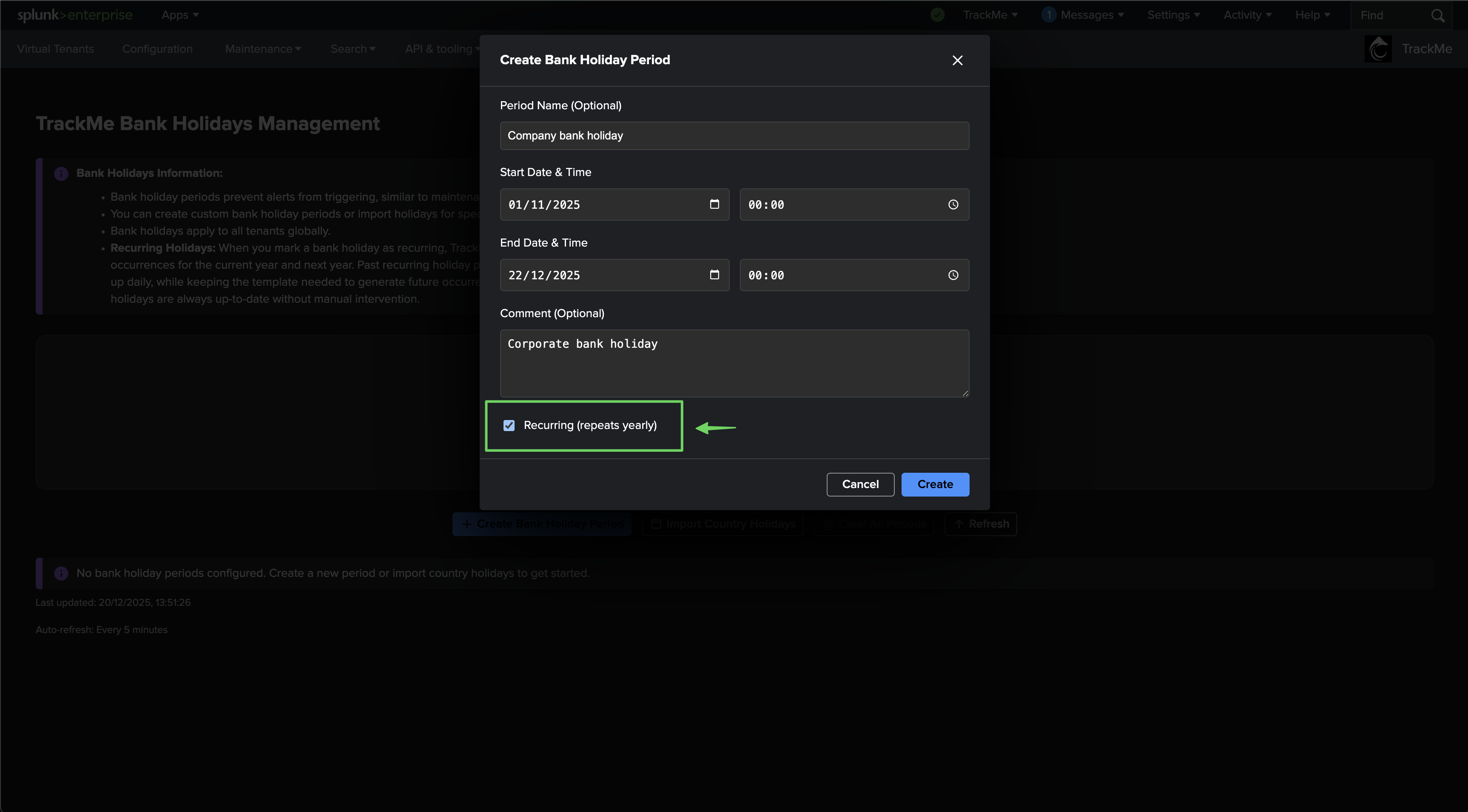
Recurring: Check this option if the holiday repeats yearly
Example: Creating a recurring company holiday:
Importing country bank holidays
Import bank holidays for specific countries and years:
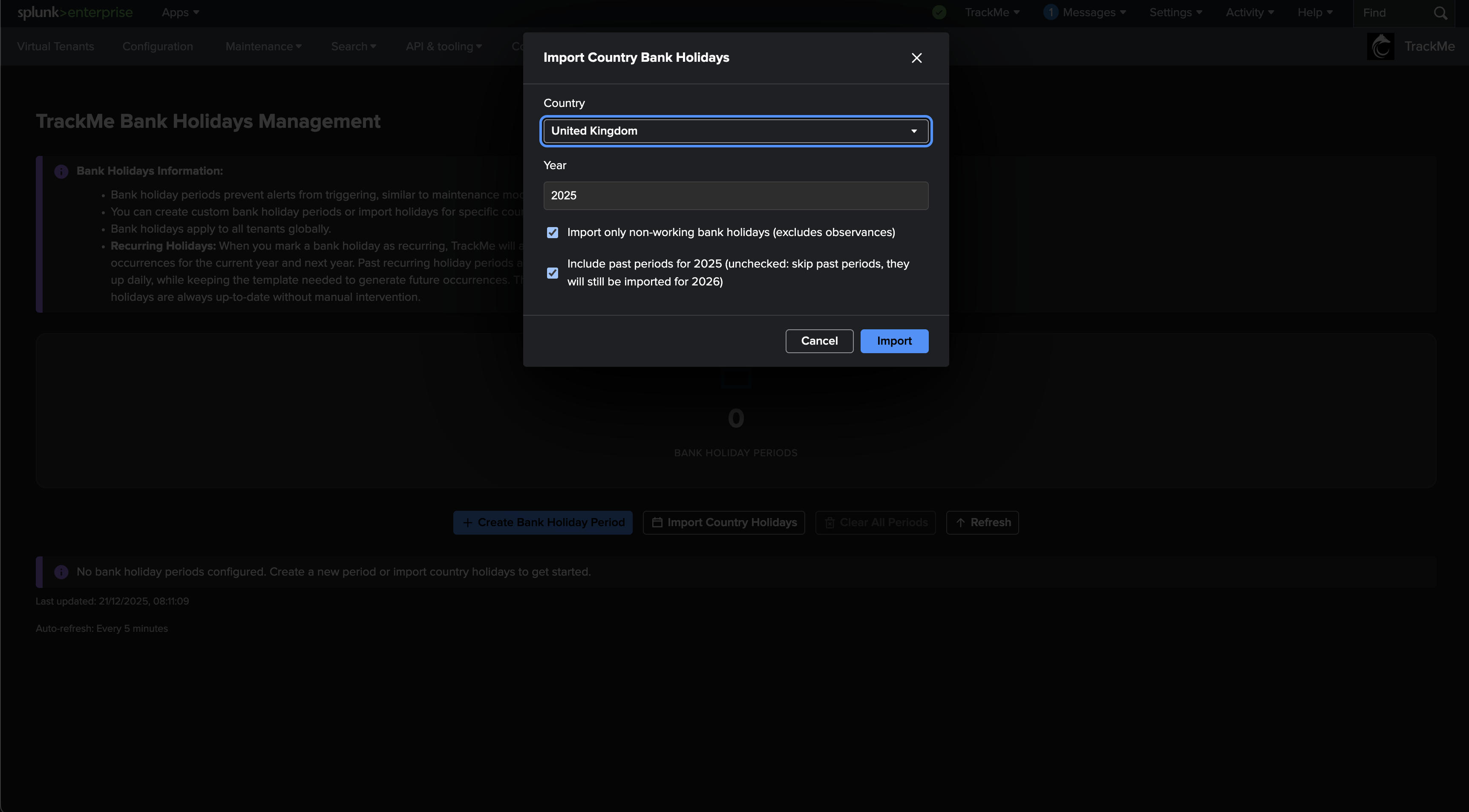
The import feature supports:
40+ countries: Import bank holidays for over 40 countries worldwide
Year selection: Choose which year to import holidays for
Non-working holidays filter: Option to import only non-working bank holidays (excludes observances)
Past periods handling: Option to include or exclude past periods for the selected year
Import options explained:
Import only non-working bank holidays: When checked (default), only holidays that are typically non-working days are imported, excluding observances that don’t affect business operations
Include past periods: When checked (default), all periods (past and future) are imported for the selected year. When unchecked, past periods for the selected year are skipped but will still be imported for the next year
After importing, TrackMe displays a success message:
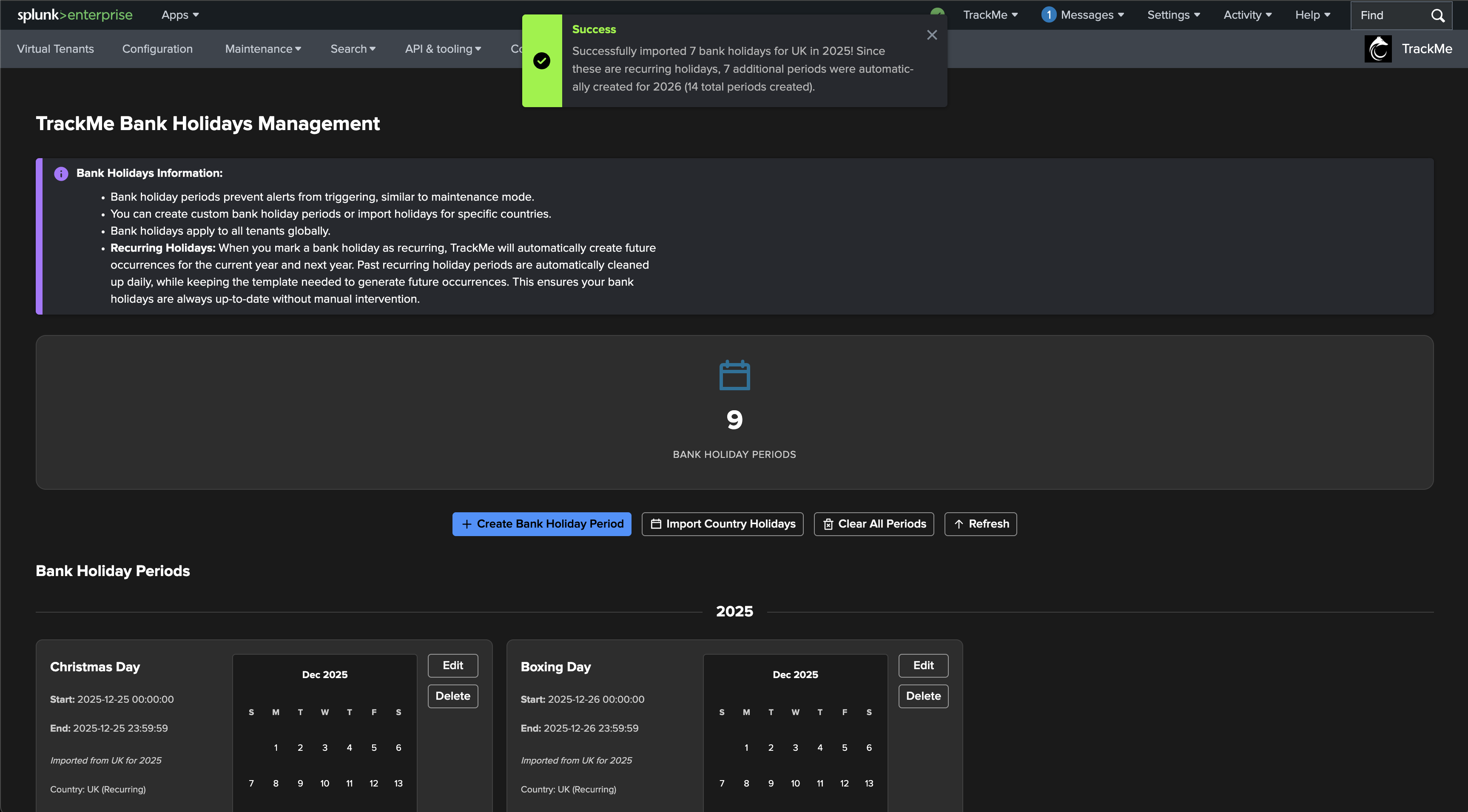
Note: When importing recurring holidays, TrackMe automatically creates periods for both the current year and next year. The success message indicates the total number of periods created.
Viewing bank holiday periods
Bank holidays are displayed in an intuitive calendar view, grouped by year:
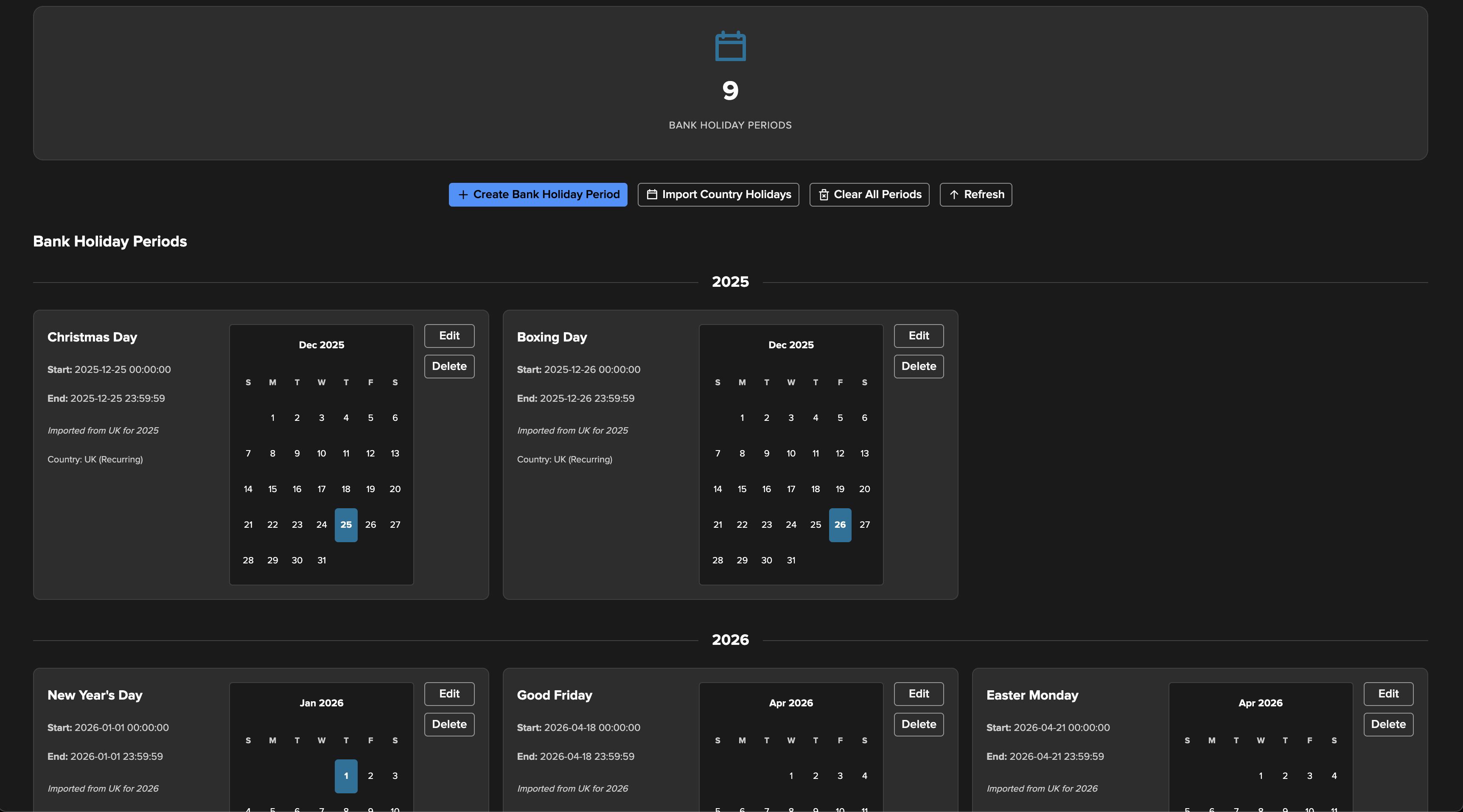
The display features:
Year grouping: Holidays are grouped by year with clear year separators
Chronological ordering: Within each year, holidays are sorted from oldest to newest (left to right)
Grid layout: Up to 3 holidays per row for optimal viewing
Visual calendar: Each holiday card includes a mini-calendar highlighting the holiday date(s)
Multi-day periods: Multi-day holidays are clearly shown with all dates highlighted in the calendar
Each holiday card displays:
Period name: The name of the bank holiday
Start and end dates: Full date and time information
Source information: Whether imported from a country or created manually
Recurring status: Indicates if the holiday is recurring
Action buttons: Edit and Delete options
Editing bank holiday periods
Edit an existing bank holiday period:
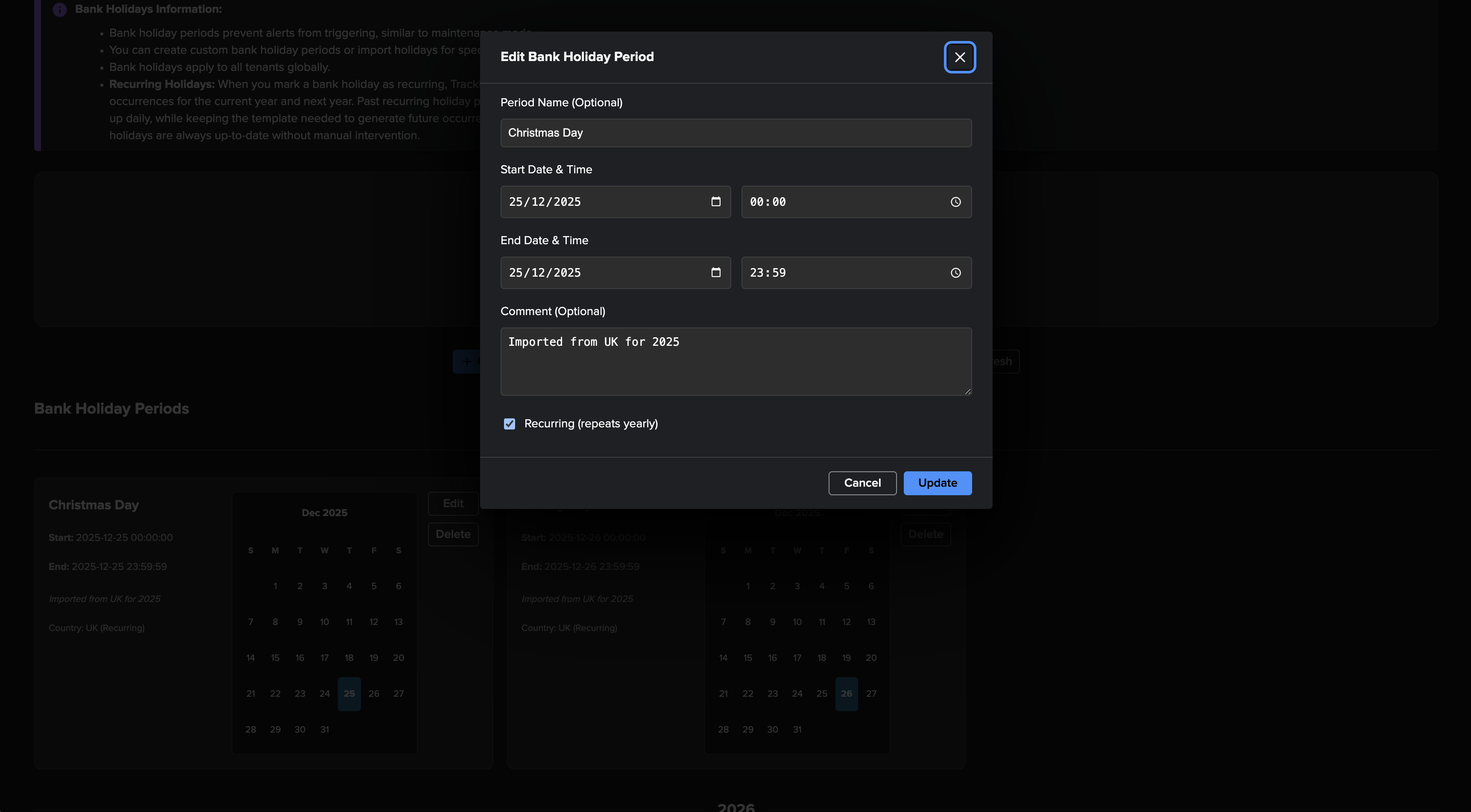
You can modify:
Period name
Start and end dates/times
Comment
Recurring status
Country code (for imported holidays)
When you update a recurring holiday, the changes apply to future occurrences created by the health manager.
Deleting bank holiday periods
Delete individual bank holiday periods:
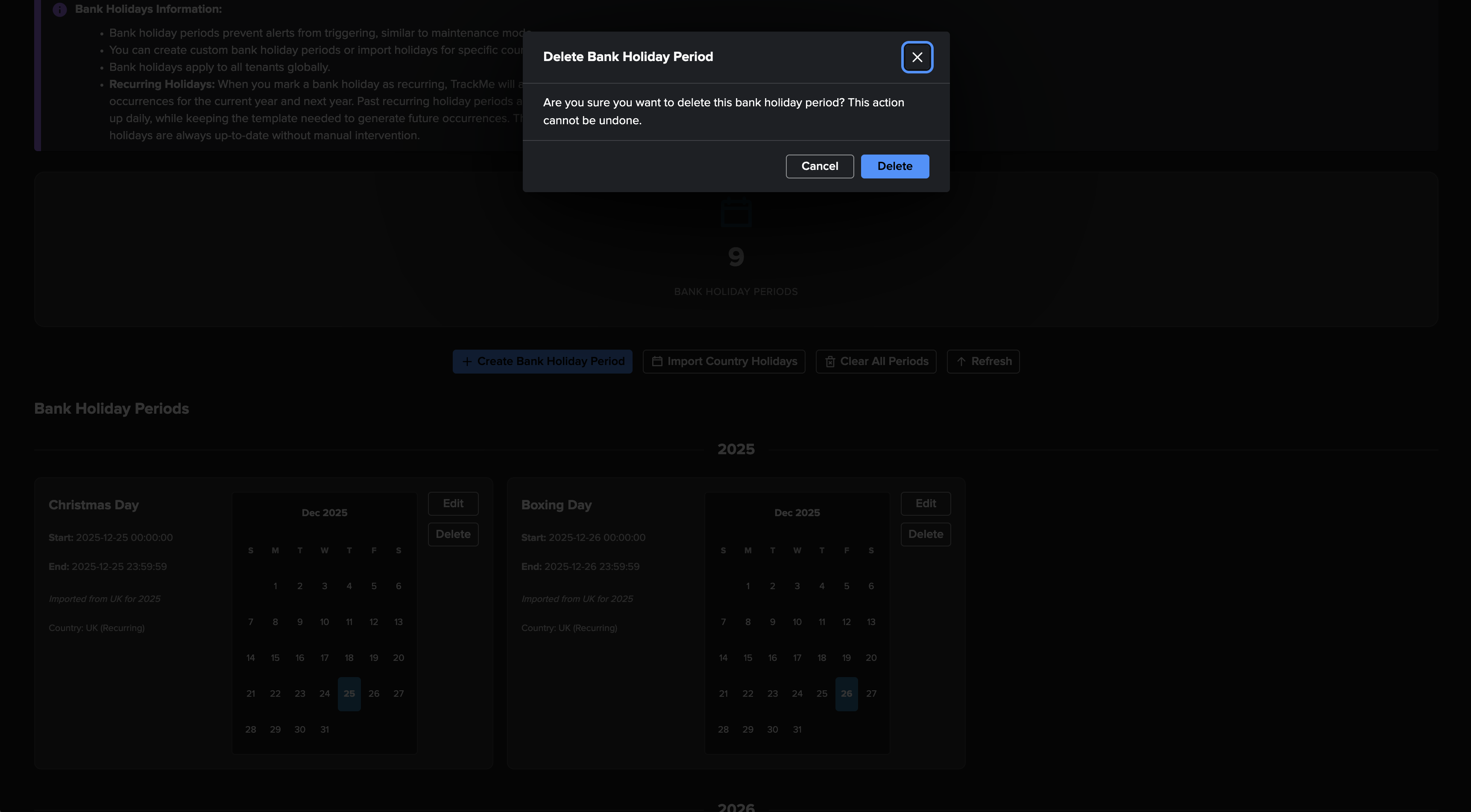
Delete all periods at once:
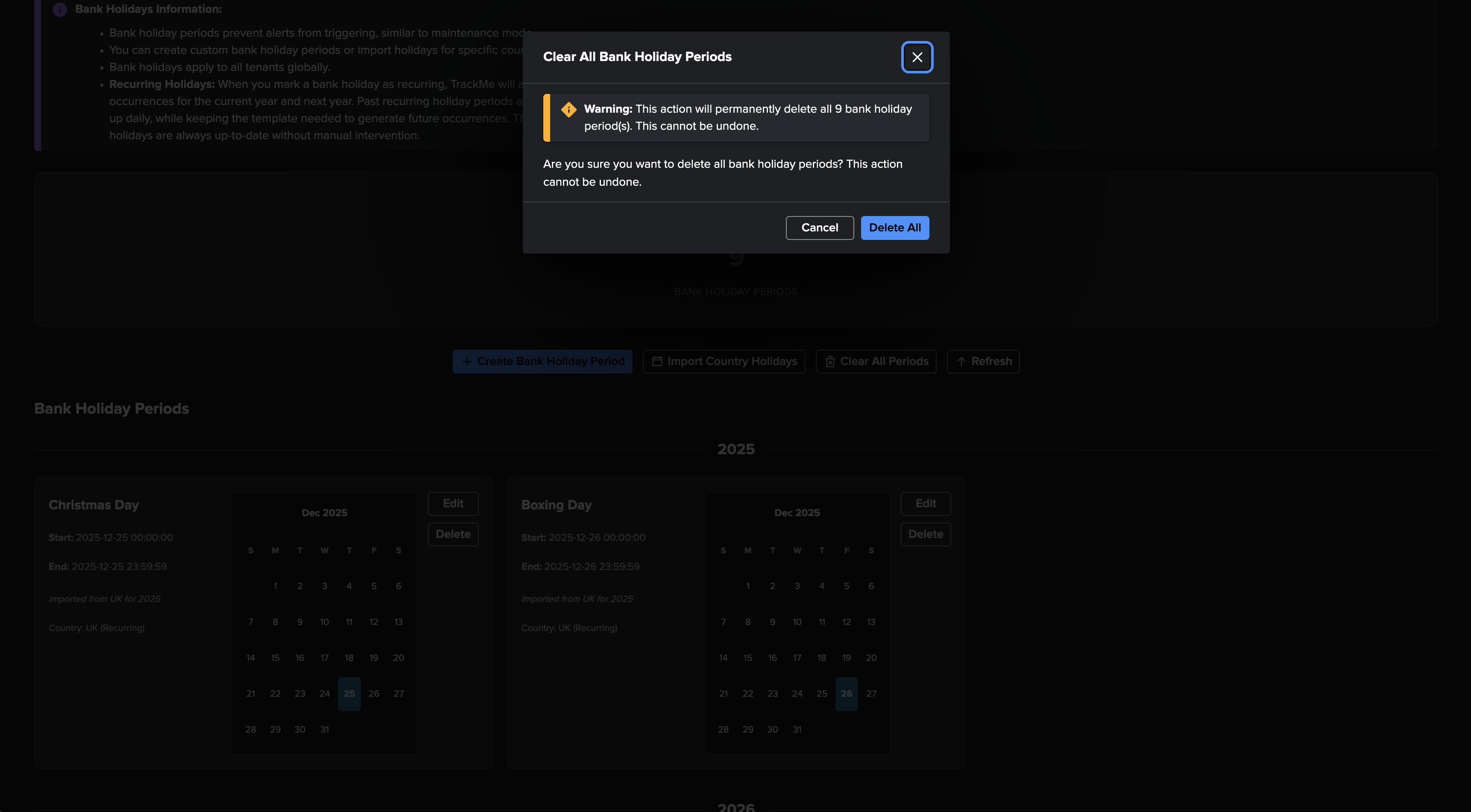
Important notes about deletion:
When deleting a bank holiday period, the associated maintenance knowledge database record is also deleted (if the period hasn’t passed yet)
Past periods’ maintenance records are preserved for accurate SLA calculations
Deleting a recurring holiday template may affect future automatic occurrences
Recurring holidays
Hint
How recurring holidays work:
When you mark a bank holiday as recurring, TrackMe automatically creates future occurrences
The system creates periods for the current year and next year immediately
Past recurring holiday periods are automatically cleaned up daily by the health manager
The template (oldest occurrence) is kept to generate future occurrences
This ensures your bank holidays are always up-to-date without manual intervention
Recurring holidays are automatically managed:
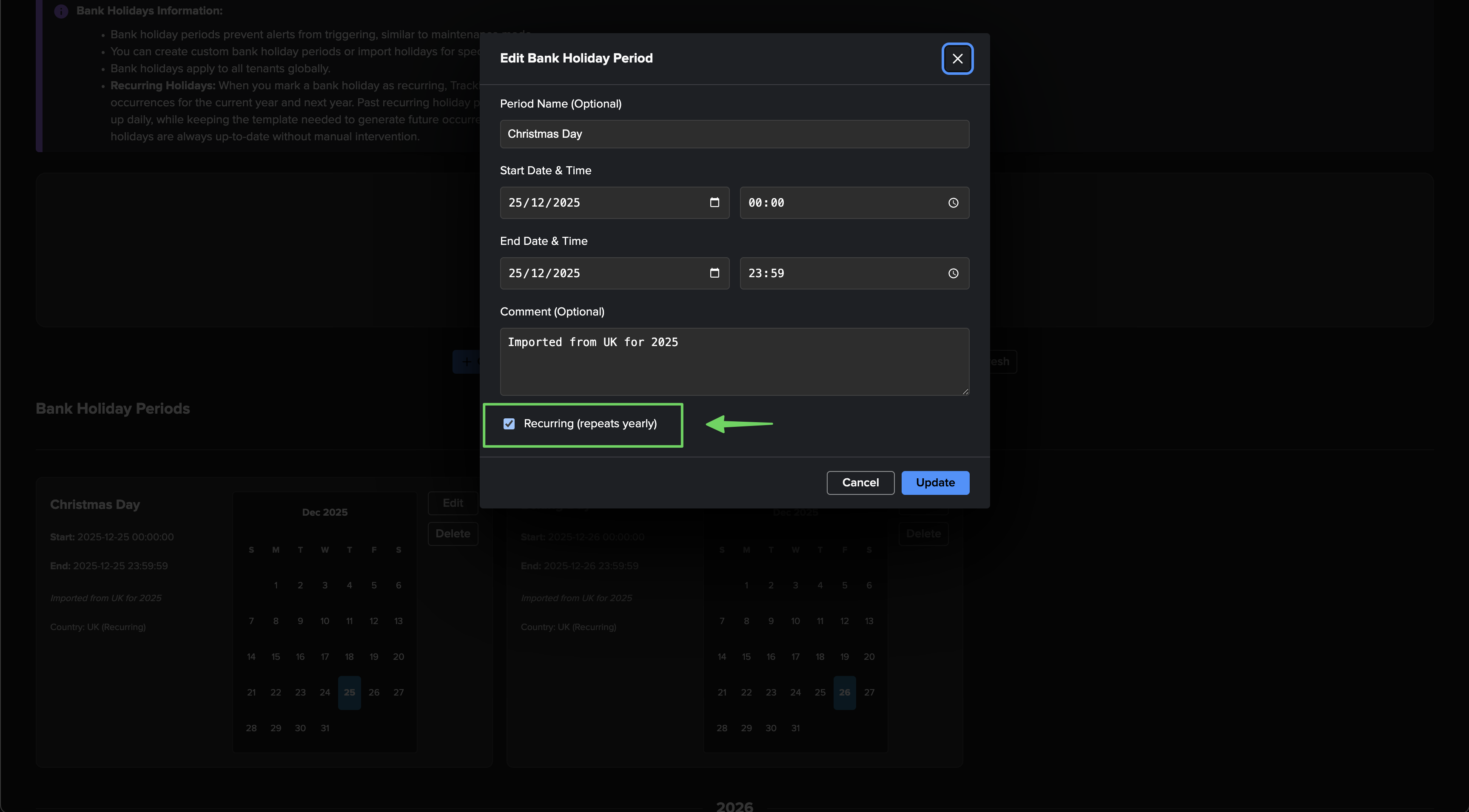
The health manager automatically:
Creates missing occurrences for recurring holidays (current year + next year)
Cleans up past non-recurring holidays
Maintains recurring holiday templates for future generation
Handles leap year edge cases (e.g., February 29th holidays)
Integration with Maintenance Knowledge Database
Hint
Automatic SLA integration:
Bank holiday periods are automatically added to the maintenance knowledge database
This ensures bank holidays are excluded from SLA calculations
Maintenance records are created with type “planned” and apply to all tenants
Historical periods (already passed) are preserved in the maintenance database for accurate SLA calculations
When you create, update, or delete bank holiday periods:
Create: A corresponding maintenance knowledge database record is automatically created
Update: The maintenance record is updated to reflect changes
Delete: The maintenance record is deleted (only if the period hasn’t passed yet)
This integration ensures:
Bank holidays are properly excluded from availability calculations
SLA percentages accurately reflect periods when alerts were suppressed
Historical data integrity is maintained for past periods
REST API endpoints for Bank Holidays
The bank holidays feature provides REST API endpoints for programmatic access:
Read-only endpoints (require trackmeuseroperations capability):
GET /services/trackme/v2/bank_holidays/list- List all bank holiday periodsGET /services/trackme/v2/bank_holidays/check_active- Check if any bank holiday is currently active
Admin endpoints (require trackmeadminoperations capability):
POST /services/trackme/v2/bank_holidays/admin/create- Create a new bank holiday periodPOST /services/trackme/v2/bank_holidays/admin/update- Update an existing bank holiday periodPOST /services/trackme/v2/bank_holidays/admin/delete- Delete bank holiday period(s)POST /services/trackme/v2/bank_holidays/admin/delete_all- Delete all bank holiday periods
Consult the REST API reference dashboard for detailed endpoint documentation:
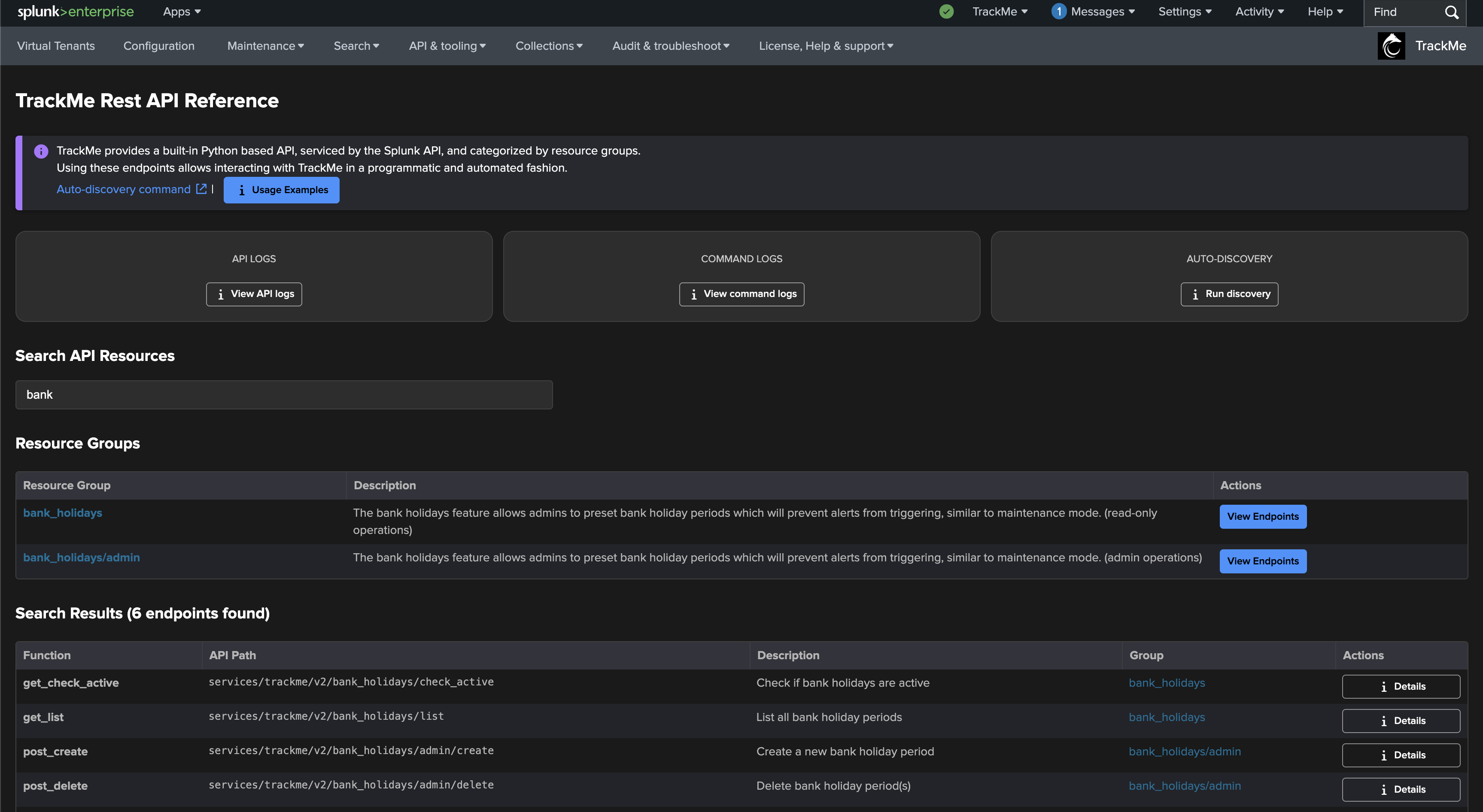
REST API example: Create a bank holiday period
The following example creates a bank holiday period for Christmas Day 2025:
curl -u username https://mysplunk:8089/services/trackme/v2/bank_holidays/admin/create -X "POST" \
  -d '{
    "period_name": "Christmas Day",
    "start_date": 1735084800,
    "end_date": 1735171199,
    "comment": "Christmas Day holiday",
    "is_recurring": true,
    "time_format": "epochtime"
  }'
Using datestring format:
curl -u username https://mysplunk:8089/services/trackme/v2/bank_holidays/admin/create -X "POST" \
  -d '{
    "period_name": "Christmas Day",
    "start_date": "2025-12-25T00:00",
    "end_date": "2025-12-25T23:59",
    "comment": "Christmas Day holiday",
    "is_recurring": true,
    "time_format": "datestring"
  }'
REST API example: List bank holiday periods
The following example lists all bank holiday periods:
curl -u username https://mysplunk:8089/services/trackme/v2/bank_holidays/list
REST API example: Check if bank holiday is active
The following example checks if any bank holiday is currently active:
curl -u username https://mysplunk:8089/services/trackme/v2/bank_holidays/check_active
REST API example: Update a bank holiday period
The following example updates an existing bank holiday period:
curl -u username https://mysplunk:8089/services/trackme/v2/bank_holidays/admin/update -X "POST" \
  -d '{
    "_key": "1234567890",
    "period_name": "Updated Holiday Name",
    "start_date": "2025-12-25T00:00",
    "end_date": "2025-12-25T23:59",
    "comment": "Updated comment",
    "is_recurring": true,
    "time_format": "datestring"
  }'
REST API example: Delete bank holiday period(s)
The following example deletes a single bank holiday period:
curl -u username https://mysplunk:8089/services/trackme/v2/bank_holidays/admin/delete -X "POST" \
  -d '{
    "_key": "1234567890"
  }'
Delete multiple periods:
curl -u username https://mysplunk:8089/services/trackme/v2/bank_holidays/admin/delete -X "POST" \
  -d '{
    "record_keys": "1234567890,0987654321"
  }'
REST API example: Delete all bank holiday periods
The following example deletes all bank holiday periods:
curl -u username https://mysplunk:8089/services/trackme/v2/bank_holidays/admin/delete_all -X "POST"
Best practices
When managing bank holidays in TrackMe:
Use recurring holidays for holidays that repeat yearly (e.g., national holidays, company holidays)
Import country holidays at the beginning of each year to ensure all holidays are configured
Review past periods periodically to ensure historical data accuracy
Use custom periods for one-time events or company-specific holidays
Filter non-working holidays when importing to avoid cluttering with observances
Monitor SLA calculations to ensure bank holidays are properly excluded
Tips for recurring holidays:
Mark holidays as recurring when they repeat yearly
The system automatically creates future occurrences
Past occurrences are cleaned up automatically
Templates are preserved for future generation
Tips for country imports:
Import holidays at the start of the year for best coverage
By default, all periods (past and future) are imported for the selected year. Uncheck “Include past periods” if you want to skip past periods for the current year (they will still be imported for next year)
Filter to non-working holidays to focus on periods that affect business operations
Review imported holidays to ensure they match your organization’s needs