Decorations and canvas layout
A topology map often needs more than nodes and edges to tell its story: a title, a frame around a zone, a product logo, a screenshot of the service being watched. Since TrackMe 2.4.14, the Topology Studio canvas is also a diagramming surface: draw shapes, drop images and place free text anywhere on the map, and give the view an explicit canvas size so it presents exactly the same on every screen.
Decorations are deliberately visual overlays, not topology items:
They never move topology items, and auto-arrange leaves decorations in place. Its canvas sizing accounts for their extents; decorations do not participate in the node hierarchy, statuses or alerting.
They follow canvas zoom and pan, staying glued to the graph coordinates you gave them.
They are included in PNG exports and in Topology Alert emails — the decorated map is the map everyone sees, everywhere.
Like everything else on the canvas, they only persist when you Save, and Undo covers them.
Adding decorations
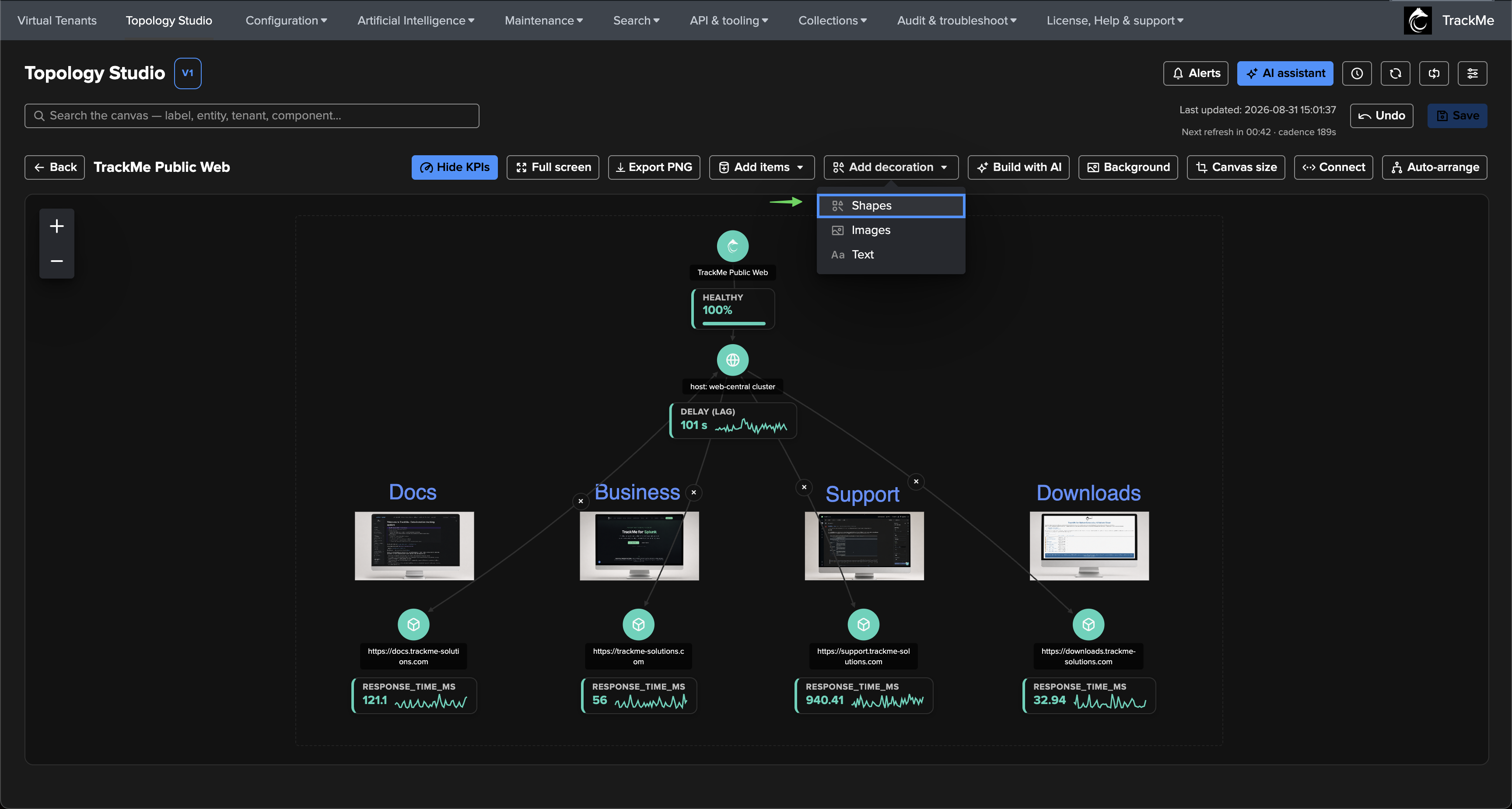
The authoring toolbar groups creation actions into two menus: Add items (entities, scoped aggregates, auto aggregates, views and labels — the nodes of the map) and Add decoration (Shapes, Images, Text — the overlays this page covers). A view can carry up to 100 decorations; the menu disables itself at the cap.
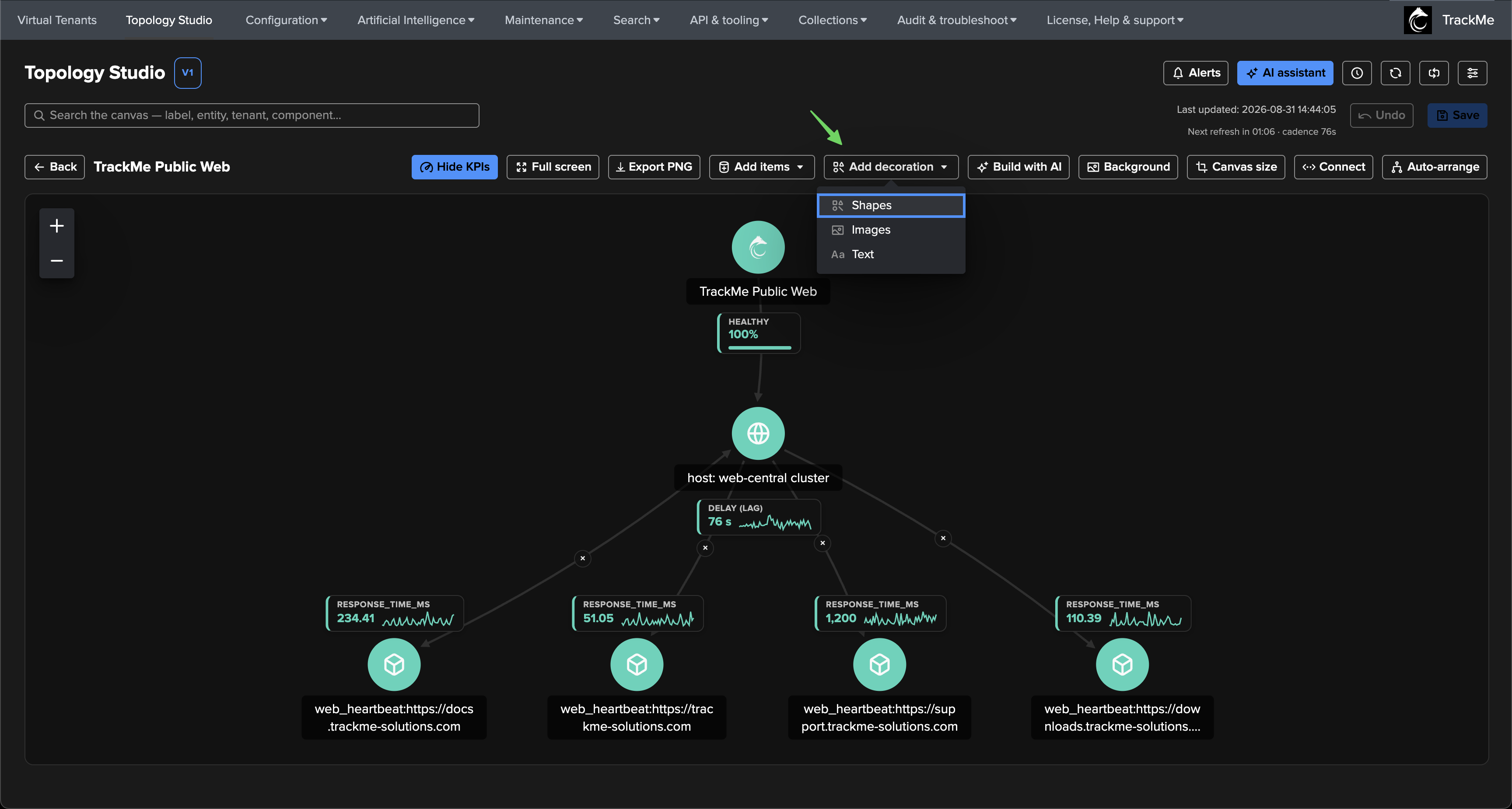
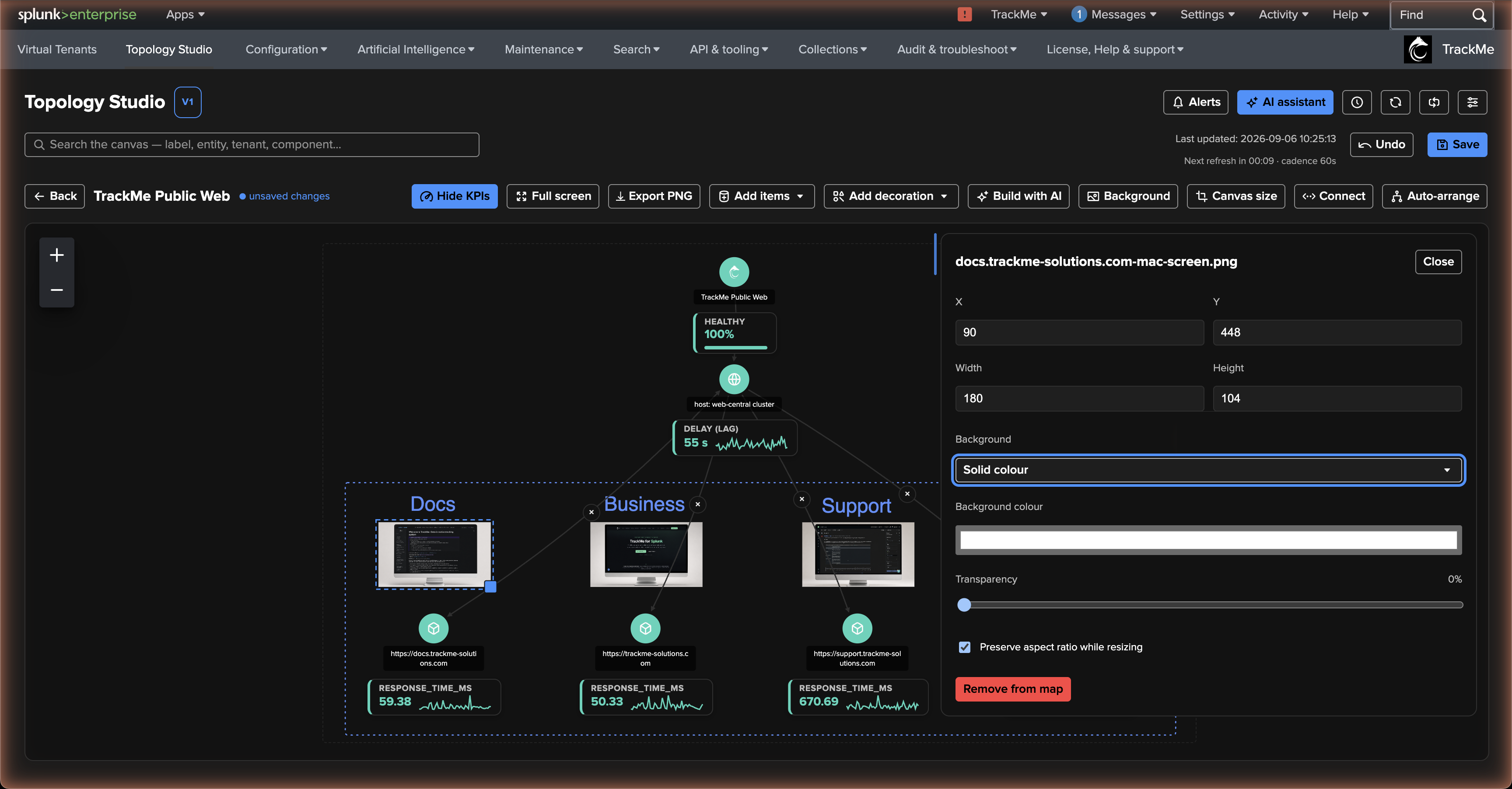
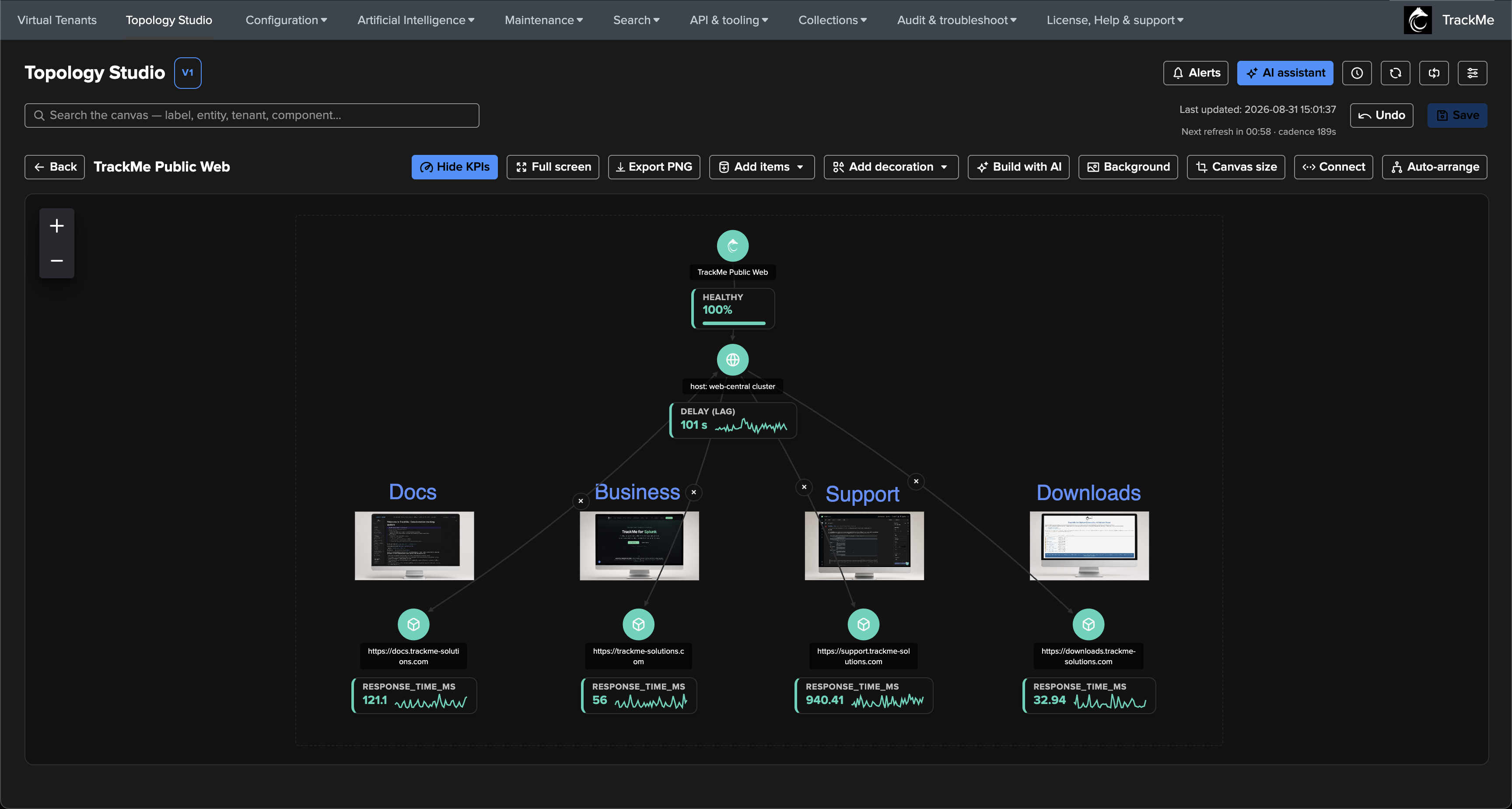
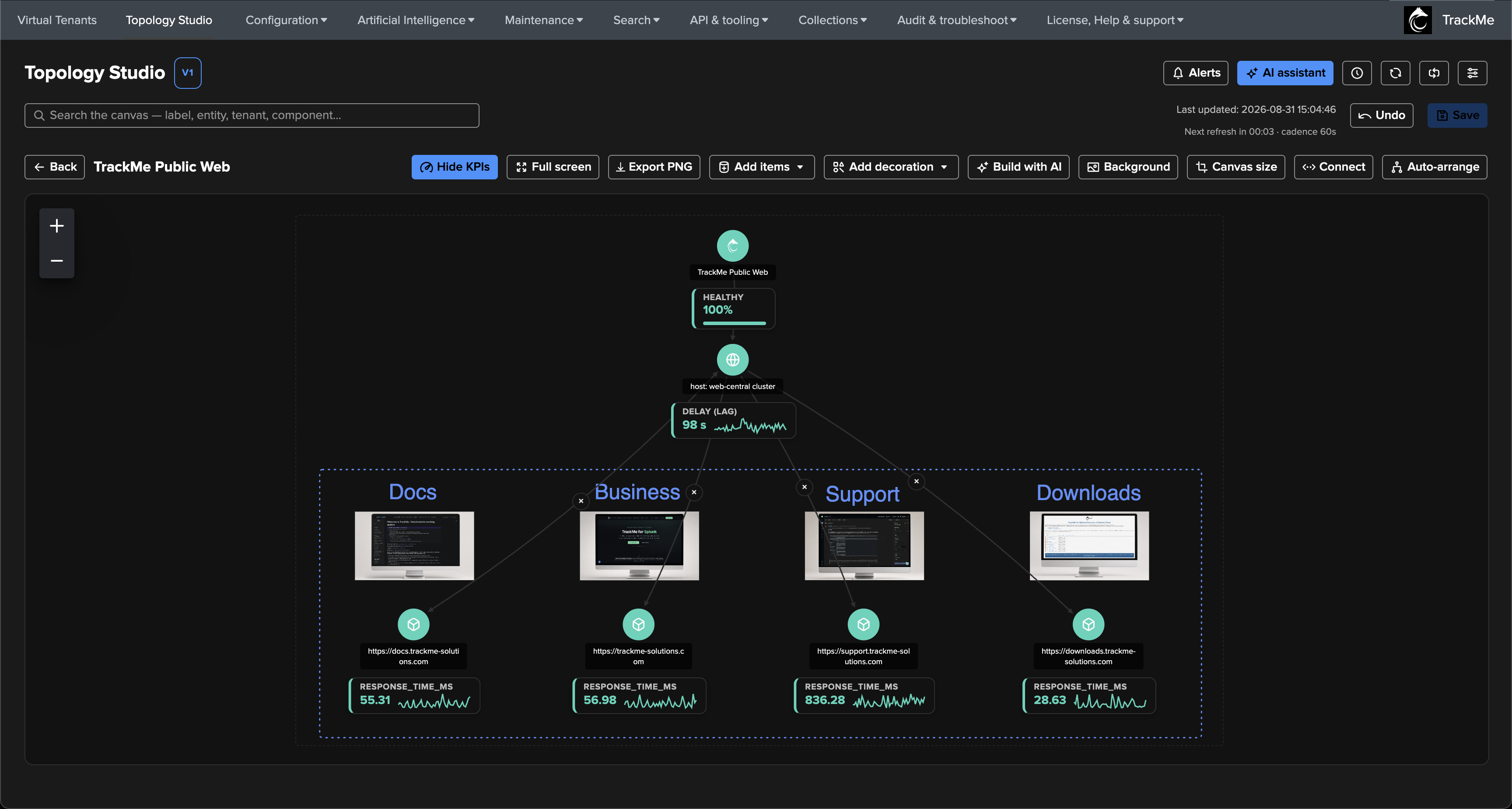
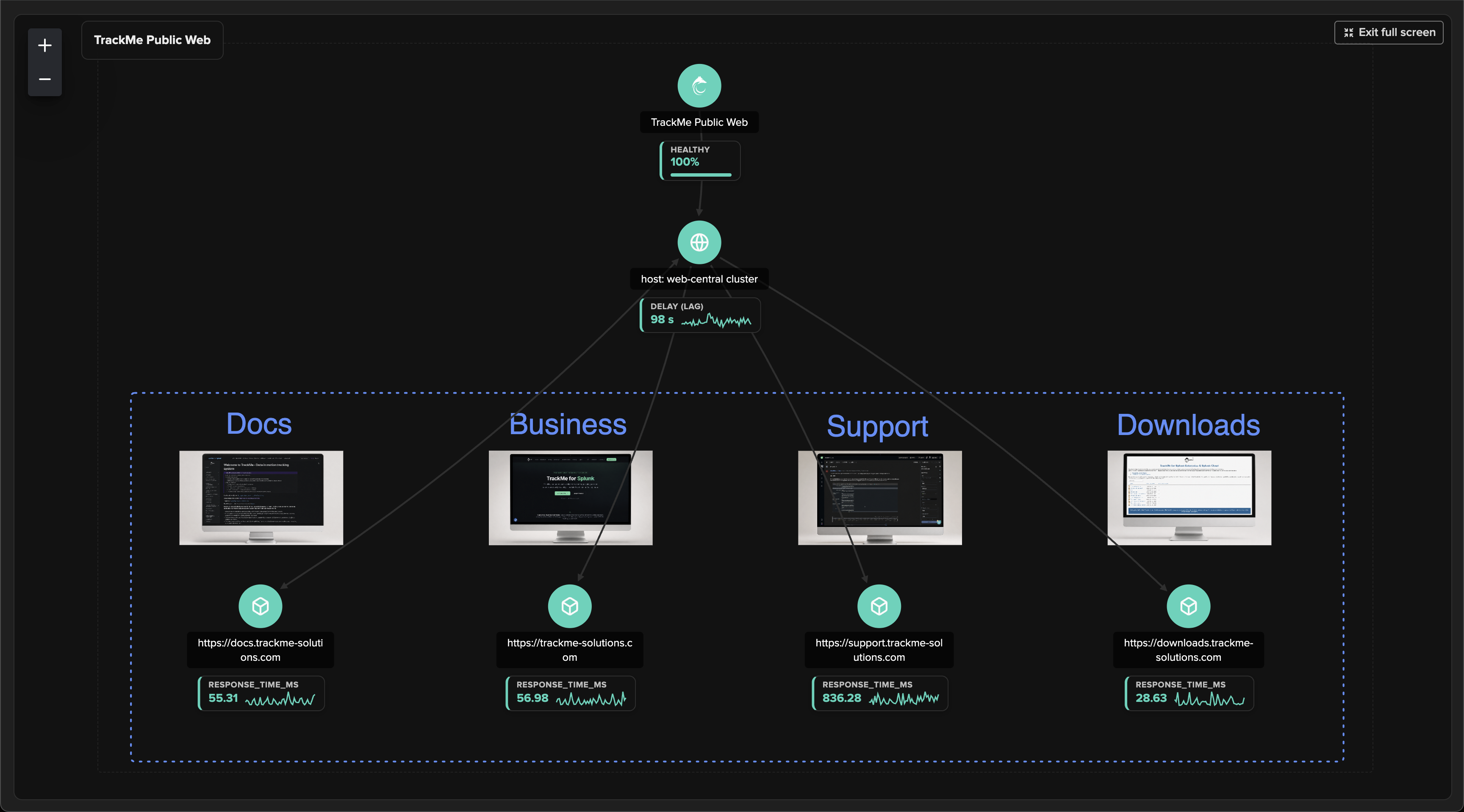
The sections below build up a real example — the TrackMe Public Web view from the end-to-end tutorial — decorated with a screenshot per monitored site, a text title above each branch, and a frame around the whole fleet.
Images
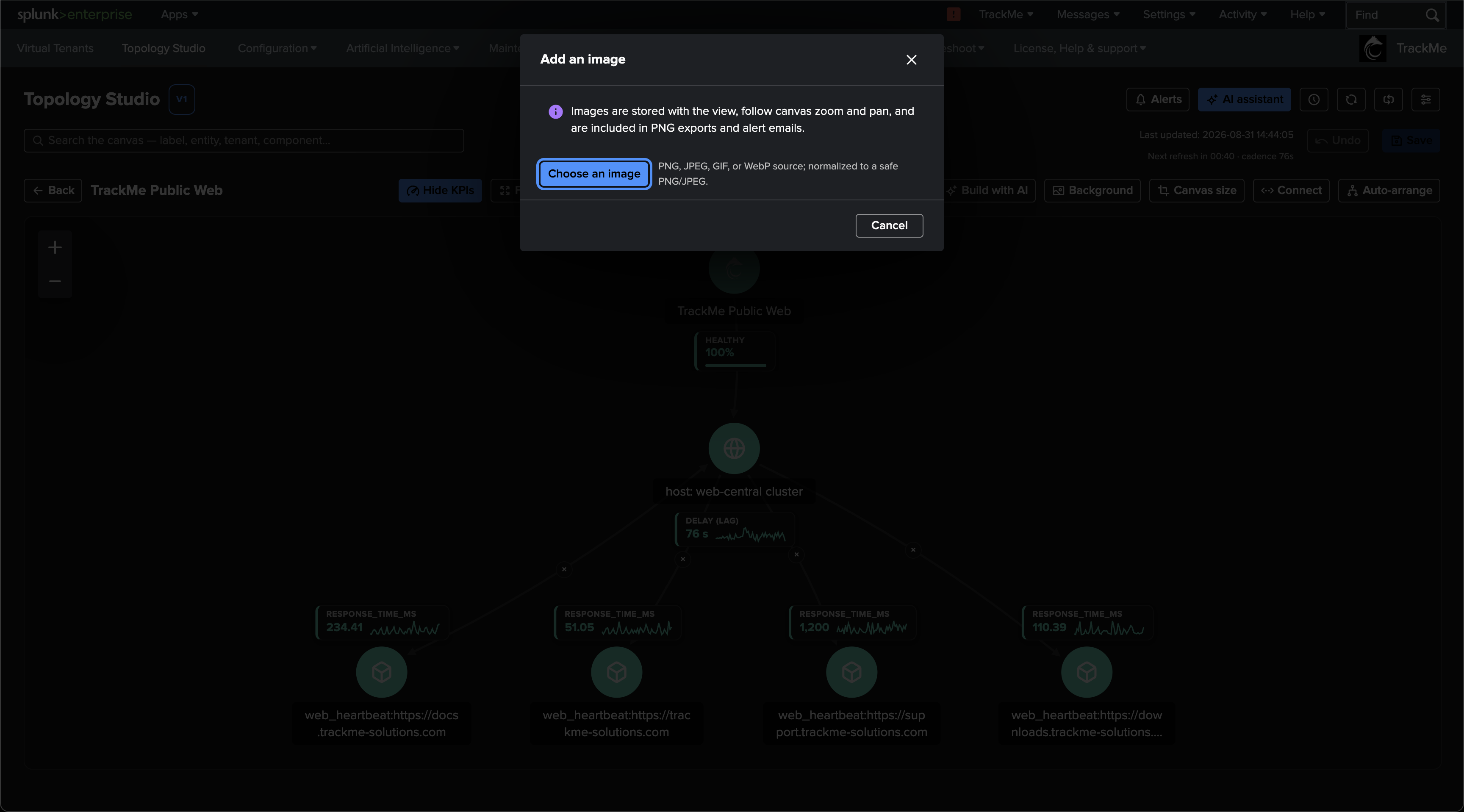
Add decoration → Images embeds a picture into the view: a vendor logo, a team emblem, a screenshot of the application the branch monitors.
Any common source format works — PNG, JPEG, GIF or WebP, up to 15 MB — and TrackMe normalises it into a safe, compact PNG or JPEG: the image is re-encoded, downscaled to at most 2048×2048 pixels, and compressed until it fits a small per-image budget, so even heavily decorated views stay fast to load and safe to store. (Animated GIF/WebP sources are flattened to a single frame.)
Images are stored with the view itself — not as external references. Duplicating a view, restoring a version from history, or moving a view between deployments via portable export carries the images along; nothing can go missing.
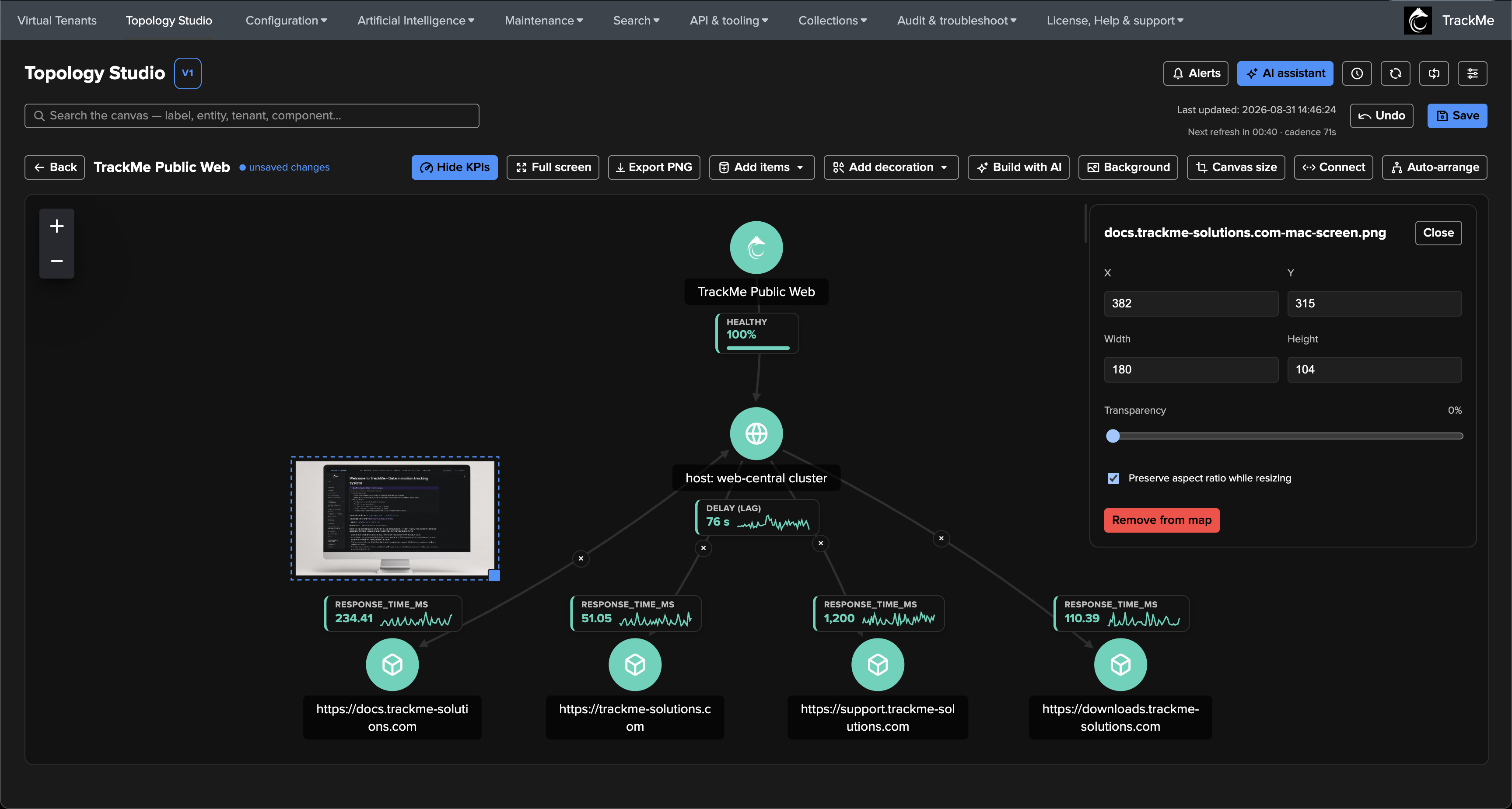
Selecting a placed image opens its inspector: exact position and size, a Transparency slider (fade a backdrop image so node colours stay readable), a Preserve aspect ratio while resizing lock (on by default), and Remove from map.
Since TrackMe 2.4.15 the inspector also offers a Background for the image: None (transparent), the default, or Solid colour with a colour picker. A solid backing keeps transparent artwork — a logo, a line drawing — readable on a dark canvas or over a background image; it fills the image rectangle, the transparency slider fades image and backing together, and PNG exports and alert emails render it the same way.
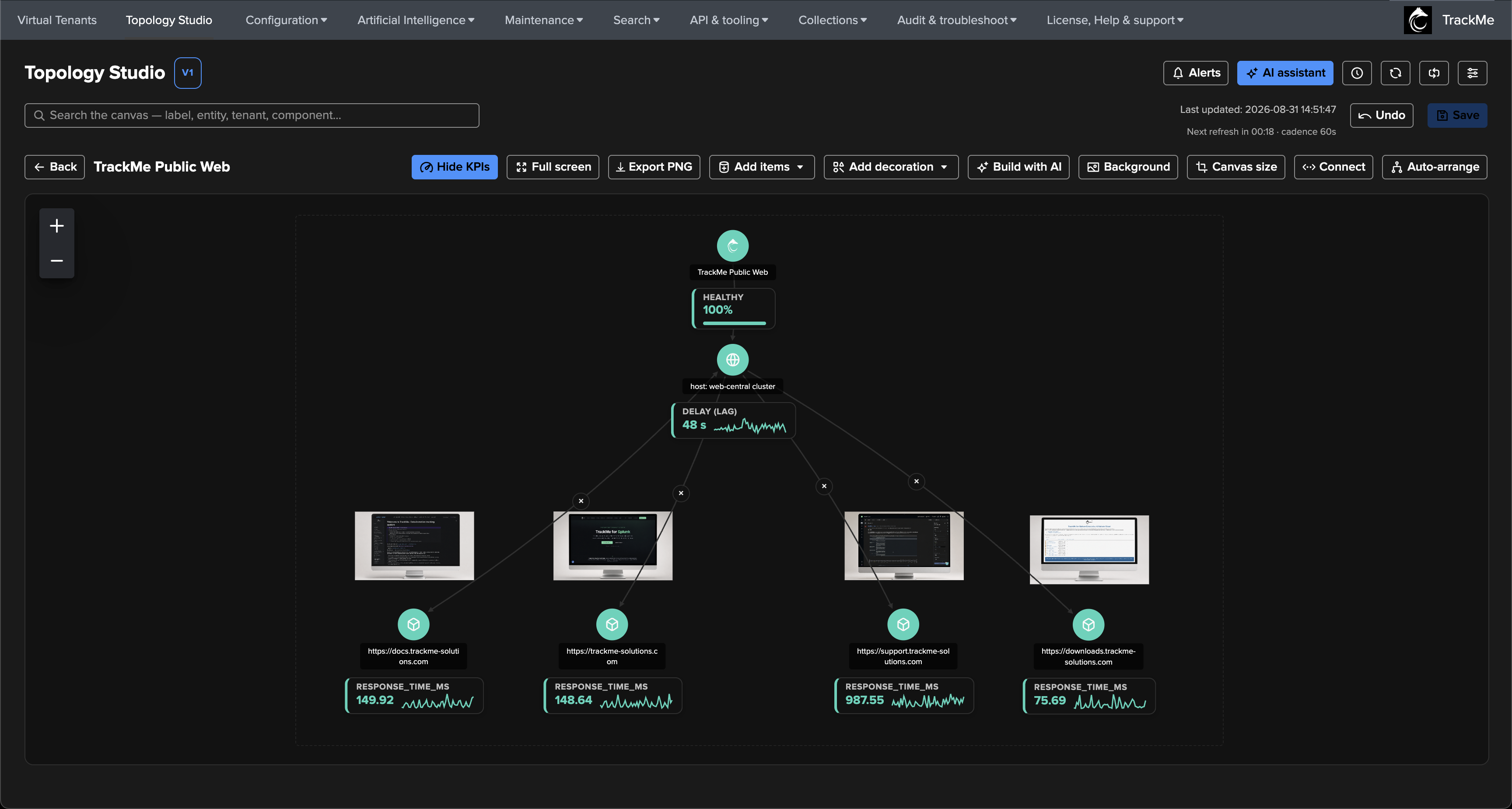
Text
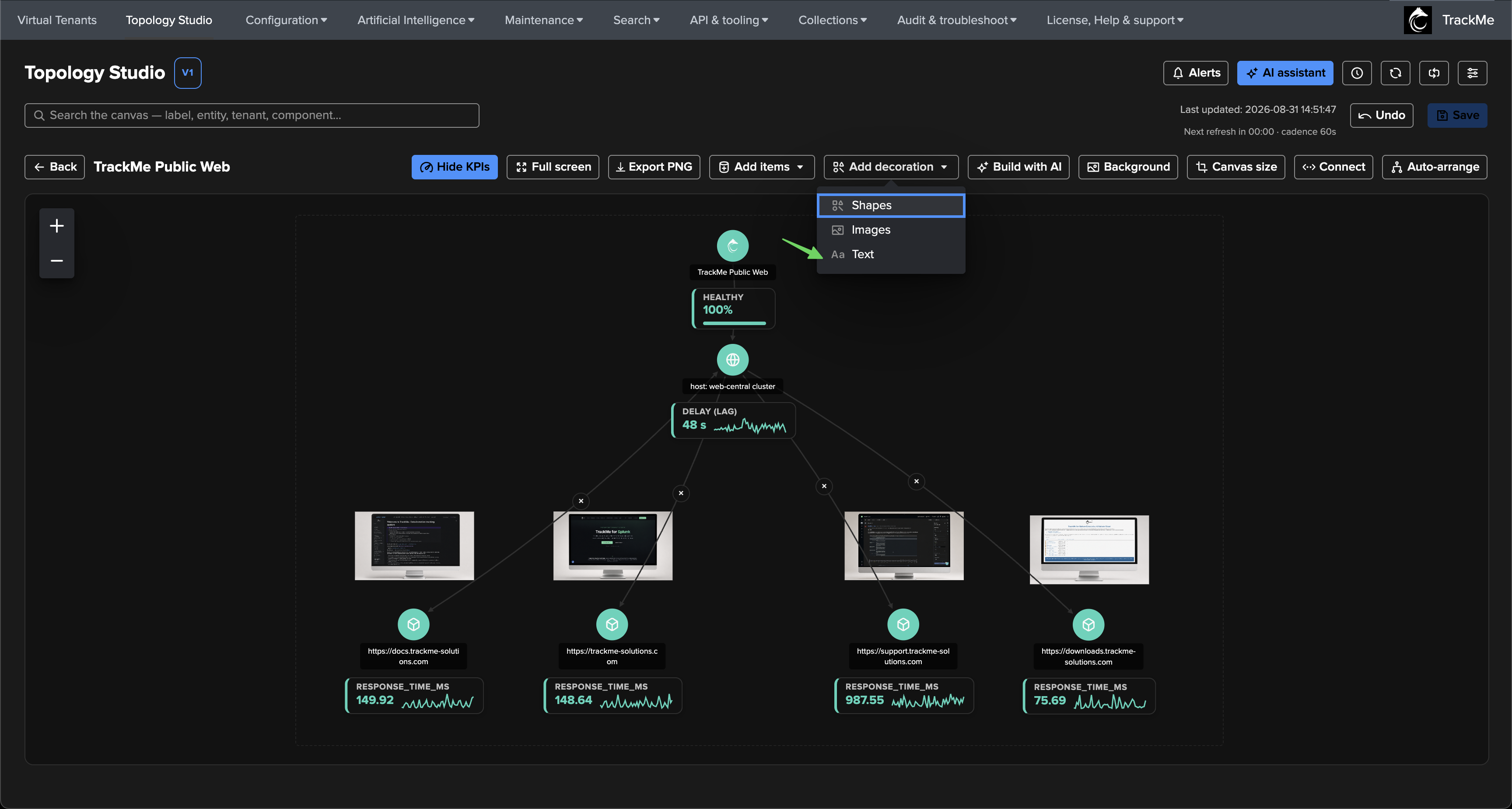
Add decoration → Text places free text anywhere on the canvas — view titles, zone names, annotations. Up to 2000 characters per decoration, multi-line supported.
Styling is intentionally focused so that text renders identically everywhere — in the editor, in PNG exports and in the server-rendered alert emails:
Font: Sans serif (default), Serif, or Monospace — generic families that every renderer resolves, rather than installed-font names that would differ between your browser and the email renderer.
Style: Normal, Bold, Italic, or Bold italic.
Font size: 8 to 240, with a live preview in the dialog.
Text colour: free colour picker.
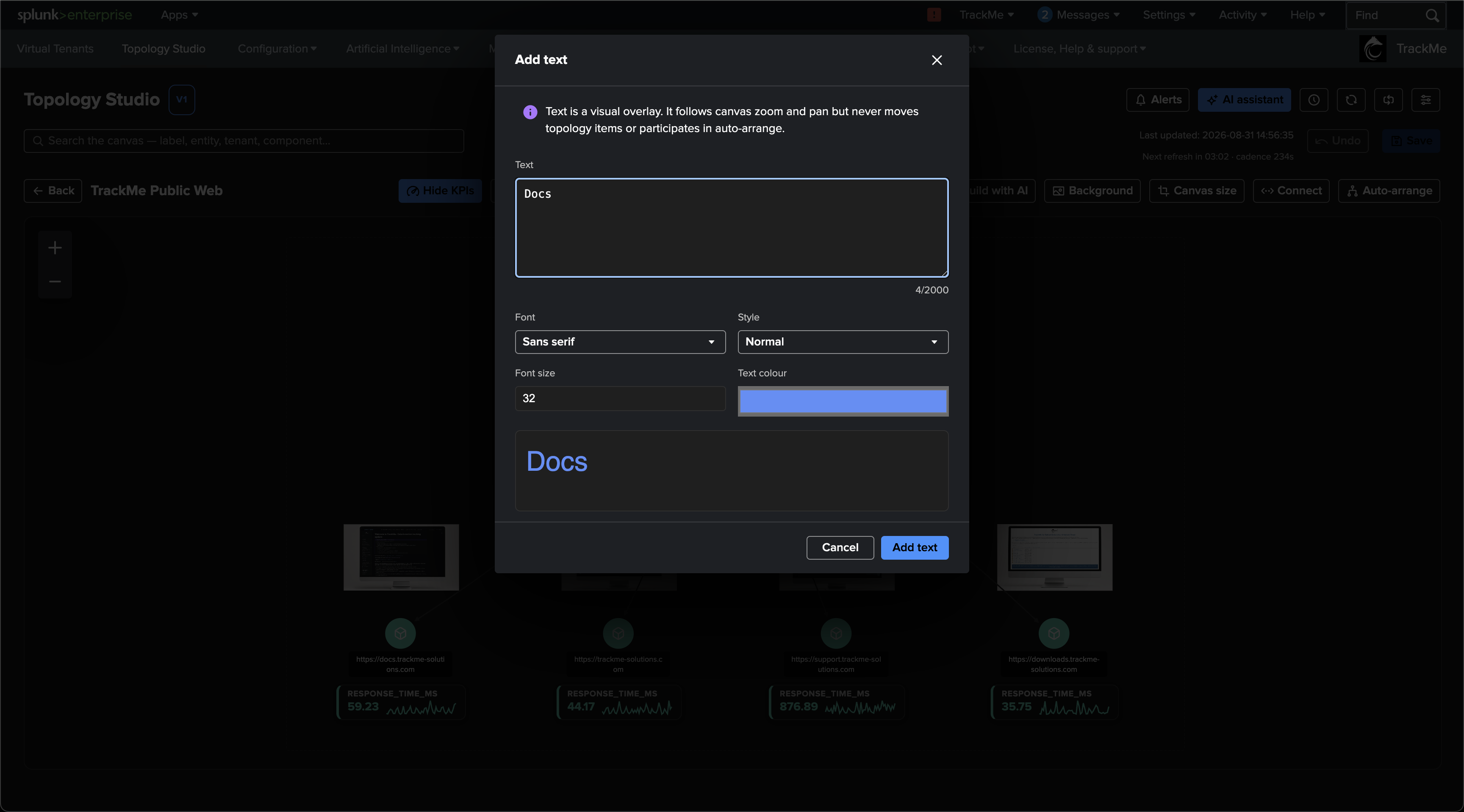
As with images, selecting placed text opens its inspector — position, size, and every styling control, editable in place with immediate effect on the canvas.
Shapes
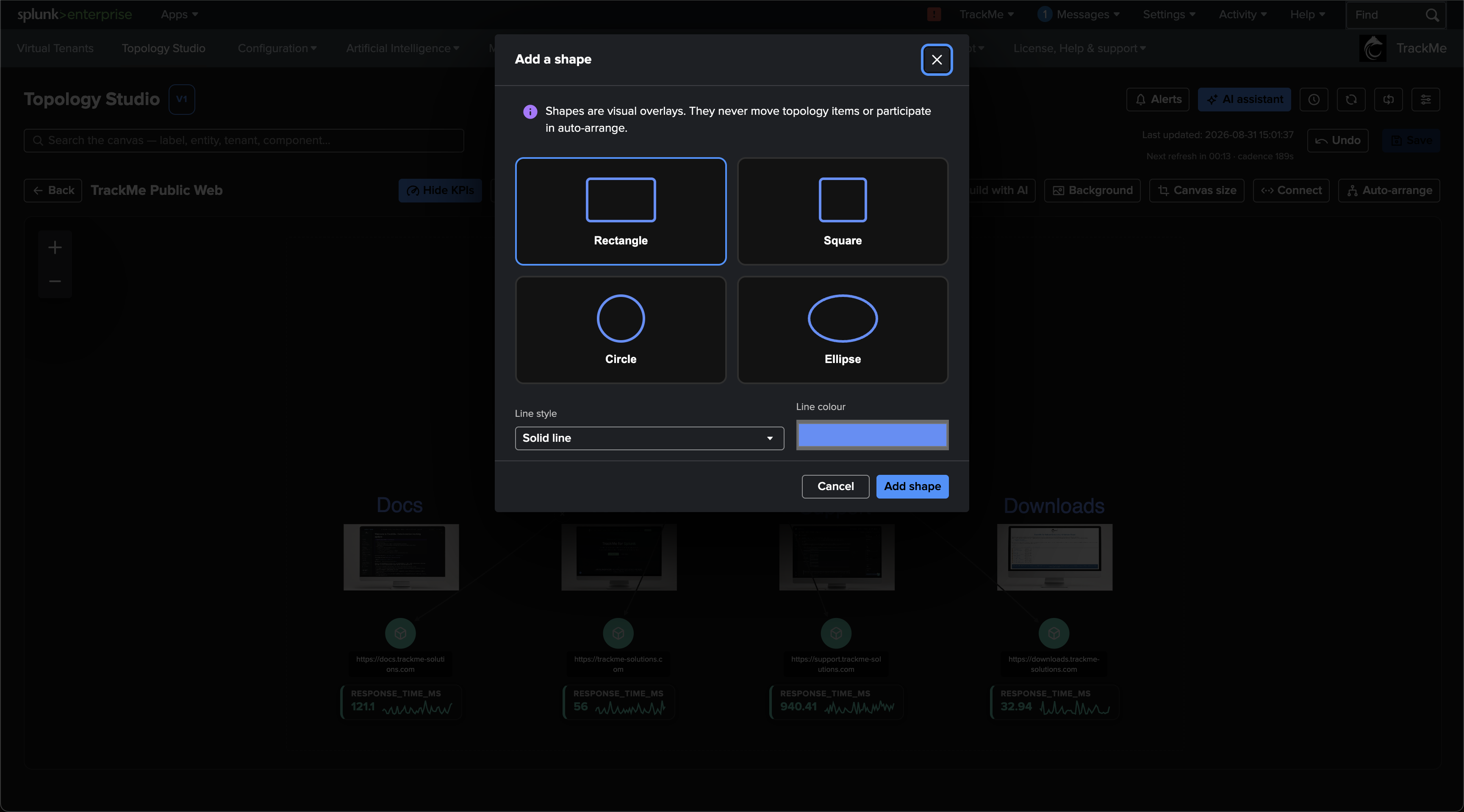
Add decoration → Shapes draws outline shapes: Rectangle, Square, Circle or Ellipse — the classic tools for framing a zone, grouping a tier, or circling the part of the map a runbook talks about.
Line style: solid, dashed or dotted.
Line colour: free colour picker.
Line width: 1 to 12, adjustable from the shape’s inspector after placement.
Shapes are outlines by design — no fill — so they frame content without ever hiding a node or a status colour. Squares and circles keep their sides equal when resized; rectangles and ellipses resize freely.
Working with decorations
Decorations handle like first-class canvas citizens:
Click one to select it and open its inspector; drag to move; use the corner handle to resize. Right-click opens a context menu with the same styling controls plus Remove from map.
Bulk selection includes them: modifier-click decorations and nodes into one selection, align them on shared rows or columns, or remove the whole selection at once.
Undo (button or Ctrl/Cmd+Z) covers decoration changes on the same shared history as the rest of the canvas; slider-style edits such as transparency or colour coalesce into a single undo step per gesture.
Decorations paint beneath links and nodes, so a frame or backdrop can never cover a status.
Nothing persists until Save — decorations ride the same explicit save, version history and conflict detection as every other change.
The result, full screen — the decorated view as a wall display, exactly as it also renders in PNG exports and alert emails:
Canvas size
For automatic node placement, see Auto-arrange: TrackMe 2.4.15 provides four layout directions, spacing and wrapping options, and a choice to keep, grow or fit the canvas when arranging. The controls below set the canvas dimensions manually.
By default the canvas simply fits its content — fine while a map grows, less fine when a view must present identically on the NOC wall, in full screen and on a laptop. Canvas size (TrackMe 2.4.14+) gives the view an explicit logical canvas area: once applied, centred and full-screen modes fit the complete canvas boundary, not just wherever nodes happen to be.
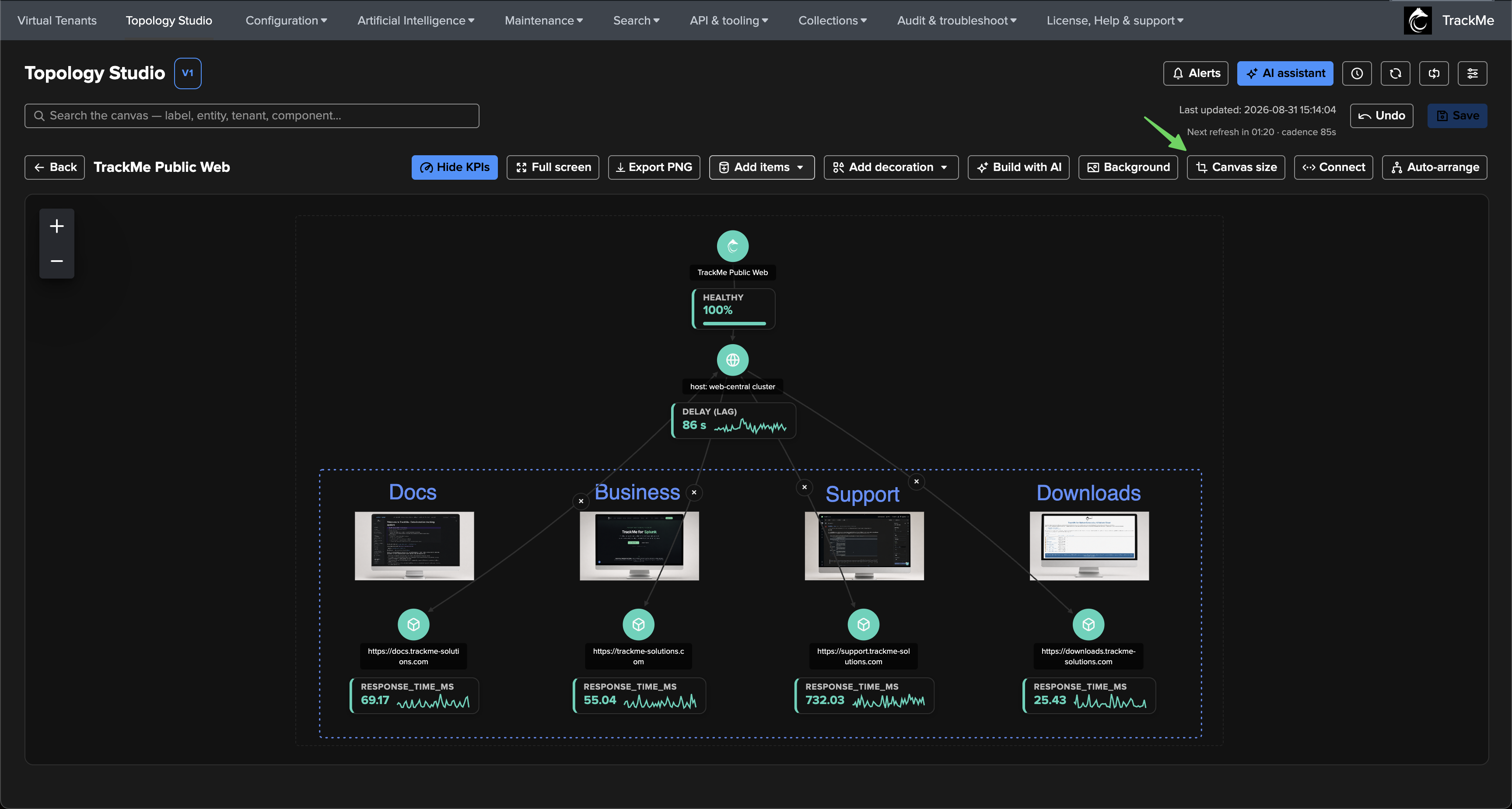
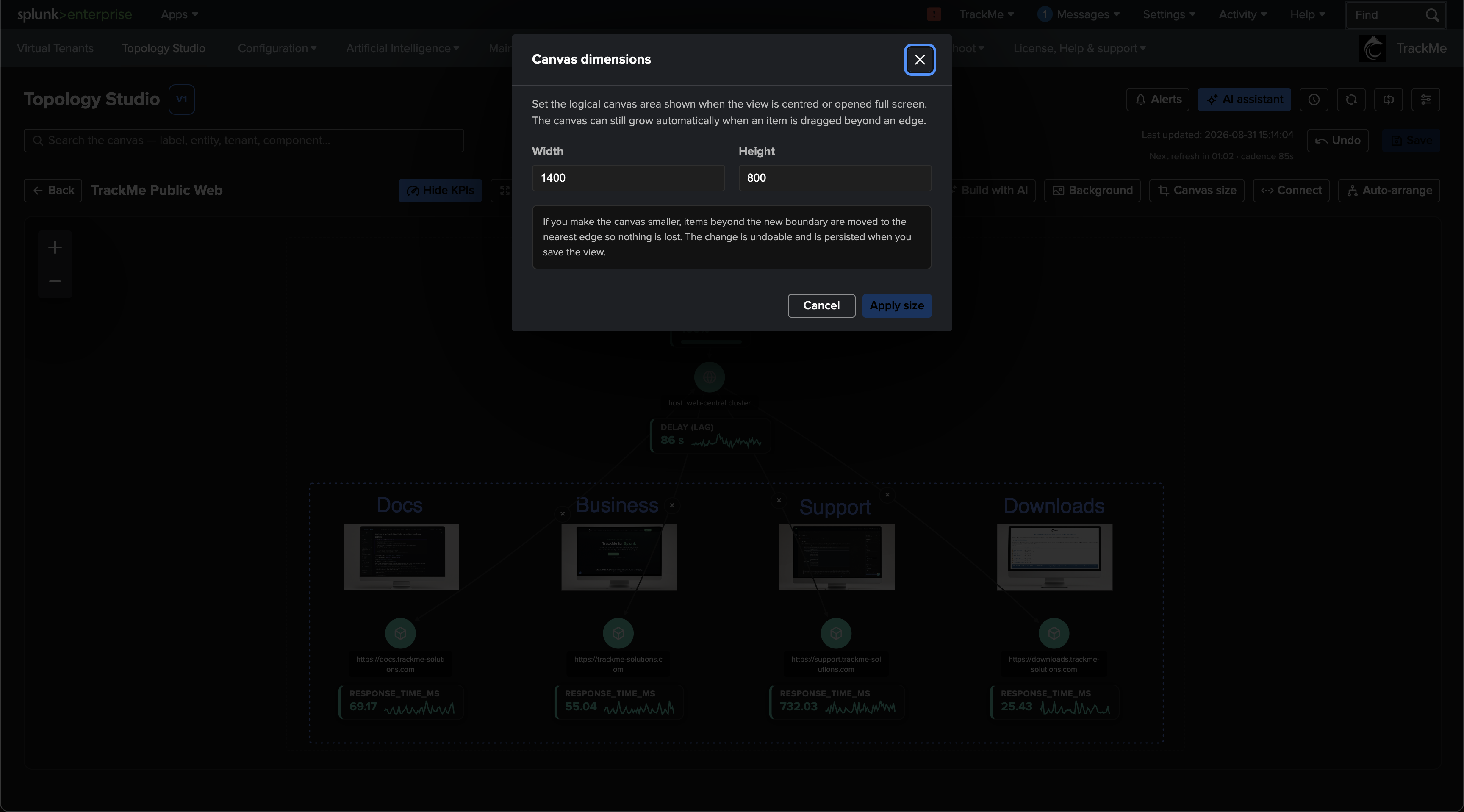
How it behaves:
Dimensions are whole numbers from 400 to 8000 per axis; new views start at 1600×900.
Existing views are untouched: a view authored before 2.4.14 keeps its historical fit-to-content presentation until an author applies a size. For such a view the dialog suggests a size derived from what you are currently seeing, so accepting the suggestion preserves the presentation as-is while opting into fixed sizing.
Shrinking never loses anything: items beyond a new, smaller boundary are moved to the nearest edge — nothing is deleted or cropped.
The canvas still grows on its own when you drag an item near or beyond an edge, exactly as before — the explicit size is a floor for presentation, not a cage for authoring.
The change is one undoable operation and, like everything else, persists when you Save the view.
Tip
Canvas size and decorations combine naturally: fix the canvas, frame it with a rectangle, title it with text — and the view becomes a stable, presentation-ready dashboard that renders the same in full-screen kiosk mode, PNG exports and Topology Alert emails.