TrackMe Broker — manage and monitor
Once a forwarder is set up, you run TrackMe Broker from two pages: Manage TrackMe Brokers in TrackMe, on the stack, and the add-on’s own page, on each forwarder. Configuration Guardian watches the brokers for you.
This page goes through both pages, the everyday tasks, the alerts, and where to read what happened.
Manage TrackMe Brokers
In TrackMe, open Configuration → Manage TrackMe Brokers. The page’s operations need the trackmeadminoperations capability.
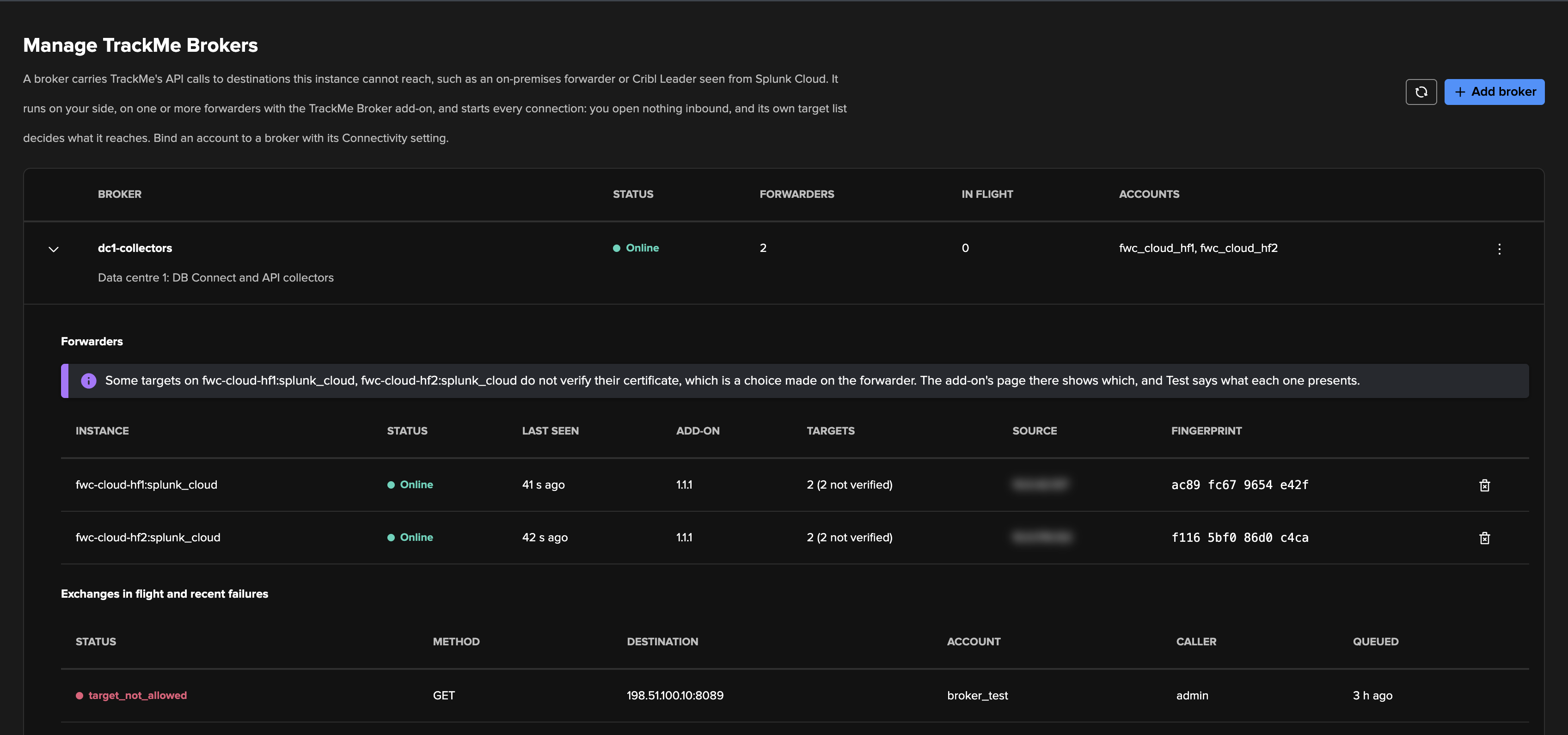
Each broker has one row:
Column |
What it shows |
|---|---|
Broker |
Its name, which is what accounts select in Connectivity, and its description if it has one |
Status |
How many of its forwarders are up, see below |
Forwarders |
How many forwarders are paired to it |
In flight |
The exchanges under way |
Accounts |
The accounts bound to this broker |
Status reads as follows:
State |
Meaning |
|---|---|
Online |
Every forwarder of this broker was seen in the last 90 seconds |
Online, 1 of 2 |
Some were, and the others were not |
Offline |
None was, and at least one has pulled before |
Not connected yet |
Forwarders were accepted, and none has pulled yet |
No forwarder |
The broker has no forwarder left |
Disabled |
An administrator disabled it |
Forwarders and exchanges
Expand a broker to see its forwarders and what it is carrying.
Forwarders column |
What it shows |
|---|---|
Instance |
The forwarder’s instance id, made of its host name and its connection’s name |
Status |
Online if it was seen in the last 90 seconds, Offline otherwise |
Last seen |
When it last pulled, or never |
Add-on |
The version of the add-on it reports |
Targets |
How many targets it declares, and how many of those do not verify their certificate. The stack gets these counts and never the list |
Source |
The address the stack’s splunkd sees. On Splunk Cloud, that is the load balancer’s address and not the forwarder’s, so do not read it as your forwarder’s. The fingerprint is what identifies a forwarder |
Fingerprint |
The fingerprint of its public keys, which its add-on’s page also shows |
Two messages can appear above this table:
These forwarders do not reach the same targets. A call may succeed on one and be refused on another. Make their target lists the same.
Some targets do not verify their certificate. This is a note and not a fault, because that is a choice made on the forwarder, and the usual one for a Splunk management port on its default certificate. The add-on’s page there shows which targets, and Test says what each one presents.
Exchanges in flight and recent failures lists each call that has not ended, and each failure of the last day. A finished exchange is removed as soon as its caller reads it. Status reads queued or claimed while it is under way, and the failure code when it fails. The other columns are Method, Destination, Account, Caller and Queued.
Waiting to be accepted
This panel appears when forwarders have registered and nobody has accepted them. It lists each one’s instance, host, source address, Splunk account, add-on version, fingerprint and the time it has left. On Splunk Cloud, the source address is the load balancer’s, so compare the fingerprint.
These forwarders hold a valid account and are not trusted yet. You cannot accept one from this list: only the code its add-on shows does that, through Add broker. A request nobody accepts runs out on its own.

What you can do on a broker
The menu on a broker’s row holds these actions:
Action |
What it does |
|---|---|
Test |
Makes one GET through this broker, to a URL you enter among its targets. It shows the target’s status, time and size, and the round trip, or a sentence saying why it failed |
Edit |
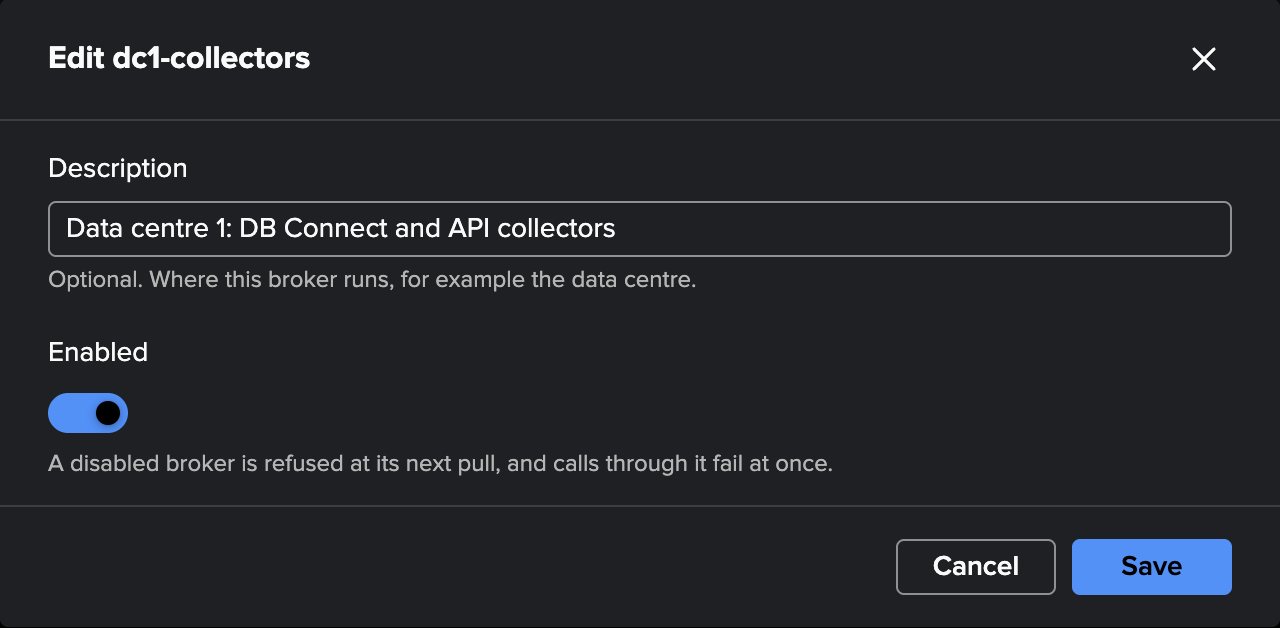
Changes the broker’s Description and Enabled |
Replace sealing key |
Writes a new key for what this broker keeps at rest on the stack. Requests in flight fail and their callers retry, and nothing changes on the add-on. See Keys on a search head cluster for when you need it |
Delete |
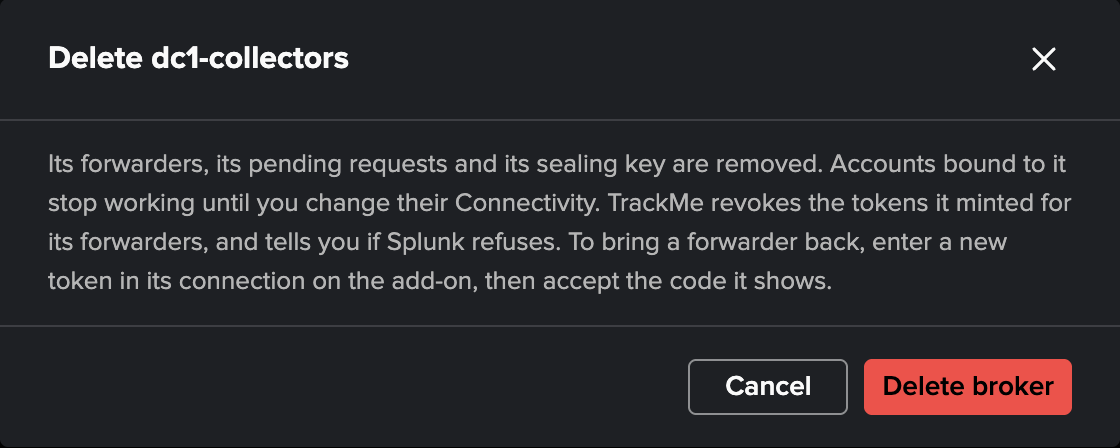
Removes its forwarders, its queue and its sealing key. TrackMe revokes the tokens it minted for those forwarders, and tells you if Splunk refuses. Accounts bound to it fail with |
Enabled, when off, makes the broker refuse its forwarders at their next pull, and calls through it fail at once. Configuration Guardian raises nothing for a disabled broker, because that is your choice and not an outage.
To restrict which addresses may connect, use the stack’s search-api allow list. On Splunk Cloud, port 8089 is closed by default, and that list says who may reach it.
Delete asks you to confirm, and says what will happen:
Removing a forwarder
The bin icon on a forwarder’s row removes that forwarder from the broker. Its key is dropped, TrackMe revokes the tokens it minted for it, and its next call is refused, including a call held open. The other forwarders of the broker carry on. If it was the only one, the dialog says so, because accounts bound to this broker then stop working until another one is added.
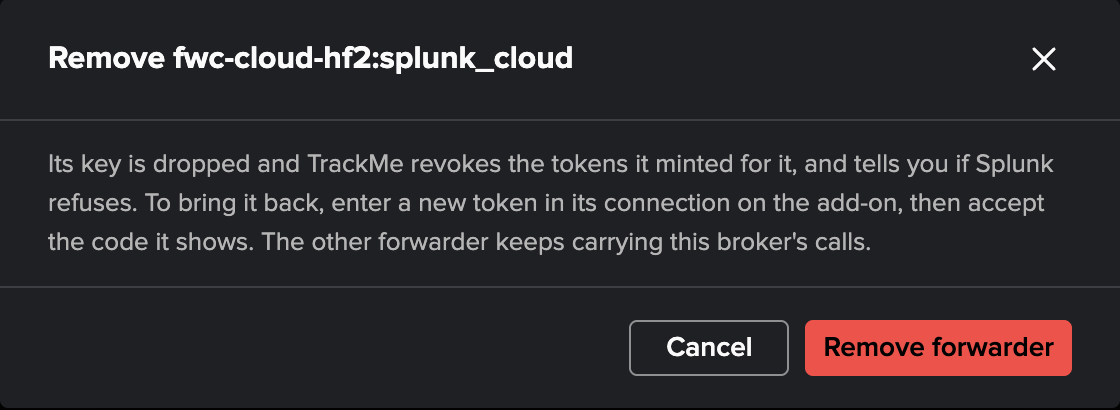
Bringing it back takes a new token in its connection, then the new code it shows: see Bring a forwarder back. A forwarder that never renewed its token gets a new code by itself.
A token that cannot be revoked at that moment is still valid. The page warns you, and that warning stays until the page reloads. TrackMe keeps trying, and the security page says how.
The add-on’s page
On the forwarder, open the TrackMe Broker app. Its page holds this forwarder’s connections and its targets.
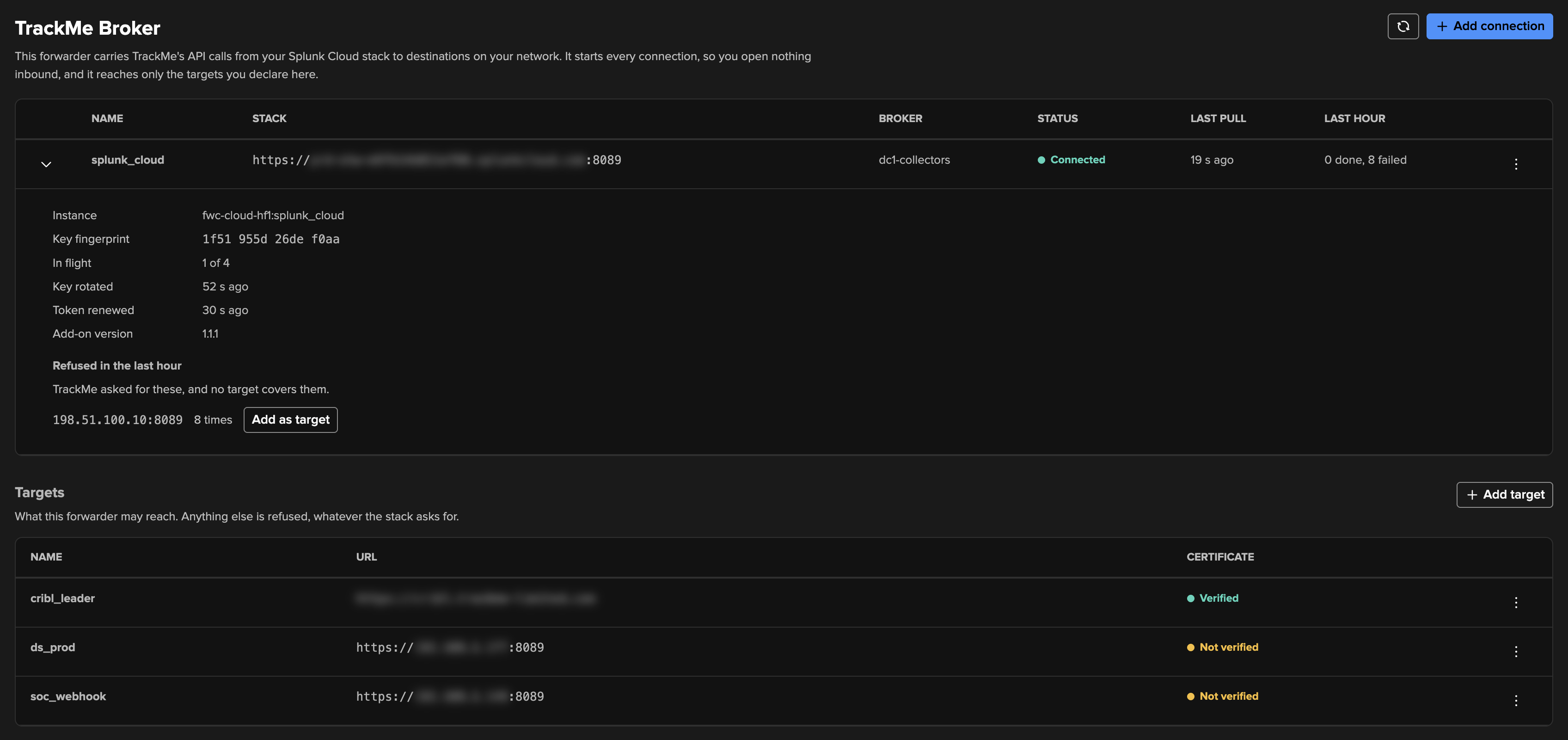
Connections
Column |
What it shows |
|---|---|
Name |
The connection’s name on this forwarder |
Stack |
The stack’s URL |
Broker |
The broker it is paired to |
Status |
Starting, Waiting to be accepted, Connected, Disconnected, Disabled, Stopped, Not running or Unavailable. See States and reasons |
Last pull |
When it last asked the stack for work |
Last hour |
How many calls it finished in the last hour, and how many failed |
Expand a connection for its details:
Detail |
What it shows |
|---|---|
Pairing code |
While it waits to be accepted, with how long it stays valid. A new one replaces it when it runs out |
Instance |
Its instance id, as Manage TrackMe Brokers shows it |
Key fingerprint |
What you compare with TrackMe when you accept it |
In flight |
How many requests it is carrying, out of Concurrent requests |
Key rotated |
When its keys last rotated. They rotate by themselves every 30 days |
Token renewed |
When its token last renewed, or Not yet |
Token renewal |
Only when a renewal has not worked: why, as a sentence. See Token renewal |
Add-on version |
The version running here |
Refused in the last hour |
What TrackMe asked for and no target covers, by host and port, each with Add as target for you to confirm |
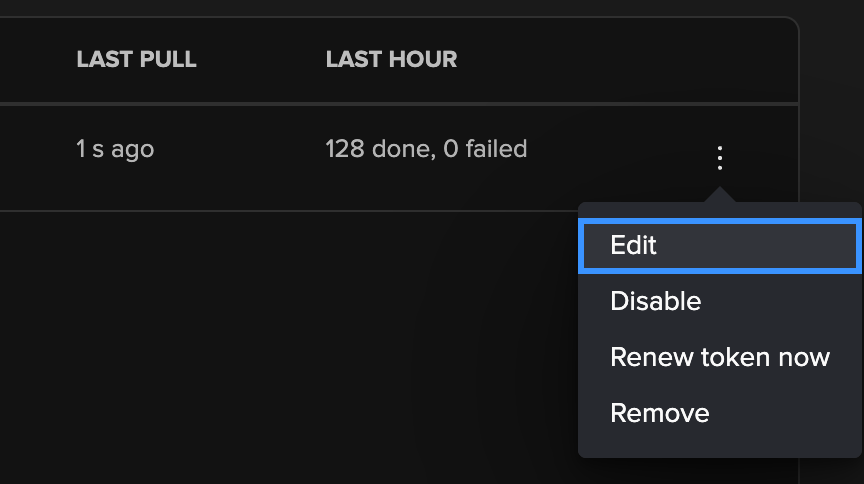
The menu on a connection holds Edit, Disable or Enable, Renew token now once it is paired, and Remove.
Targets
Targets is what this forwarder may reach. Anything else is refused, whatever the stack asks for, and a forwarder with no target refuses every call. A new target applies within a minute, and during that minute a call can read target_not_allowed.
Each target shows its Name, its URL and its Certificate: Verified or Not verified. Its menu holds Test, Edit and Remove.
Test connects from this forwarder and sends nothing but a TLS handshake. It shows the host, what the name resolves to, the connection, the TLS version, and the certificate’s subject, issuer, names and expiry. When a certificate does not pass, it says why and what to do:
Reason |
What to do |
|---|---|
The certificate is self-signed |
Copy it, or its CA, to this forwarder, and name that file as the CA file |
This forwarder does not trust who issued it |
Copy the issuing CA to this forwarder, and name that file as the CA file |
It is not for this host |
Use a name the certificate lists, or have it reissued for this one |
It has expired |
It needs renewing at the destination |
It is not valid yet |
Check the clocks here and at the destination |
With verification off on a target, the same test reads what would happen if it were on, and never acts on it.
Everyday tasks
Add a forwarder to a broker
On the new forwarder, install the add-on and add a connection, as in Set it up.
In TrackMe, select Add broker, enter its code and compare the fingerprint.
Under Broker, choose Add to and the existing broker, then select Accept broker.
Give it the same targets and the same Largest response (MB) as the others.
The status then reads Online when both are up, and Online, 1 of 2 while one is down. See Two forwarders, one broker.
Replace a forwarder
A forwarder rebuilt with no keys generates new ones and a new code. It needs a token in its connection, like any new connection. When you enter that code, Add broker warns you that this replaces the forwarder paired under the same name, and gives its broker and fingerprint. If that is another machine, it stops working as soon as you accept, so compare the fingerprint with care.
Accepting moves what TrackMe minted for the earlier pairing to the new record, so it is revoked at the forwarder’s next retire call. See The forwarder’s Splunk token.
Retire a forwarder
In TrackMe, expand the broker and remove the forwarder. This revokes what TrackMe minted for it.
On the forwarder, select Remove on the connection. This deletes its keys and stops it serving that stack.
If you created a token for it and nothing else uses it, revoke that token in Splunk: TrackMe never revokes a token you entered.
Do the first step in any case. Removing the connection on the add-on’s page does not reach the stack, so what TrackMe minted for that forwarder would stay valid until the stack drops it after 30 days of silence.
Bring a forwarder back
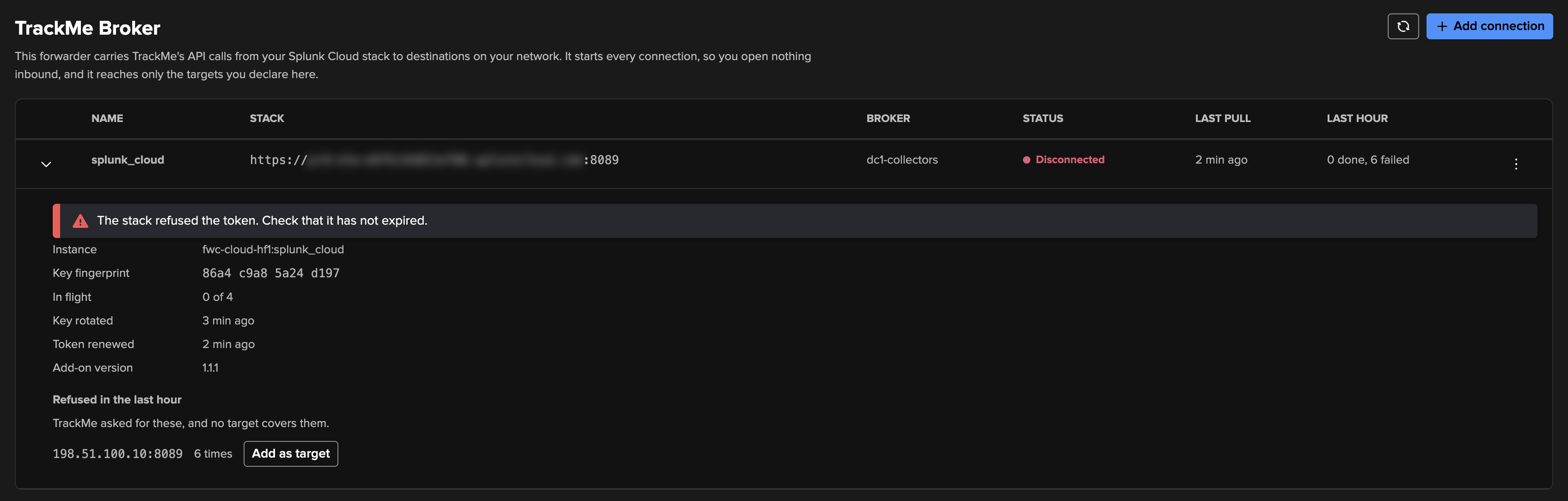
A forwarder removed in TrackMe, one whose broker was deleted, or one silent for over 30 days has had what TrackMe minted for it revoked, so the stack refuses its token: Disconnected, with http_401 in its log. If a call it was holding open heard of the removal first, its page also says that TrackMe no longer knows this forwarder, removed_from_stack in its log, and it has made new keys. Either way, it needs a new token before it can show a new code.
On the stack, create a new token for its account, the one holding
trackme_broker.On the add-on’s page, select Edit on the connection and paste the token into Splunk token. This applies within a minute, with no restart.
The connection then shows a new pairing code.
In TrackMe, select Add broker, enter the code, compare the fingerprint and accept.
Replace a token by hand
When the stack refuses the token in use, because it expired or was revoked, the add-on’s page says so. Select Edit on the connection and paste a new token into Splunk token. Leave it empty to keep the stored token. A changed token applies within a minute, with no restart.
Renew token now, in the connection’s menu, asks for a renewal at once and needs the current token to work.
Take a broker or a forwarder out of service
To stop |
Do this |
|---|---|
A whole broker |
In TrackMe, select Edit on the broker and turn Enabled off. Calls through it fail at once with |
One forwarder |
On its add-on’s page, select Disable on the connection. Its process reads its input every minute, and stops. Calls it was running go back to the queue if they are safe to repeat, and fail otherwise. |
Move an account off a broker
Set Connectivity on the account to Direct or to another broker, and save it. The broker’s Accounts column no longer lists it, and the account’s Connection type column follows. Do this before you delete a broker, since accounts still bound to it fail with unknown_broker.
Upgrade the add-on
Install the new package on each forwarder. Its release notes say what changed and give the package and its SHA-256. The Add-on column on Manage TrackMe Brokers shows the version each forwarder reports.
Configuration Guardian alerts
Configuration Guardian has two checks for brokers, because a broker’s failure otherwise only shows when something tries to use it. Each raises one alert per broker, on the system scope, and clears by itself.
The report trackme_broker_watch runs both every 15 minutes. It is scheduled only while a broker is declared, so a deployment without one runs nothing. The daily health manager and Run now run them too. If the broker list cannot be read, the checks are skipped and existing alerts stay.
TrackMe Broker is offline
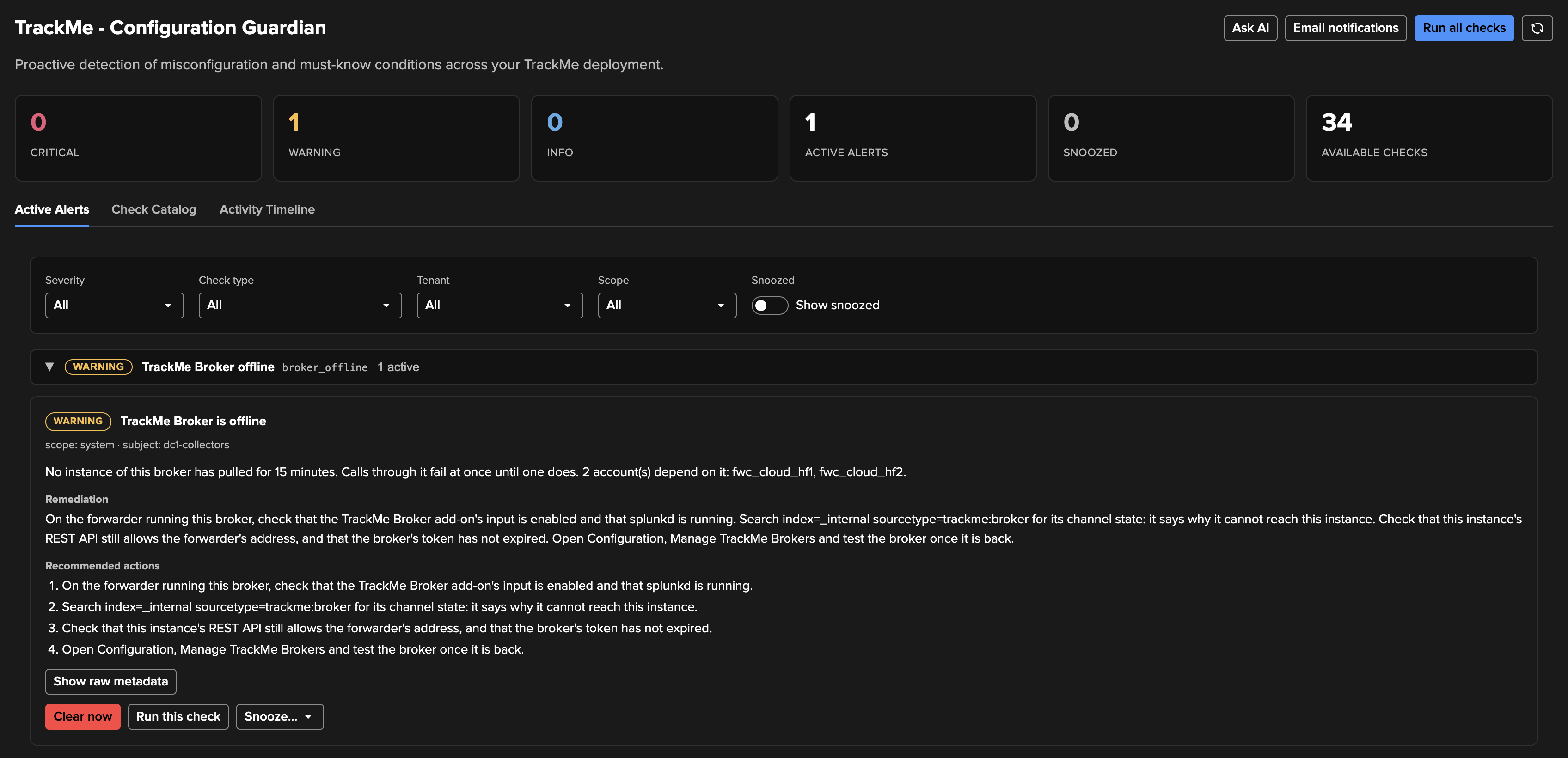
Check |
|
Raised when |
No forwarder of the broker has pulled for |
Severity |
Warning, then critical once it has lasted |
What it says |
How long no forwarder has pulled, that calls through it fail at once until one does, and the accounts that depend on it |
Clears when |
A forwarder pulls again. A forwarder just accepted is not enough to end an outage already reported. Disabling or deleting the broker clears it too, with no “resolved” notification, since that is not a recovery |
Settings |
|
What the alert recommends:
On the forwarder running this broker, check that the add-on’s input is enabled and that splunkd is running.
Search
index=_internal sourcetype=trackme:brokerfor its channel state, which says why it cannot reach the stack.Check that the stack’s REST API still allows the forwarder’s address, and that the broker’s token has not expired.
Open Manage TrackMe Brokers, and test the broker once it is back.
Every account bound to the broker stops working while this lasts: its trackers, its connectivity tests and its token rotation. If the channel state reads http_401, see Bring a forwarder back.
TrackMe Broker is degraded
Check |
|
Raised when |
A forwarder stopped pulling while others carry on, or the forwarders seen within that same time report different target lists |
Severity |
Warning |
What it says |
How many forwarders stopped and which, and that the rest carry the calls with no spare if they fail too, or that none is pulling now. Or that its forwarders do not declare the same targets, so a call can work or fail depending on which one pulled it |
Clears when |
The forwarder is back or removed, and the lists match. When none is left and |
Settings |
|
The broker still works during this alert, which is why nothing else shows it. What it recommends:
Manage TrackMe Brokers shows which forwarders stopped. On each of them, check that the add-on’s connection is enabled and that splunkd is running.
If a forwarder was retired on purpose, remove it in Manage TrackMe Brokers.
If the lists differ, declare the same targets on every forwarder of this broker, on the add-on’s page.
Tuning or turning them off
In Configuration Guardian’s Check Catalog, TrackMe Broker offline and TrackMe Broker degraded each have their own toggle, Run now and Configure.

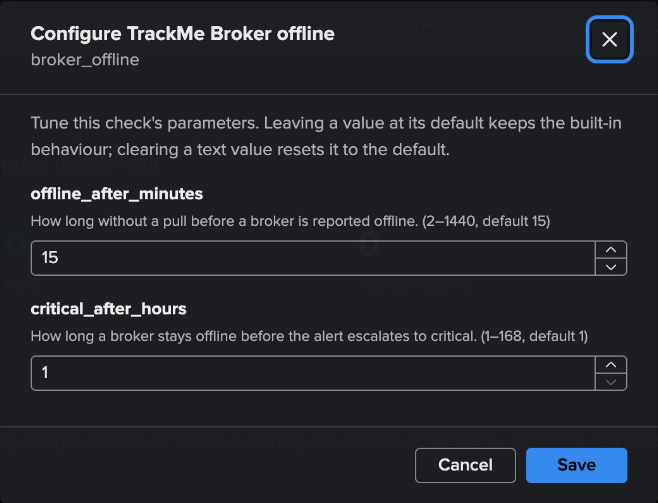
These settings are separate from Online on Manage TrackMe Brokers, which means seen in the last 90 seconds, so the page shows a stopped forwarder before the alert does.
Where to read what happened
What |
Holds |
Search |
|---|---|---|
The add-on’s log, |
Every call, with its id, method, destination host, status and time, and the channel’s state lines. Never a header, a query string or a body. The times in the file are UTC, whatever the host’s time zone, and searches in Splunk still show each user’s own zone |
|
TrackMe’s broker log, |
Each token minted, with its instance, account and id and never the token, and each Remove or Delete that could not revoke everything |
|
TrackMe’s audit trail, on the stack |
An administrator’s changes: |
Audit events of the |
Exchanges in flight and recent failures, on Manage TrackMe Brokers |
Each call under way, and each failure for a day |
Expand the broker |
The forwarder sends its log to your _internal index like its own logs, so you can read it from the stack. The failure codes say what each code means and what to do.
See also
TrackMe Broker: the concept, and how to set it up.
TrackMe Broker — in depth: the life of one call, timeouts, pools, leases, every failure code and the limits.
TrackMe Broker — security and cryptography: pairing, key exchange, ciphers, FIPS, the threat model and what can be revoked.
Configuration Guardian: Configuration Guardian.
Release notes: trackme-broker: what each release of the add-on changed.