View integrity and consistency checks
Starting with TrackMe 2.4.15, Topology Studio includes a view integrity linter: a consistency checker that validates saved views against the current Virtual Tenants, enabled monitoring components, Topology Alert configuration and — since a view can be placed on another canvas as a view node — the saved views it references. As your environment changes, it identifies references that no longer resolve and explains how to repair them.
The linter is integrated with Configuration Guardian
through the topology_view_stale_references check. Administrators receive
Guardian findings, while users of a view see an issue badge, an integrity panel
and an editor banner directly in Topology Studio.
This complements Topology Alerts: those alerts monitor the health of the entities covered by a map; integrity checks monitor whether the map’s references and alert configuration still work. A green aggregate can still have a consistency warning if part of its original scope has disappeared.
For fully unresolved items — entity nodes on a deleted or disabled scope, aggregates with no live scope left, view nodes whose referenced view no longer exists — Remove stale nodes can remove all flagged stale nodes and their connected edges in one click, ready to review and save. Partially unresolved aggregates retain live coverage and are repaired by editing their scopes, as illustrated below.
Example: a view references a deleted Virtual Tenant
In this example, the TrackMe Production view contains two aggregates,
HF1: Queues and HF2: Queues. Each originally spans three tenant/component
scope pairs. The Virtual Tenant splunk-sysmon has been deleted, leaving its
FLX scope unresolved in both aggregates.
Each aggregate still computes its status from the two remaining live scope pairs. The linter reports two Aggregate partially unresolved warnings so that this reduction in coverage is visible, even while the canvas shows healthy results.
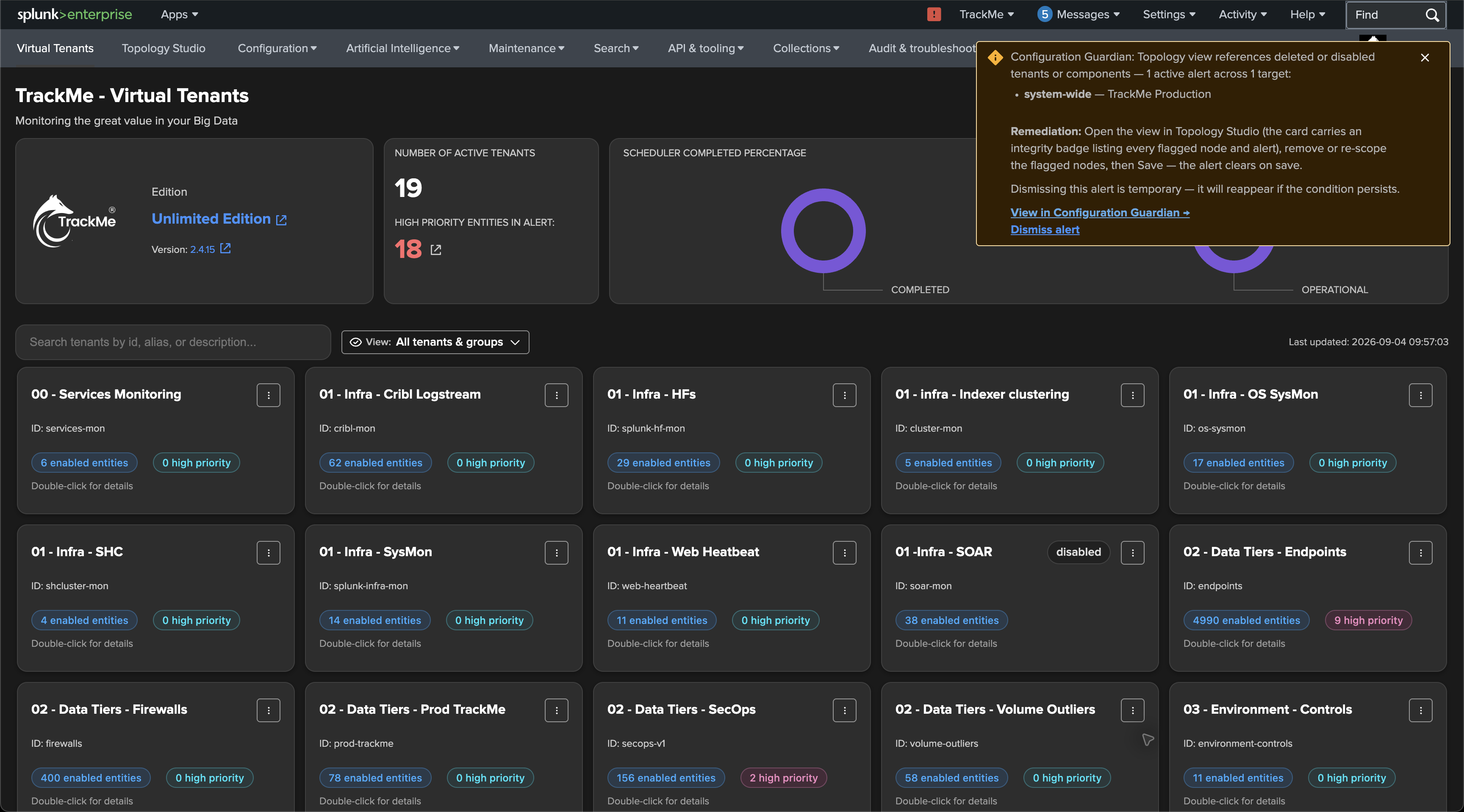
1. Follow the Configuration Guardian notification
For an administrator, the Virtual Tenants page displays a Configuration Guardian toast naming the affected view. View in Configuration Guardian opens the corresponding check, where the finding includes the view name, issue count and recommended remediation.
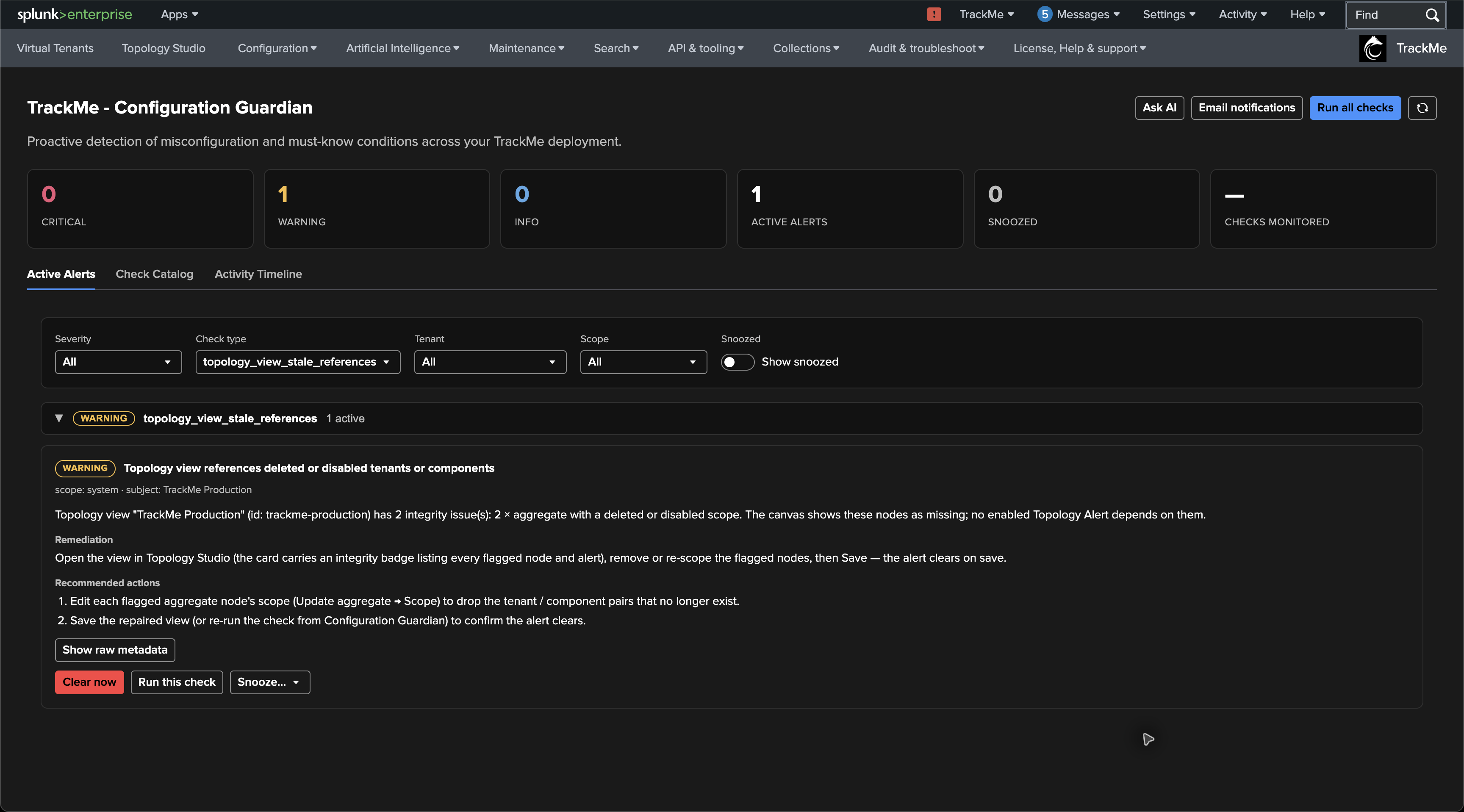
Here, Guardian reports one system-scoped alert for the view, containing two node findings. The alert count and the number of integrity issues measure different things: one view can contain several affected nodes or Topology Alerts.
2. Open the view’s integrity panel
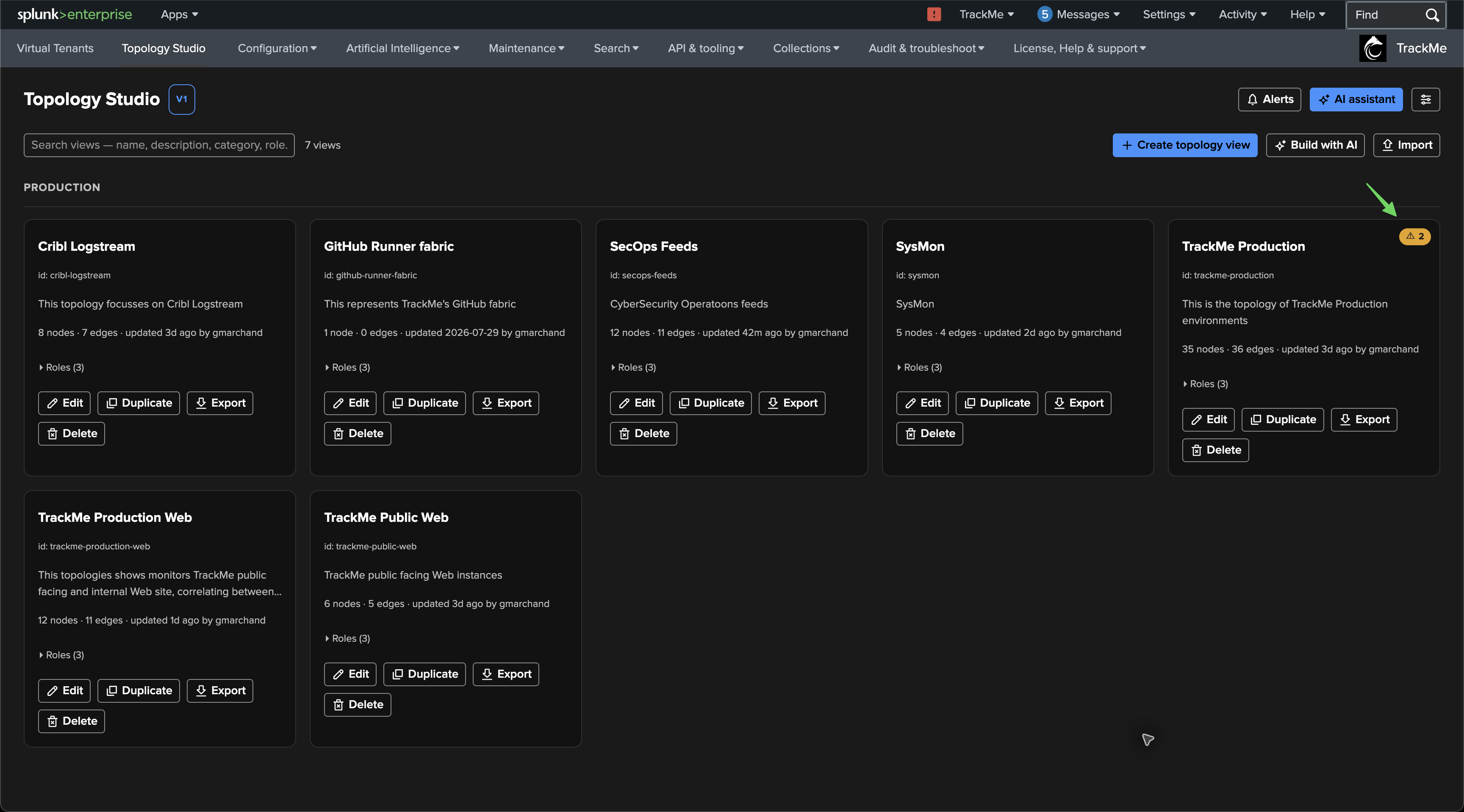
On the Topology Studio landing page, the TrackMe Production card carries an amber badge with 2 issues. Click the badge to open Integrity — TrackMe Production without opening the canvas.
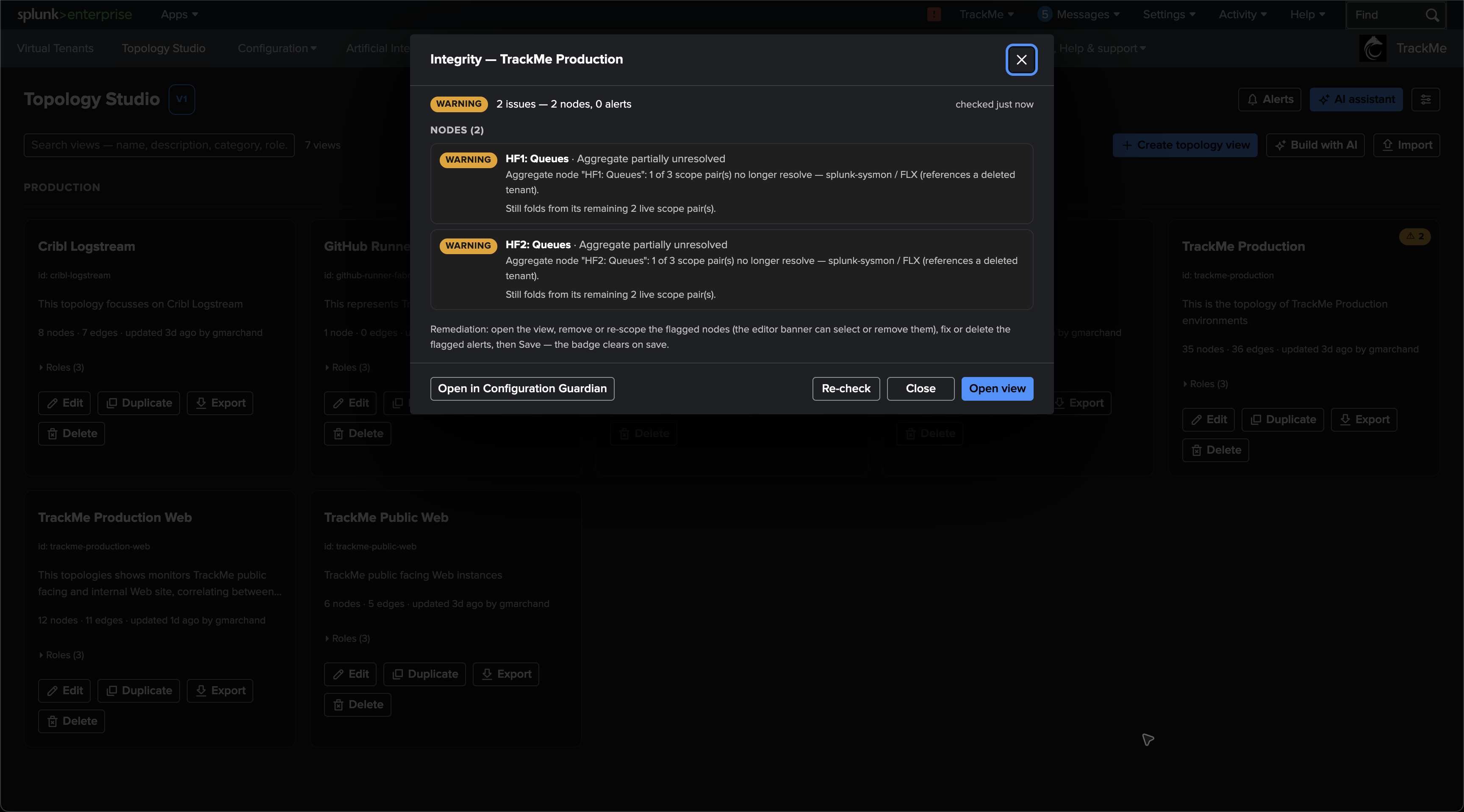
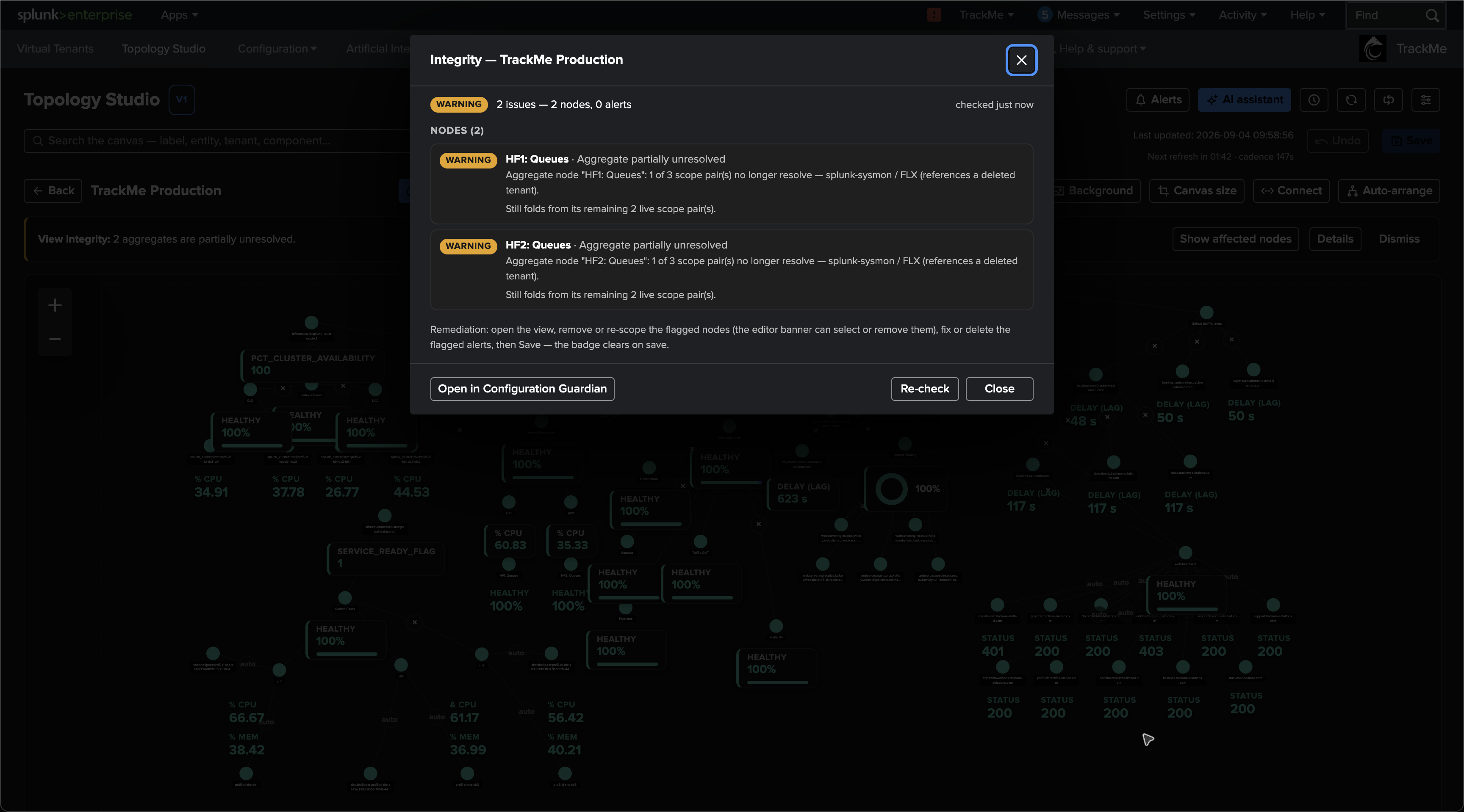
The panel checks the saved view against the current configuration and groups its
findings into nodes and Topology Alerts. In this example it names both
queue aggregates and explains that 1 of 3 scope pairs no longer resolves
because splunk-sysmon / FLX references a deleted tenant.
Use Open view to reach the canvas, Open in Configuration Guardian to inspect the check through the Guardian page, or Re-check to evaluate the saved view again. See Permissions and refresh behaviour for how re-checking updates the card badge.
3. Locate the affected aggregates on the canvas
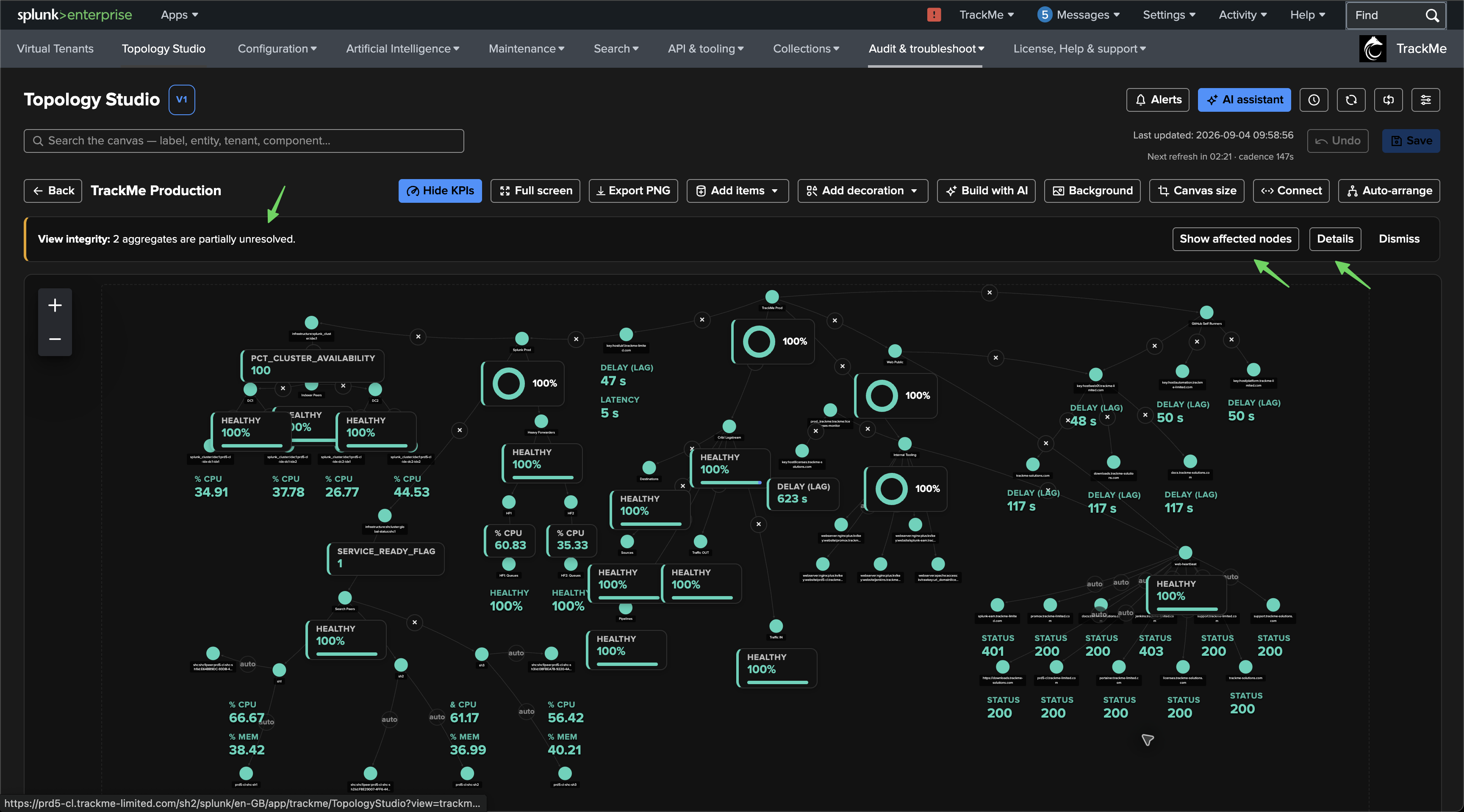
Opening the view displays a View integrity banner above the canvas. In this case, it reports that two aggregates are partially unresolved.
Show affected nodes selects the flagged nodes on the canvas so that you can locate and inspect them.
Details opens the integrity panel from the editor.
Dismiss hides the banner for the current opening of the view; it does not repair the references or clear the Guardian finding.
4. Repair the scopes and save the view
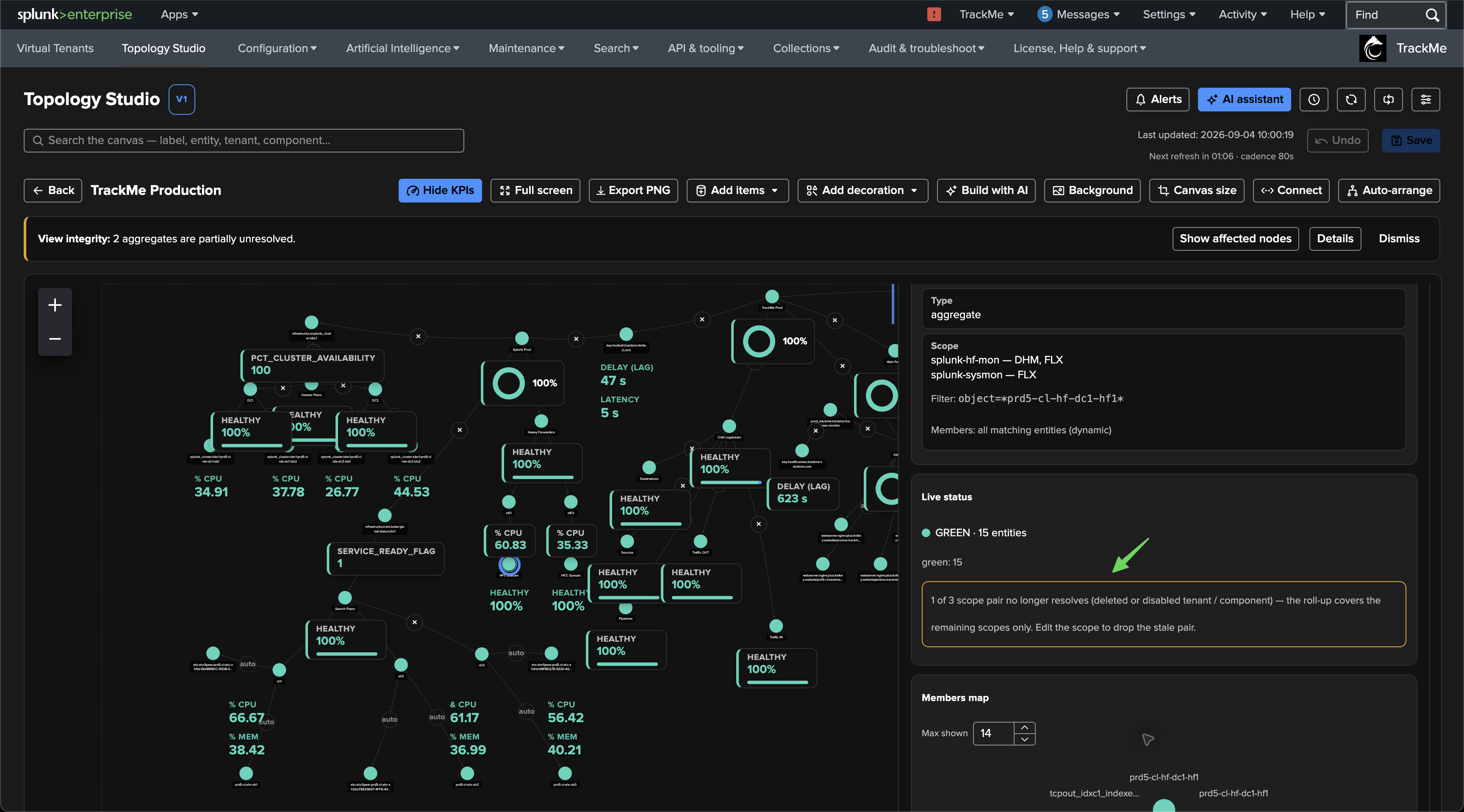
Select an affected aggregate to inspect it. Its Live status section shows the current entity results alongside a warning that 1 of 3 scope pairs no longer resolves. The roll-up covers the remaining scopes only.
For each affected aggregate:
Open Update aggregate → Scope.
Remove the obsolete
splunk-sysmon / FLXpair, keeping the live scope pairs. If monitoring moved to another tenant, select the intended replacement scope instead.Apply the aggregate update, then Save the topology view after repairing both aggregates.
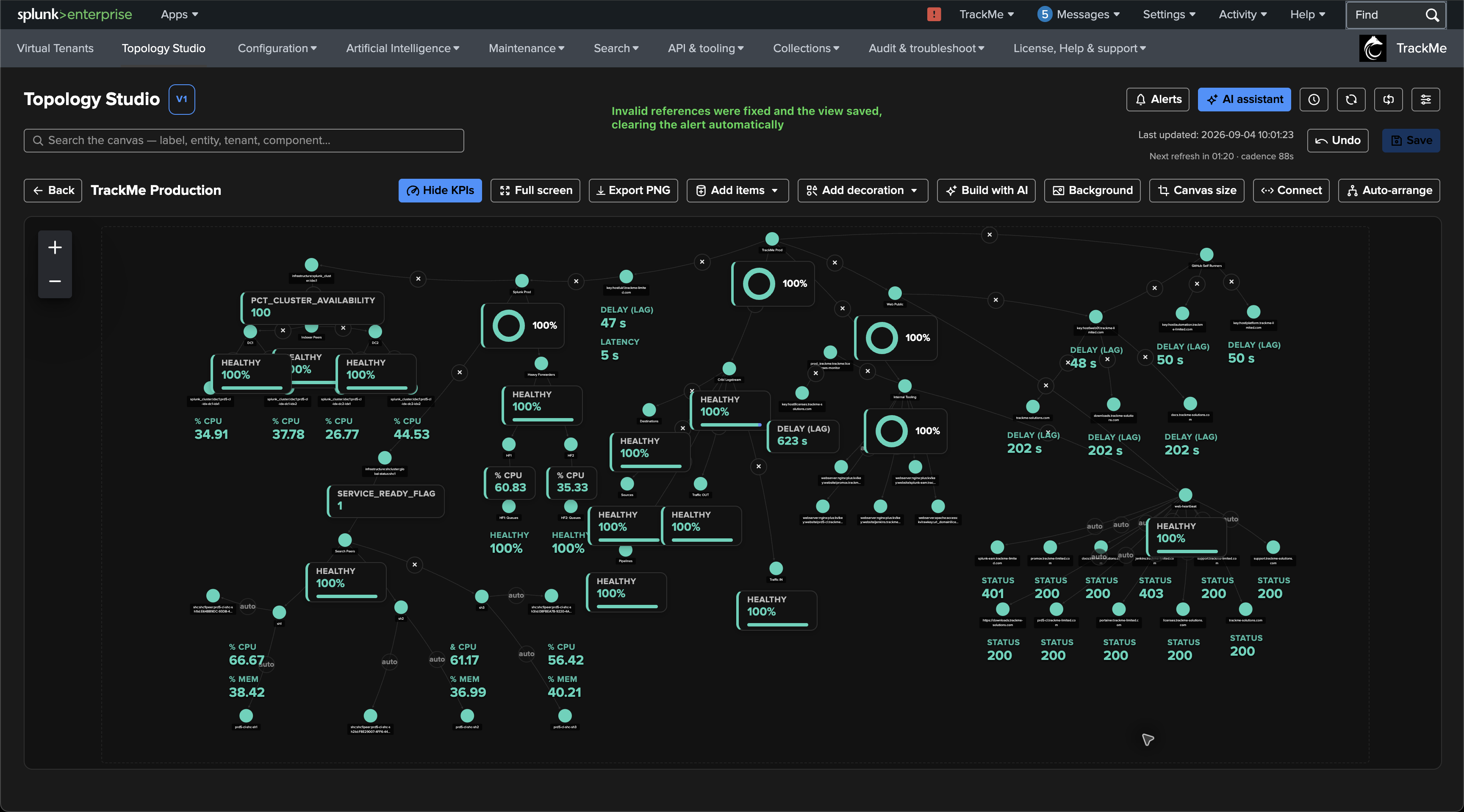
Saving refreshes the integrity check. Once all findings are resolved, the editor banner, card badge and corresponding Guardian alert clear automatically. The final screenshot shows the saved view with its aggregates preserved and the integrity banner gone.
Important
A partially unresolved aggregate remains useful: it still computes its status from its live scope pairs. It stays at warning severity, even when an enabled Topology Alert covers it, and is never removed by Remove stale nodes. Repair its scope to restore the intended coverage or remove obsolete references.
Example: remove fully unresolved items in one click
When one or more items are fully unresolved, Topology Studio can clean up all of those stale nodes at once. The editor’s Remove stale nodes (N) button shows how many nodes it will remove; you do not need to select or delete them individually. The action is available to users who can edit the view.
In this second example, the SecOps Feeds view contains a Qualification
aggregate whose only scope pair, secops-qua / DSM, references a disabled
Virtual Tenant. The integrity panel reports Aggregate fully unresolved:
1 of 1 scope pairs no longer resolves, leaving no live scope for this node.
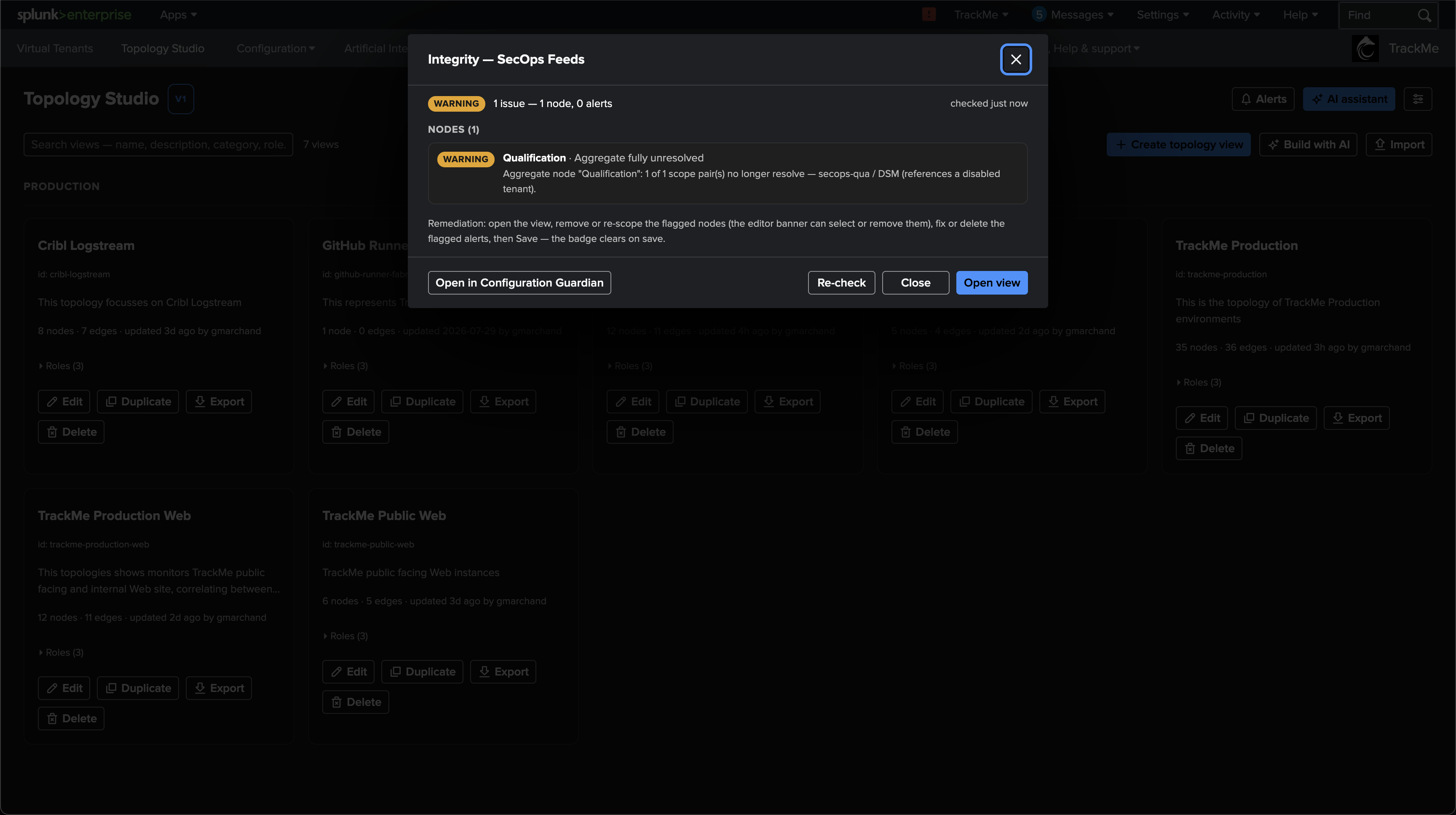
To remove the obsolete items:
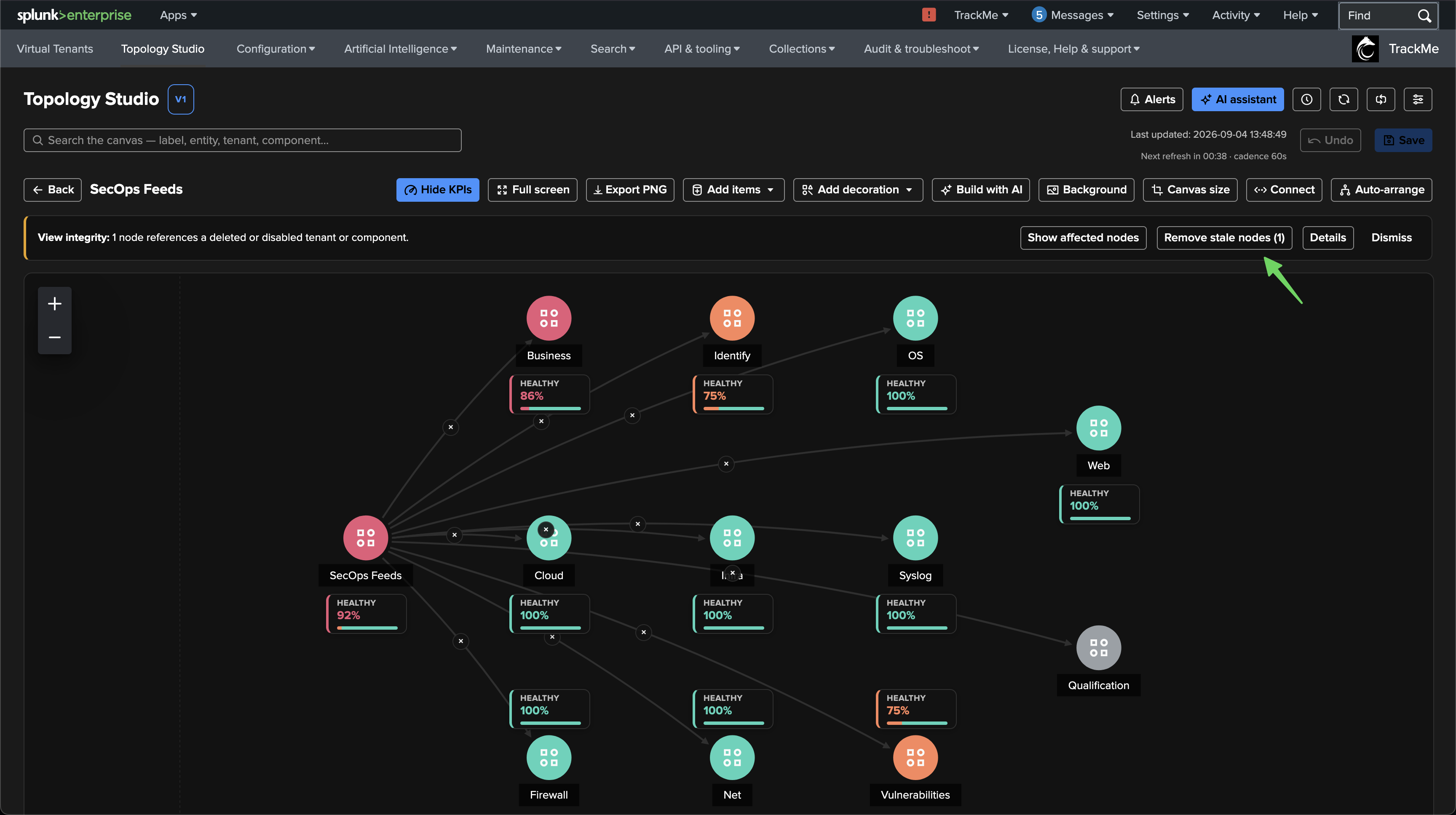
Choose Open view from the integrity panel. The canvas shows the unresolved Qualification node in grey and offers Remove stale nodes (1) in the integrity banner.
Click Remove stale nodes (1). TrackMe removes the stale node and its connected edge immediately. With multiple fully stale nodes, the same action removes them all, together with their connected edges, as one undoable change.
Review the updated canvas. The notification confirms 1 stale node removed — Save to persist (Undo restores it), and the view shows unsaved changes. Use Undo if you want to restore the removed items.
Click Save to persist the cleanup and refresh the integrity result. Once all findings are resolved, the persisted card badge and Guardian alert clear.
The screenshots below show the canvas before and immediately after the single-click removal. In the second screenshot, the stale node is gone and the integrity banner has disappeared, but the cleanup is still waiting to be saved.
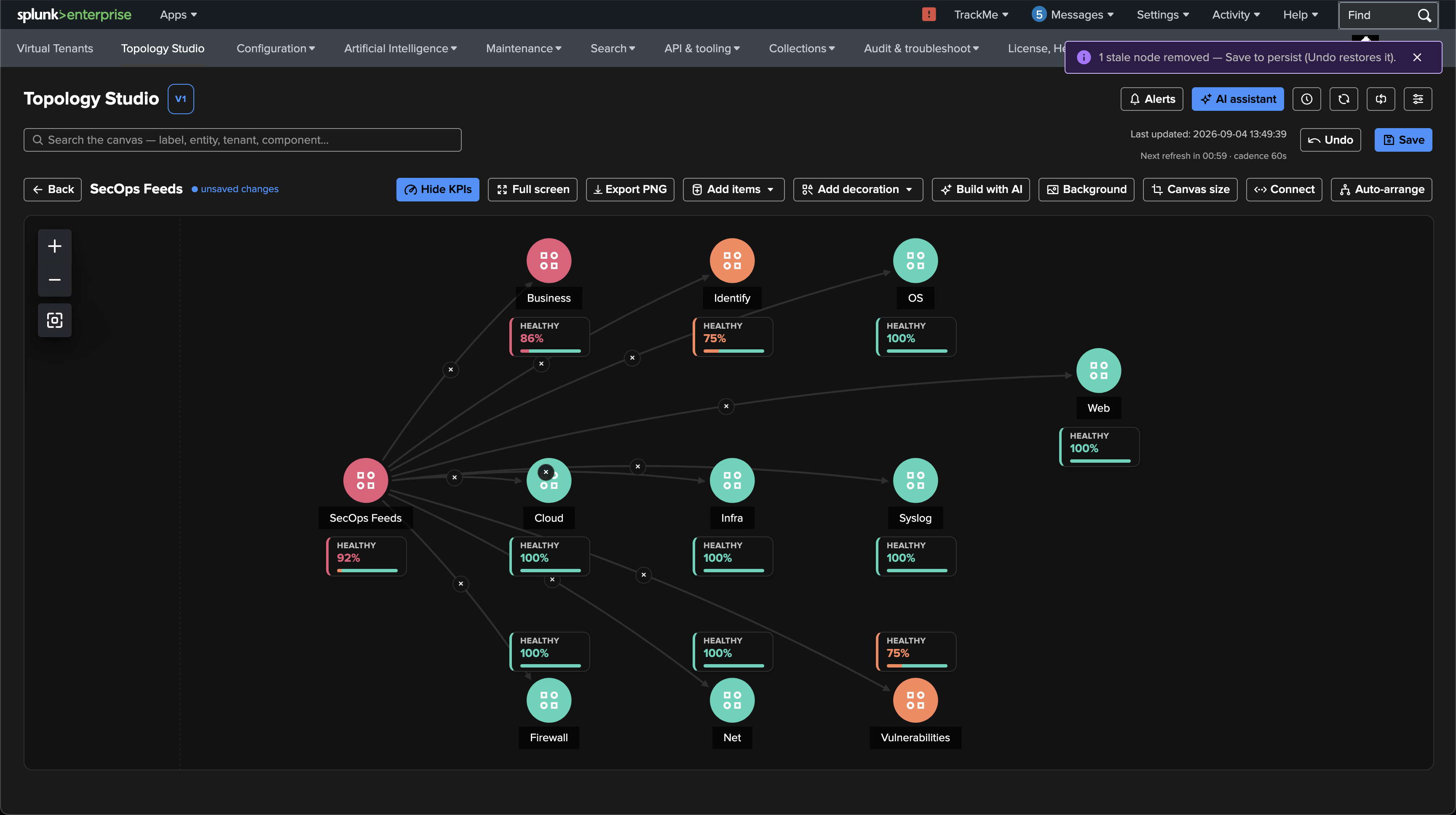
This cleanup removes obsolete items from the view. If the tenant or component should remain monitored, you can instead re-enable it or reconfigure the node’s scope. Partially unresolved aggregates are preserved by the bulk action; edit their scopes as in the first example. Any separate Topology Alert findings still need to be reviewed and their configuration corrected.
Example: a view references a deleted view
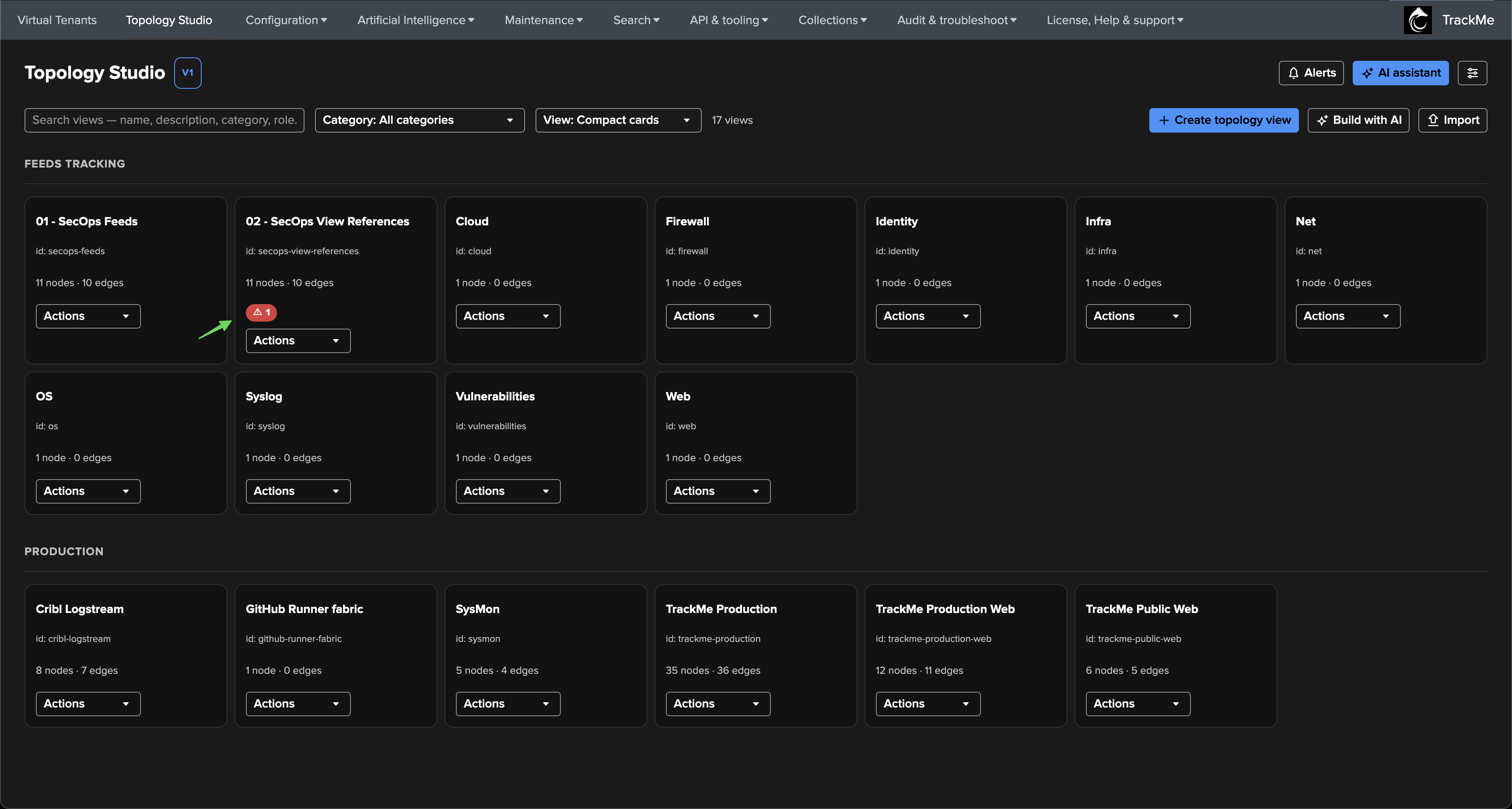
A view node stores only the identifier of the view it references, so deleting that view leaves the parent with a reference that no longer resolves. In this third example, the 02 - SecOps View References view is a map of maps: a SecOps Feeds aggregate connected to a dozen view nodes, one per security domain. The Business view has since been deleted, and an enabled Topology Alert selects the Business node — so the finding is critical rather than a warning.
The Configuration Guardian toast on the Virtual Tenants page is now critical, and the 02 - SecOps View References card on the landing page carries a red badge with 1 issue.
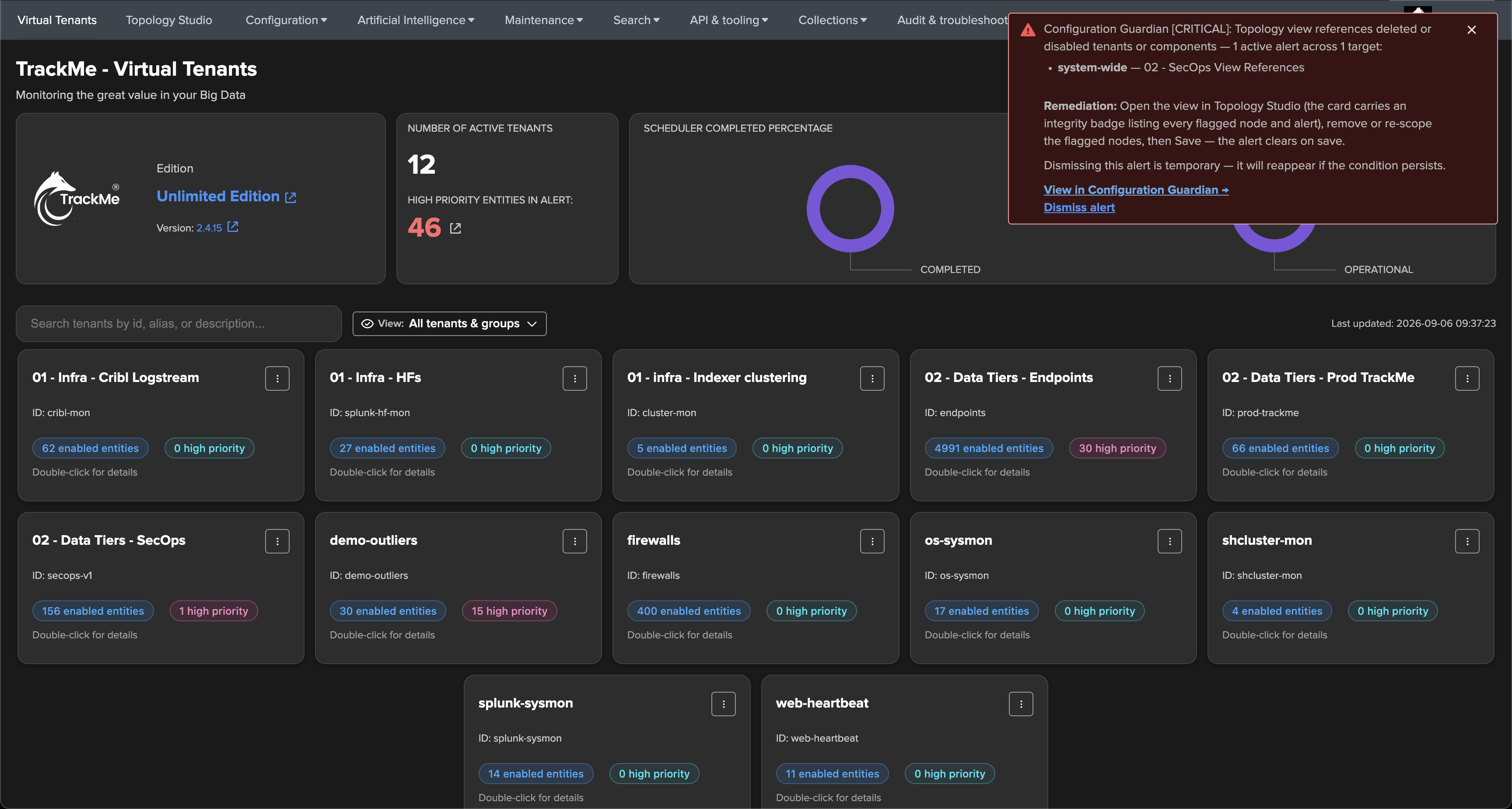
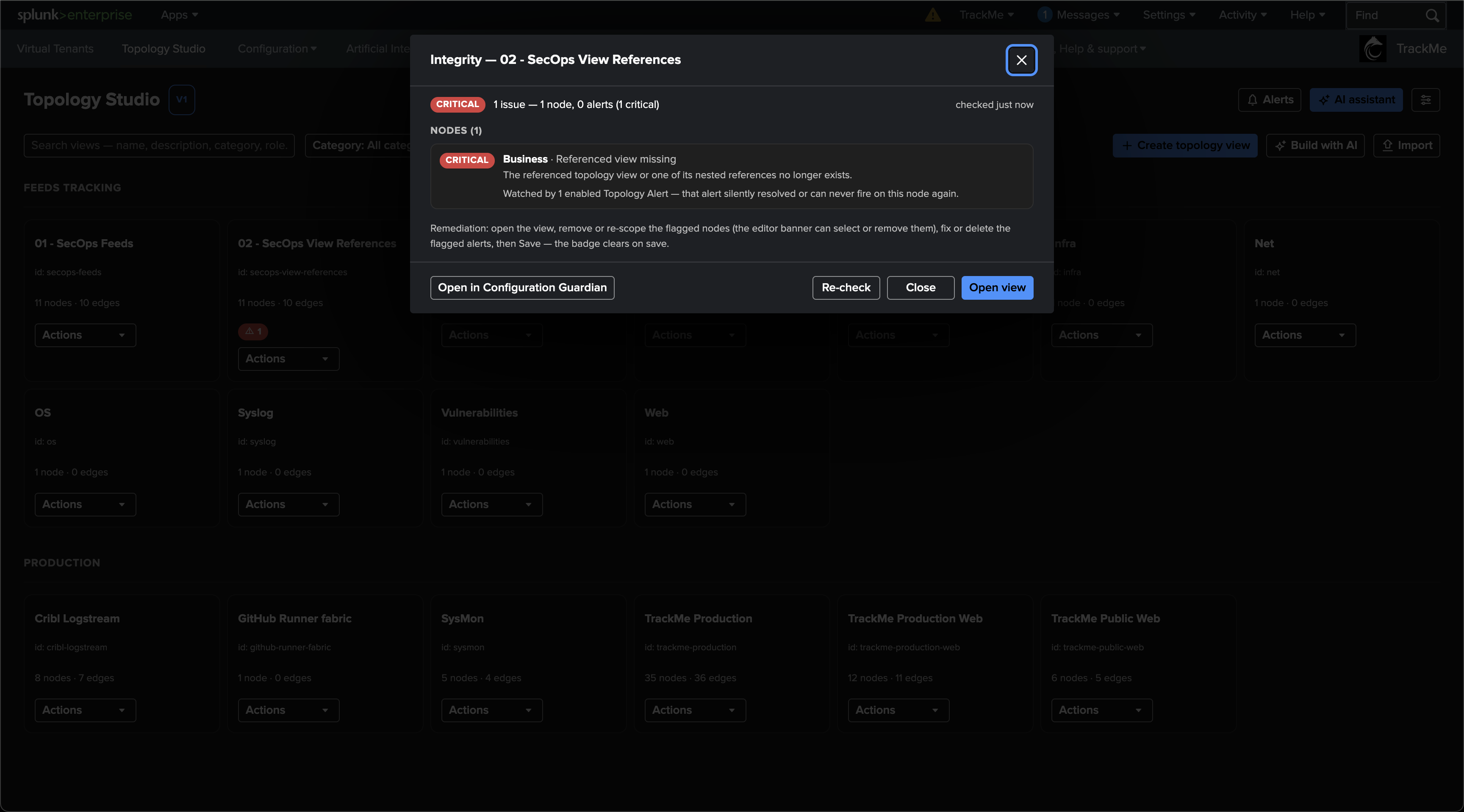
The integrity panel reports one node finding, Business · Referenced view missing: the referenced topology view, or one of its nested references, no longer exists. A missing view anywhere below the node is reported on that node, whatever the depth. The panel also states that the node is watched by one enabled Topology Alert, which either silently resolved or can never fire on this node again — the reason for the critical severity.
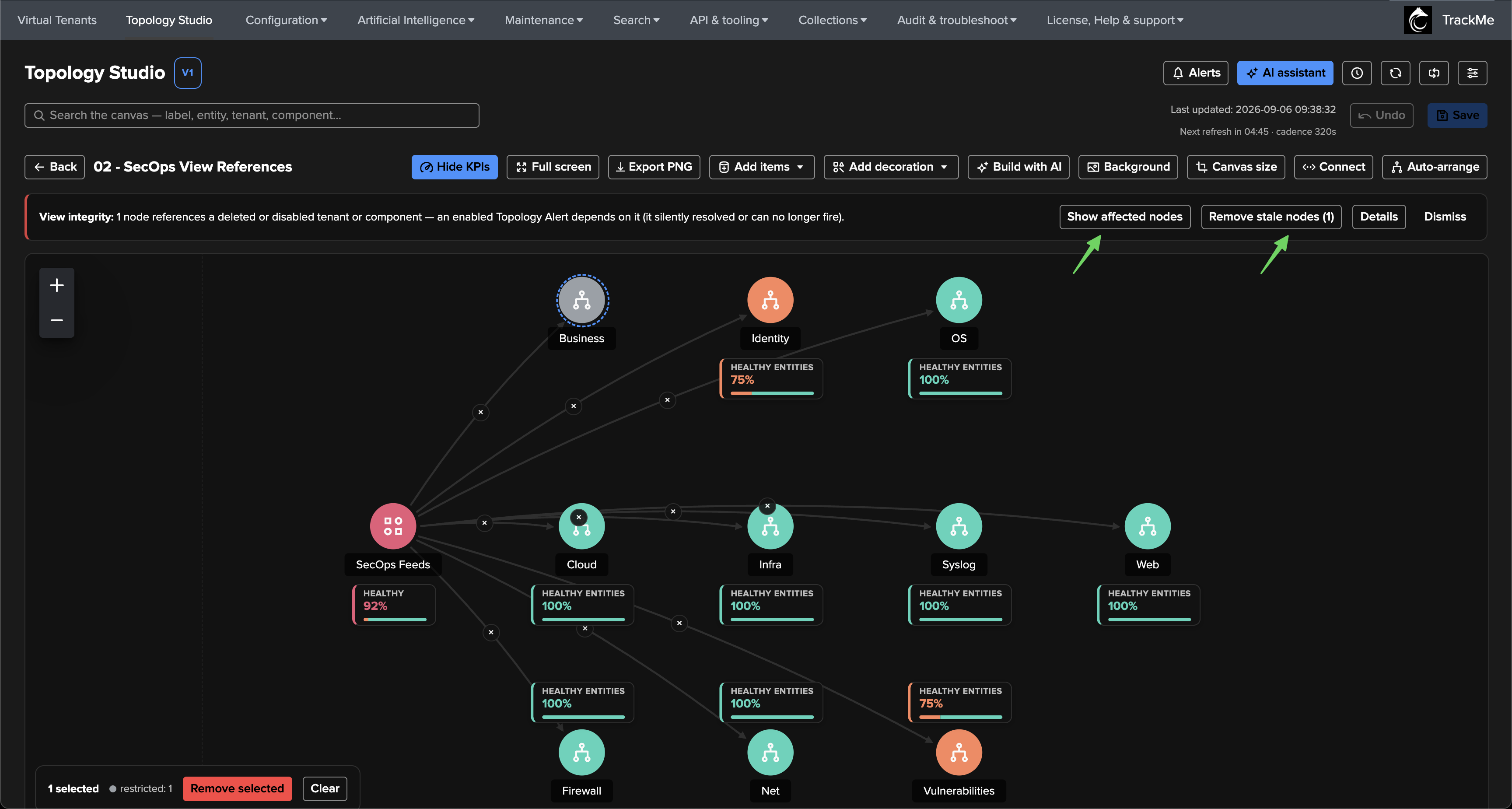
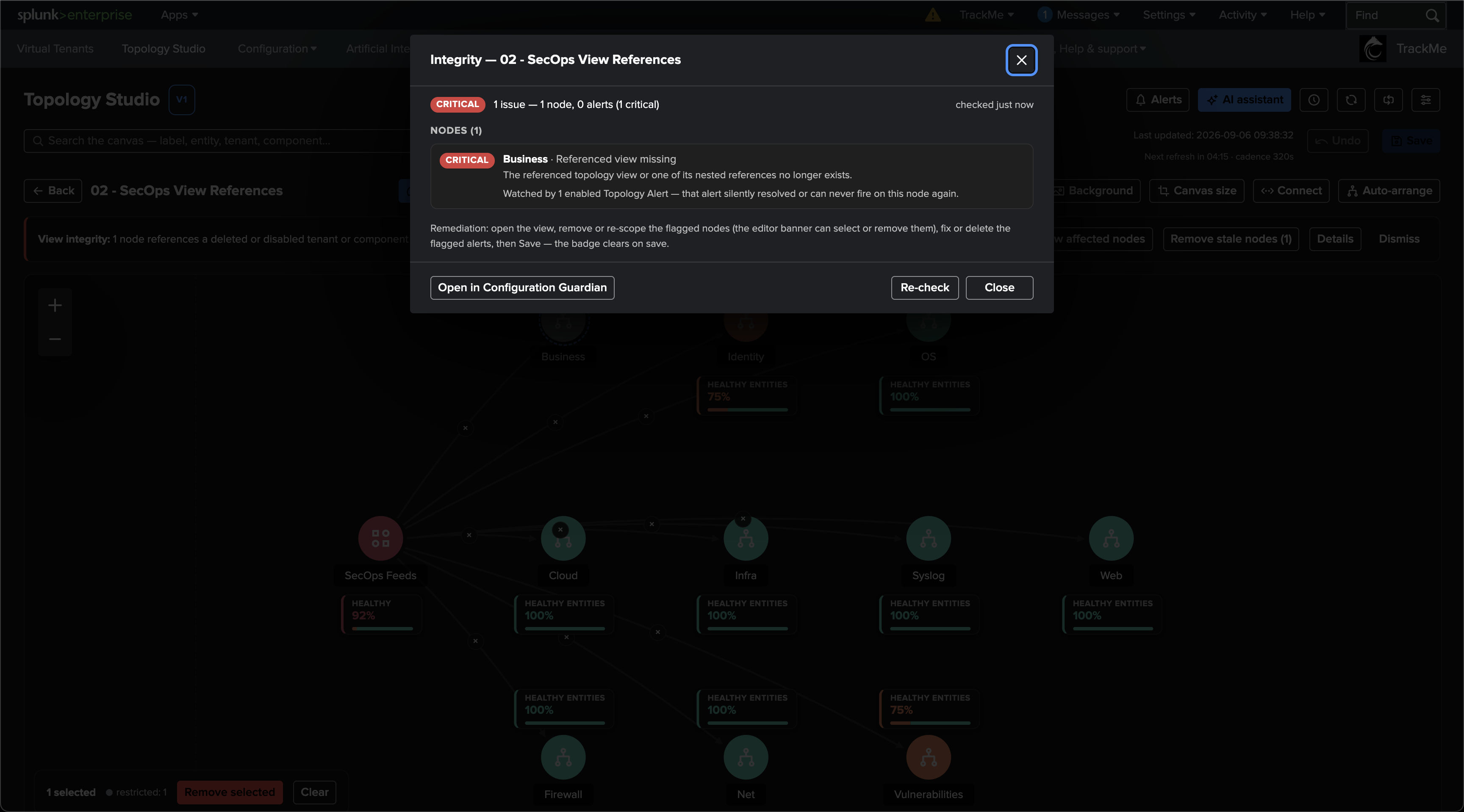
Opening the view, the Business node renders grey, exactly like a view you are not allowed to read: live status deliberately shows a missing view and a denied one the same way, so that a guessed identifier reveals nothing. The linter, which evaluates the saved view under your own permissions, is what tells the two apart. The View integrity banner offers the usual controls: Show affected nodes selects the node, Remove stale nodes (1) is available because a missing reference is fully unresolved, and Details opens the same panel from the editor.
To repair the view:
If the referenced view is gone for good, click Remove stale nodes (1) — the node and its edges are removed as one undoable change. If the view was recreated under a different identifier, remove the node, add the replacement with Add items → Add view, and reconnect its edges.
Save the view. The badge and the Guardian alert clear on save.
Review the Topology Alert that watched the node: its explicit selection now points at a removed node (Alert selection drift), so update the selection to the intended live nodes.
What the linter detects
Node and aggregate references
Finding |
Meaning |
Remediation |
|---|---|---|
Deleted tenant |
An entity node references a Virtual Tenant that no longer exists. |
Remove the obsolete node or replace it with an entity from the intended tenant. |
Disabled tenant |
An entity node references a disabled Virtual Tenant. |
Re-enable the tenant if it should still be monitored, or update the view. |
Disabled component |
An entity node references a monitoring component that is no longer enabled in its tenant. |
Restore the component if required, or replace or remove the node. |
Aggregate fully unresolved |
None of the aggregate’s tenant/component scope pairs remains active. |
Reconfigure the scope or remove the obsolete aggregate. |
Aggregate partially unresolved |
Some scope pairs are inactive; the aggregate still computes from the remaining live pairs. |
Edit the scope to remove or replace the stale pairs while retaining the aggregate. |
An entity node on a deleted or disabled tenant, or a disabled component, is reported as missing on the canvas. An aggregate is missing when its entire scope is unresolved. These scope findings apply to scoped aggregates. An auto aggregate has no independent scope: repair its contributing nodes or referenced views when they become stale. An incomplete contributor makes the auto parent’s health unavailable. A disabled tenant therefore no longer leaves nodes frozen on their last known colours.
View references
Finding |
Meaning |
Remediation |
|---|---|---|
Referenced view missing |
A view node references a topology view that no longer exists — or a view nested anywhere below it does. The node is fully unresolved. |
Remove the node (Remove stale nodes includes it), or remove it and add the intended replacement view; then update any alert that selected it. |
View reference cannot resolve |
The reference forms a cycle through other views, or exceeds the nesting and size limits of the evaluator. |
Break the cycle in the views involved, or flatten the nesting. This node keeps its place on the canvas and is not removed by the bulk action. |
On the canvas, a view node whose target is missing renders grey, identically to a view outside your permissions; the finding is what distinguishes them. A referenced view you are not allowed to read is not a finding — it is a permission boundary, shown as a restricted node — and a transient failure to read a child view never proves it stale. Deleting a view queues a check across every view that references it, so parents are revisited promptly.
Topology Alert consistency
With alert checks enabled, the linter also detects:
Finding |
Meaning |
Remediation |
|---|---|---|
Orphaned alert |
A Topology Alert references a view that no longer exists. |
Review and delete the obsolete alert, or recreate the required alert on an existing view. |
Alert selection drift |
An explicit node selection contains removed or stale nodes; an all-nodes selection has no live nodes left. |
Repair the view and update the alert’s node selection to cover the intended live nodes. |
Alert not evaluating |
An enabled alert’s saved search is disabled or unscheduled, or its latest consecutive evaluations have failed. |
Review the alert’s schedule and run history, correct the reported errors, then verify evaluation succeeds. |
Alert email account missing |
An enabled alert has email delivery enabled but its configured email account is missing or empty. |
Select an existing email delivery account, restore the required account, or turn off email delivery if it is no longer needed. |
In the Alerts modal, the view column shows an Integrity: N alert issue(s) chip when that view has alert-level findings. This is a count for the view; open its integrity panel to identify the individual alerts and the reasons.
Note
The 2.4.15 linter checks tenant/component configuration, referenced views and alert consistency. It does not detect an individual entity deleted from an otherwise active tenant/component, or an aggregate whose valid scope currently matches zero entities.
Understanding severity and remediation
Amber / warning indicates inconsistent configuration, including a partially unresolved aggregate, a missing referenced view that no alert watches, or a missing alert email account. Red / critical indicates an enabled Topology Alert is affected: for example, it covers a stale node or a missing view reference, its view has disappeared, or it is no longer evaluating. The integrity panel explains which enabled alerts depend on a flagged node.
This matters because missing nodes do not count as degraded entities for Topology Alerts. An alert whose entire selection becomes missing can resolve; the Guardian finding identifies the lost monitoring coverage. A critical integrity finding calls for repairing that coverage even if the topology’s operational alert has resolved.
For the bulk cleanup workflow, see Remove fully unresolved items in one click. Review any alert findings after removing nodes and update their selections separately.
Permissions and refresh behaviour
View access still applies. Read-only users can inspect integrity findings for views they can read. Tenant visibility is enforced: a node referencing a tenant outside the caller’s visibility appears as Restricted node, with its details withheld. Authoring permissions and write access to the view are required to repair it or refresh its persisted verdict.
The card badge comes from the persisted Guardian result, while opening the integrity panel performs a live check of the saved view. Re-check repeats that live check for readers; for users who can author the view, it also requests a persisted refresh so the badge follows. Unsaved canvas edits must be saved before the live check can evaluate them.
This check’s findings on shared Configuration Guardian surfaces, including Virtual Tenants toasts, are administrator-only. Other users access the findings through Topology Studio under the view’s own permissions. See Administration for the read/write role model.
Detection and refresh happen at several points:
View saves and other view writes, and Topology Alert configuration changes, refresh the affected view’s result.
Tenant deletion, enable/disable and component changes trigger a background check across views; allow that check to complete after a tenant change.
Deleting a view triggers the same background check, so views that referenced it are revisited.
TrackMe’s general health manager runs the check daily as a safety net.
Administrators can use Run this check in Configuration Guardian; view authors can use Re-check in the integrity panel.
If required configuration sources cannot be read, the panel identifies the incomplete check. An incomplete run does not clear or downgrade an existing Guardian alert. The panel also explains when a persisted refresh could not be performed, such as when the Guardian check is disabled.
Snoozing the Guardian alert also hides its persisted card badge for the snooze duration. Dismissing or snoozing a finding does not repair the view; a live integrity check can still report the underlying problem.
Guardian check settings
Administrators can find topology_view_stale_references in the Configuration
Guardian Check Catalog, in the Topology Studio category. The check can be
enabled or disabled and exposes two settings:
Setting |
Default |
Effect |
|---|---|---|
|
3 |
Number of latest consecutive failed evaluations required to flag an enabled alert as not evaluating; configurable from 1 to 50. |
|
true |
Includes Topology Alert consistency checks. When disabled, checks cover node references only. |
Guardian’s existing snooze, notification and audit features apply to this check. See Configuration Guardian for their configuration.