Remote deployments — in depth
Tip
This is the in-depth reference for monitoring remote Splunk deployments with
splunkremotesearch. For the readable overview, start with Remote deployments. This page covers the cross-app RBAC setup, the REST endpoints,
token-rotation internals, troubleshooting recipes, and a ready-to-run SPL cookbook.
Overview of Splunk Remote Search Capabilities in TrackMe
TrackMe can manage locally available data, as well as data from remote Splunk deployments (Splunk Enterprise, Splunk Cloud) and remote independent instances such as utility nodes (Deployment Servers, Cluster Managers, License Manager, etc.) or Heavy Forwarders.
This is a key capability provided by TrackMe, which is used transparently when you configure trackers, allowing you to target either the local environment where TrackMe is hosted, or any other Splunk remote deployment.
There are plenty of use cases where this capability of TrackMe is game-changing, enabling TrackMe to become the single pane of glass for your monitoring and operations.
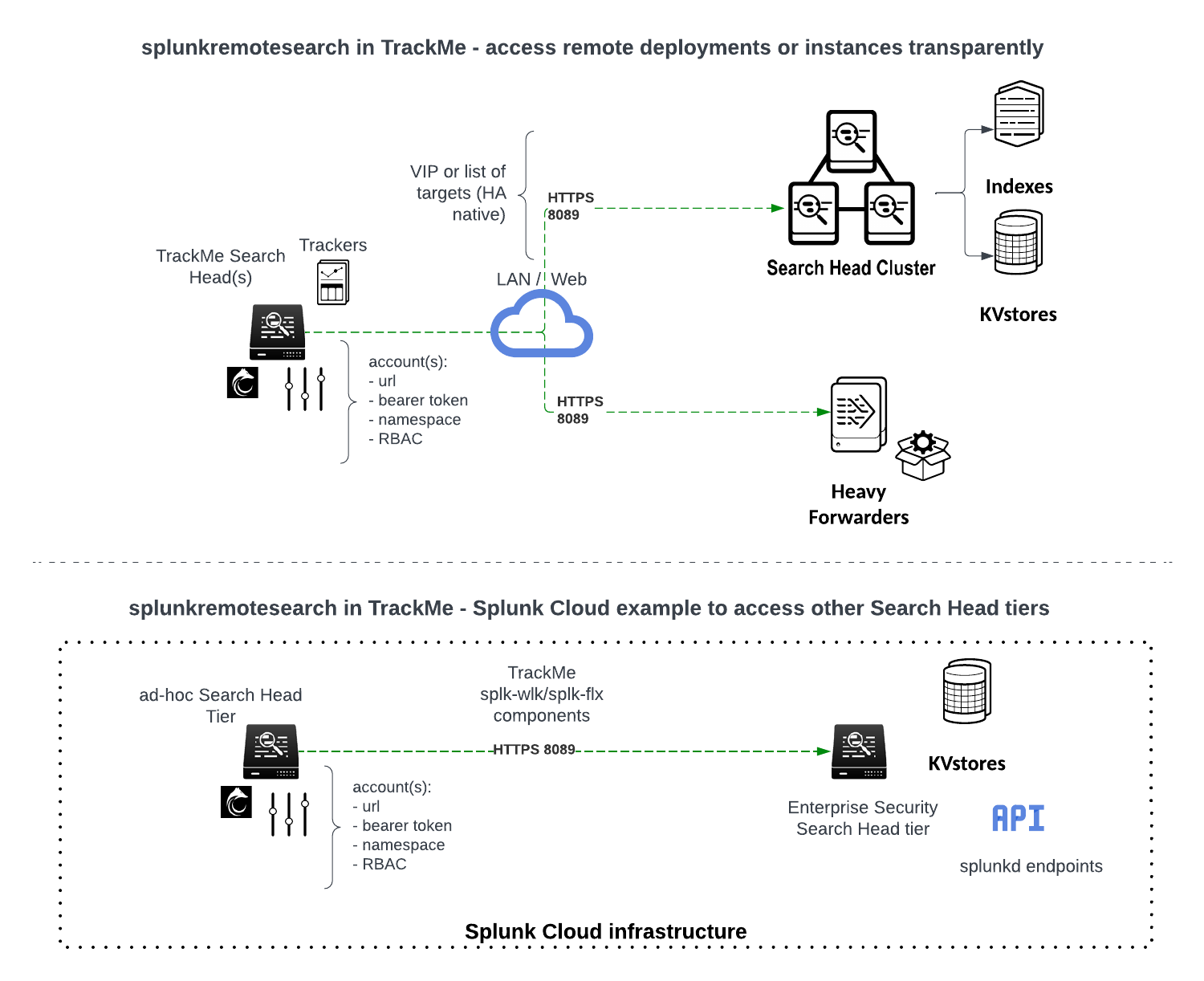
The Splunk remote search feature in TrackMe relies on multiple aspects:
The
splunkremotesearchTrackMe generating custom command, which relies on the Splunk Python SDK to perform searches remotely at scaleThe concept of accounts which allows TrackMe to store and access pre-configured configuration defining the Splunk remote environment
Various backend-level features in TrackMe designed to identify and handle the remote entities accordingly
The Remote deployment concept can be used for various purposes, from feeds tracking on remote deployments, to Flex objects, CIM compliance tracking, or Workload between different Search Head tiers
Note
Local service account user or SAML service account
On the remote Search Heads tier counterpart, you can use a local user or a SAML user associated with the bearer token
However, to use SAML, your SAML setup needs to support AQR and it needs to be configured
Reference: https://docs.splunk.com/Documentation/Splunk/latest/Security/Setupauthenticationwithtokens
Reference: https://docs.splunk.com/Documentation/SplunkCloud/latest/Security/SAMLConfigJWT
Hint
TrackMe supports multiple REST endpoints per account, with High Availability and Disaster Recovery capabilities: (from version 2.0.22)
For each account, you can specify a comma-separated list of REST endpoints per account
TrackMe will automatically verify the connectivity and randomly choose a REST endpoint target among any reachable endpoints
Therefore, you can specify multiple endpoints to support high availability and distribution of the searches against multiple endpoints automatically
This capability can be useful, for example, if you deal with a Search Head Cluster and cannot use a load balancer or VIP to access the cluster
Hint
TrackMe supports and requires Role-Based Access Control per Remote account defined: (from version 2.0.34)
For each account, you need to specify a comma-separated list of Splunk roles that are allowed to use this Remote account
For retro-compatibility purposes, if the roles for an existing account have not been set up yet, TrackMe will use built-in roles in addition to typical admin roles (admin, sc_admin, trackme_user, trackme_power, trackme_admin)
If the user calling the
splunkremotesearchcommand is not a member of the account-specified roles, access will be refusedFrom version 2.0.61, both direct membership and inheritance are supported; users need to be a member of any of the provided roles, or a role which inherits from any of these roles
Hint
TrackMe automatically performs the rotation of Bearer tokens: (from version 2.1.8)
Since TrackMe 2.1.8, we support automated rotation of the Splunk bearer tokens for remote accounts
For every Splunk remote account, TrackMe will automatically try to rotate the bearer token based on the remote account’s configured retention (every 7 days by default)
This requires the Splunk service account on the remote side to own the capabilities
list_tokens_allandedit_tokens_own, so the token can be created and the previous token revokedThe token renewal and revocation process is orchestrated by the general health tracker, which is executed once per day
Note that the initial token you have manually created will not be revoked by TrackMe, and would be disabled automatically depending on your settings
Hint
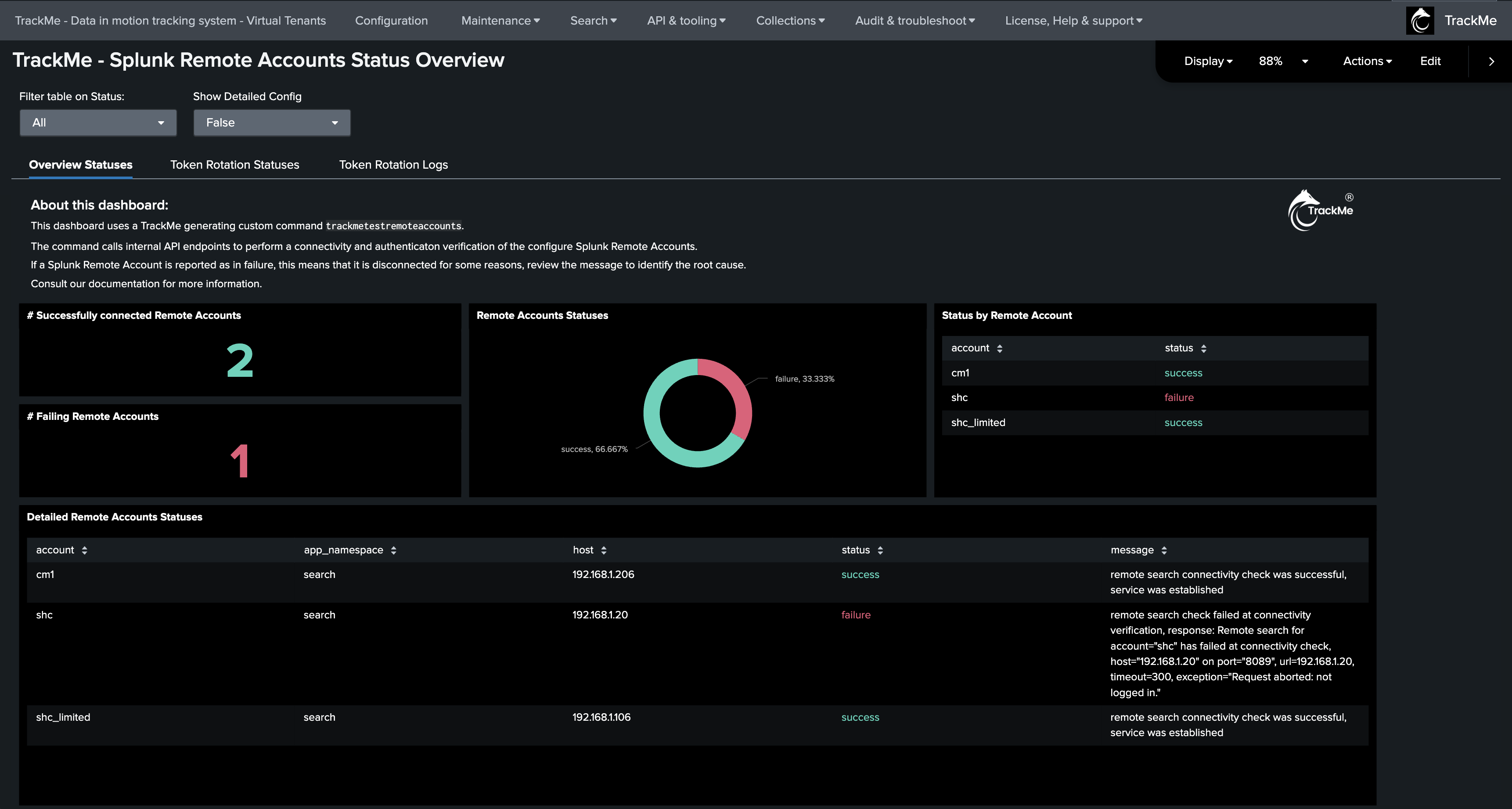
TrackMe Audit dashboard: Splunk Remote Account Overview (from version 2.1.16)
TrackMe now includes an Audit dashboard to monitor the Splunk remote accounts
This dashboard is available from the menu
Audit & Troubleshooting->Audit - Splunk Remote Accounts OverviewThis dashboard provides a comprehensive overview of the Splunk remote accounts, including the bearer token rotation process
Minimal RBAC Requirements for the Remote User Account
TrackMe remote capabilities rely on a Splunk bearer token authentication; this token is associated with a Splunk user on the remote side which itself is associated with specific roles, capabilities, permissions, and resource restrictions:
Roles and capabilities: The user can be created with minimal permissions using the Splunk
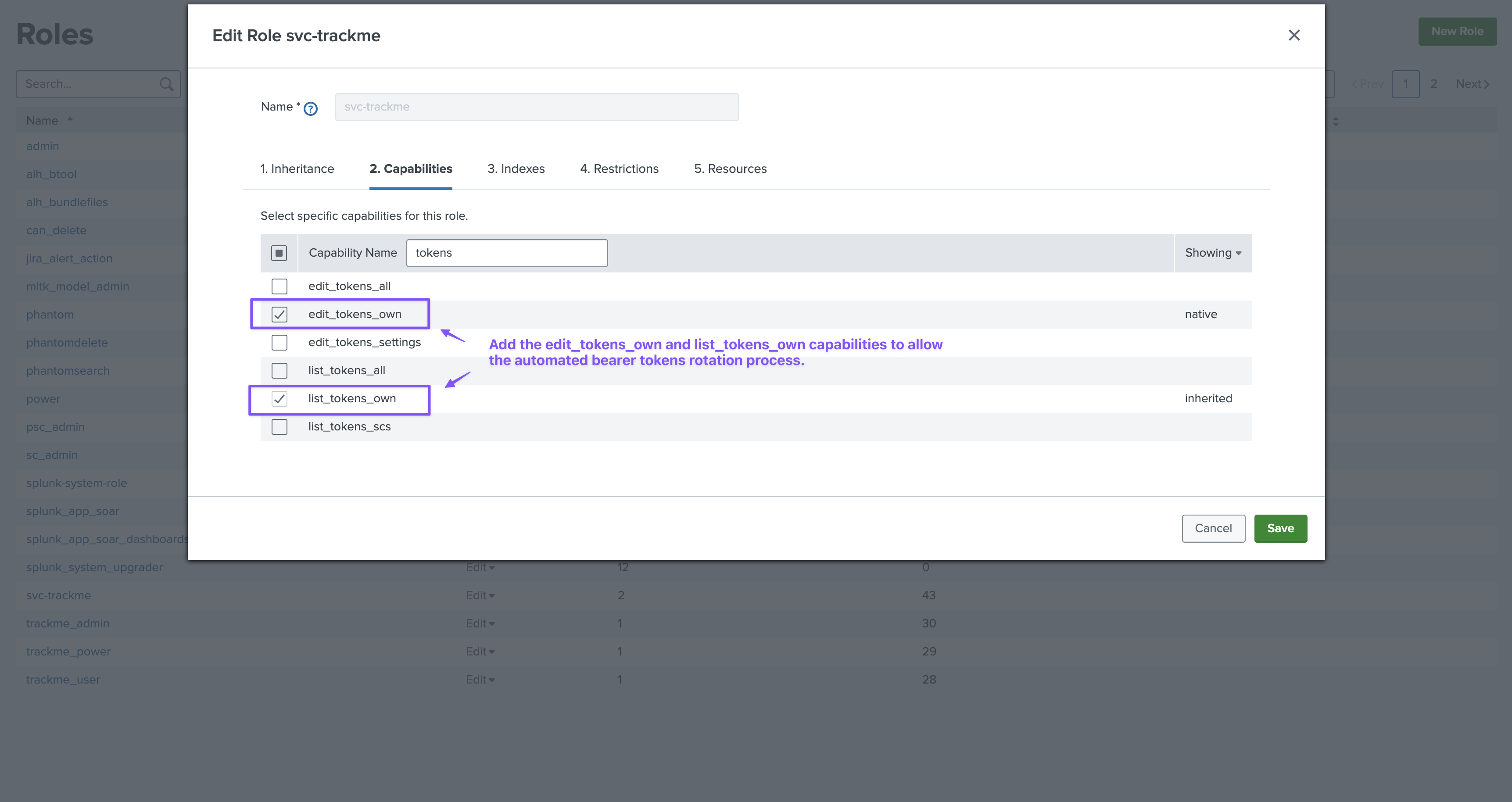
userrole out of the box (You can inherit from user or a role providing the same capabilities as power)Additional capabilities for tokens rotation: To allow the automated bearer tokens rotation, the user needs to have the capability
list_tokens_ownandedit_tokens_ownIndexes: Make sure the user can access both normal and
internalindexesRestrictions: The user for TrackMe should not have any time limits restrictions, as there are use cases which require long-term searches
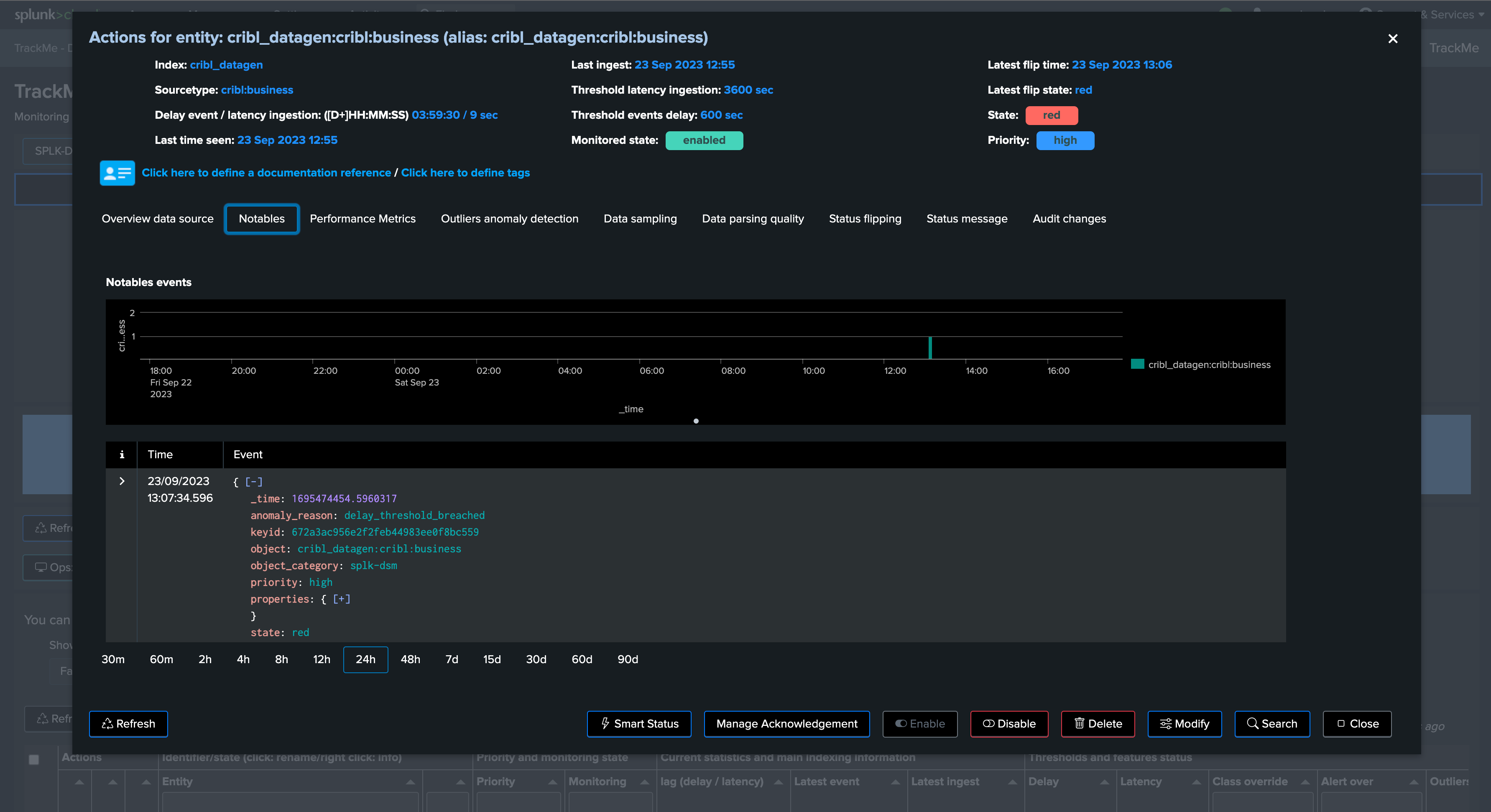
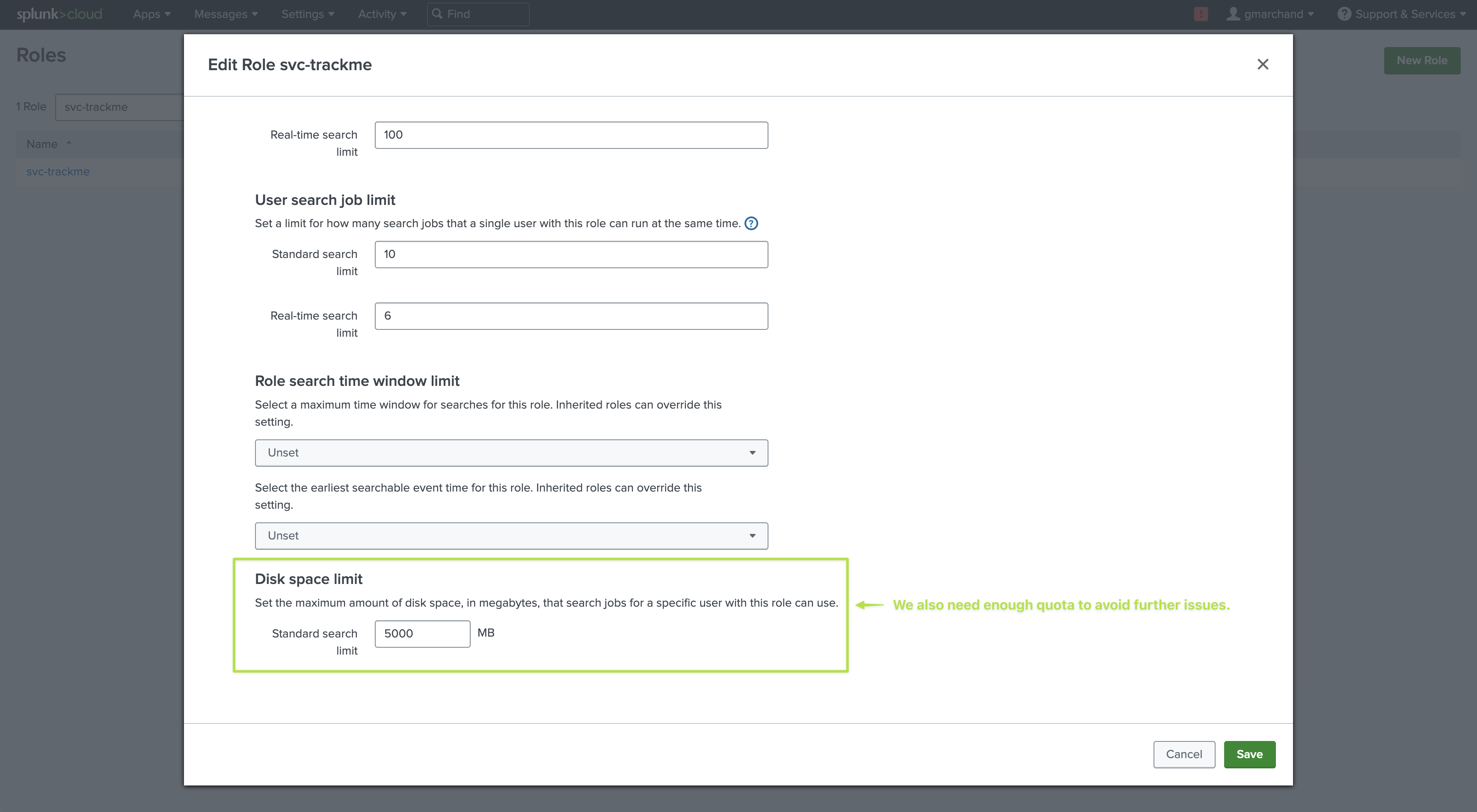
Resources: It is recommended to give this user enough concurrent searches (unlike a very basic or minimal user) as well as a sufficient quota (5GB or 10GB for instance)
Configuring a New Remote Account
When configuring a Splunk Remote deployment, you will provide:
A name which uniquely identifies the account (the account ID)
The URL of the Splunk Search Head REST API, this can be a Fully Qualified Domain Name, a hostname, or an IP address (which itself can be a load balancer)
Multiple REST endpoints can be submitted as a comma-separated list of targets
The bearer token value, which is the secured credential to access the environment, is securely stored in the Splunk credential store
The application namespace where remote searches are to be executed, defaults to the Search application on the remote target
A comma-separated list of Splunk roles allowed to use this account (membership or inheritance)
At the time of creation or later on if you edit the account, a connectivity check is automatically performed which validates the network connectivity and authentication. If the check fails, the interface will refuse the requested action
Remote accounts are managed from a dedicated page reachable from the top navigation: Configuration → Manage Remote deployment accounts. The page lists every account with its endpoints, token-rotation cadence and last connectivity status, and offers per-row Edit / Clone / Test connectivity / Delete actions plus Test all and Add account. When no account exists yet, the page shows a short getting-started guide:

Click Add account and fill in the identity, connection, bearer token, namespace and RBAC fields:

Use Test connectivity in the modal to validate the account before saving — TrackMe runs a real remote-search smoke test and reports the round-trip time. The account cannot be saved until the check passes, so a broken account never reaches the list:

Once saved, the account appears in the list with its live connectivity status:

You can also test the connectivity at any time using the following TrackMe REST endpoint in SPL:
| trackme mode=post url="/services/trackme/v2/configuration/test_remote_account" body="{'account': '<name of the account>'}"
The endpoint verifies that TrackMe can connect and authenticate successfully to the Splunk remote deployment.
When creating a new Virtual Tenant or a new Hybrid object, TrackMe will perform the same connectivity verification automatically:
Example of a Splunk Remote Search Performed by TrackMe
When performing Remote Splunk searches, TrackMe automatically defines an optimized search to split the search logic between the part executed remotely, and the search logic handled locally.
Example:
Using splunkremotesearch in a Different Application Namespace
To use the command splunkremotesearch from a different application than TrackMe, such as Search & Reporting, you need to perform a few steps as follows.
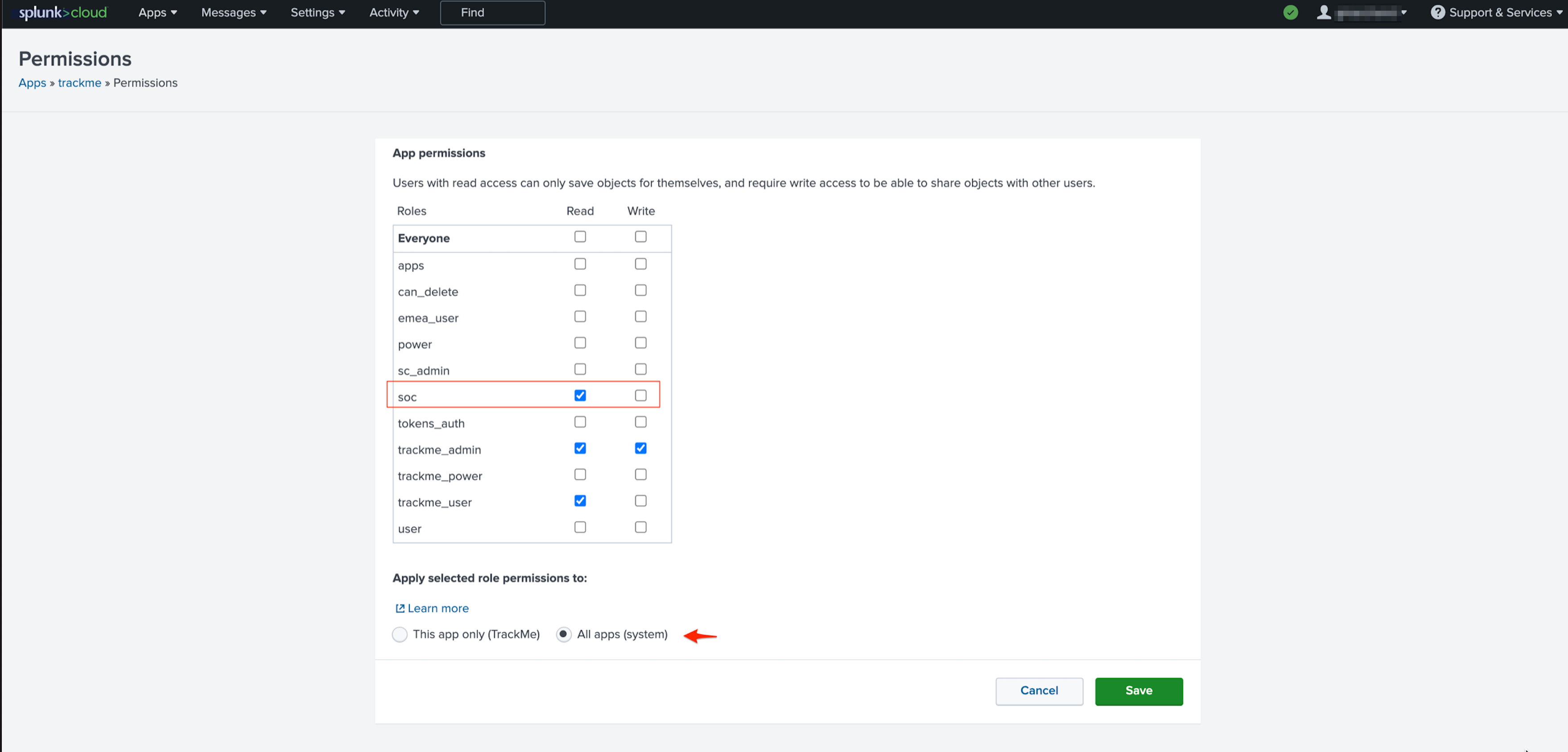
Share TrackMe at System Level
TrackMe by default is shared at the application level. You need to share at the system level as well as provide read access at least for your user roles (“soc” in our example):
Manage Capabilities
TrackMe requires capabilities to be able to access the command splunkremotesearch; the user roles need to have the capability:
trackmeuseroperations
You can choose to inherit from the trackme_user role, or you can add the capability to your user roles as needed.
Note: Access is granted by any of the 3 built-in trackme_ user roles*
See: Roles & access control for more information about capabilities in TrackMe.
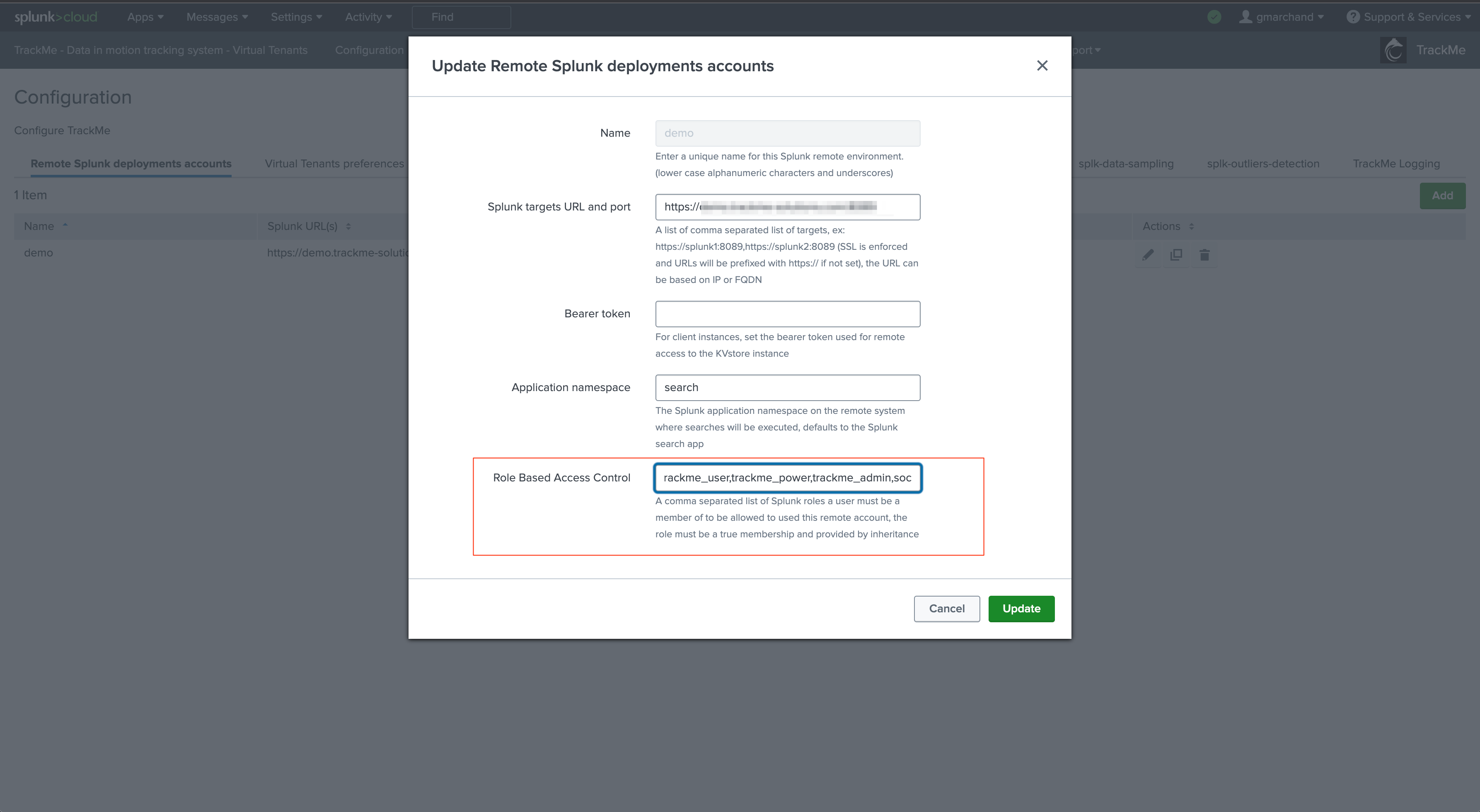
Manage Role-Based Access Control on the Account
User roles need to be listed in the account; by default when creating an account, the following roles are listed:
admin, sc_admin, trackme_user, trackme_power, trackme_admin
This is an explicit membership requirement; in our example, we grant the user role “soc” to allow a member of this role to use the splunkremotesearch command against this account:
Use the Command
In our example, the “soc” user is a member of a role with the same name, and can now use the splunkremotesearch command as needed to perform searches against the remote deployment, from any other application namespace:
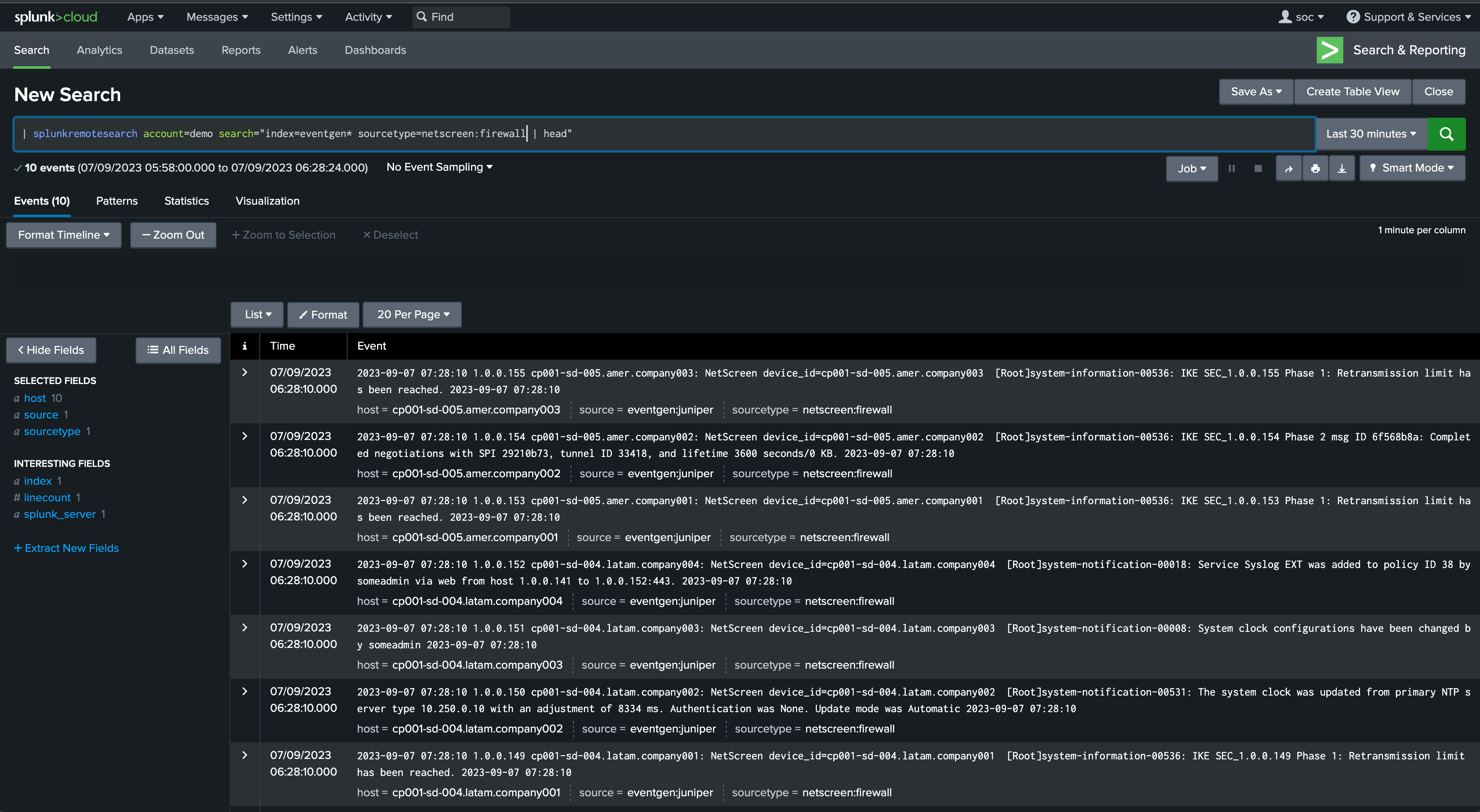
Accesses on the remote deployment rely on the service account which is associated with the bearer token configured in the account in TrackMe.
Troubleshooting Failure to Create or Update a Remote Account
TrackMe Remote Search capabilities are an API-based integration with Splunk API relying on Bearer token authentication; you can refer to:
When attempting to configure a new remote account, or update an existing account, TrackMe will attempt to validate the connectivity, both from a network and authentication perspective.
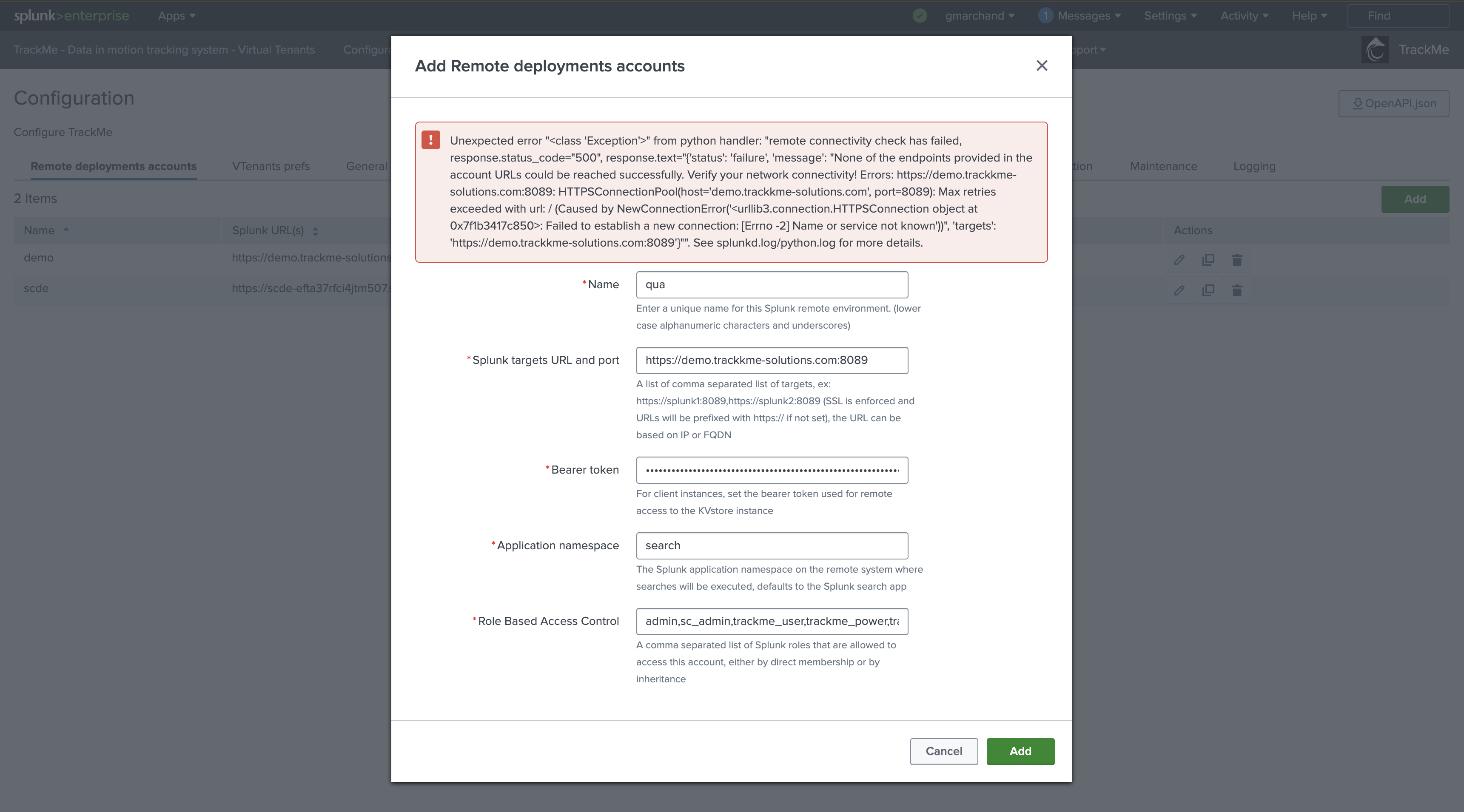
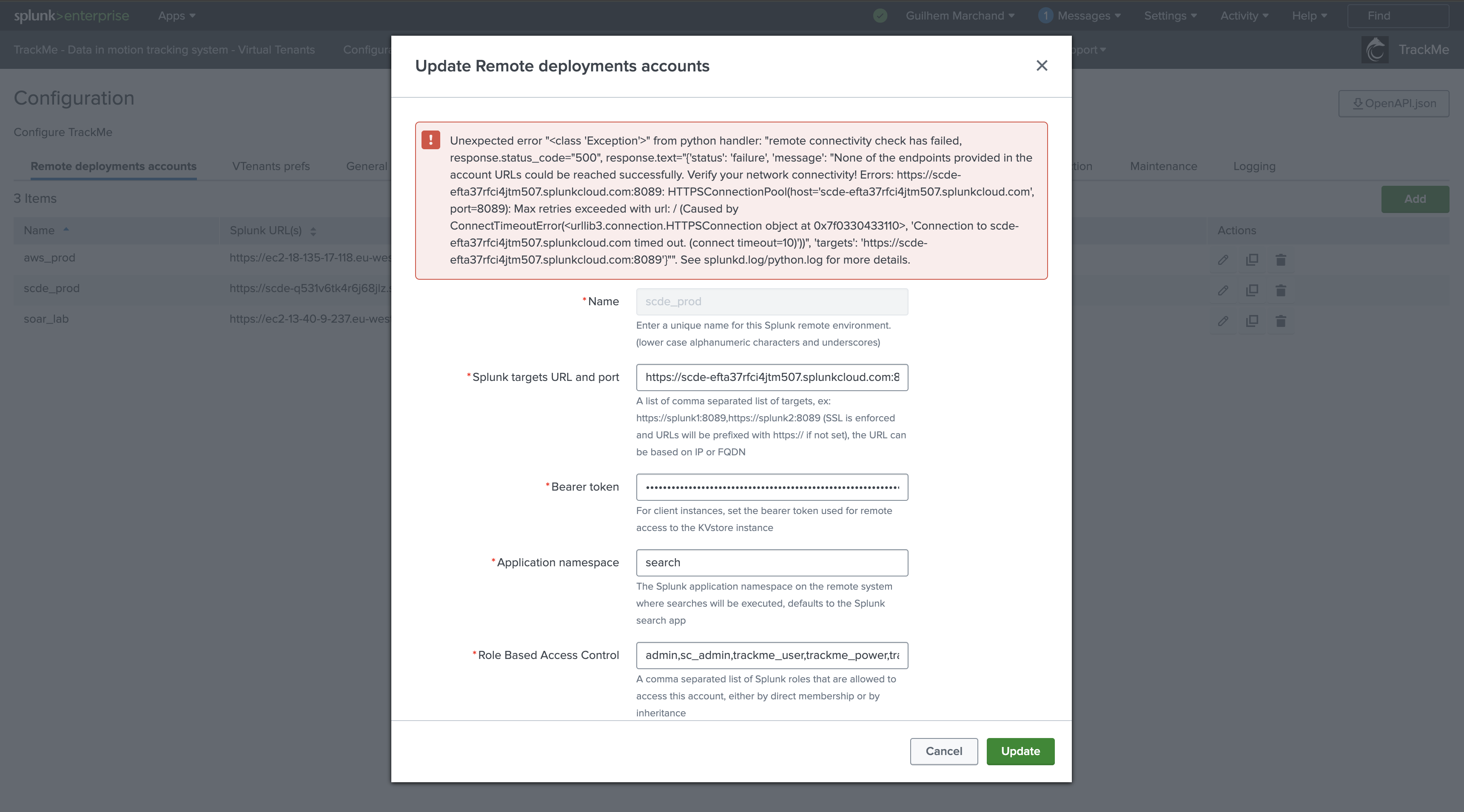
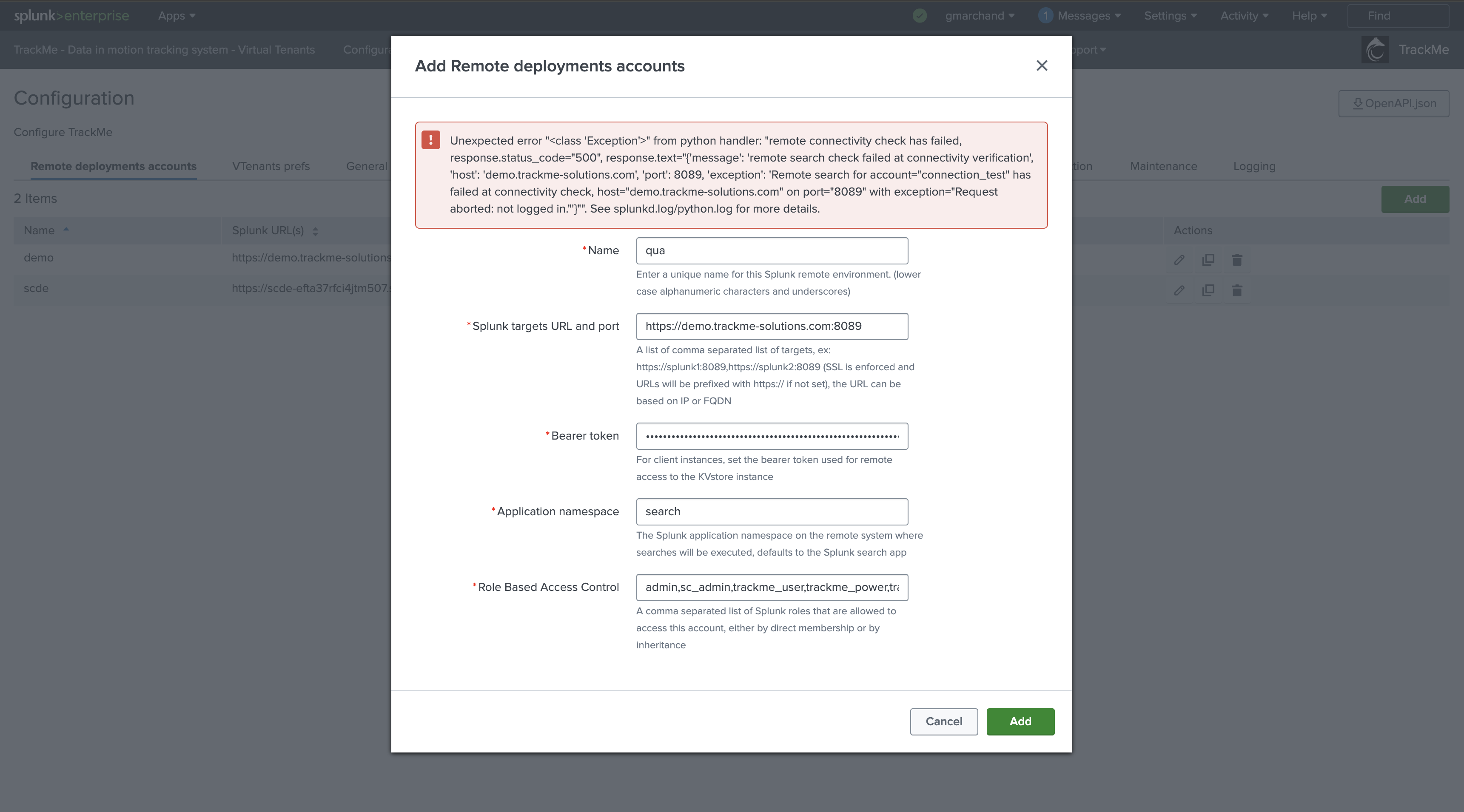
If this step fails, the UI will clearly raise and show the exception encountered, for instance:
Example of a network connectivity failure: (wrong host)
Example of a network connectivity failure: (timeout)
Example of a refused authentication by the remote counterpart:
Note: You can also test the connectivity in pure SPL via the following TrackMe REST API endpoint:
| trackme mode=post url="/services/trackme/v2/configuration/test_remote_connectivity" body="{'target_endpoints': 'https://mysplunk.mydomain.com:8089', 'bearer_token': 'xxxx', 'app_namespace': 'search'}"
Inspect splunkd.log logs on the remote counterpart:
If the connectivity fails for authentication related reasons, such as a wrong token or lack of capabilities, verify the splunkd.log on the remote counterpart, you can use the following Splunk search:
index=_internal source=*/splunkd.log JsonWebToken
Messages will be logged by Splunk, eventually indicating the root cause of the failure.
Example of a refused token:
02-05-2024 17:30:44.226 +0000 ERROR JsonWebToken [2843158 TcpChannelThread] - JsonWebToken validation failed because: Token xxxx-xxxx has an invalid signature.
Bearer tokens automated rotation and revoking
Since TrackMe 2.1.8, we support automated rotation of the Splunk bearer tokens for remote accounts, the process works as follows:
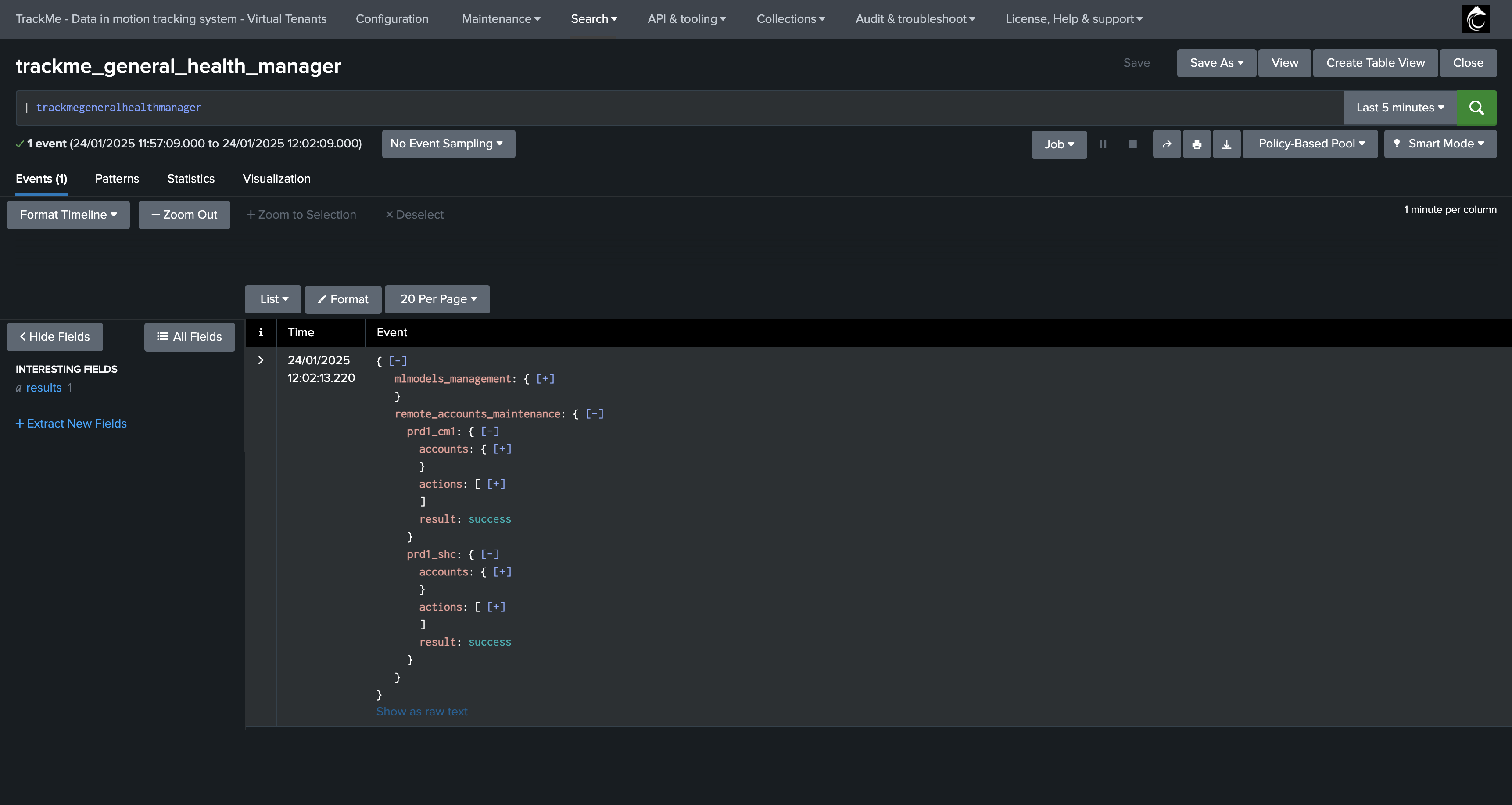
Once per day, a scheduled job called
trackme_general_health_manager(General Health Manager tracker) is executed.- This job calls the endpoint
/services/trackme/v2/configuration/admin/maintain_remote_accountfor each existing remote account, which does the following actions: Verify that the Remote account is up to date regarding available options, and update if necessary.
Verify if the Remote account has metadata available, and create/update if necessary. (stored in the KVstore
trackme_remote_account_token_expiration)If the Remote account bearer token has reached the rotation frequency, attempt to create a new bearer token, update the account and counters and finally revoke the previously generated token.
- This job calls the endpoint
Notes about the initial token and rotation process:
The initial token you have manually created will NOT be revoked by TrackMe, and would be disabled automatically depending on your settings.
Once at least one rotation has been performed, and if it was successful, the initial token is not used anymore.
From the stage of the first rotation, the previously generated and used token is automatically deleted by TrackMe, and the new token is automatically configured in the Splunk remote account.
Where to find bearer tokens rotation metadata?
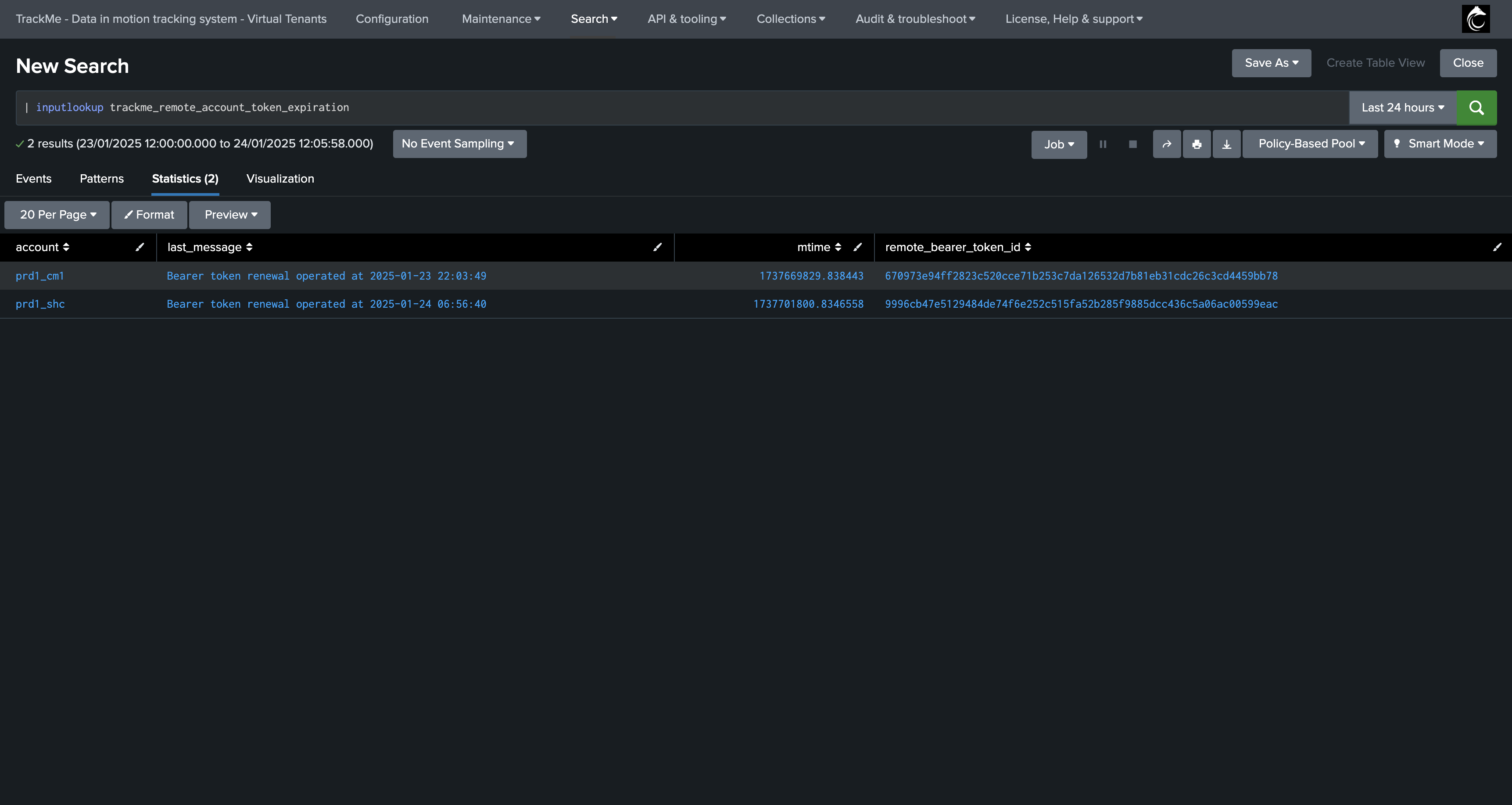
TrackMe stores the metadata related to the bearer tokens rotation in the KVstore collection trackme_remote_account_token_expiration, you can access this collection using the following SPL search:
| inputlookup trackme_remote_account_token_expiration
How to access detailed logs about the tokens rotation process?
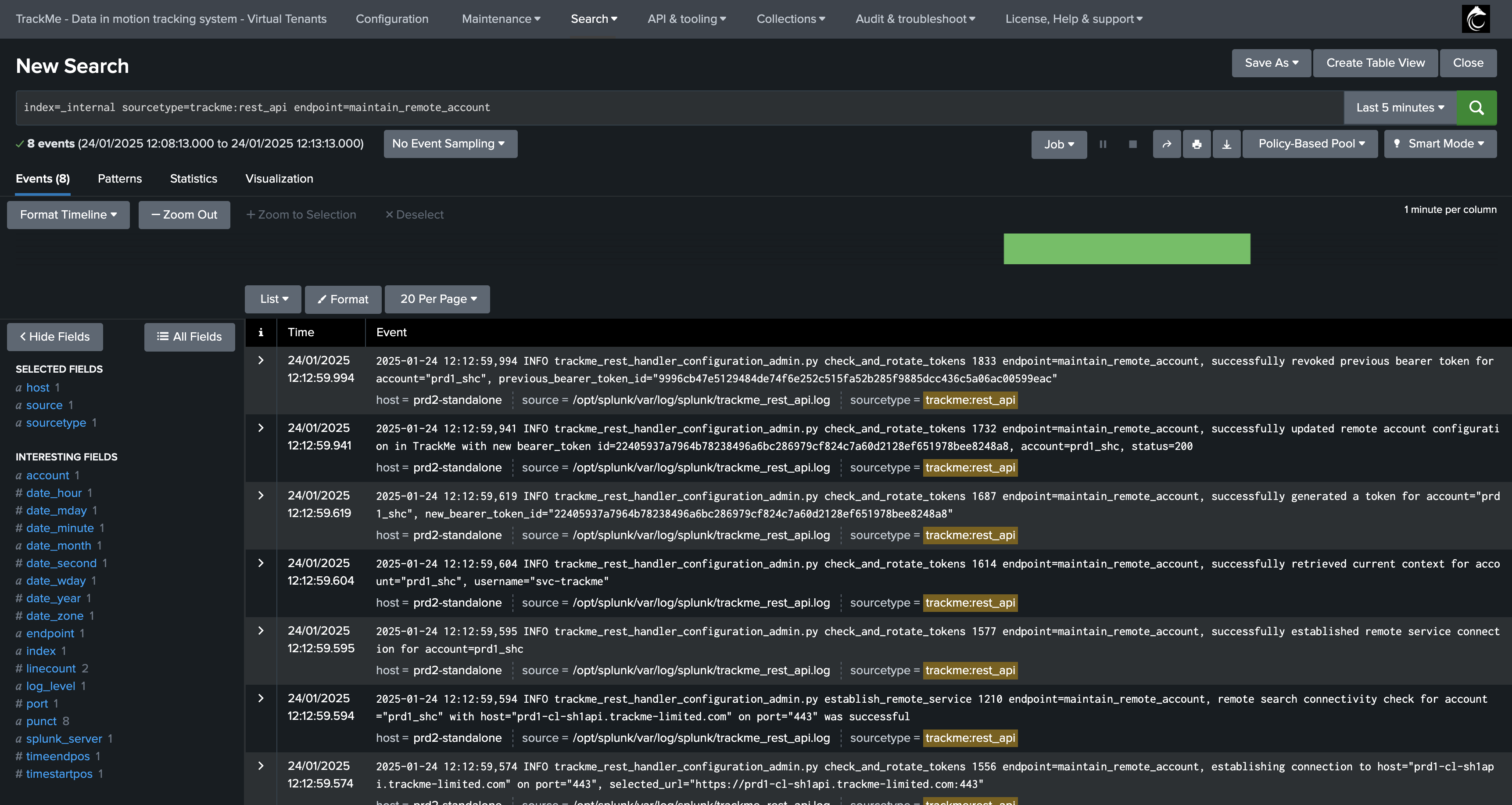
Logs are part of the TrackMe REST API logs:
index=_internal sourcetype=trackme:rest_api endpoint=maintain_remote_account
How can I force the rotation of a bearer token?
From the user interface (since TrackMe 2.4.6):
You can force a rotation directly from the Remote Accounts Overview dashboard, in the
Token Rotation Statuses tab — click Force rotation of all tokens to rotate every
configured account at once, or use the per-account Force rotation action on a single row.
A confirmation is requested; TrackMe then generates and validates a new token on the remote
deployment, updates the account, revokes the previous token, refreshes the table, and reports
the outcome (success, warning or failure). Forcing from the UI is equivalent to the REST call
below with force_tokens_rotation set to true — it rotates regardless of the configured
frequency.

From the REST API (SPL):
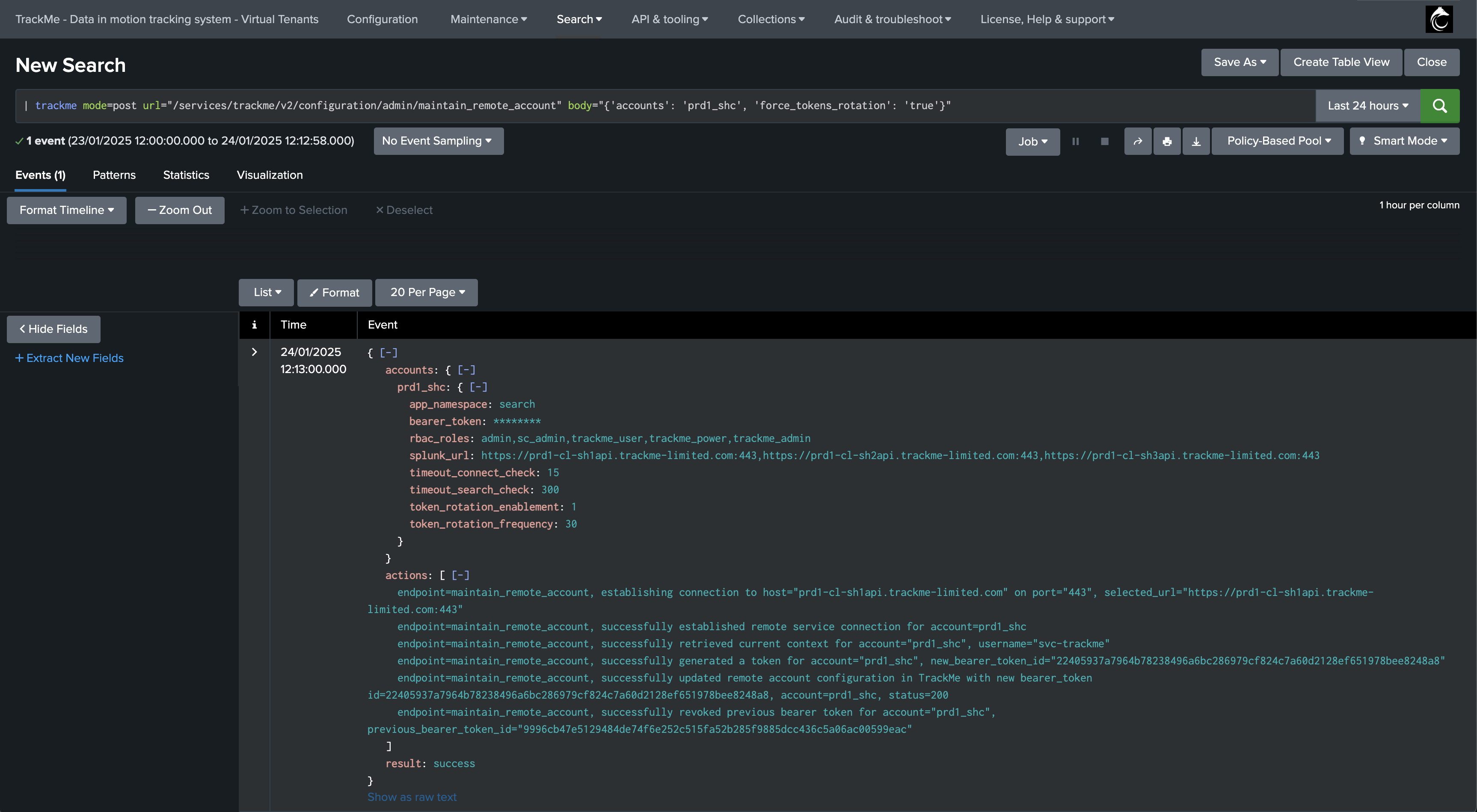
The rotation of the bearer token can also be manually requested and performed by calling the TrackMe REST API endpoint, you can use the following SPL search:
| trackme mode=post url="/services/trackme/v2/configuration/admin/maintain_remote_account" body="{'accounts': '<account name>', 'force_tokens_rotation': 'true'}"
Note: replace <account_name> with the actual name of the account, or use * to rotate all accounts.
What if the token cannot be renewed?
If for some reasons, the token cannot be renewed, the process will be logged in the TrackMe REST API logs, and the token will not be revoked, the previous token will still be used:
The following search will show errors or warnings related to the tokens rotation process:
index=_internal sourcetype=trackme:rest_api endpoint=maintain_remote_account (log_level=ERROR OR log_level=WARN)
forced rotation is requested but failed:
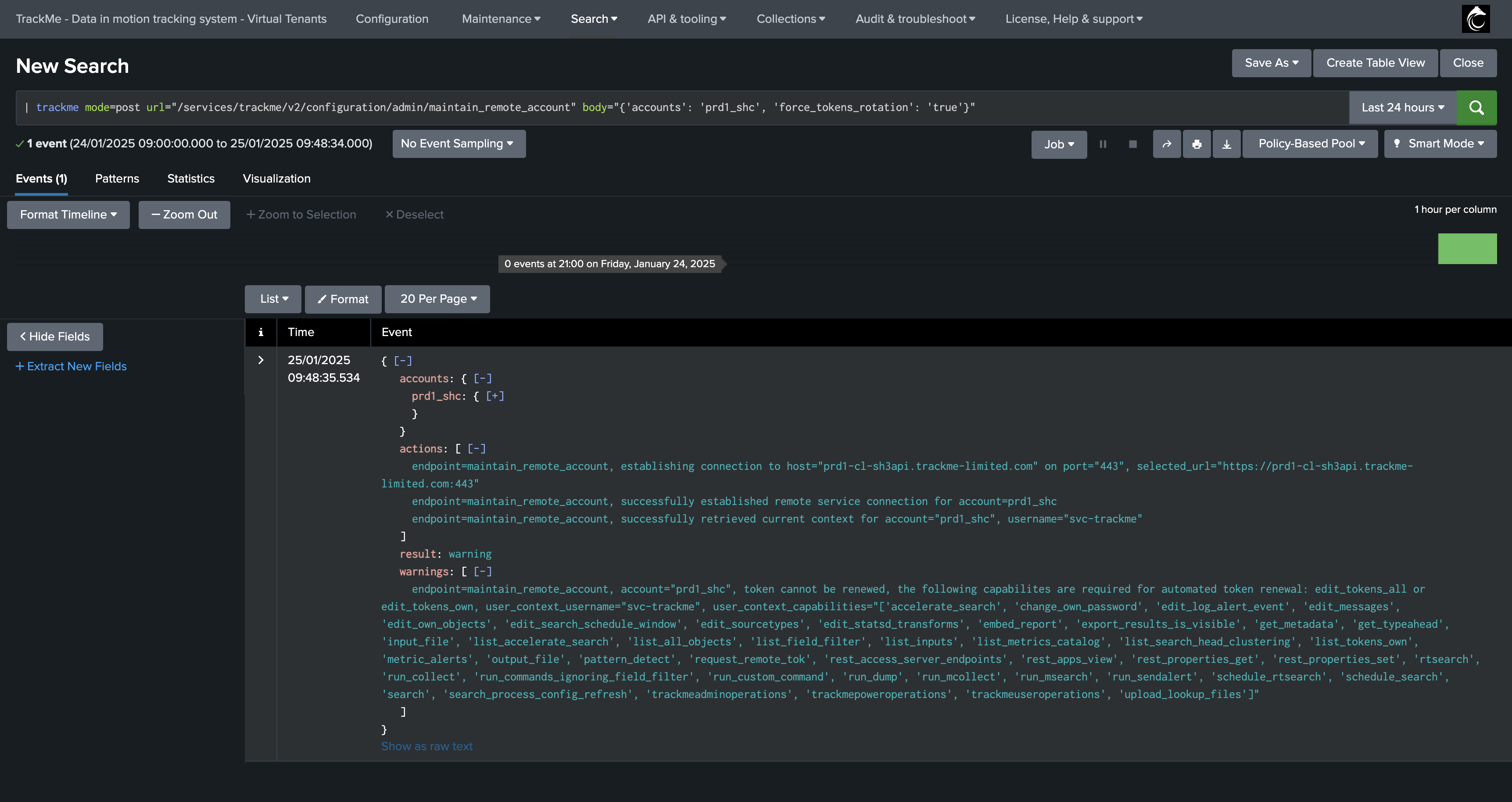
In this example, the remote user account lacks the capability to create a new token, the rotation process is aborted.
Splunk Cloud remote members auto-healing
Since TrackMe 2.4.6, TrackMe can automatically keep the target URL list of a Splunk Cloud remote deployment account in sync with the live members of its search head cluster. Splunk Cloud periodically destroys and recreates search-head-cluster (or Enterprise Security) members, changing their hostnames — so the URLs configured on a remote account start pointing at hosts that no longer exist and the searches that rely on the account begin to fail. This capability detects that drift and, when enabled, repairs the account for you.
This feature is specific to Splunk Cloud
An account is eligible only if at least one of its members is a Splunk Cloud host — a
hostname ending in splunkcloud.com. Accounts targeting Splunk Enterprise or any
non-Cloud endpoint are ignored.
How it works
Once per day the General Health Manager (trackme_general_health_manager) evaluates
every eligible remote account:
Local discovery. It discovers the stack’s current live members locally by searching the
_cmc_summaryindex (Cloud Monitoring Console) — no remote call, which matters because the remote connection is precisely what breaks when members are recreated. The ad-hoc search head can see every search-head group of the same Cloud stack locally.Group association. It identifies which search head group the account belongs to (the
search_head_namesvalue from_cmc_summary) and persists the association in the KV Store collectiontrackme_remote_account_member_monitoring.Reconciliation. It compares the account’s configured members with the live group: a live member missing from the account is added; a configured member that is no longer in the live group and is unreachable is removed; a member missing from the live group but still reachable is kept (to ride out a transient outage).
Auto-heal. If auto-healing is enabled and a difference is found, TrackMe updates the account’s target URL list — connectivity-tested before saving, so an account is never updated to an unreachable set of members.
Note
If TrackMe runs on Splunk Enterprise rather than inside a Cloud stack, _cmc_summary
is not available locally, so the check simply skips the account and logs an informational
message.
Enabling it (per account)
Auto-healing is controlled per account by Splunk Cloud member auto-heal, in the Splunk Cloud self-healing section of the account configuration (Configuration → Remote deployments → edit the account):
Enabled (default) — TrackMe detects the drift and updates the target URL list automatically.
Disabled — TrackMe still detects and reports the drift, but never modifies the account; you apply the change manually.
How drift and healing are surfaced
The outcome is surfaced through the Configuration Guardian:
When an account is auto-healed, an informational (blue) notice summarises the members added and removed, and stays until you dismiss it.
When drift is detected but not healed (auto-heal disabled, or the group could not be determined), a warning alert is raised — including the recommended target URL list to apply manually — and clears automatically once the account is back in sync.
Verifying and running the check
Review the live members of each search head group yourself with the same search TrackMe uses (evaluated over the last 24 hours):
search index=_cmc_summary search_head_names=* usage_source=* search_head_names!="idx"
| stats values(usage_source) as search_heads by search_head_names
Inspect the persisted account-to-group associations:
| inputlookup trackme_remote_account_member_monitoring
And trigger the check on demand (it otherwise runs once per day):
| trackme mode=post url="/services/trackme/v2/configuration/admin/run_guardian_checks" body="{'check_type': 'remote_account_member_drift'}"
Note
The exact _cmc_summary field names depend on your Splunk Cloud stack’s schema; the search
above reflects TrackMe’s default — review index=_cmc_summary and adjust if your
environment differs.
Audit Dashboard: Splunk Remote Accounts Overview
Access the Audit dashboard from the menu Audit & Troubleshooting -> Audit - Splunk Remote Accounts Overview.
Remote Accounts Commands Examples and References
Get the list of all configured remote accounts
This provides a list of all configured remote accounts, excluding the local account:
| trackme mode=get url="/services/trackme/v2/configuration/list_accounts"
| spath
| rename "accounts{}" as accounts
| table accounts
| mvexpand accounts
| where accounts!="local"
Test the Connectivity of all configured remote accounts
This command will test the connectivity of all configured remote accounts:
| trackme mode=get url="/services/trackme/v2/configuration/list_accounts" | spath
| rename "accounts{}" as accounts
| table accounts
| mvexpand accounts
| where accounts!="local"

| map maxsearches=100 search="| trackme mode=post url=/services/trackme/v2/configuration/test_remote_account body=\"{'account': '$accounts$'}\""
| trackmeprettyjson fields=_raw
| spath
Get the detailed including the bearer token for all configured remote accounts
This command will provide the detailed information about all configured remote accounts, including the bearer token:
| trackme mode=get url="/services/trackme/v2/configuration/list_accounts" | spath
| rename "accounts{}" as accounts
| table accounts
| mvexpand accounts
| where accounts!="local"

| map maxsearches=100 search="| trackme mode=post url=/services/trackme/v2/configuration/get_remote_account body=\"{'account': '$accounts$'}\""
| trackmeprettyjson fields=_raw
| spath
Force the rotation of the bearer token for all configured remote accounts
This command will force the rotation of the bearer token for all configured remote accounts in a single command:
| trackme mode=get url="/services/trackme/v2/configuration/list_accounts" | spath
| rename "accounts{}" as accounts
| table accounts | mvexpand accounts
| where accounts!="local"

| map maxsearches=100 search="| trackme mode=post url=/services/trackme/v2/configuration/admin/maintain_remote_account body=\"{'accounts': '$accounts$', 'force_tokens_rotation': 'true'}\""
| trackmeprettyjson fields=_raw
Get the token expiration metadata for all configured remote accounts and the time since the last rotation
This command will provide the token expiration metadata for all configured remote accounts and the time since the last rotation:
| inputlookup trackme_remote_account_token_expiration | eval keyid=_key
| eval _time=mtime
| eval time_since=tostring(round(now()-mtime), "duration")