Auto aggregates — compose service health
An auto aggregate (TrackMe 2.4.18+) is a live health parent whose membership comes from incoming connections. Connect existing entities, aggregates or saved-view nodes to it, and it combines their health without another tenant scope or filter to maintain. Changes to the children’s membership are reflected on the next live refresh.
Use it to combine the building blocks you already have: several infrastructure views under one service, domain aggregates under a platform, or a mixture of groups and individual entities. The children keep ownership of their selection and health policies.
Choosing the right item
Item |
Membership and health |
Use it for |
|---|---|---|
Entity node |
References one monitored entity and displays its live state and KPIs. |
Showing an individual dependency. |
Scoped aggregate |
Selects entities through tenant/component scopes and a filter or an explicit selection; uses worst-state or healthy-percentage policy. |
A live group of entities selected from monitoring data. |
Auto aggregate |
Combines incoming health nodes; follows their worst effective state. |
A health parent over existing groups, entities or referenced views. |
View node |
References a separately saved topology view by its identifier. |
Reusing an independently maintained map as one node. |
Label |
Free text and cosmetic colour; no health calculation. |
Naming a zone or adding an annotation. |
Note
An auto aggregate is different from an auto-populated aggregate. The latter expands a scoped aggregate’s members into visible entity nodes. An auto aggregate combines nodes already connected to it; it has no independent scope, filter, health policy, member selection or expansion.
Add an auto aggregate
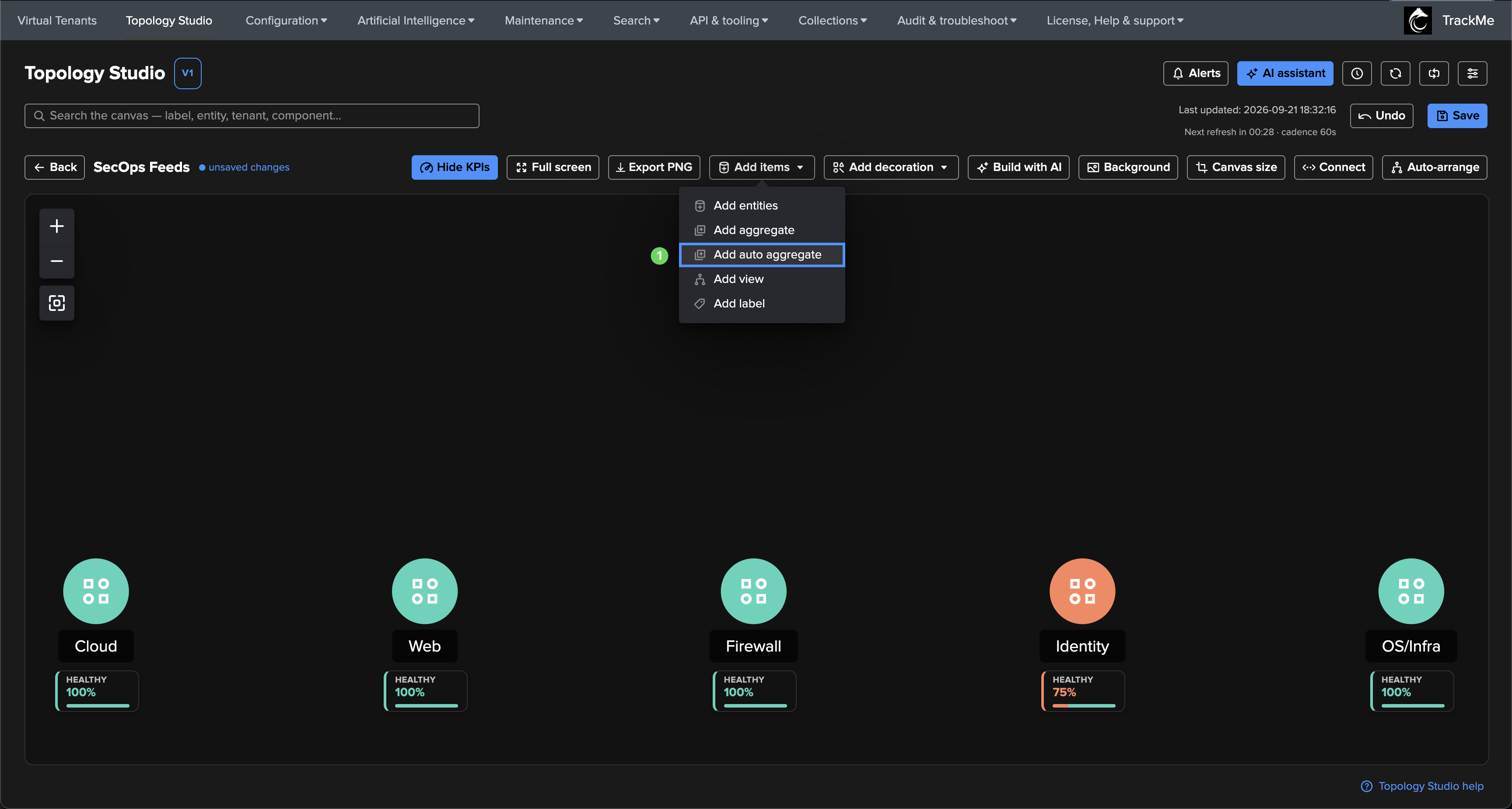
This example starts with five scoped aggregates: Cloud, Web, Firewall, Identity and OS/Infra. The parent will reflect these existing groups without repeating their filters.
Open a writable view and choose Add items → Add auto aggregate.
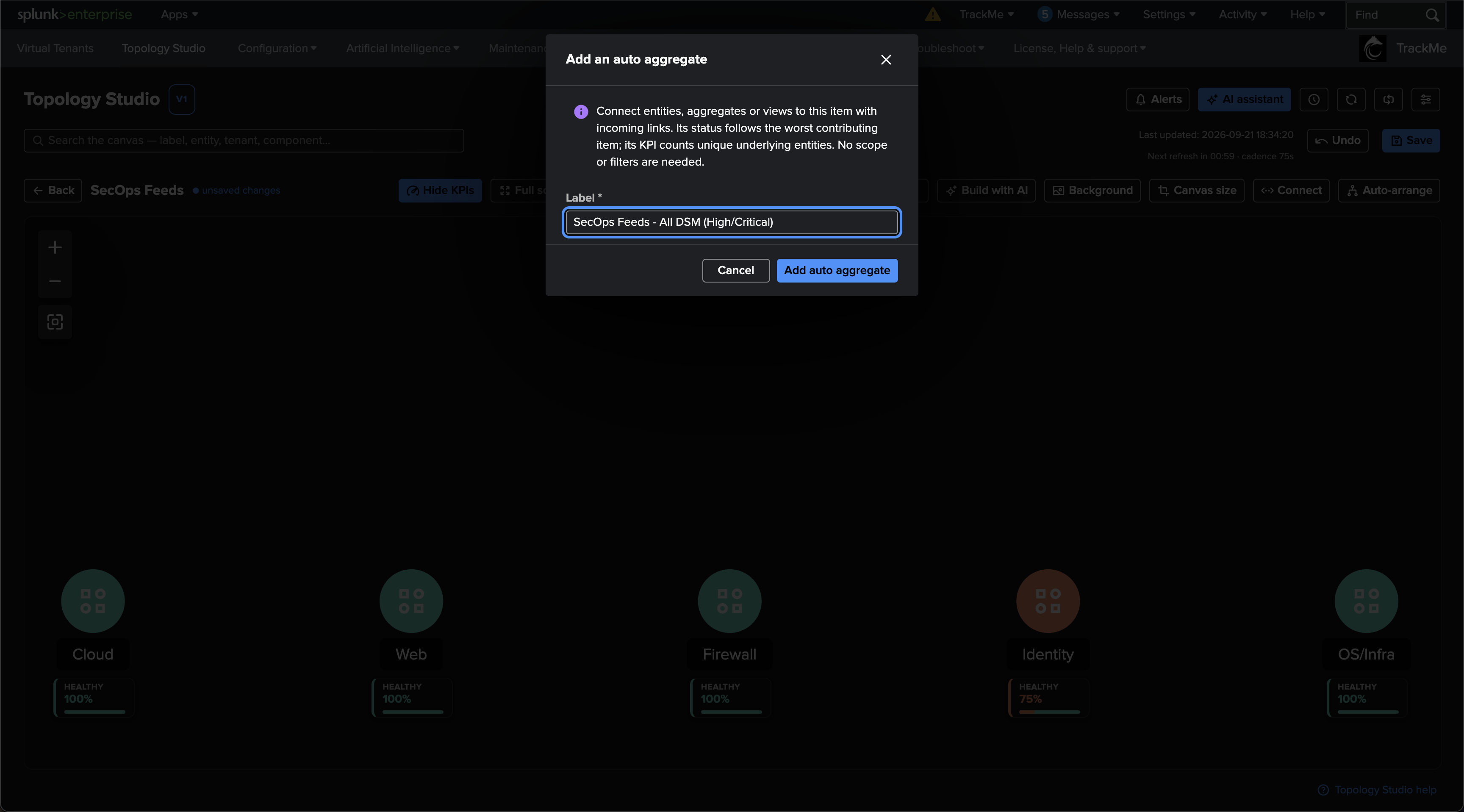
Enter a Label and click Add auto aggregate. No scope or filter is required.
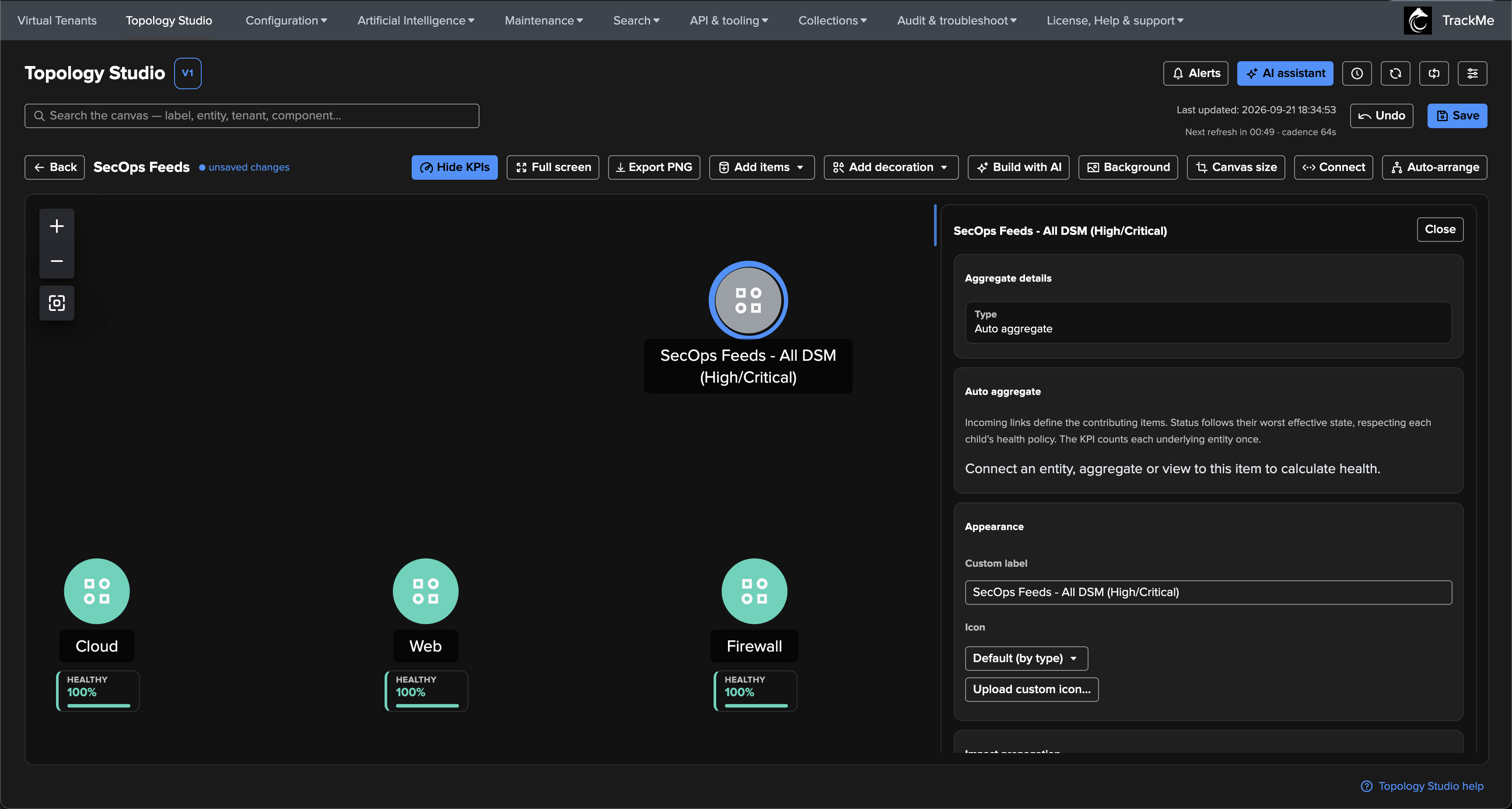
The new parent starts grey and unavailable until it has contributors. Selecting it opens the inspector, which identifies its type as Auto aggregate and asks you to connect an entity, aggregate or view to calculate health. Placing it above the children does not create membership by itself.
Connect the contributors
Click Connect in the toolbar.
Select a child first, then select the auto aggregate as the target.
Repeat for each contributor. Press Esc to leave connection mode.
Inspect the parent to confirm the intended contributors, then Save.
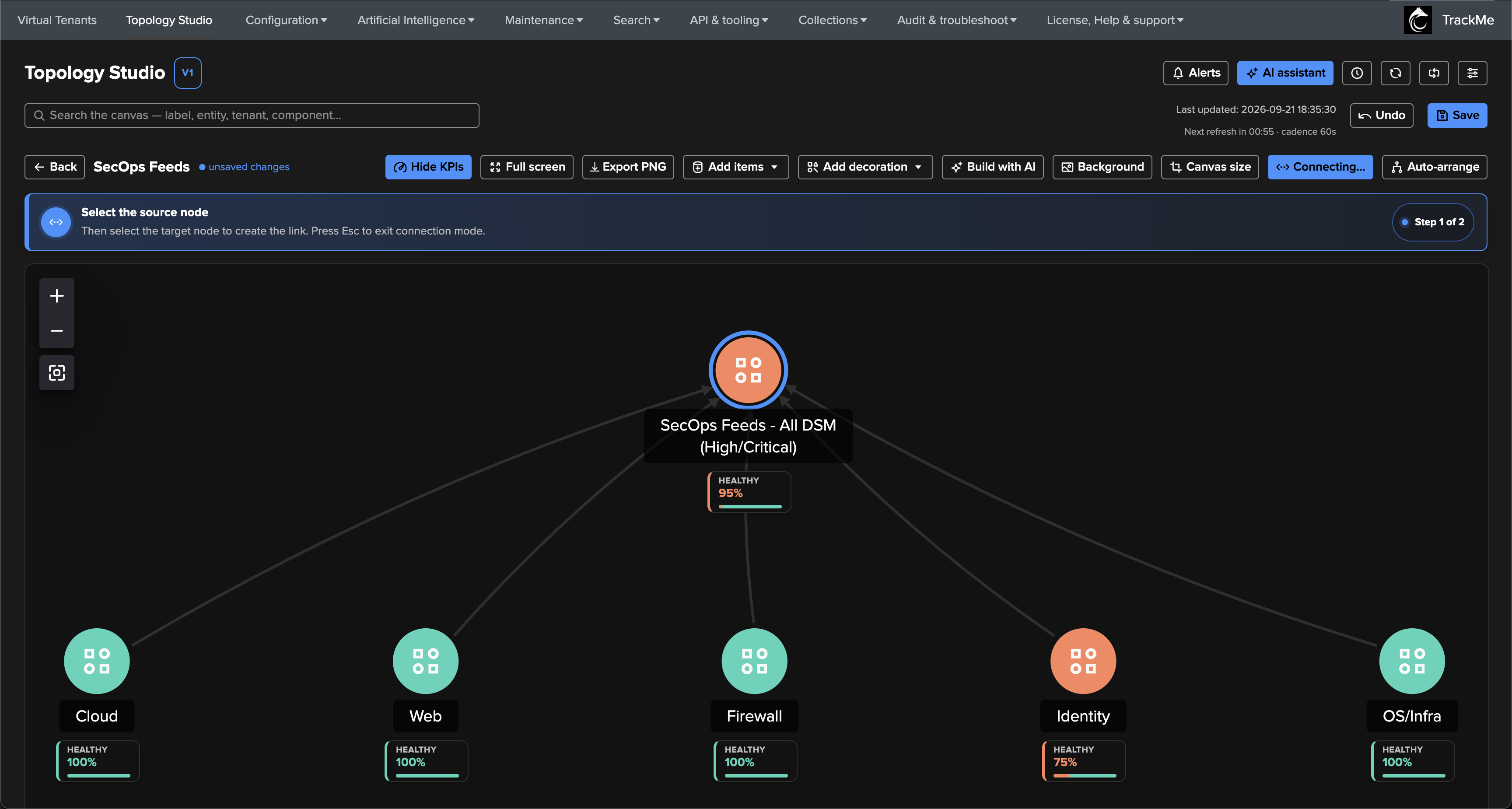
The arrows point child → parent, even when the parent is positioned above the children. In this example all five groups contribute, and the parent’s colour becomes orange because Identity is orange.
Connection rules
One way contributes from the stored source to the target. Reversing the endpoints changes which auto aggregate receives the contribution.
Bidirectional allows either endpoint to contribute to an auto aggregate at the other end, provided the result does not create a health feedback cycle.
No direction hides the arrowheads but retains the stored source-to-target relationship. It does not disable membership.
Multiple links to the same child count that child once. Labels and decorations do not contribute health.
Removing a link updates membership. Removing the last contributor leaves the parent unavailable rather than healthy.
Read the health and KPI
The inspector’s Auto aggregate section lists each contributor and its effective state. Select a contributor to focus its node and inspect it. Live status shows the combined state, entity count and distribution.
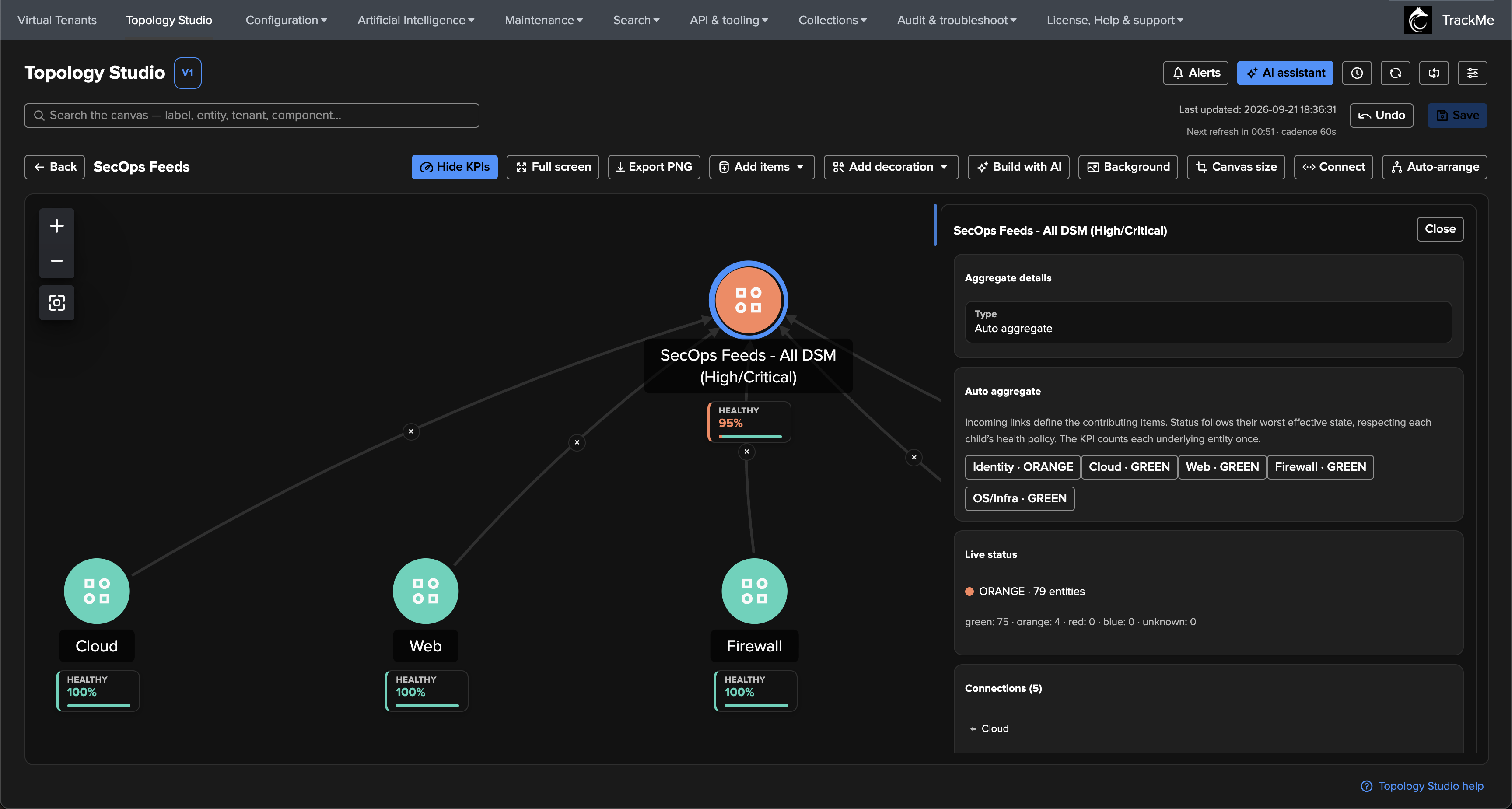
The parent colour and its healthy-entity percentage answer different questions:
Colour follows the worst effective child state, after each child’s own health policy and inherited impact. An orange child makes the parent orange even when most underlying entities are green.
Healthy entities counts the union of underlying entities, deduplicated across overlapping children. Green and protected blue entities count as healthy. It does not average child percentages or count each child as one entity.
In the capture, 75 of 79 entities are green and four are orange. The KPI therefore rounds to 95% healthy, while the parent remains orange. The percentage does not apply a new health threshold to the parent.
Important
Impact propagation is a separate control. A child contributes to an auto aggregate through its incoming connection even when Do not propagate is selected. Enabling propagation is not required for composition. Keep using the propagation control when the node should also affect other dependencies; the auto parent’s composed state can itself propagate downstream.
Convert an existing label
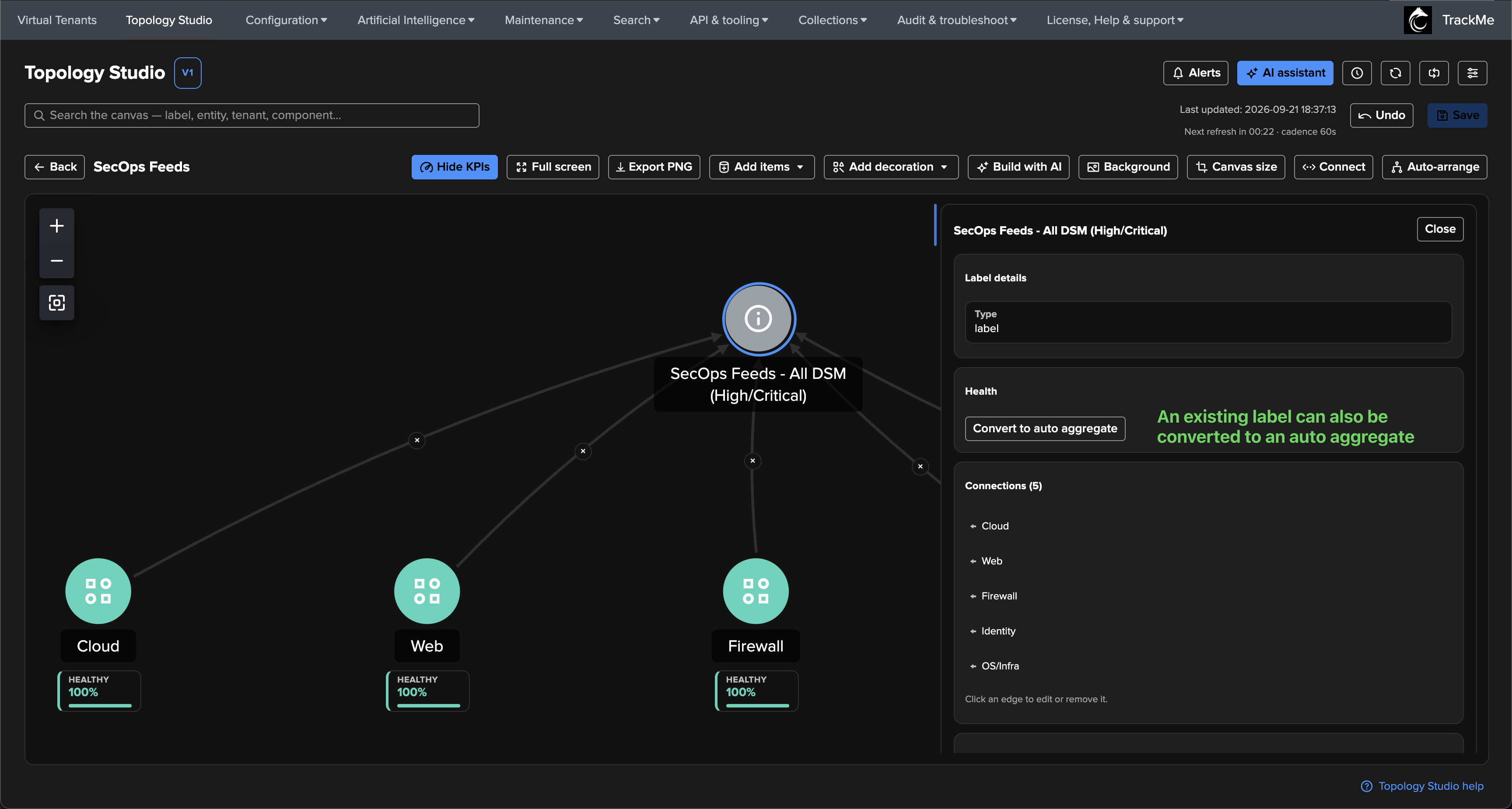
If a cosmetic label already sits above the right groups, select it and choose Health → Convert to auto aggregate in its inspector. Conversion preserves the node’s identity, position, icon and connections, and replaces its cosmetic colour with calculated health. Check that the links point towards the new parent, then Save. Undo can revert the conversion before saving.
Nesting, permissions and alerts
An auto aggregate can contribute to another auto aggregate. A graph supports up to 100 auto aggregates and 12 composition levels. Feedback involving auto membership or impact is rejected when saving, so a parent cannot depend on its own result.
Contributors must be readable and fully evaluable. Empty, missing, restricted, unknown, truncated or partially stale contributors make the parent unavailable; it never reports a healthy subset as a complete result. Repair the contributing node or referenced view when its data is incomplete. An auto parent does not grant access to its children’s tenants or views.
An auto aggregate is an alertable item in Topology Alerts. The canvas and alert evaluator use the same health rules, including dependency permissions and maintenance scope. Temporary unavailability freezes an existing alert rather than producing a false recovery. History, duplication, export and alert images retain the auto aggregate and its connections. Referenced views still need to exist on the destination when importing a map.
Generate or refine with AI
Both AI workflows understand auto aggregates. For example:
In Build with AI: “Create domain aggregates for these data sources and combine them under one auto aggregate, without duplicating their filters.”
When refining a draft: “Replace the root scoped aggregate with an auto aggregate fed by the existing children. Keep their policies and KPI settings.”
In the AI Assistant: “Convert this label into an auto aggregate and keep its incoming connections.”
Build with AI generates the child-to-parent links and validates the result; refinement preserves composition unless you ask to change it. Assistant edits use the existing confirmation flow. Review the contributors and live preview before saving the resulting view.